How to Automate Repetitive Tasks on Linux With Shell Scripts
Turn a task you repeat by hand into a script that is safe to run unattended, with logging, a lock, a dry run and a schedule, in one worked example.
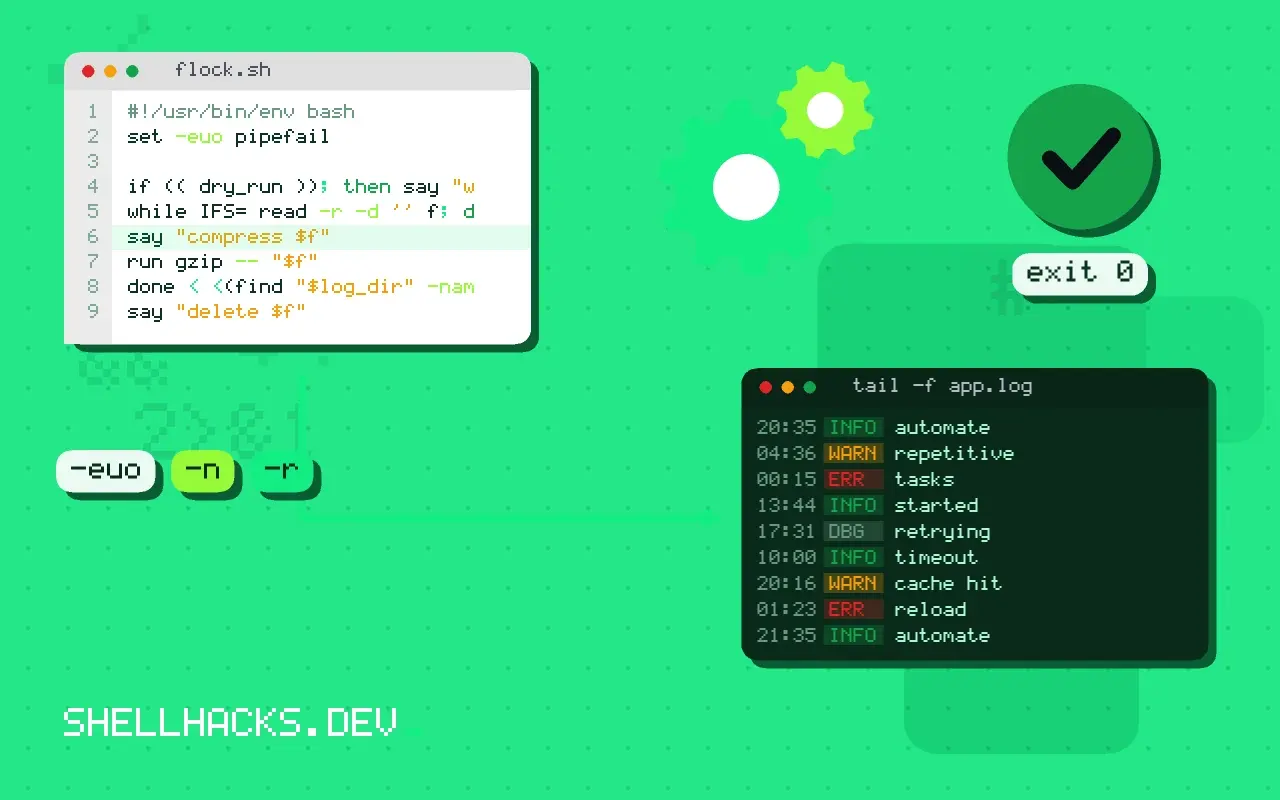
Automation fails at the handoff: the script works in your terminal and does nothing, or something worse, when cron runs it. The difference is not the commands. It is the environment, the overlap between runs, and the lack of anyone watching the output. This post builds one small script with those concerns handled, as the first step into automating recurring work with cron and systemd.
The example uses Bash 5.2, GNU coreutils 9.4 and util-linux 2.41 on Debian 13.
The task
Compress application logs older than seven days and delete archives older than ninety. Done by hand, it is a find and a gzip. As an unattended job it needs more.
#!/usr/bin/env bash
set -euo pipefail

log_dir="${LOG_DIR:-/var/log/myapp}"
dry_run=0
[[ "${1:-}" == "--dry-run" ]] && dry_run=1

say() { printf '%s %s\n' "$(date '+%F %T')" "$*"; }

# Only one copy at a time; a second one exits quietly.
exec 9>"/tmp/rotate-logs.lock"
flock -n 9 || { say "already running, skipping"; exit 0; }

[[ -d "$log_dir" ]] || { say "no such directory: $log_dir" >&2; exit 1; }

run() {
  if (( dry_run )); then say "would run: $*"; else "$@"; fi
}

while IFS= read -r -d '' f; do
  say "compress $f"
  run gzip -- "$f"
done < <(find "$log_dir" -name '*.log' -mtime +7 -print0)

while IFS= read -r -d '' f; do
  say "delete $f"
  run rm -- "$f"
done < <(find "$log_dir" -name '*.log.gz' -mtime +90 -print0)

say "done"
What each part is for
set -euo pipefailstops on the first error, on an unset variable and on a failure inside a pipe, so a broken run does not carry on and delete things.flock -n 9takes a non-blocking lock on file descriptor 9. If the previous run is still going, this one exits with status 0 and a message instead of piling up.runis a wrapper that either executes or just prints, which gives you a cheap--dry-runfor every destructive step.find ... -print0withread -d ''handles filenames with spaces and newlines.- Timestamps on every line mean the log is useful at three in the morning.
The script is safe to run twice: files already compressed do not match *.log again, and nothing happens when there is nothing to do. That property, idempotence, is what lets you rerun after a failure without thinking.
Test it like the scheduler will run it
./rotate-logs.sh --dry-run
env -i /bin/bash -c './rotate-logs.sh --dry-run'
The second form starts with an empty environment, which is close to what cron provides. If it fails there but not in your shell, the script relies on a variable or a PATH entry that cron will not have. The details are in cron environment and PATH.
Schedule it
LOG_DIR=/var/log/myapp
15 3 * * * /usr/local/bin/rotate-logs.sh >> /var/log/rotate-logs.out 2>&1
The five fields are minute, hour, day of month, month and day of week, as the cron syntax post explains. Redirecting both streams to a file means a failure leaves evidence. If you prefer systemd, a timer gives you the journal and Persistent=true for jobs missed while the machine was off; automating backups with a script and a timer shows the unit files.
Overlapping runs are the first unattended failure
A task that takes longer than its interval will start a second copy while the first is still running. Two log rotations on the same directory, two backups writing one archive, two importers reading the same file: each produces a corruption that never appears in a manual test, because manual tests run once. The cure is a lock the second copy can see. flock from util-linux takes an advisory lock on a file descriptor, and the kernel releases it when the process exits for any reason, including a crash, so a stale lock file cannot block the next run forever.
#!/usr/bin/env bash
exec 9>/tmp/job.lock
flock -n 9 || { echo "already running, exiting" >&2; exit 0; }
echo "got the lock"
sleep 2./job.sh &
sleep 0.5
./job.sh
waitgot the lock
already running, exiting
The exec 9>file line opens descriptor 9 on the lock file for the life of the script, and flock -n 9 tries to lock it without waiting. The second copy fails immediately and exits with status 0, which tells a scheduler that nothing went wrong. Choose the exit status deliberately: use 0 if skipping a run is harmless, and a non-zero value if you want the monitoring to notice that runs are colliding.
Make failure visible and loud once
An unattended script has no terminal, so its errors have to go somewhere a person will read. The reliable options are the system journal and a mail or webhook for failures. logger writes a line to syslog or the journal with a tag, so journalctl -t rotate-logs shows the history of one job. Send the final status of each run to the log, and alert only on a non-zero status, since an alert on every success is noise that trains people to ignore it.
log() { logger -t rotate-logs "$*"; echo "$(date +%T) $*"; }
trap 'log "failed at line $LINENO with status $?"' ERR
log "starting"
The ERR trap fires when a command fails under set -e, and LINENO reports where. Cron mails any output from a job to the user, so a script that is quiet when it succeeds and prints one line when it fails gives you exactly the alerting you want without extra tools.
Idempotence: running it twice must be safe
A scheduled task will eventually run twice, because a machine rebooted mid-job, because someone ran it by hand while it was already scheduled, or because a timer caught up after downtime. Design for it. Rotation that moves a file only if it exists, a backup that writes to a temporary name and renames on success, and an import that records what it has processed are all idempotent. A script that appends to a file on every run, or deletes the oldest of a fixed number of items without counting, is not. When you are unsure, run the script twice in a row in a scratch directory and compare the results. If the second run changes anything, decide whether that was intended.
Run it for a week before you trust it
A script that passed every manual test can still fail on the fourth night, when the disk is nearly full or the log directory holds a file with a strange name. Schedule it, but start in a mode that only reports: log what it would have done, and read the log each morning for a week. When the reported actions match what you would have done by hand every day, switch it to act. Keep the dry-run flag in the script permanently, since the next change to it deserves the same careful first run. Write the schedule, the owner and the log location into a short comment at the top of the file, so that whoever finds it in two years knows what it is for and who to ask.
When not to automate it
If the task needs judgment each time, such as deciding which of two conflicting files wins, automate the gathering and leave the decision to a person. If the task already exists as a tool, such as logrotate for this exact job, use the tool; this example is for the cases where no tool fits. The flock man page and the find manual document the pieces used here.