How to Use Btrfs Snapshots on Linux With a Worked Example
Create, list, roll back and delete Btrfs snapshots on Linux with subvolumes, read-only copies, send and receive, and the space accounting that surprises.
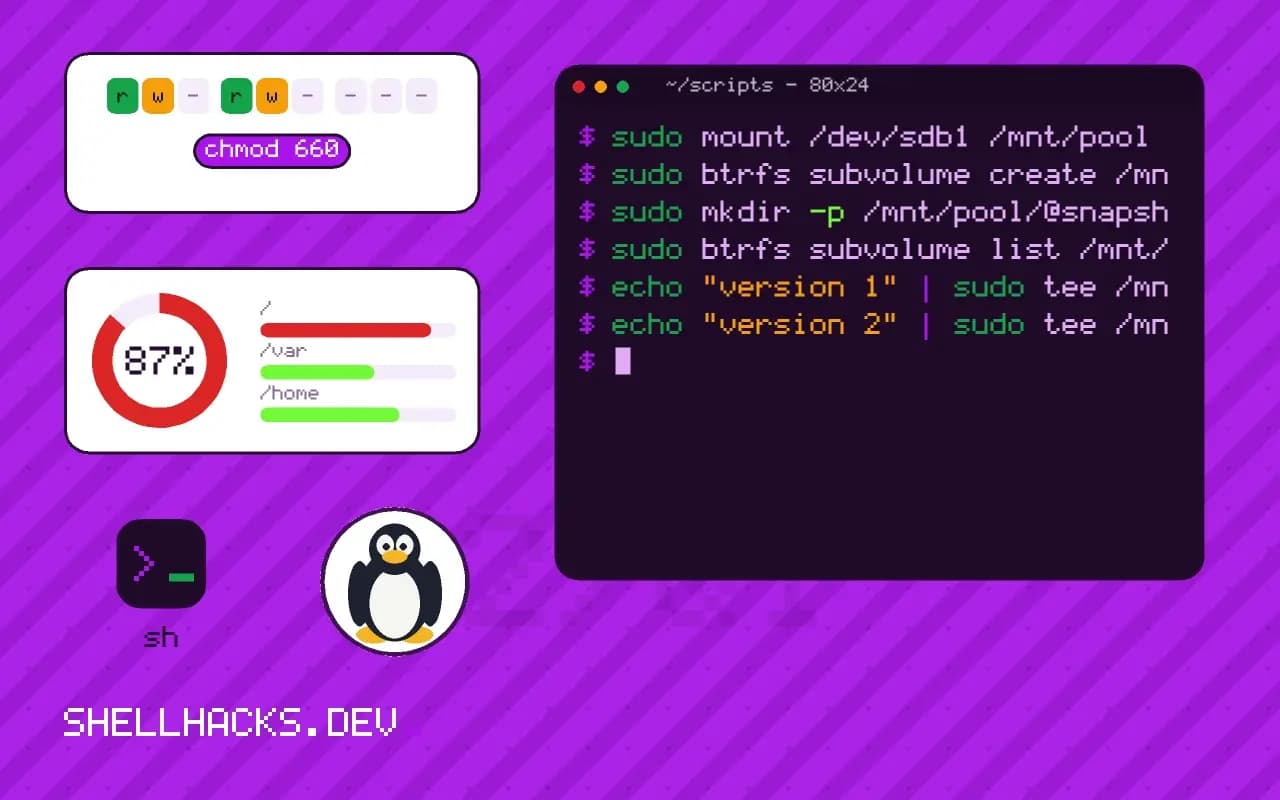
The strongest reason to choose Btrfs is the snapshot: a point-in-time view of a directory that takes a fraction of a second and almost no space. It makes risky changes reversible. The comparison with other file systems is in ext4 versus XFS versus Btrfs, and the commands assume btrfs-progs 6.x on Linux 6.x.
Set up a subvolume
sudo mkfs.btrfs -L data /dev/sdb1
sudo mount /dev/sdb1 /mnt/pool
sudo btrfs subvolume create /mnt/pool/@data
sudo mkdir -p /mnt/pool/@snapshots
sudo btrfs subvolume list /mnt/poolID 256 gen 8 top level 5 path @data
ID 257 gen 9 top level 5 path @snapshots
A snapshot needs a subvolume as its source, which is why the data lives in @data and not in the root of the pool. Keeping snapshots in a sibling subvolume stops them from nesting inside the thing they copy. The @ prefix is a convention, not a rule.
Take, use and delete a snapshot
echo "version 1" | sudo tee /mnt/pool/@data/notes.txt
sudo btrfs subvolume snapshot -r /mnt/pool/@data /mnt/pool/@snapshots/before-change
echo "version 2" | sudo tee /mnt/pool/@data/notes.txt
cat /mnt/pool/@snapshots/before-change/notes.txtversion 1
The snapshot still shows the old content. Delete one with sudo btrfs subvolume delete /mnt/pool/@snapshots/before-change. Read-only snapshots are the safe default for backups, and writable ones (without -r) suit testing a change on a copy.
Roll back
sudo btrfs subvolume delete /mnt/pool/@data
sudo btrfs subvolume snapshot /mnt/pool/@snapshots/before-change /mnt/pool/@data
Rolling back means replacing the subvolume with a writable snapshot of the good state. Unmount or stop anything using the data first. For a root file system, distribution tools such as Snapper or Timeshift automate snapshot creation before package upgrades and can restore from the boot menu, which is the practical way to use it day to day.
Copy snapshots to another disk
sudo btrfs send /mnt/pool/@snapshots/monday | sudo btrfs receive /mnt/backup/
sudo btrfs send -p /mnt/pool/@snapshots/monday /mnt/pool/@snapshots/tuesday \
  | sudo btrfs receive /mnt/backup/
A snapshot on the same disk does not survive the disk. send streams the snapshot, and with -p sends only the changes since a parent, so the second run is small. Both snapshots must be read-only. Pipe it over SSH for a remote target, as in running remote commands over SSH. This combines well with the strategy in disk backups.
How a snapshot works on Btrfs
Btrfs uses copy-on-write: when a block changes, the new version is written elsewhere and the metadata is updated to point at it. A snapshot is a new subvolume that shares all of its extents with the original at the moment it is taken. It consumes almost no space at creation and takes effectively constant time whatever the size of the data. Space is used only as the original and the snapshot diverge, because changed blocks are stored once for each side while unchanged blocks remain shared.
This has practical consequences. Deleting files from a subvolume that has snapshots does not free their space until every snapshot that references them is gone. Disk usage reported by df is therefore misleading on Btrfs; use btrfs filesystem usage and btrfs filesystem du to see shared and exclusive figures. A volume that seems to be filling up for no reason often has an old snapshot holding large deleted files.
Read-only snapshots and consistency
Take snapshots with -r to make them read-only. A read-only snapshot cannot be altered by accident, and it is required as the source for btrfs send. For a consistent backup of a database or a virtual machine image, a snapshot is a point-in-time view of the file system, but the application may have had unflushed data in memory at that moment. Ask the application to flush or pause briefly, take the snapshot, then resume. A snapshot of a quiet system is consistent; a snapshot of a busy database without coordination is only crash-consistent, which is the same state as after a power failure.
Snapshots are not backups. They live on the same device as the data, so they protect against deletion and bad changes but not against disk failure, file system corruption or theft. Replicating them to another device, as shown later in this post, is what turns them into a backup.
Automating and pruning
A snapshot per hour for a day and per day for a month gives useful recovery points at a small cost, provided old ones are removed. Tools such as snapper and btrbk automate the schedule and the pruning policy, and both integrate with systemd timers. If you write your own, name snapshots with a sortable UTC timestamp, such as 2026-11-03T0900Z, so that pruning logic can sort by name. Delete the oldest first and never delete the snapshot that the most recent send used as its parent, or the next incremental transfer will fall back to a full copy.
Deleting a large snapshot returns space asynchronously, so free space may not rise immediately after btrfs subvolume delete. Add --commit-after if a script needs the space back before continuing.
Limits and care
A snapshot does not descend into nested subvolumes: they appear as empty directories, so a layout with many nested subvolumes needs a snapshot of each. Plan the subvolume layout early, with separate subvolumes for data that should be snapshotted independently, such as the home directory, and for data that should not, such as caches and container storage. Quotas help control usage but add overhead, and heavy snapshot counts slow down some operations such as quota accounting and balance. Keep the count in the tens or low hundreds per volume, not thousands, and monitor free space on both data and metadata, since a full metadata allocation produces out-of-space errors even when df shows room.
Practise a restore before an emergency. Create a snapshot, delete a directory in the original, and bring the files back from the snapshot with cp --reflink=always, which copies without duplicating blocks. Do the same with a rollback of a whole subvolume by moving the broken one aside and snapshotting the good one into its place. Writing the commands down while the situation is calm saves time when it is not.
Keep in mind that a rollback of the root subvolume changes what the system boots into, so verify the default subvolume setting and the bootloader entries first. On distributions that integrate snapshots with the bootloader, use their tooling instead of doing this by hand.
Where this does not apply
Space reports confuse people: df is approximate on Btrfs, and sudo btrfs filesystem usage /mnt/pool is the accurate view. Deleting a large file does not free blocks while a snapshot holds them, so a nearly full disk with old snapshots needs them pruned first. Snapshots of databases and virtual machine images grow fast because of copy-on-write, so exclude them or turn on chattr +C for those directories. The Btrfs subvolume documentation and the send and receive page cover the rest.