How to Add a Dry Run Mode to a Shell Script Step by Step
Add a dry run mode to a shell script: a DRY_RUN flag, a run wrapper that prints instead of executing, safe handling of redirects and pipes, and its limits.
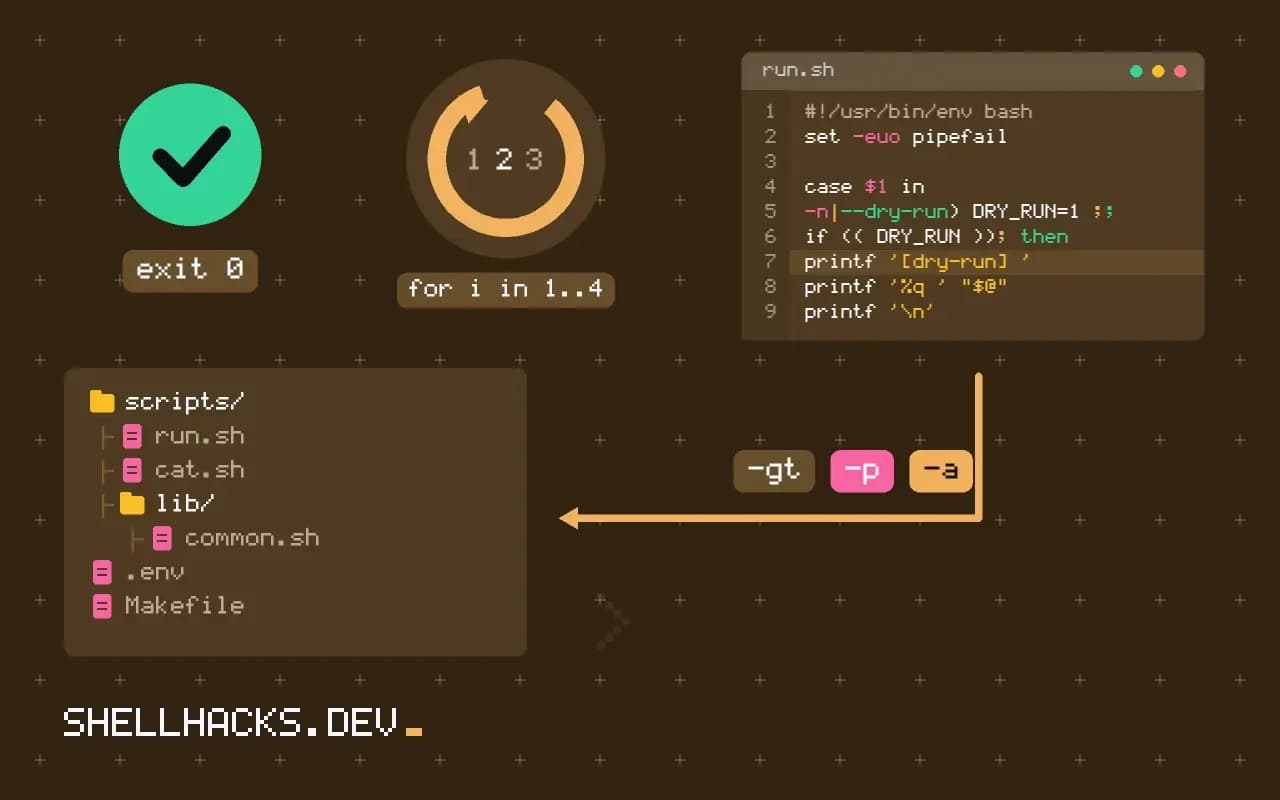
The most useful safety feature in a destructive script costs about ten lines. A dry run lets an operator see what would happen before it does, and it makes the script easier to review and test. It pairs with idempotent scripts and the examples assume Bash 5.2.
The flag and the wrapper
#!/usr/bin/env bash
DRY_RUN=0
while [[ $# -gt 0 ]]; do
  case $1 in
    -n|--dry-run) DRY_RUN=1 ;;
    *) break ;;
  esac
  shift
done

run() {
  if (( DRY_RUN )); then
    printf '[dry-run] '
    printf '%q ' "$@"
    printf '\n'
  else
    "$@"
  fi
}

run mkdir -p /srv/app/releases
run cp -a build/. /srv/app/releases/20261103/
run ln -sfn /srv/app/releases/20261103 /srv/app/current[dry-run] mkdir -p /srv/app/releases
[dry-run] cp -a build/. /srv/app/releases/20261103/
[dry-run] ln -sfn /srv/app/releases/20261103 /srv/app/current
printf '%q' quotes each argument so the printed line is valid shell, including names with spaces. The wrapper receives the command and its arguments as separate words, which keeps quoting intact when it runs for real.
Redirects and pipes
write_file() {
  local path=$1
  if (( DRY_RUN )); then
    echo "[dry-run] would write $path"
    cat >/dev/null
  else
    cat > "$path"
  fi
}

printf 'port=8080\n' | write_file /etc/app/app.conf
A redirect belongs to the shell, not to the command, so run echo x > file truncates the file even in a dry run. Move the write into a function like the one above that consumes its input and skips the output. The same applies to pipelines: the wrapper sees only the first command, so wrap each stage or use a function for the whole pipeline.
Decide what still runs
Reads should happen in both modes: listing the files to delete, querying the database for the rows to remove, or resolving a version number. Without them the preview shows empty loops. Mark the boundary clearly, and print counts such as "would delete 42 files" so a quick scan tells the operator whether the scale is right. For deletes, print the full list under a flag like --verbose; see verbose and quiet flags.
Make it the default for dangerous scripts
For a script that deletes data, invert the logic: the default is a dry run and a flag such as --apply performs the work. The tools rsync --dry-run, git clean -n and make -n follow the same idea. Forwarding the flag is worth it: run rsync -a ${DRY_RUN:+--dry-run} src/ dest/ lets the underlying tool compute the preview, which is more accurate than any print you write. Read the rsync manual page for its dry run semantics.
What makes a dry run trustworthy
A preview is only useful if the real run matches it. The way to keep them aligned is to have exactly one code path. The script builds a list of actions, and a single function either prints each action or performs it. When the dry-run flag only skips the final step, the preview and the execution share all the logic that decides what to do, and the two cannot drift apart. The common failure is a script that has a separate branch for preview, with its own text and its own decisions, which is correct on the day it is written and wrong after the third change.
Put the flag at the boundary where changes happen. Read-only decisions, such as which files are older than thirty days, run in both modes. Mutating operations, such as rm, mv, a database update or an API call, go through the wrapper. Review the script by searching for every mutating command and confirming that each one passes through the wrapper. A single direct rm in a helper function is exactly the line that deletes real data during a run everyone believed was safe.
Previewing the effect, not only the commands
Printing commands is the minimum. A better preview describes the result: how many files will be removed, how many bytes that frees, which services will restart. Counting is cheap and catches the large mistakes at once, because an operator who expected fifty files and sees fifty thousand stops. Show a sample of the affected items, the first and last few, and the total. For irreversible operations, add a confirmation step for the real run that repeats the count and asks the operator to type it or a keyword, so the action cannot be taken by habit.
Where the underlying tool has its own preview, forward the flag. Tools such as rsync -n, git clean -n, apt-get -s and terraform plan compute the effect with full knowledge of the current state, which a script cannot match. Prefer them to your own simulation, and pass their output through to the operator unchanged.
Testing and logging
Write one test that runs the script in dry-run mode against a temporary directory and asserts that nothing changed, then one that runs it for real and asserts the expected state. The first guards the safety property, and it is worth running on every commit. Record the mode in the log header of every run, so that the log of a real run is distinguishable from the log of a preview, and a later reader does not mistake one for the other.
Consider making the preview the output of a separate command that writes a plan file, with the real run consuming that file. The operator reviews the plan, possibly with a colleague, and the run applies exactly that plan, even if the system changed in the meantime. This is the model used by infrastructure tools, and it removes the gap between what was reviewed and what was done.
Interaction with other safety options
A preview flag works best beside the other options that make a script safe to operate. Pair it with a lock so that two runs cannot overlap, with a log file that records what was done, and with strict mode so a failed step stops the sequence. The combination answers the questions an operator asks before pressing enter: what will this touch, can anything else be running, and whether the record afterwards will show what happened. When all three answers are visible in the first screen of output, people use the tool carefully and without hesitation.
Think about exit codes as well. A dry run that would have failed on the real run should say so, but a dry run cannot know every failure. Return zero when the preview completes and print a clear closing line, "dry run complete, nothing changed", so the operator can tell it from a real run at a glance. Some teams colour the dry-run prefix or add a banner at the top, which costs nothing and prevents the mistake of believing a real run was a rehearsal.
Document the flag in the script's usage text and in the README, and show the preview of the most dangerous operation as an example. People discover safety features when they are visible in the help output, not when they are hidden in the source.
Where this does not apply
A dry run cannot predict failures that depend on state at execution time: a full disk, a lock held by another process or a permission change. It also cannot preview commands whose result feeds the next step, such as a created ID that later commands use. Treat it as a review aid, not a guarantee. The printf entry in the Bash manual documents %q.
Test the wrapper itself. Run the script with the flag set and assert that no file under the target directory changed, for example by listing the directory before and after. A dry run that quietly performs one write is worse than none, because the operator trusts it. Review every line of the script for a command that bypasses run, and treat that as a bug. Read-only helper commands such as find or stat are the only exceptions. The verbose flag post shows how to combine the two switches cleanly.