How to Use man Alternatives Like tldr and cheat sh
Find command examples fast with tldr and cheat.sh instead of man pages: install a client, update the cache, privacy notes and when to read the manual.
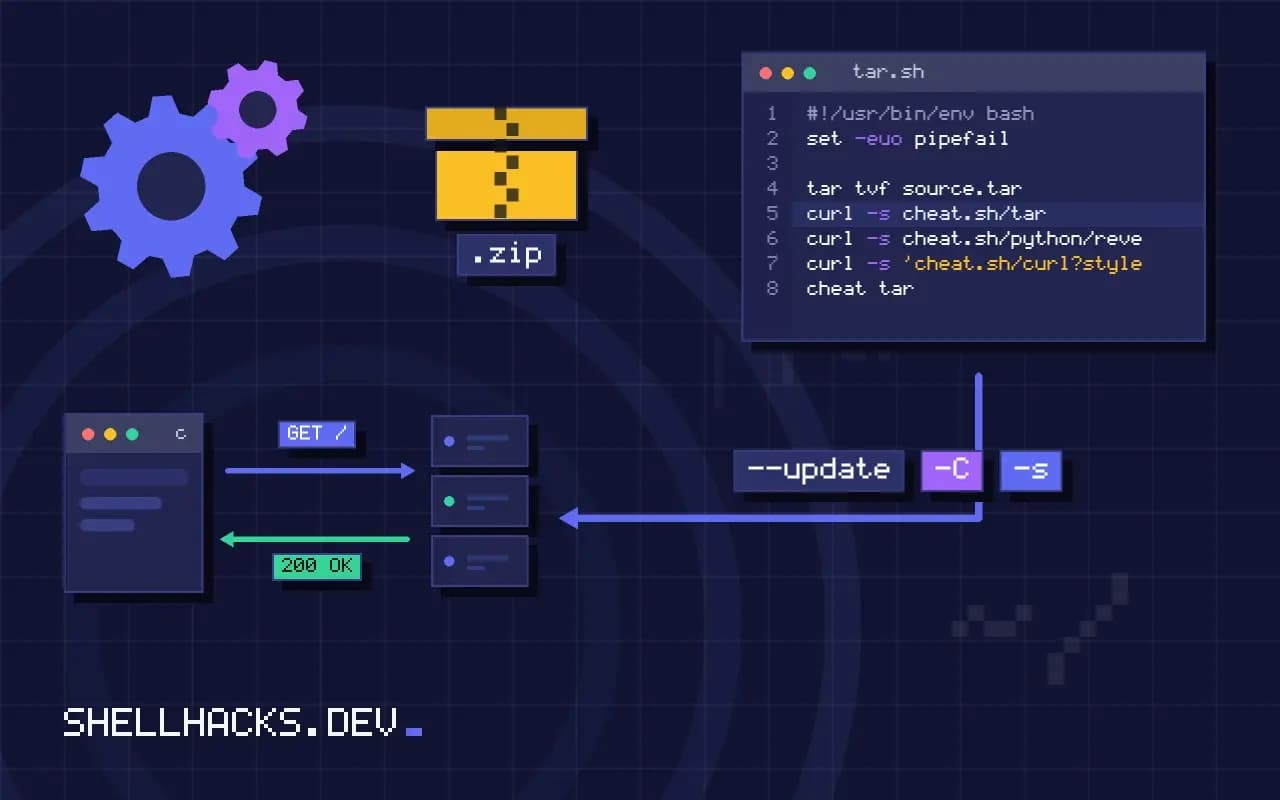
A man page is complete and, for a tool like tar or find, longer than the problem you came to solve. Most of the time you want the five lines that cover the common cases, not the manual. Two projects collect those lines: tldr pages and cheat.sh. They solve the same problem with different trade-offs in privacy, offline use and trust. This post shows both, then says when to go back to the manual. It complements finding commands and commands for developers.
tldr
sudo apt install tealdeer
tldr --update
tldr tartar
Archiving utility. Often combined with a compression method, such as gzip or bzip2.
- Create an archive and write it to a file:
tar cf target.tar file1 file2 file3
- Extract an archive in a target directory:
tar xf source.tar -C directory
- List the contents of a tar file:
tar tvf source.tar
tldr pages are a community project: one Markdown page per command, with a one-line description and a few examples, each with a sentence saying what it does. A client downloads the pages once into a cache, after which it works offline and instantly. Several clients exist (the Rust one in the Debian package tealdeer, a Python one from pip, a Node one, a web client at tldr.sh), with the same pages and nearly the same output. Pages are grouped by platform (common, linux, osx), and tldr -p linux find picks one. Add placeholders in braces, so {{file}} marks what you replace.
cheat.sh
curl -s cheat.sh/tar
curl -s cheat.sh/python/reverse+a+list
curl -s 'cheat.sh/curl?style=bw'
cheat.sh is a web service that merges several sources, including tldr, community cheat sheets and Stack Overflow answers, and returns plain text that a terminal can show. It handles programming-language questions that tldr does not (cheat.sh/python/reverse+a+list), and needs no installation, which is useful on a machine where you cannot add packages. The cost: every query goes to a third-party server, so what you search for is visible to the operator and to anyone on the path if you use plain HTTP. Do not look up internal host names, project names or paths in it, and prefer HTTPS. It also needs the network and depends on the service staying up.
Offline and local
cheat tar
navi
man -k archive
apropos -s 1 compress
The cheat tool keeps cheat sheets as plain files you edit, which makes it a good place for your own notes and team commands. navi is an interactive cheat sheet browser that fills in parameters. apropos (or man -k) searches the descriptions of installed man pages when you do not know the command name; the section filter -s 1 restricts it to user commands.
Trust, but verify
Examples are written by volunteers and are not reviewed by the tool's authors. Most are right and a few are outdated or subtly wrong; flags change between GNU and BSD versions, and an example from one platform can fail or do something different on another. Before running a command you do not understand, especially one that deletes, overwrites or uses sudo, check the options with man tool or tool --help. A pattern such as curl ... | sudo bash in a cheat sheet is a reason to stop, not to copy; see curl pipe bash risk.
Reading the manual faster
man tar | less +/'^ +-x'
man -f tar
tar --help | less
Inside man, press / to search and n to repeat, and g and G to jump to the top and bottom. A search for an option at the start of a line finds its definition. The skill of reading the options section pays off when an example does not fit your case.
Where this does not apply
For a tool with a subcommand structure such as git or docker, the tool's own help is often better: git help commit, docker run --help. Brand-new or niche tools may have no tldr page. When the example you need is an uncommon combination of flags, the manual is the answer. In locked-down environments without internet, a local cache of the pages is the only choice of the three.
What tldr pages are and what they leave out
The tldr project is a community-maintained collection of short pages for common commands, each showing the handful of examples that cover most uses, with a plain sentence describing each. Where a man page is a complete reference organized for looking up an exact option, a tldr page is organized for the common question of how to use a command in the usual way, and answers it in a few lines. That is the right tool when you know what the command is for and have forgotten the flag order, such as the options to extract a tar archive. It is the wrong tool for understanding a command thoroughly, for unusual options and for exact behavior, since by design it omits nearly everything. A page also reflects the opinion of its contributors about what is common, and may show the GNU form on a page you read on macOS, where the BSD tool behaves differently, so a command that works in the example can still fail on your system with an error about an unknown option.
Clients exist in several languages. The Rust one, tealdeer, is fast and has no runtime dependency, and the pages are cached locally and updated on request, so after the first download they work offline.
cheat.sh and sending queries to a third party
The cheat.sh service answers requests such as curl cheat.sh/tar with a colored cheat sheet, and can combine several sources, including tldr and community answers. It needs no installation, which is its charm, and it works from any machine with curl. Be aware of what you do when you use it. Each request sends the command name, and sometimes a longer question, to a server you do not control, which is harmless for tar and not for a query that includes a host name or an internal tool name. The content is also fetched from the network and printed in your terminal, and anything you then paste into a shell is code that you are trusting a remote source to have written correctly. For occasional lookups on a machine you would not install anything on, that trade is fine. For regular use, prefer an offline tool with a local cache, where you know what you are reading and nothing leaves your machine.
Escape sequences in returned text can also affect a terminal. A response from a service you do not control can contain control characters, so pipe it through cat -v if you doubt the source.
Verifying before you run anything
The habit that matters most with any short example, from any source, is to check it before you run it, especially when it deletes, overwrites or changes permissions. Read the command and each option. Ask what the manual says: man tar then / to search for an option takes seconds, and command --help prints a concise usage in most cases. Run a harmless version first, with a dry-run option or on a test directory, and be suspicious of examples that start with sudo or pipe a download into a shell. Pages go stale, and an example that was correct for an old version of a tool may use a removed flag or behave differently now, so look at the version on your system. The manual remains the authority, and learning to read it quickly pays off: use man -k keyword or apropos to find a page by topic, section numbers to pick the right one, as with man 5 crontab for the file format, and the search and navigation keys of less to jump to an option.
See the tldr pages project and cheat.sh.