How to Use basename and dirname in Scripts With Real Output
Use basename and dirname to split a path into file name and directory, strip suffixes, handle trailing slashes, and compare them with parameter expansion.
Scripts constantly need the file name without its directory, or the directory without the file name. basename and dirname are the standard tools, defined by POSIX, and they work purely on the text of the path without touching the filesystem. The output below comes from GNU coreutils 9.4; when a path must be resolved against real files, use realpath and readlink instead.
The two commands
path=/var/log/nginx/access.log.1
basename "$path"
dirname "$path"access.log.1
/var/log/nginx
With no slash in the argument, dirname prints ., the current directory, which is the right answer for a bare file name. A path of / gives / for both commands. Always quote the argument, since paths with spaces are common, as discussed in filenames with spaces and special characters.
Strip a suffix
basename /backups/db-2026-11-03.sql.gz .gz
basename -s .gz /backups/db-2026-11-03.sql.gzdb-2026-11-03.sql
db-2026-11-03.sql
Only the suffix you name is removed, so .sql.gz loses just .gz. The -s form is a GNU and BSD extension that also accepts several paths at once, as in basename -s .txt a.txt b.txt; the two-argument form is the portable one and takes exactly one path. If the whole name equals the suffix, nothing is removed.
Trailing slashes and odd input
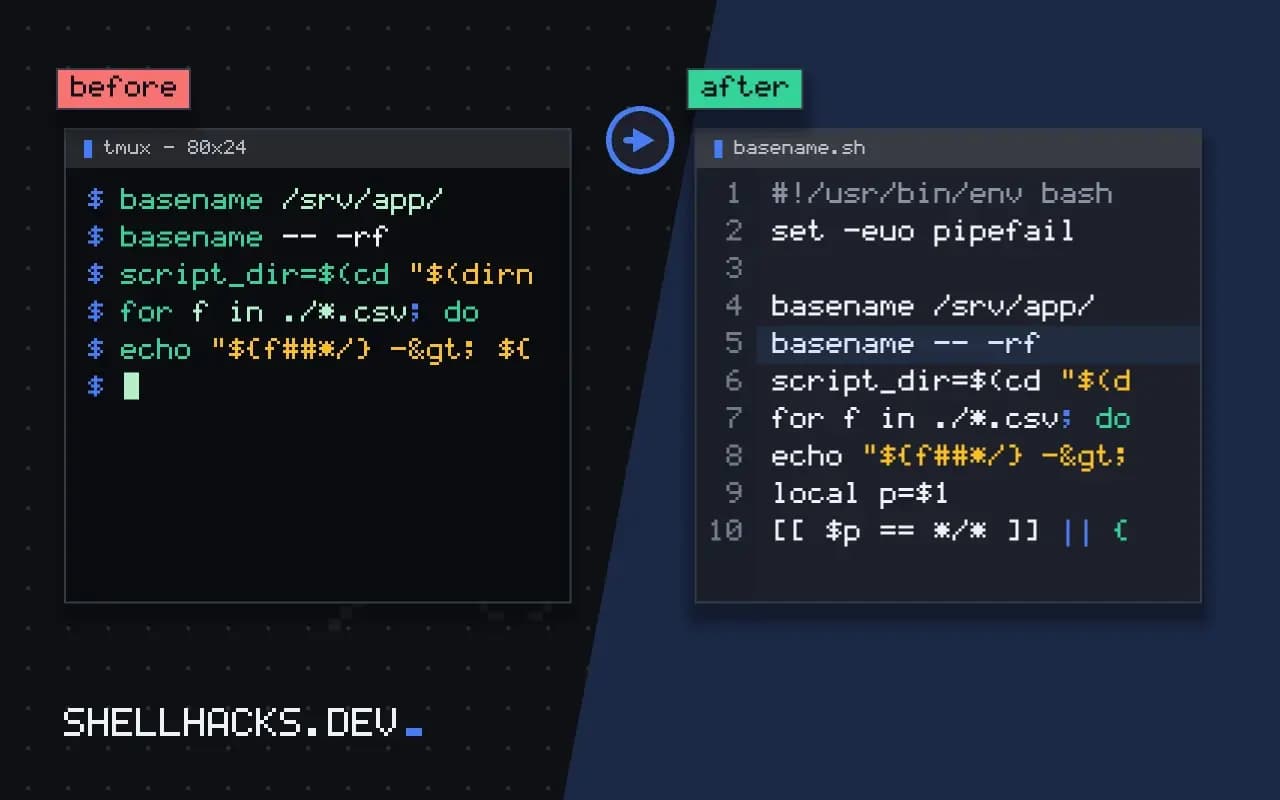
dirname /srv/app/
basename /srv/app/
basename -- -rf/srv
app
-rf
Trailing slashes are removed before the split, which differs from naive string cutting. A name that starts with a dash is read as an option unless you add --, the same rule explained in validating input in shell scripts.
Script location and loops
script_dir=$(cd "$(dirname "${BASH_SOURCE[0]}")" && pwd)
for f in ./*.csv; do
  echo "${f##*/} -> ${f%.csv}.json"
done
The first line is the usual way to find the directory holding the running script, discussed in finding a script's directory. Inside the loop, parameter expansion does the work without a process: ${f##*/} removes the longest prefix ending in a slash, and ${f%.csv} removes the shortest matching suffix. Forking basename once per file costs a few milliseconds each, which matters over thousands of files; see removing prefixes and suffixes.
Pure string work, with consequences
Both commands operate on text. They never check that the path exists, never resolve symbolic links, and never turn a relative path into an absolute one. That makes them predictable and fast, and it means dirname ../x prints .. whether or not the parent directory exists. When the real location matters, resolve first with realpath or readlink -f and then split, because a symlink in the middle of a path changes where "the directory of this file" really is. A script installed through a symlink in /usr/local/bin reports the symlink's directory with dirname "$0", not the directory of the file it points at, so a script that looks for sibling files breaks when installed that way. Resolving with readlink -f "${BASH_SOURCE[0]}" before taking the directory fixes it on Linux; macOS gained readlink -f only recently, and older releases need realpath from coreutils or a small function.
Cost and alternatives
Each call is a new process. In a loop over a few files that is invisible, and over a hundred thousand it adds seconds, so the parameter expansion forms are preferred inside loops. ${f##*/} is the base name, ${f%/*} is the directory part, and ${f%.*} removes the last extension. They run inside the shell with no fork. The commands remain the right tool when the argument has trailing slashes or may lack a slash, and when the code should read clearly to someone who does not know the expansion syntax by heart.
A short wrapper keeps the edge cases in one place. A function that returns the directory with the right behaviour for a bare name and for the root is easier to trust than the expansion pasted in forty places.
dir_of() {
  local p=$1
  [[ $p == */* ]] || { printf '.\n'; return; }
  p=${p%/*}
  printf '%s\n' "${p:-/}"
}
dir_of /file      # /
dir_of file       # .
dir_of /a/b/c.txt # /a/b
Extensions and multi-part names
File names such as archive.tar.gz have two extensions, and removing "the extension" is ambiguous. ${f%.*} removes only .gz, and ${f%%.*} removes everything from the first dot, which also eats dots in the base name, as in v1.2-release.tar.gz. Be explicit: strip the known suffix you expect, ${f%.tar.gz}, and treat names that do not carry it as an error. Hidden files add one more case, since .bashrc has no extension and a naive split would produce an empty base name.
Using the results in other commands
Names built from these pieces often feed commands that create files, so quote them and guard against a leading dash. A pattern like out="$dir/$(basename "$f" .csv).json" is typical, and the double quotes around the inner substitution keep a name with spaces in one piece. When writing next to the source file, make sure the directory is writable first, and prefer a separate output directory so a rerun does not pick up its own results as inputs.
Behaviour on odd inputs
The commands follow rules from POSIX that are worth knowing because they differ from what string slicing suggests. Multiple trailing slashes are ignored, so basename a/b/// prints b. Repeated slashes in the middle are kept by some implementations and collapsed by others, so do not rely on either. An empty string gives . from dirname and an empty line from basename. A path that is only slashes gives / from both. Test a wrapper function against these inputs once, and record the results in comments, so that a future edit does not change the behaviour unnoticed.
Several paths at once are handled differently. GNU dirname accepts many arguments and prints one line for each, while the POSIX form takes one. Scripts meant for macOS or BusyBox should call it once per path in a loop. Using xargs -n1 dirname works on every platform, and a file list with NUL separators is safe with xargs -0 -n1.
Building paths back together
The opposite operation, joining a directory and a name, is easy to get wrong with a trailing slash. Writing "${dir%/}/$name" removes at most one slash from the end of the directory before adding the separator, so both /srv/app and /srv/app/ work. Avoid building paths from user input without checking that the name has no slash and is not .., since a name such as ../../etc/passwd escapes the directory. Use basename on untrusted input to drop any directory part, then reject an empty result and the two special names. That combination is a standard defence against path traversal in upload handlers written in shell, and it costs three lines.
Unit tests for path helpers
A tiny table of input and expected output covers the cases above and runs in milliseconds. Loop over the table, compare the function's result and print a failure with both values. Adding a row each time a bug appears makes the helper reliable and gives documentation of the rules as a side effect, which is worth more than the five minutes it takes.
Where this does not apply
Parameter expansion differs from the commands on edge cases: ${path%/*} of a bare name returns the name unchanged rather than ., and of /file returns an empty string rather than /. If those inputs are possible, use the commands or add a guard. Neither tool checks that the path exists, and neither expands ~, since the shell does that before they run. For file names with a newline, command substitution strips trailing newlines from the result, so use NUL-safe approaches if you must handle them. The definitions are in the POSIX pages for basename and dirname, and the GNU manual covers the extra options.