How to Use watch to Repeat a Command and See Changes
Use the watch command to repeat a command every few seconds, highlight differences, handle quoting and pipes correctly, and exit on change or error.
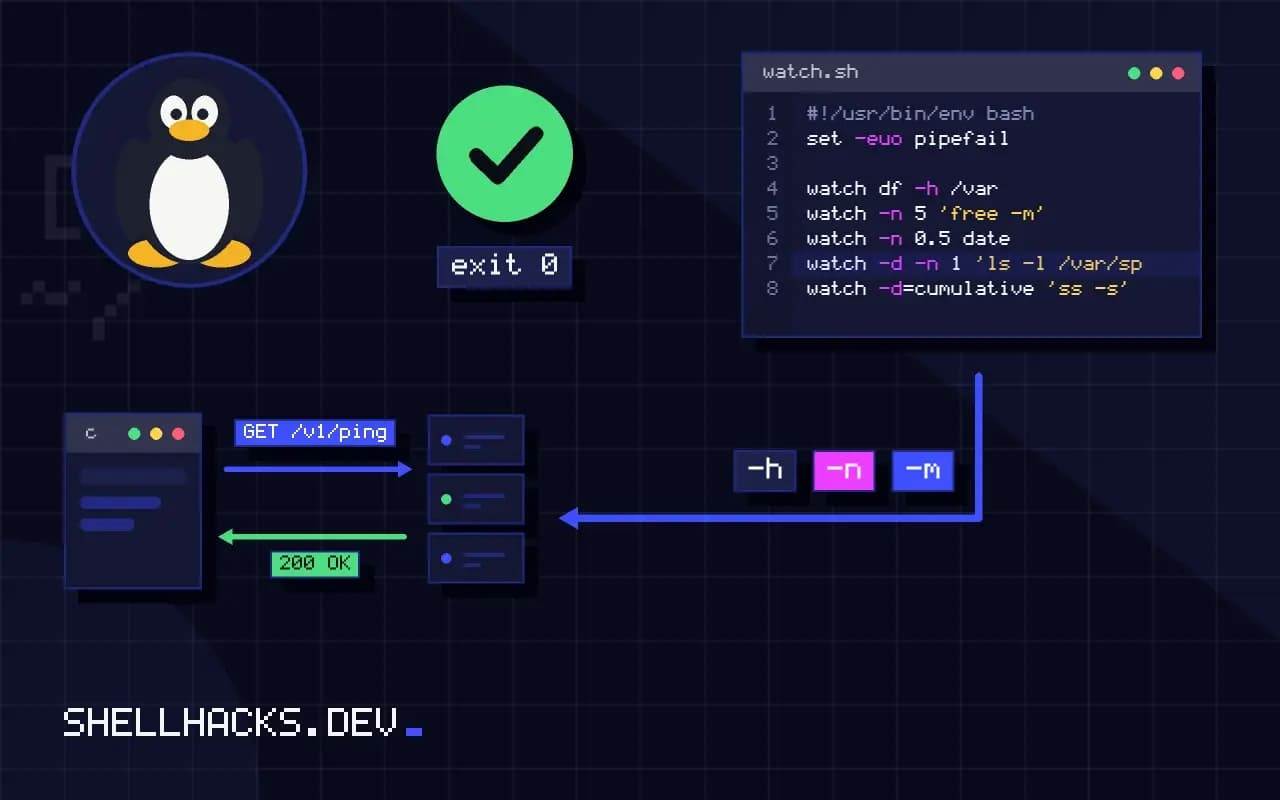
When you want to see a number change, such as disk filling during a copy or pods starting after a deploy, retyping the command is slow. watch repeats it and redraws in place. It is a diagnostic tool in the same family as following logs with tail. The examples assume procps-ng 4.0 on Linux.
Basic use
watch df -h /var
watch -n 5 'free -m'
watch -n 0.5 dateEvery 2.0s: df -h /var host: Tue Nov 3 09:50:11 2026
Filesystem Size Used Avail Use% Mounted on
/dev/sda2 100G 61G 35G 64% /
The header shows the interval and command. Press q or Ctrl+C to quit. Intervals below 0.1 are rejected, and the command itself takes time, so a 0.5 second interval on a slow command shows a lower rate than asked. Watch waits for the command to finish and then sleeps, rather than running on a fixed clock.
Highlight changes
watch -d -n 1 'ls -l /var/spool/app | wc -l'
watch -d=cumulative 'ss -s'
-d reverses the characters that differ from the last run, so a changing counter stands out in a screen of text. =cumulative keeps them highlighted once they have changed, so you can see which numbers moved over a minute rather than between two ticks. This is the fastest way to find which counter a misbehaving service touches.
Quote pipes and variables
watch ps aux | grep nginx          # wrong: pipes watch's output
watch 'ps aux | grep [n]ginx'      # right
watch "echo $RANDOM"               # expands once, by your shell
watch 'echo $RANDOM'               # expands on every run
The shell parses the line before watch sees it. Without quotes, the pipe belongs to your shell and filters the watch screen instead of the command. Single quotes defer expansion so variables and substitutions are recomputed on each tick. The [n]ginx trick stops grep from matching its own process.
Wait until something changes
watch -g 'kubectl get pod web-0 -o jsonpath="{.status.phase}"' && echo "phase changed"
watch -e -n 5 'curl -sf https://example.test/health'
-g exits as soon as the output differs from the first run, which turns watch into a blocking wait in a script. -e stops on a non-zero exit and waits for a keypress, so a failing health check freezes on screen. For repeated work with logic, a loop with sleep is more flexible, and timeout can limit how long it runs. Use watch -t to hide the header when you only want the output.
How watch redraws and what it hides
The command runs another command at a fixed interval, two seconds by default, and shows its output full-screen, replacing the previous screen each time. Because it clears and redraws, anything that depends on colour needs the --color option, or the command's own colour is lost, and commands that detect a terminal may switch to a different output format when run under watch. The header shows the interval, the command and the time of the last run. Long output is cut at the terminal height, so filter or limit it with head to keep the interesting part visible. Run the command alone first to be sure it works, since a failing command gives an unhelpful flash of error text.
Use the -n option to change the interval, such as 0.5 for a faster refresh. Very short intervals on heavy commands cause load of their own, so choose the interval to match how fast the thing changes.
Detecting change and stopping on it
With -d, watch highlights the characters that differ from the previous run, which makes a changing counter or a status flip easy to spot. With -d=cumulative, the highlights stay on once a character has changed, so a brief change is not missed while you look away. The -g option exits when the output changes, which turns it into a wait: run watch -g 'command' followed by a notification and you are told the moment something happens. The -e option exits on a non-zero status and waits for a key press, helpful for catching an intermittent failure. These options replace many ad hoc loops with sleep.
For waiting on a condition inside a script, a plain loop with a timeout is still better, since it can give up and report. Reserve watch for interactive use.
Quoting, shells and pipes
Watch passes its arguments to sh -c, so a pipeline or variable expansion inside quotes works as in the shell, as long as the quoting is right. Put the whole command in single quotes so the pipe is not interpreted by your shell once, outside: watch 'ps aux | grep nginx' runs the pipeline each time, while an unquoted pipe pipes watch's own output into grep. Variables set in your shell must be exported or expanded before the call, since the command runs in a fresh shell, and aliases and functions are not available. For a function or complex logic, put the code in a script and watch the script. Use the -x option to run the command directly without a shell when the arguments contain characters the shell would damage.
On macOS, watch is not installed by default, and the Homebrew package provides a version with the same options. Check the options in the manual page on your system.
Typical uses and their limits
Common uses include watching disk space during a copy, container or pod status during a deploy, a queue length, the output of a network statistics command and the growth of a log file. For these, a quick view is exactly what is needed. It is not a monitoring system: it records nothing, it runs only while you look, and it cannot alert you when you are away. When you find yourself leaving a watch window open for hours, set up proper monitoring or a script that logs values with timestamps to a file, which you can graph and search later. For file events, a notification tool is better than polling, and for time series data a metrics agent is. Use watch for the quick look, and replace it with something durable when the question becomes a regular one.
Where this does not apply
watch is a screen tool, not a monitoring system: it stops when the terminal closes, so use cron and alerting for anything that must run unattended. It is not installed on macOS by default (brew install watch), and BusyBox's version supports fewer flags. Colour output is stripped unless you pass -c. For events rather than polling, inotifywait reacts to file changes with no delay. See the watch manual page.
Two small additions help in daily use. watch -p tries to run the command at precise intervals, and watch --color keeps ANSI colours from tools like ls --color=always. The procps-ng project maintains the tool, and its changelog notes when options such as -g arrived. For loops that need decisions, see health check scripts.