How to Use cloud init and User Data for Server Setup
Use cloud-init and user data to set up a server at first boot: users, SSH keys, packages, files and commands, plus how to debug a run that did nothing.
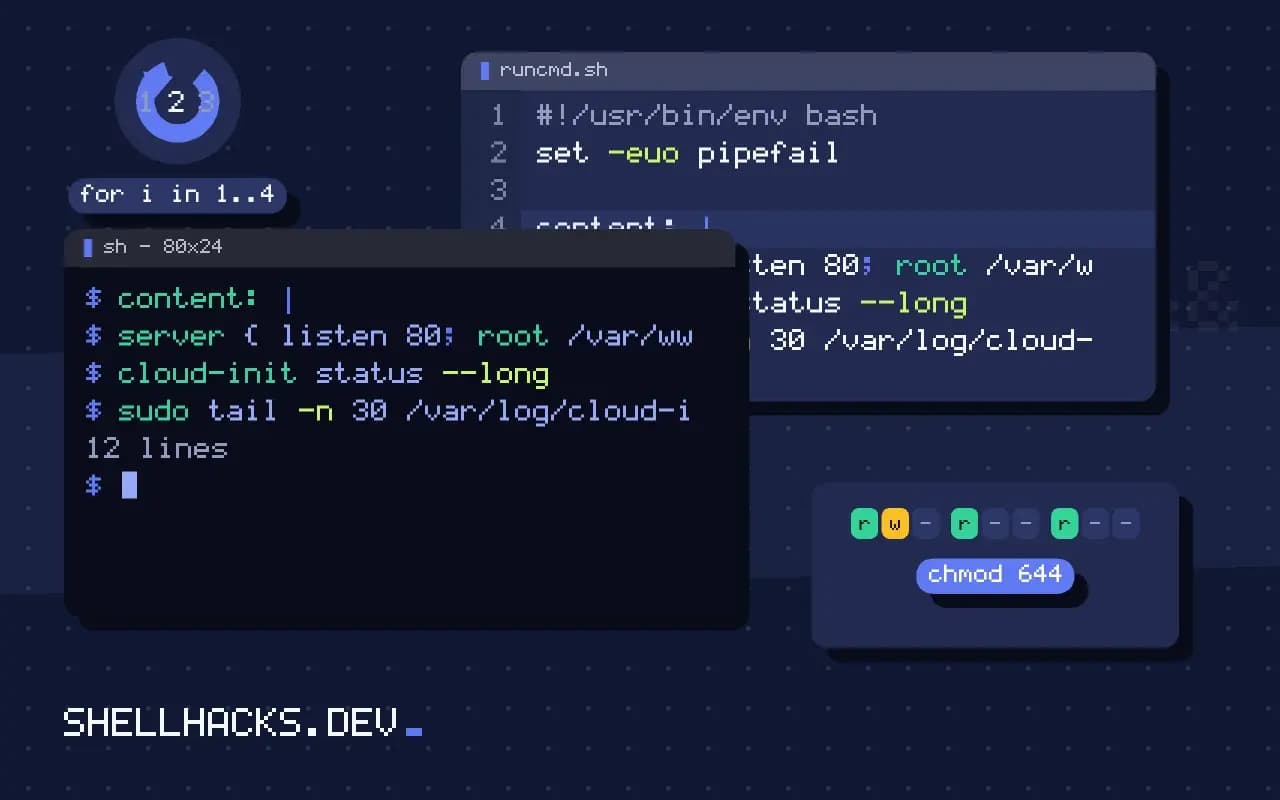
A new cloud server is a blank machine, and the first ten minutes of logging in to fix it by hand do not scale. Cloud-init is the standard agent that configures an instance at first boot from a document you supply, so every server starts identical. It is the base layer under setting up a VPS for deployments, and configuration tools like Ansible can take over afterwards. The examples assume cloud-init 24 on Ubuntu 24.04.
A cloud-config document
#cloud-config
hostname: web-01
package_update: true
packages:
  - nginx
  - fail2ban
users:
  - name: deploy
    groups: [sudo]
    shell: /bin/bash
    sudo: "ALL=(ALL) NOPASSWD:ALL"
    ssh_authorized_keys:
      - ssh-ed25519 AAAAC3NzaC1lZDI1NTE5AAAAIExampleKeyOnlyForThisPost [email protected]
write_files:
  - path: /etc/nginx/conf.d/site.conf
    content: |
      server { listen 80; root /var/www/html; }
runcmd:
  - systemctl enable --now nginx
  - ufw allow OpenSSH
  - ufw allow 80/tcp
  - ufw --force enable
The first line is required exactly as shown. Modules run in a defined order: packages first, then users, files and finally runcmd, which executes shell commands as root. Passwordless sudo for a deploy user is convenient and should be restricted in production, as discussed in allowing one sudo command. The sample key is a placeholder.
Supply it when creating the instance
aws ec2 run-instances --image-id ami-0123456789abcdef0 --instance-type t3.micro \
  --user-data file://user-data.yaml --key-name ops
Every cloud has a field for it: --user-data on AWS, --metadata-from-file user-data=... on Google Cloud, --custom-data on Azure and a text box on most VPS providers. Locally you can test with Multipass: multipass launch --cloud-init user-data.yaml. Validate the syntax before use with cloud-init schema --config-file user-data.yaml.
Check that it worked
cloud-init status --long
sudo tail -n 30 /var/log/cloud-init-output.log
sudo cat /var/log/cloud-init.log | grep -i -E 'warn|error|fail'status: done
extended_status: done
boot_status_code: enabled-by-generator
last_update: Tue, 03 Nov 2026 10:20:11 +0000
detail: DataSourceEc2Local
errors: []
errors: [] means all modules ran. If the status is error or degraded, the output log shows the failing command. A frequent cause is a YAML mistake: a tab, a wrong indent or an unquoted colon silently turns a section into something else. In the shell scripts of other posts you used set -e; here a failed runcmd line does not stop later lines, so add set -e inside a script for strictness.
It only runs once
sudo cloud-init clean --logs --rebootCloud-init records that it has run for an instance ID, so editing user data on a running server does nothing. To retest, create a fresh instance, or use cloud-init clean to reset state on a throwaway machine. For ongoing changes use a configuration management tool, and keep cloud-init for what must exist at boot: the user, the key, the agent that joins the machine to your tooling.
Secrets and size
User data is not secret. Any process on the instance can read it from the metadata endpoint, and the cloud console shows it to anyone with view access. Do not put passwords or private keys in it; fetch them at boot from a secret store using the instance's identity. There is also a size limit, 16 KB on AWS, so fetch larger files from object storage in runcmd. A compact way to handle growth is a short user data that downloads and runs a longer script from a controlled location, checked with a checksum, as in verifying downloads.
How cloud-init fits into the boot sequence
Cloud-init runs in stages tied to the boot process. An early stage finds the data source, the place the platform offers metadata and user data, and configures networking. A config stage applies the modules that set up users, packages, files and SSH keys. A final stage runs commands and scripts, and it runs late enough that most services are available. Knowing the order explains common failures: a command in the final stage that assumes a package from the config stage was installed works, and one that assumes a mount defined in a later stage does not.
The data source varies by platform. On public clouds it is an HTTP service at a link-local address, and on a local hypervisor it may be a small disk image with the files attached. The same document works on both as long as the platform exposes it, which is why one user-data file can configure instances on different providers with minor changes to the parts that touch cloud-specific resources.
Writing documents that are safe to rerun and easy to review
Keep the document short and declarative. Use the built-in modules for users, packages and files, because they handle the details of ownership, permissions and ordering, and keep runcmd for the few things that have no module. Commit the file to version control and review changes like code, since a bad line affects every server created afterwards. When the commands grow beyond a handful, move them to a script fetched from a trusted location and run it with a pinned checksum, so the user data stays small and the logic gets proper testing.
Think about what happens on the second boot. Modules run per instance by default, but some, like scripts-user or runcmd, run only once, while others can be configured to run every boot. A command you expect to run once but that is marked to run always will reset configuration on every restart. Check the frequency of each module in the documentation, and test by rebooting an instance and reading the log.
Debugging a failed first boot
When an instance does not come up as expected, you often cannot log in at all because the user setup failed. Use the provider's console output or a serial console to read the early log, or attach the volume to another instance and read /var/log/cloud-init.log from it. The fastest feedback loop is local: run the same file under Multipass or a local virtual machine, where the result is visible in seconds and a failure costs nothing. Do this for every change before it goes near a cloud account.
Check the rendered result as well. cloud-init query userdata and cloud-init schema --system show what the instance received and whether it validates, which catches the case where a templating step in your deployment tool altered the file between your repository and the machine.
Security habits
Treat the first boot as a trusted moment. Create a named user with an SSH key and disable password login in the document itself, so the machine never listens with a default credential. Remove the default account if the image has one. Do not install tools whose installers pipe from the internet to a shell without a pinned checksum, because user data runs as root with the machine's identity. Limit the instance's role to what it needs, since anything in user data can use that role to fetch secrets, and a compromised first boot has the same reach.
Where this does not apply
For a single hand-built server, cloud-init is more ceremony than a quick login. Container platforms and Kubernetes nodes use other mechanisms. Behaviour differs a little between distributions and cloud-init versions, so check the version on your image. See the cloud-init examples and the module reference.