How to Run Cron Jobs Inside Docker Containers Step by Step
Run cron inside a Docker container the right way: install it, pass environment variables, log to stdout, handle PID 1, and know when a sidecar is better.
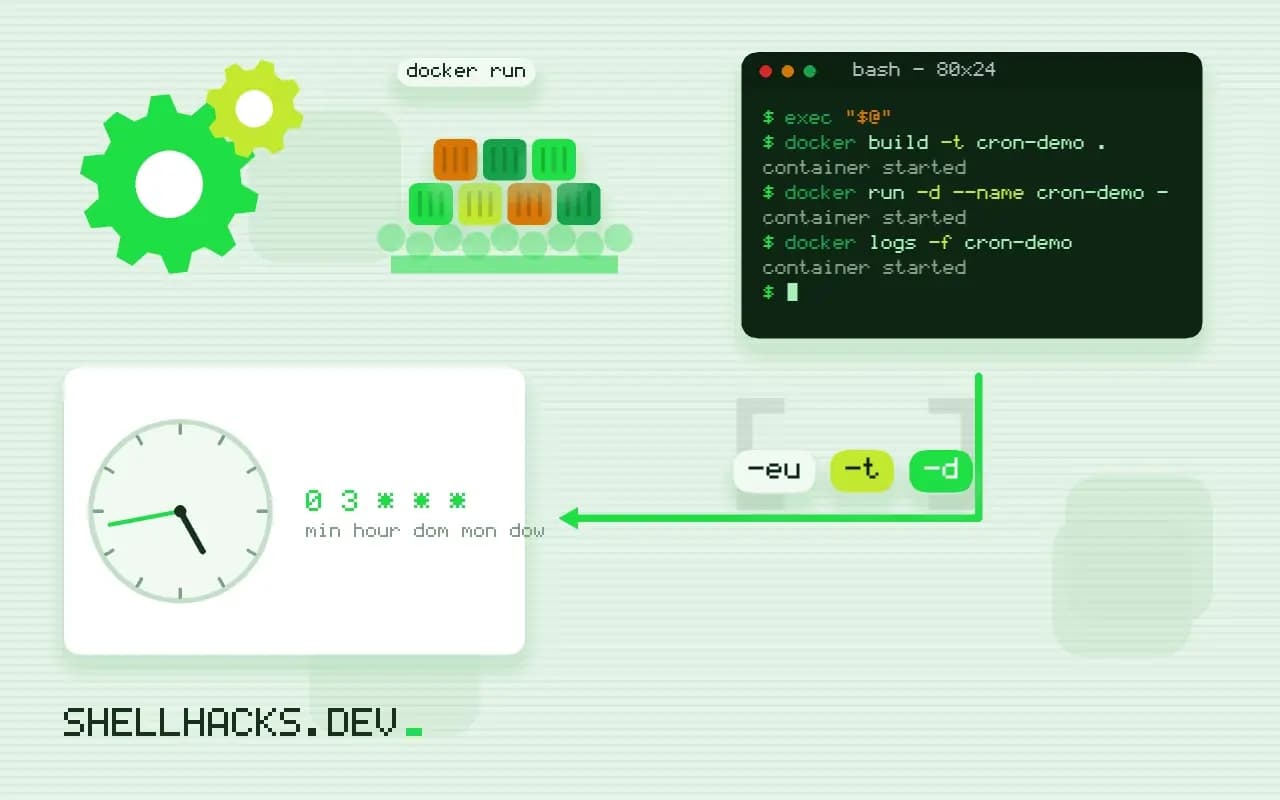
A container is meant to run one process, and cron is a second one. People still want a scheduled task next to the application: clean up temporary files, send a report, refresh a cache. It works if you handle three problems: cron's empty environment, its logging and the foreground requirement. This builds on cron's environment and the entrypoint script. The examples assume Debian 13 and Docker 27.
A Dockerfile with cron
FROM debian:13-slim
RUN apt-get update \
 && apt-get install -y --no-install-recommends cron \
 && rm -rf /var/lib/apt/lists/*
COPY crontab /etc/cron.d/app
COPY job.sh entrypoint.sh /usr/local/bin/
RUN chmod 0644 /etc/cron.d/app \
 && chmod +x /usr/local/bin/job.sh /usr/local/bin/entrypoint.sh
ENTRYPOINT ["/usr/local/bin/entrypoint.sh"]
CMD ["cron", "-f"]*/5 * * * * root . /etc/container.env; /usr/local/bin/job.sh >> /proc/1/fd/1 2>> /proc/1/fd/2
Files in /etc/cron.d/ need a user field and mode 0644, and the file must end with a newline. Cron ignores a file that is writable by others or has the wrong ownership, with no error. The job sources the environment file and sends output to the container's standard streams.
The entrypoint: save the environment
#!/bin/sh
set -eu
# cron jobs start with an empty environment, so persist what the job needs
printenv | grep -E '^(DATABASE_URL|API_TOKEN|TZ)=' | sed 's/^/export /' > /etc/container.env
chmod 600 /etc/container.env
exec "$@"
Variables set with docker run -e exist for the entrypoint but are not passed on by cron. Writing selected ones to a root-only file lets the job source them. Select with a pattern rather than dumping everything, which would copy secrets you do not need. exec "$@" hands the process over to cron so it becomes PID 1 and receives docker stop signals correctly, as covered in PID 1 and signals.
Build and check
docker build -t cron-demo .
docker run -d --name cron-demo -e API_TOKEN=change-me cron-demo
docker logs -f cron-demo
docker exec cron-demo run-parts --test /etc/cron.d 2>&1 | head
If nothing appears after five minutes, check the permissions on the cron file and run the job by hand with docker exec cron-demo /usr/local/bin/job.sh. A job that works by hand and fails under cron points back to the environment, a pattern from scripts that fail only in cron.
supercronic as an alternative
ADD https://github.com/aptible/supercronic/releases/download/v0.2.33/supercronic-linux-amd64 /usr/local/bin/supercronic
RUN chmod +x /usr/local/bin/supercronic
COPY crontab /app/crontab
CMD ["supercronic", "/app/crontab"]
supercronic runs as an unprivileged user, inherits the container's environment and writes job output to stdout, which removes the two workarounds above. Verify the downloaded binary's checksum in the build, as described in verifying downloads.
Why cron in a container is awkward
Containers are designed to run one foreground process, and the classic cron daemon is built for a full system with an init, a mail transport and a shared environment. Running it in a container raises four practical problems. The cron daemon must be started as the main process or supervised by something that is, or the container exits at once. Jobs do not inherit the container's environment variables, so secrets and configuration passed with -e are invisible to them. Output goes to files or mail rather than the container's stdout, so docker logs shows nothing. And signals are not forwarded cleanly unless the entrypoint takes care.
These explain most failed attempts. The usual remedies are to export the environment to a file at start, load it in each job, redirect job output to /proc/1/fd/1 so it appears in the container logs, and run cron in the foreground with the -f flag.
Use the platform scheduler when you have one
If the container runs under an orchestrator, its own scheduled job feature is usually the better design. Kubernetes has CronJob, which starts a fresh pod on a schedule, applies resource limits, records the history and retries on failure. Swarm and many hosted platforms have similar features. A scheduled task that starts a new container gets a clean environment each run, can be monitored like any other workload, and cannot leak state between runs. The price is startup time for each run, which is irrelevant for jobs that run hourly or daily.
On a single host with Compose, a sidecar container that runs a lightweight scheduler and calls docker compose run or docker exec keeps jobs separate from the application image. Mounting the Docker socket into that sidecar grants it control of the host, so restrict that to trusted images or use the host's cron or a systemd timer instead.
Single-process alternatives
For jobs that belong inside the application image, a scheduler built for containers avoids the old daemon's quirks. Tools such as supercronic read a crontab-format file, run as an ordinary non-root process, log to stdout and pass the environment to jobs. Application frameworks often include their own scheduler, and running one process that triggers jobs on a timer is simpler than cron plus the application. The caution applies when you scale out: with three replicas of the container, each runs the job, so a job that must run once needs a lock, a leader election or a dedicated single-replica deployment.
That duplication is the most common production surprise. Decide up front whether the job tolerates running concurrently, and if not, use a database lock or a distributed lock with a timeout so only one instance proceeds.
Operating scheduled jobs in containers
Keep the time zone explicit. Containers default to UTC, and a schedule set in local time will run at the wrong hour unless the zone data is installed and TZ is set. Add monitoring that tells you when a job did not run, such as a heartbeat ping on success, because a crashed scheduler produces no output to notice. Set resource limits on the container so a stuck job cannot use all the memory on the host. Test the whole path from schedule to side effect in staging, including a restart of the container in the middle, since the first real deploy is often the first time the job has to survive one.
Finally, keep images small and honest. Installing cron adds a daemon, its dependencies and a login-less user setup that most application images do not need. If the scheduled work is part of the application, running it from the application's own scheduler or from the orchestrator keeps the image focused and the attack surface smaller. If you do keep cron, run it as the non-root user the application uses and set permissions on the crontab file as the daemon requires, since many versions refuse to load a file with the wrong ownership or mode and fail without a visible error.
Where this does not apply
If the job needs the app's code and environment, running it in the same container is reasonable. If it is independent, run a second container from the same image with a different command, or use host cron with docker exec or docker run --rm. Orchestrators have native scheduled jobs: Kubernetes CronJob and Compose profiles with an external scheduler. A single container with two processes complicates health checks and restarts. See the Docker guide to multi-service containers and crontab(5).