How to Debug systemd Services With journalctl and analyze
Debug a systemd service that fails to start: read status and the journal, decode exit statuses like 203/EXEC and reproduce it as the service user.
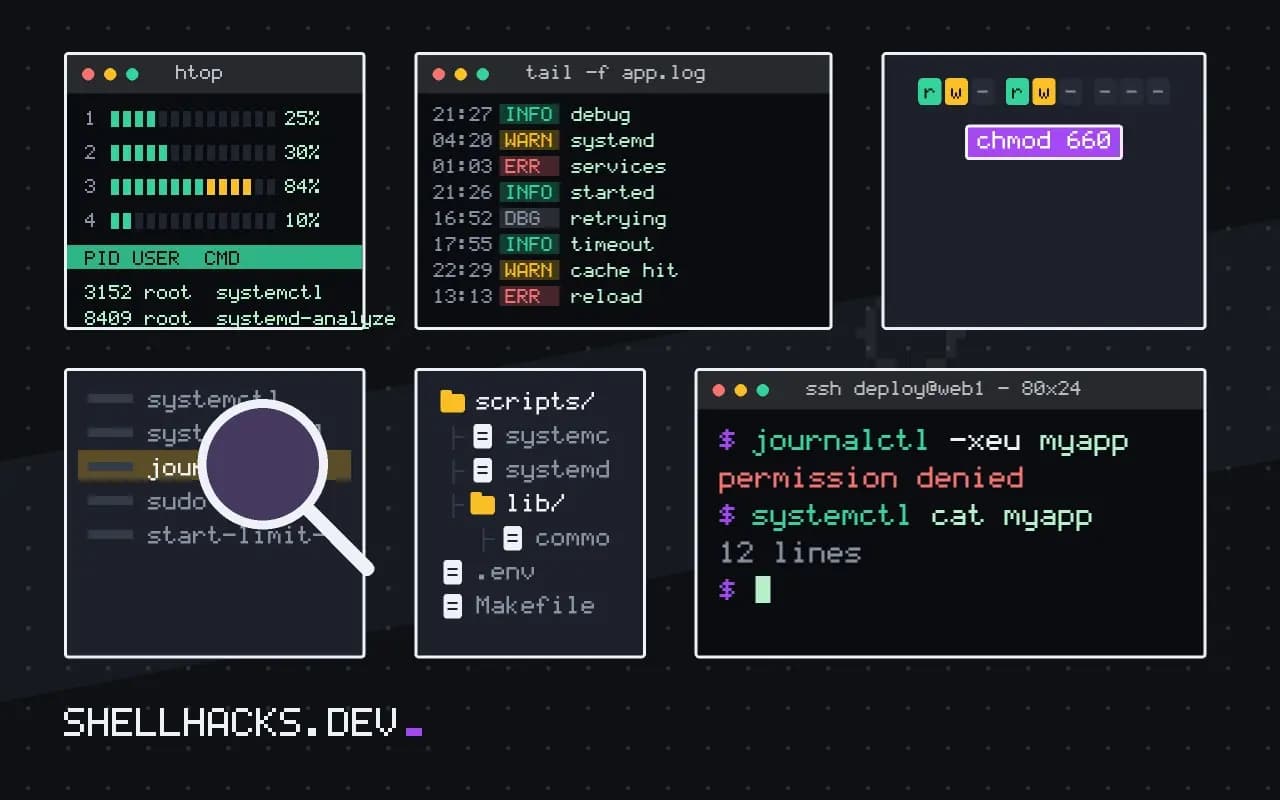
A unit file that works on one machine and fails on another, or a service that started yesterday and not today, is debugged with the journal and a few knowledge nuggets: what the numbers in the status line mean, and how to run the command the way systemd does. This post gives the sequence. It continues small server services and restart on failure, and the shell version of the same idea is in debugging scripts under cron. Examples use systemd 257 on Debian 13.
Step 1: status and journal
systemctl status myapp --no-pager
journalctl -u myapp -b -e --no-pager
journalctl -xeu myapp× myapp.service - My application
Loaded: loaded (/etc/systemd/system/myapp.service; enabled)
Active: failed (Result: exit-code) since Tue 2026-11-03 10:02:11 UTC; 4s ago
Process: 2210 ExecStart=/opt/myapp/bin/myapp (code=exited, status=203/EXEC)
The Active line gives the result (exit-code, signal, timeout, start-limit-hit) and the Process line the exit status of the command. -b restricts the journal to this boot, -e jumps to the end, and -x adds explanatory text from the message catalog. If the application writes its own log file instead of stdout, look there too; apps that daemonize themselves confuse systemd unless Type=forking is set.
Step 2: decode the status
203/EXEC: theExecStartprogram cannot be executed: wrong path, no execute bit, a bad interpreter in the shebang, or an architecture mismatch. Test withls -land run it by hand.200/CHDIR:WorkingDirectorydoes not exist or is not accessible.217/USER: theUser=does not exist or cannot be switched to.226/NAMESPACEand218/CAPABILITIES: sandbox settings such asReadWritePathsorPrivateTmppoint to something missing.1/FAILUREand other small numbers: the program itself exited with that code; read its log.status=0followed by dead: forType=simplethe process ended on its own; useType=oneshotfor short tasks.
Step 3: reproduce it as the service
systemctl cat myapp
sudo -u myapp -H bash -c 'cd /opt/myapp && env -i /opt/myapp/bin/myapp'
sudo systemd-run --pty --uid=myapp --property=WorkingDirectory=/opt/myapp /opt/myapp/bin/myapp
systemctl cat prints the unit with all drop-ins, so you see the real configuration. Running the command as the service user with an empty environment reproduces what systemd does: no login PATH, no variables from your profile. If it works from your shell and fails as the user, the difference is permissions or environment. systemd-run --pty starts a transient unit, with the sandbox properties applied, attached to your terminal. Environment variables come only from Environment= and EnvironmentFile=; check with systemctl show myapp -p Environment.
Step 4: check the unit itself
systemd-analyze verify /etc/systemd/system/myapp.service
systemd-analyze security myapp.service
sudo systemctl daemon-reload
verify reports unknown directives, missing files and dependency mistakes before you start the service. After any edit of a unit file, daemon-reload is required; forgetting it is the most common reason a change "does nothing". Use systemctl edit myapp for drop-ins, which reloads for you. security scores the sandbox and is useful after you harden the unit and the service stops working.
Step 5: start limits and dependencies
systemctl status myapp | grep -i 'start-limit'
sudo systemctl reset-failed myapp
systemctl list-dependencies myapp
systemd-analyze critical-chain myapp.service
A service with Restart=always that fails instantly is restarted until it hits StartLimitBurst (5 starts in 10 seconds by default), then stays in failed with start-limit-hit until reset-failed. Fix the cause first; raising the limit hides it. Ordering matters: After=network-online.target with Wants=network-online.target for services that need the network, and After=postgresql.service for dependencies. critical-chain shows what the unit waited for.
Where this does not apply
User services (systemctl --user) have their own manager and environment; use the same commands with --user. Services in containers are debugged as in debugging Docker containers. When a service starts but misbehaves, treat it like any process: strace and logs.
Reading the status output
systemctl status name shows the state, the main process, the last exit status and the last few log lines. The words are specific. active (running) is healthy, failed means the last run ended badly, and activating (auto-restart) means it is crashing and being restarted, which hides the cause in a loop. The status line includes a result such as exited, status=203/EXEC, and the number after the status matters: 203 means systemd could not execute the command, usually a wrong path or a missing execute permission, 200 means it could not change to the working directory, 217 means the user does not exist, and 226 means a problem setting up the sandbox from the unit's namespace options. A plain status=1/FAILURE means the program itself ran and exited with an error, so the reason is in its own output. Telling "systemd could not start it" from "it started and failed" cuts the search in half.
The journal has the details: journalctl -u name -b shows messages from the current boot, -e jumps to the end, and -f follows. Add -o verbose when you need the fields on each message.
Reproducing it under the same conditions
A service runs with a different environment from your terminal: another user, a clean set of variables, a default PATH, a fixed working directory, resource limits and possibly a sandbox. Running the command by hand as yourself proves little. Use systemd-run to start a transient unit with the same conditions: systemd-run --pty --uid=svc --property=WorkingDirectory=/srv/app /usr/bin/app, or --wait for a non-interactive run, which shows the same behavior as the unit. Reading the unit with systemctl cat name shows the effective file including drop-ins, and systemctl show name lists every property after all merging. The command in ExecStart must be an absolute path and does not go through a shell, so pipes, redirects, variable expansion with dollar signs and globbing do not work unless you run /bin/sh -c explicitly, and a dollar sign meant for the shell must be doubled in the unit. Those two differences account for a large share of units that work as a command and fail as a service.
Checking the unit and the restart limits
systemd-analyze verify /etc/systemd/system/name.service catches syntax errors, unknown keywords and missing executables before you start anything. After editing a unit, run systemctl daemon-reload, or the change is ignored, and a warning appears in status when the file changed on disk. If a service fails repeatedly, systemd stops restarting it and reports "start request repeated too quickly", governed by StartLimitBurst and StartLimitIntervalSec. Clear the state with systemctl reset-failed after fixing the cause, and do not raise the limits to hide a crash loop. Dependencies cause ordering problems: a service that needs the network or a mount should say so with After= and Wants= or Requires=, and systemctl list-dependencies and systemd-analyze critical-chain show the actual order. systemd-analyze security name scores the unit's sandboxing, which is useful once it works.
When the service starts and still does not work
A unit can be active and the service useless. Check what it listens on with ss -tlnp, whether the process runs as the user you expect with ps, and whether it can reach what it needs: the files, the sockets, the database. A service that forks into the background while the unit declares the default type looks failed or exits at once, so match Type= to how the program behaves: simple for a foreground process, forking with a pid file for a classic daemon, notify for programs that signal readiness, and oneshot for a task that ends. Sandboxing options such as ProtectSystem and PrivateTmp make files invisible or read-only to the service, and an error about a missing or read-only path that works by hand is usually one of them. Loosen the single option involved, not the whole set.
See process exit codes in systemd.exec(5) and systemd-analyze(1).