How to Use docker inspect and Go Templates to Format Output
Use docker inspect with the --format flag and Go templates to pull out IP addresses, ports, mounts, health and exit codes, and feed them to scripts.
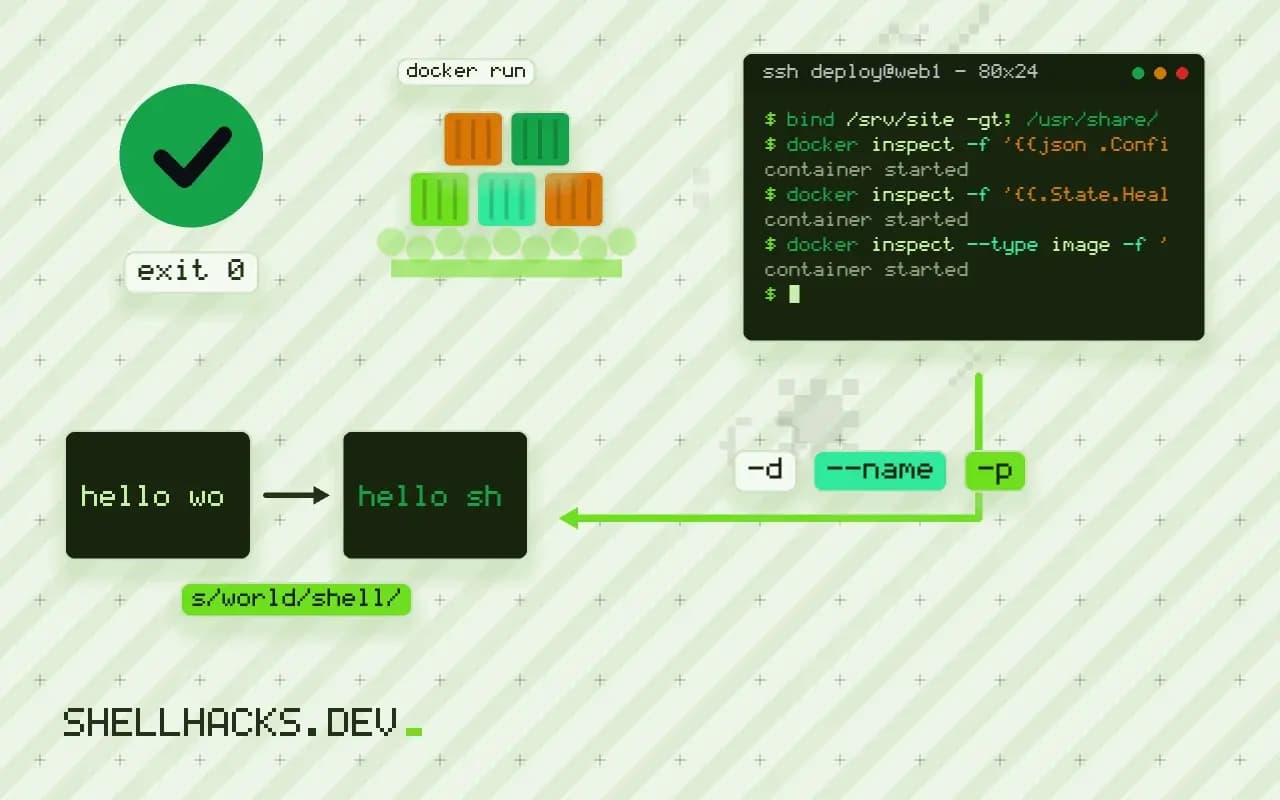
docker inspect returns everything Docker knows about an object, which is hundreds of lines of JSON. Scripts need one value from it: the container's IP, whether it is healthy, or which image it runs. The --format flag runs a Go template over the document and prints the result. The examples use Docker Engine 27 on Linux; the broader debugging picture is in debugging Docker networking.
Single fields
docker run -d --name web -p 8080:80 nginx:1.27
docker inspect -f '{{.State.Status}}' web
docker inspect -f '{{.Config.Image}} {{.State.StartedAt}}' web
docker inspect -f '{{.HostConfig.RestartPolicy.Name}}' webrunning
nginx:1.27 2026-11-03T09:14:22.381Z
no
Field names follow the JSON, starting with a dot and written exactly as they appear, including capital letters. Run docker inspect web | head -50 once to learn the structure, or print everything with docker inspect -f '{{json .}}' web | jq .. A mistyped name prints <no value>, not an error.
Maps and lists with range
docker inspect -f '{{range $name, $net := .NetworkSettings.Networks}}{{$name}}: {{$net.IPAddress}}{{"\n"}}{{end}}' web
docker inspect -f '{{range .Mounts}}{{.Type}} {{.Source}} -> {{.Destination}}{{"\n"}}{{end}}' webbridge: 172.17.0.2
bind /srv/site -> /usr/share/nginx/html
A container can be on several networks, so there is no single .IPAddress worth trusting at the top level; loop over the Networks map instead. {{"\n"}} prints a newline, since templates do not add one inside a range. Ports are a map keyed by strings like 80/tcp, which needs index to read directly: {{(index .NetworkSettings.Ports "80/tcp" 0).HostPort}}.
Keys with dots and dashes
docker inspect -f '{{index .Config.Labels "com.docker.compose.project"}}' web
docker inspect -f '{{json .Config.Env}}' web
docker inspect -f '{{.State.Health.Status}}' web
A label such as com.docker.compose.project cannot be written as .Config.Labels.com.docker..., because the dots would be read as nesting, so index takes the map and the key. json prints a value in JSON, which is the easiest way to pass a list or object into another tool. .State.Health exists only when the image defines a HEALTHCHECK; without one the template fails with a nil pointer error, so guard it with {{if .State.Health}}...{{end}}.
Other object types
docker inspect --type image -f '{{.Id}} {{.Size}}' nginx:1.27
docker network inspect -f '{{range .Containers}}{{.Name}} {{end}}' bridge
docker volume inspect -f '{{.Mountpoint}}' pgdata
docker ps -q | xargs docker inspect -f '{{.Name}} {{.State.Status}}'
Containers, images, networks and volumes can share a name, so --type says which one you mean. docker ps --format uses the same template language for listing, and the last line shows the usual pattern of feeding a list of IDs into inspect. The template functions are the standard Go set plus a few Docker additions such as json and join.
How the template language works
The --format flag takes a Go template, the same language used by many Go tools. Actions are written between double braces. A dot is the current value, and a field is selected with .Field, chained for nested objects. Functions are called with the name first and the arguments after: index .Config.Labels "key", printf "%s:%d" .Name .Id, len .Mounts. Pipelines pass the value from left to right, as in {{.Name | printf "%q"}}. Conditionals look like {{if .State.Running}}up{{else}}down{{end}}, and variables are assigned with $x := value inside range and with blocks. Docker adds helpers including json, join, split, lower, upper and title, which cover most formatting needs.
A missing field is a common source of confusion. Referring to a key that does not exist in a map prints <no value>, and referring to a field that does not exist on a struct is an error. Optional blocks such as .State.Health are absent when the image defines no health check, so a template that reads them fails or prints nothing for those containers. Guard with {{if .State.Health}}...{{end}} when a command runs across many containers.
Formats for listing commands
The same syntax applies to docker ps, docker images, docker volume ls and others. The table keyword adds a header row, as in docker ps --format 'table {{.Names}}\t{{.Status}}\t{{.Ports}}'. The available fields differ from the inspect output: they are the column names of the listing, and --format '{{json .}}' prints one JSON object per row, which is the starting point for discovering them. A saved default can be placed in ~/.docker/config.json under psFormat, so every docker ps shows the columns you prefer.
Using the output in scripts
Queries are most useful as building blocks. A script that waits for health polls docker inspect -f '{{.State.Health.Status}}' name until it prints healthy, with a deadline. A script that finds the host port for a container uses docker port name 80/tcp, which is simpler than the template. One that lists containers using a volume filters with docker ps -a --filter volume=pgdata --format '{{.Names}}'. For cleanup jobs, combining docker ps -aq --filter status=exited with docker inspect and a date comparison identifies containers that have been stopped for more than a week.
Moving to jq when it grows
A template is the right size for one value or a short loop. When the question needs a filter, a sort, or arithmetic, docker inspect name | jq is easier to write and to debug, because jq has real error messages and you can build the expression a step at a time. A frequent pattern is jq -r '.[] | select(.State.Running) | [.Name, .NetworkSettings.IPAddress] | @tsv'. The output of inspect is always an array, even for one object, so remember the .[0] or .[]. Check the structure against the Docker Engine API documentation if you rely on a field in a script, as fields can be absent on some platforms and versions.
Version and platform notes
The structure of inspect output changes between Docker releases. Fields get added, a few move, and some are deprecated, for example the top-level NetworkSettings.IPAddress, which only reflects the default bridge and is empty for containers on user-defined networks. Scripts that run across many hosts should read the networks map, and should handle the field being absent. On Podman the output follows the Docker layout for most fields, with some differences in network and mount details, so a script meant for both should be run against each once. The Docker Engine API reference documents the schema for each object type, and is the place to check a field's meaning before depending on it.
Common mistakes with templates
Three mistakes recur. Forgetting the quotes around the whole format string lets the shell interpret the braces and spaces, so always wrap it in single quotes. Using a field name with the wrong case produces an error or an empty result, since the names are case-sensitive and follow the JSON exactly. And expecting a newline between results: the template prints exactly what it is given, so multi-item output runs together unless the template adds {{"\n"}} or the command is one that prints a line per object. When a template fails, print the object with {{json .}} and read what is really there before guessing at field names.
Where this does not apply
Templates get hard to read once they nest, and the error messages are unhelpful. When a query needs filtering, sorting or arithmetic, pipe the JSON to jq, as in docker inspect web | jq -r '.[0].NetworkSettings.Networks | to_entries[] | "\(.key) \(.value.IPAddress)"', described in the jq tutorial. Do not parse docker ps output with awk when a --format would give stable fields. See containers that exit immediately for using inspect on an exited container. The Go syntax is documented in text/template and the options in the docker inspect reference.