How to Run Docker Containers as a Non Root User the Safe Way
Run Docker containers as a non root user: the USER instruction, creating a user, file ownership, ports below 1024, and the runtime --user flag.
By default a process in a container runs as root, and a vulnerability in the application then gives an attacker root inside the container, with a shorter path to the host. Dropping to an ordinary user is one of the highest-value hardening steps and costs a few lines. It is the container version of least privilege for scripts. The examples assume Docker 27 and Debian 13 and Alpine 3.22 base images.
Create the user in the image
FROM python:3.13-slim
RUN groupadd --system --gid 10001 app \
 && useradd --system --uid 10001 --gid app --home-dir /app --shell /usr/sbin/nologin app
WORKDIR /app
COPY --chown=app:app requirements.txt .
RUN pip install --no-cache-dir -r requirements.txt
COPY --chown=app:app . .
USER app
EXPOSE 8080
CMD ["python", "-m", "http.server", "8080"]
Pin the UID and GID to a number above 10000 so they are stable and unlikely to match a real host user. Install packages as root first, then switch with USER; every later instruction and the container itself run as that user. On Alpine the commands are addgroup -S app and adduser -S -G app app.
Check who runs
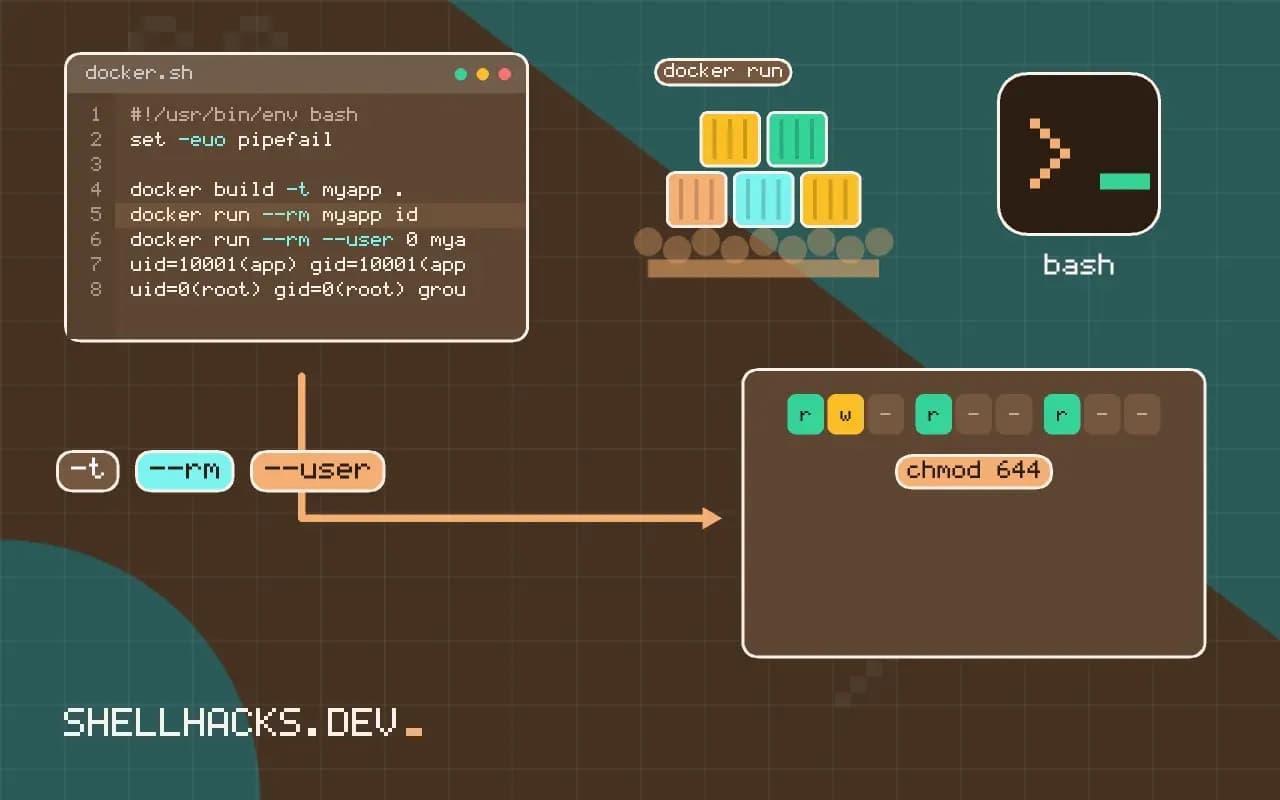
docker build -t myapp .
docker run --rm myapp id
docker run --rm --user 0 myapp iduid=10001(app) gid=10001(app) groups=10001(app)
uid=0(root) gid=0(root) groups=0(root)
The second command shows that a caller can still override the user for debugging. For a hard guarantee in Kubernetes use runAsNonRoot: true, and in Compose set user: "10001:10001" so the setting is explicit and visible.
Ports and files
Error: listen tcp :80: bind: permission denied
Ordinary users cannot bind ports below 1024. Listen on 8080 in the container and publish with -p 80:8080; the host side is handled by the Docker daemon. If the program must bind a low port, grant just that capability with --cap-add NET_BIND_SERVICE or lower net.ipv4.ip_unprivileged_port_start. For files, write to directories the user owns, such as /tmp or a prepared /app/data. A read-only root file system, discussed in read-only containers, makes this explicit.
Volume ownership
mkdir -p data && sudo chown 10001:10001 data
docker run --rm -v "$PWD/data:/app/data" myapp sh -c 'touch /app/data/ok && echo written'
A bind mount keeps the host directory's ownership, so a root-owned directory is not writable by UID 10001. Named volumes start empty and root-owned unless the image has that path created and chowned before the volume is first mounted. The mismatch is covered in bind mount permissions. Avoid chmod 777 as a fix; it removes the protection you added.
Creating users in different base images
The command to add a user depends on the distribution. Debian and Ubuntu images use useradd or adduser, Alpine uses adduser -D with BusyBox options, and distroless images have no tools at all, though many provide a prebuilt nonroot user with a fixed numeric id. Prefer a fixed numeric user id, such as 10001, and refer to it with USER 10001:10001. A numeric id works in any image, avoids a lookup in the password file, and lets Kubernetes policies that require a non-root numeric user verify the setting. Give the user a home directory only if the application needs one, and set the shell to /usr/sbin/nologin when no one will log in.
Create the user late in the build, after installing packages as root, and switch to it with USER just before the entrypoint. Anything the application writes at run time must be owned by that user or placed on a writable mount.
Ownership of copied files
Files copied into the image are owned by root unless you say otherwise. Use COPY --chown=10001:10001 src dest to give the application user ownership without an extra layer, which a separate RUN chown -R would create as a copy of every file in the layer. Be selective: the application usually needs to write only to a few directories, such as a cache or upload directory, and everything else can remain read-only for it. Code owned by root and not writable by the application user means that an attacker who takes over the process cannot modify the program itself.
Check the result by running docker run --rm image id and by listing the permissions of key directories. If the application fails with permission denied errors, the message names the path, which shows what needs ownership or a volume.
Privileged ports and capabilities
A non-root process cannot bind to ports below 1024 on a default Linux setup. The cleanest answer is to listen on a high port, such as 8080, and map it to 80 in the container runtime or at the load balancer. Adding the NET_BIND_SERVICE capability is possible, and it works, but it gives back some of the privilege you removed. Some images need to bind a low port internally, and docker's --sysctl net.ipv4.ip_unprivileged_port_start=0 allows it for the container's network namespace. Choose the high port wherever you control the application, and document the port in the image with EXPOSE.
Remember that the port a program listens on inside the container does not have to match the port users see. Mapping is a deployment concern.
User namespaces and verifying the setting
Running as non-root inside the container still maps to a real user id on the host unless user namespaces are enabled. With the default setup, a process that escapes the container as UID 10001 is an unprivileged user on the host, which is far better than root but not harmless. Enabling user namespace remapping in the daemon, or running rootless Docker or Podman, maps container root to an unprivileged host user as well, adding another layer. Verify the final image rather than trusting the Dockerfile: inspect the configured user with docker inspect, run a scanner that flags images running as root and add a test in CI that starts the container and checks the effective user. Make non-root the default in the base images the team uses, so that a new service does not need to remember.
Combine this with a read-only root file system and dropped capabilities, described in the hardening posts, for defence in depth. A non-root user limits what an exploited process can do on its own, and the other settings limit what it can reach. Add a note to the image's documentation naming the user id and the directories the application may write to, so operators who mount volumes set the ownership correctly and do not fall back to running as root to make an error disappear.
Where this does not apply
Some images, like database servers, start as root only to fix ownership and then drop privileges themselves with a tool such as gosu; leave their design alone and check their documentation. Rootless Docker and Podman go further by removing the root daemon, but have limits on networking and ports. A non-root user does not protect against a vulnerable application serving the wrong files, so combine it with the other steps in this cluster. See Docker's best practices on USER and the rootless mode guide.