How to Check and Repair a File System With fsck the Safe Way
Check and repair a Linux file system with fsck without making it worse: unmount first, read-only dry run, ext4 and XFS tools, and what lost+found holds.
After a power cut the system may drop to an emergency shell, and a file system check is the fix. Used correctly it is safe; used on a live disk it can turn a recoverable problem into data loss. This follows the disk basics in formatting ext4 and XFS, and the commands assume e2fsprogs 1.47 and xfsprogs 6.x.
Check before you repair
lsblk -f
sudo umount /dev/sdb1
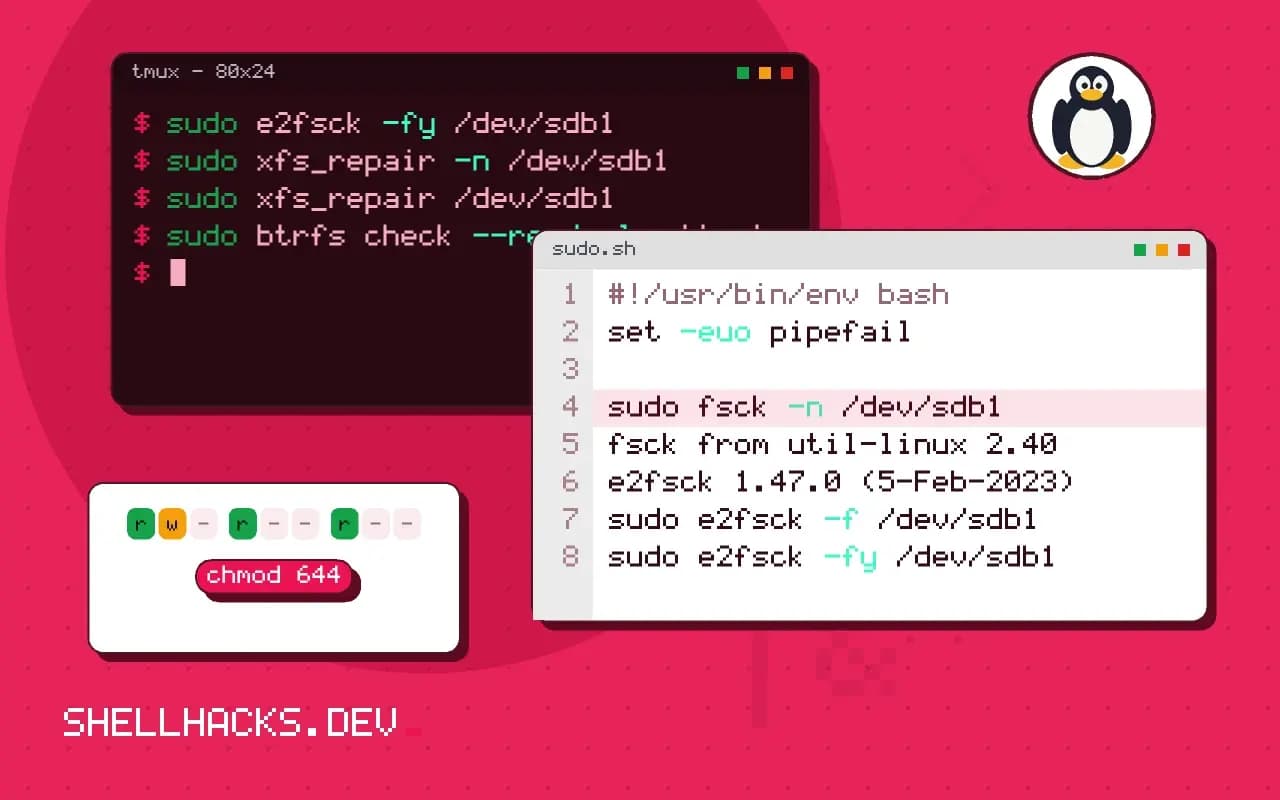
sudo fsck -n /dev/sdb1fsck from util-linux 2.40
e2fsck 1.47.0 (5-Feb-2023)
/dev/sdb1: clean, 11/65536 files, 12875/262144 blocks
-n answers "no" to every repair prompt, so it only reports. "clean" means the journal says it was unmounted properly and no scan is needed. If the output lists errors, save it. The root file system cannot be unmounted while running, so boot a live USB or use the initramfs shell instead.
Repair ext4
sudo e2fsck -f /dev/sdb1
sudo e2fsck -fy /dev/sdb1Pass 1: Checking inodes, blocks, and sizes
Pass 2: Checking directory structure
Pass 3: Checking directory connectivity
Pass 4: Checking reference counts
Pass 5: Checking group summary information
/dev/sdb1: ***** FILE SYSTEM WAS MODIFIED *****
-f forces a check even if the file system looks clean. -y answers yes to every question, which is fast and also removes the chance to decline a drastic fix; use it only after reading a -n pass. Orphaned inodes whose directory entry is lost are linked into lost+found with names such as #12345. Identify them with file.
XFS and Btrfs
sudo xfs_repair -n /dev/sdb1
sudo xfs_repair /dev/sdb1
sudo btrfs check --readonly /dev/sdb1
XFS replays its log on mount, so a clean mount is the first repair. If the mount fails, xfs_repair -n reports problems and the plain command repairs them. xfs_repair -L zeroes the log and loses recent changes; it is a last resort. Btrfs advises against btrfs check --repair except on advice from the documentation, because it can make things worse. See choosing between the three.
When the disk itself is failing
sudo smartctl -H /dev/sdb
sudo ddrescue -f /dev/sdb /mnt/safe/sdb.img /mnt/safe/sdb.map
Repairing a file system on a dying drive adds writes and stress. Check health with smartctl, copy the device to a good one with ddrescue, and run fsck on the copy. Mount the image read-only to pull out files, as in mounting an image.
What fsck can and cannot do
The tool checks that the file system's own bookkeeping is consistent: that every inode points to valid blocks, that no block is claimed twice, that directory entries refer to existing inodes, and that the free space counts add up. It repairs by making the structures consistent again, which sometimes means discarding data that cannot be placed. Files that were being written at the moment of a crash may come back truncated or end up in lost+found named after their inode numbers. A clean check means the structure is sound. It does not mean the contents of the files are correct.
That distinction drives how to use it. A repair changes the disk, and on a failing drive each extra read and write can make things worse. When the data matters, take a block-level image of the device first, as described in backing up a disk, and run the repair on a copy. If there is no room for a copy, at least check the drive's health before any repair attempt.
Never check a mounted file system
Running fsck on a mounted, writable file system is dangerous because the kernel and the tool both modify the same structures. The tool reports phantom errors for changes in flight, and the "repairs" can corrupt a healthy volume. Unmount first, or boot from rescue media for the root file system. For ext4, e2fsck -n performs a read-only check that is safe to run at any time and gives a report without writing, which is the right first step on a system you cannot take offline.
Journaling file systems reduce the need for a full check. After an unclean shutdown, ext4 replays its journal at mount and usually recovers in a second or two. A full fsck is for when the journal replay fails, when the kernel remounts the file system read-only after detecting errors, or when the log shows messages about corrupt directories or bad extents.
Reading the output and choosing options
fsck -f forces a check even when the superblock says the file system is clean, which is what you want after a suspicious event. -y answers yes to every repair question, and -p performs only safe automatic repairs and stops on anything that needs a decision. On a system you can attend, run interactively once so you can read what each question means; on unattended recovery, -p followed by a manual pass for what remains is safer than blanket -y.
The exit status is a bitmask: 0 for no errors, 1 for errors corrected, 2 for a required reboot, 4 for errors left uncorrected, 8 for an operational error. Scripts that automate checks should test the bits rather than comparing to zero. After a repair, run the check again until it reports clean, because the first pass can expose problems that were hidden behind others.
Prevention and monitoring
Most corruption has a cause outside the file system: a power loss without a battery or UPS, a controller that lies about write completion, a failing disk or bad memory. Repeated errors on the same device point to hardware, and the right response is to replace it. Watch SMART attributes as covered in checking disk health with smartctl, particularly reallocated and pending sectors, and keep backups that you have tested. For ext4, tune2fs can set periodic checks by mount count or interval, though many distributions leave them off because a surprise check delays boot; scheduling a read-only check during a maintenance window is a better habit.
After a repair, mount the volume read-only first and inspect lost+found and the files you care about before returning it to service. Compare against a backup where you have one, and look at the kernel log for read or write errors during the check. If errors recur within days, treat the disk as failing even if SMART looks clean, since some devices fail without reporting.
Document what you did: the commands, the options and the summary the tool printed. If you need help from a forum or a vendor later, the record of which repairs ran, and in what order, is the first thing anyone asks for, and it is hard to reconstruct from memory.
Where this does not apply
Journaled file systems are rarely corrupted by a clean shutdown, so automatic boot-time checks are usually quick. A repeated need for fsck points at hardware, a bad cable or a failing disk, not at the file system. fsck does not recover deleted files, and it does not check data inside files. See the e2fsck manual page and the xfs_repair manual page.