How to Use git show to Inspect Commits and Files Properly
Inspect commits and files with git show: the latest commit, any revision, one file at a commit, tags, and custom formats for scripts.
Where git diff compares two states, git show displays one object: a commit with its changes, a file at some point in time, or a tag. It is the command behind most "what was that commit?" questions. Examples use Git 2.47.
Show a commit
git show
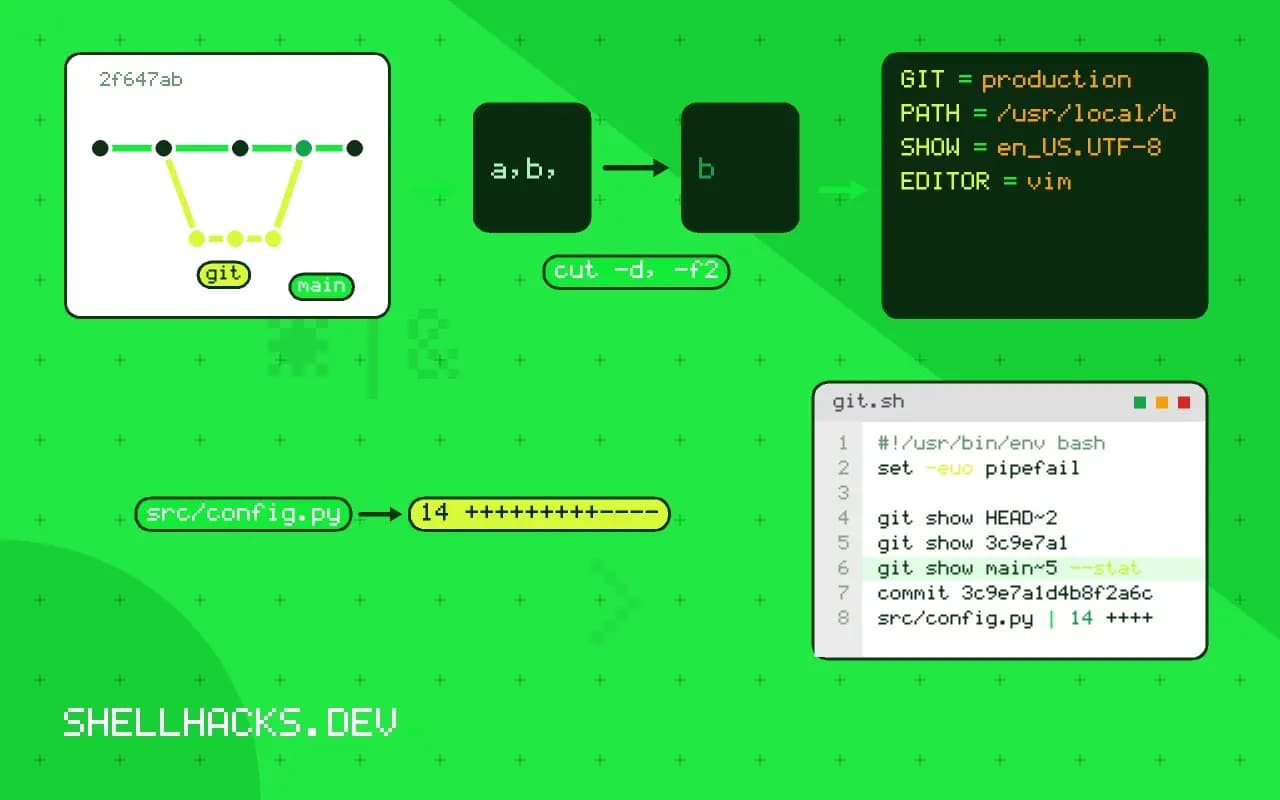
git show HEAD~2
git show 3c9e7a1
git show main~5 --statcommit 3c9e7a1d4b8f2a6c0e5d7b9a1c3e5f7a9b1d3c5e
Author: Ada Lovelace <[email protected]>
Date: Mon Nov 2 14:03:11 2026 +0000
Switch to lazy loading of settings
src/config.py | 14 +++++++++-----
1 file changed, 9 insertions(+), 5 deletions(-)
The revision syntax is the same as everywhere else: a hash, a branch, HEAD~N for N commits back, HEAD^2 for the second parent of a merge. A merge commit shows a combined diff against both parents by default, which is often empty if the merge was clean; use git show -m to see each parent separately, or --first-parent.
A file as it was
git show v2.3.0:src/config.py
git show HEAD~10:README.md > /tmp/README.old
The revision:path form prints the file contents at that commit with no diff. It is the quick way to compare an old version by eye, to restore a file without touching your working tree (redirect to a file) or to read a script from another branch. The path is relative to the repository root, not to the current directory, unless you write ./src/config.py. In the middle of a merge conflict, git show :2:src/config.py prints "our" side, :3: "their" side and :1: the common ancestor, which helps when the markers are hard to read.
Short or scriptable output
git show --name-only --format= HEAD
git show -s --format='%h %an %s' HEAD
git show -s --format=%ct HEADsrc/config.py
8f2d1c4 Ada Lovelace Fix cache expiry
1793541791
An empty --format= removes the message so only the file names remain. -s suppresses the diff. The placeholders are the same as in git log, so one field, such as the commit time with %ct, is easy to extract for a script.
Tags and other objects
git show v2.3.0
git show HEAD:src
For an annotated tag, show prints the tagger, the message and then the commit. Given a directory, it lists the tree entries. This makes it a handy way to browse a repository you did not clone to disk.
Where this does not apply
For finding which commit to look at, use blame or log first; show needs a revision. Large commits flood the terminal, so pipe through a pager or use --stat. If you want to compare two revisions, use diff rather than showing both. Remember that show prints what was committed, not what a file looks like now.
What a commit looks like inside
A commit is a small object with a pointer to a tree, pointers to its parents, an author, a committer, and a message. git show prints the message and the diff against the first parent, and for a merge commit it prints a combined diff that lists only the lines that differ from every parent, which is why a clean merge shows little or nothing. Use -m to split a merge into one diff per parent, or --first-parent to see the changes the merge brought into the main line. Knowing this avoids the puzzle of a merge commit that appears empty, and explains how to see what it really did.
The author and committer can differ. The author wrote the change and the committer applied it, as happens with a rebase, a cherry-pick or a patch applied from email. --pretty=fuller shows both with their dates, which settles questions about when the work was done and when it landed.
Looking at files in other states
The colon syntax reads a file from any commit without changing your working tree: git show v2.1:path/to/file prints the file as it was at that tag. A number instead of a name in front of the colon reads from the index, so git show :0:file shows the staged version, and the numbers 1, 2 and 3 show the conflict stages during a merge. Redirect the output to a file to restore an old version beside the current one, or use git restore --source to bring it back into the tree. Relative references work too: HEAD~3 is three commits back along the first parent, and HEAD^2 is the second parent of a merge. The tilde and caret mean different things, and confusing them on a merge commit gives a different commit than expected.
To see a directory, name the tree with a trailing slash or just the path, and git show lists its entries. git ls-tree gives the same listing in a form that scripts can parse, with modes and object names.
Output for people and for scripts
For a quick summary, git show --stat lists files with change counts, and --name-only lists names. --no-patch, or -s, suppresses the diff and prints only the header, which is what you want when asking who wrote a commit. A format string works as with log: git show -s --format=%H prints a full hash, and git rev-parse --short HEAD is the more direct way to get a short one for a version string. Be careful with the abbreviation length. Git picks enough characters to be unique in the repository today, and a script that stores a short hash can find it ambiguous later as the repository grows, so store full hashes and shorten only for display.
For annotated tags, git show tagname prints the tag message and then the commit it points to. A lightweight tag is just a name for a commit and shows the commit directly. For a blob, a tree or a tag object, git cat-file -p prints the raw content, which is useful when debugging a strange state.
Using show in reviews and scripts
A few forms cover most daily work. git show HEAD after a commit confirms what you just recorded. git show --stat HEAD~5..HEAD summarizes the last five commits with file counts. git show branch:file compares a file between branches when you pipe two such outputs into diff. For a release note, git show -s --format='%s' over a range of commits lists subjects, though git log is the better tool for ranges. In a script, quote revision names that may come from user input, and place a double dash after them when a path follows, so a name that looks like an option cannot change the command.
When an object cannot be found, check that you have fetched it. A commit that exists on the remote is not available locally until a fetch, and a shallow clone lacks the older history entirely, which produces a "bad object" message that looks like corruption and is only missing data.
See git-show and specifying revisions.