How to Use Helm From the Command Line With Real Output
Use Helm from the command line: add repos, install and upgrade releases, values files, template and diff before applying, history, rollback and uninstall.
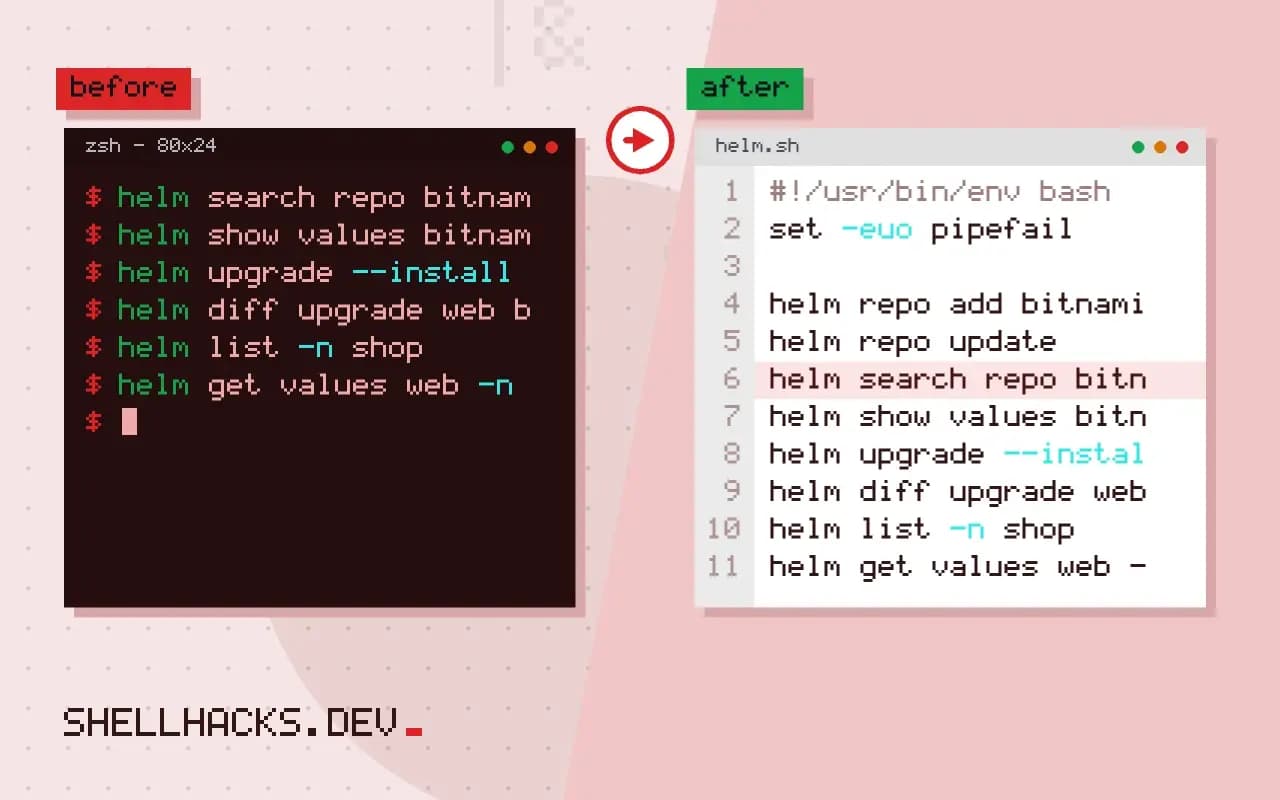
Helm is a package manager for Kubernetes: a chart bundles the manifests for an app, and a release is one installed instance of it. For scripts and pipelines, a handful of commands cover nearly everything, and the habit to build is previewing before applying. It sits beside kubectl scripts in a deploy flow, and the output shown is representative of Helm 3.16.
Find and inspect a chart
helm repo add bitnami https://charts.bitnami.com/bitnami
helm repo update
helm search repo bitnami/nginx --versions | head -3
helm show values bitnami/nginx --version 18.2.0 > values-default.yamlNAME CHART VERSION APP VERSION DESCRIPTION
bitnami/nginx 18.2.0 1.27.2 NGINX Open Source is a web server...
Dump the default values to a file and read it: it documents every option the chart accepts. Charts evolve, so always choose a version deliberately rather than "latest". Third-party repositories are code you run in your cluster; review what you install and prefer charts maintained by the project itself.
Install with your own values
# values-prod.yaml
replicaCount: 3
service:
  type: ClusterIP
resources:
  requests:
    cpu: 100m
memory: 128Mihelm upgrade --install web bitnami/nginx \
--namespace shop --create-namespace \
--version 18.2.0 \
-f values-prod.yaml \
--atomic --timeout 5mRelease "web" has been upgraded. Happy Helming!
NAME: web
NAMESPACE: shop
STATUS: deployed
REVISION: 2
upgrade --install works for first and repeat runs, so a pipeline needs one command. --atomic rolls back automatically if the release does not become ready within the timeout, and implies --wait. Keep values in files under version control, not long --set chains; use --set only for values injected by the pipeline, such as an image tag.
Preview before applying
helm template web bitnami/nginx -f values-prod.yaml --version 18.2.0 | less
helm upgrade --install web bitnami/nginx -f values-prod.yaml --dry-run=server
helm diff upgrade web bitnami/nginx -f values-prod.yaml
template renders the YAML locally without contacting the cluster. --dry-run=server validates against the API server. The diff command comes from a plugin (helm plugin install https://github.com/databus23/helm-diff) and shows what would change in the live objects, the closest thing to a review step.
Inspect, roll back, remove
helm list -n shop
helm get values web -n shop
helm history web -n shop
helm rollback web 1 -n shop --wait
helm uninstall web -n shopREVISION UPDATED STATUS CHART DESCRIPTION
1 Mon Nov 2 09:00:00 2026 superseded nginx-18.1.0 Install complete
2 Tue Nov 3 10:30:00 2026 deployed nginx-18.2.0 Upgrade complete
Helm stores each revision as a Secret in the namespace, so history survives and rollbacks are quick. A rollback restores Kubernetes objects but not data in volumes. helm uninstall deletes the release's resources, though PersistentVolumeClaims from StatefulSets are often kept and need separate cleanup, which is a deliberate safety. Compare with the pattern in rolling back a failed deploy.
Charts, releases and values
Helm packages Kubernetes manifests as a chart, a directory of templates with default values. Installing a chart creates a release, a named instance with its own configuration, and Helm records the release's history in the cluster, as secrets in the namespace. The same chart can be installed many times under different release names with different values. This separation explains most of the commands: the chart is the recipe, the values are the choices, the release is what is running, and the revision is a snapshot of one release at one point in time. Knowing which of the four a command touches avoids the confusion between changing a chart and changing a release.
Values come from the chart's defaults, from files passed with -f, and from --set flags, with later sources overriding earlier ones. Keep your overrides in a file under version control rather than a long line of --set arguments, so the configuration can be reviewed and reproduced.
The upgrade workflow
The command helm upgrade --install release chart -f values.yaml installs if absent and upgrades otherwise, which makes scripts idempotent. Add --atomic to roll back automatically if the upgrade fails, and --wait with --timeout to wait for the resources to become ready before reporting success, so a CI job fails when pods do not start. Preview the change before applying: helm template renders the manifests locally, helm diff (a plugin) shows what would change in the cluster and --dry-run asks the server to validate. Reading the diff is the most useful safety step, because it catches a value that renders to something unexpected. Pin the chart version with --version, so a new chart release does not change your deployment without a decision.
Use helm lint on charts you maintain, and run helm template output through a schema checker such as kubeconform in CI.
Rollbacks and what they do not cover
helm history release lists the revisions, and helm rollback release N restores the manifests from revision N. This reverts the Kubernetes objects, and it does not undo changes outside them: a database migration run by a hook or a job, a deleted persistent volume or a changed external resource stays as it is. Design releases so that rollback is safe, with backward-compatible migrations and persistent data kept separate. Rollback creates a new revision, so the history keeps growing; limit it with --history-max to avoid thousands of stored secrets. After a rollback, find out why the upgrade failed before trying again, with helm get manifest and the pod events, since repeating the same change repeats the failure.
Helm hooks run jobs at points in the lifecycle. They are useful for migrations and tests, and they are a frequent source of stuck upgrades when a hook job fails, so set deletion policies on them.
Secrets, repositories and alternatives
Values files often contain secrets, which Helm stores in the release secret in plain base64. Keep secrets out of values files in version control: use an external secret operator, sealed secrets or the helm-secrets plugin with an encryption tool. Add chart repositories with helm repo add, run helm repo update before searching, and prefer charts from maintainers you trust, with a signature or provenance when available. Read a third-party chart before installing it: it can create cluster roles and run privileged containers. For simple applications, plain manifests with Kustomize can be easier to read than templates with logic. Choose Helm when you need packaging, parameters and release management, and avoid writing charts with so many conditionals that nobody can predict the output. Keep the tooling versions consistent between your laptop and CI, since Helm 3 and later behave differently from the old releases in how they store state, and plugins vary by version.
Where this does not apply
Helm's templating can hide what is deployed, and complex charts are hard to debug; for simple apps, plain manifests or Kustomize are clearer. Releases managed by GitOps controllers should not be changed by hand with helm upgrade, or the controller reverts it. Chart upgrades can change resource names and selectors, which Kubernetes forbids on live objects, so read release notes. See the Helm command reference and the chart best practices.
For automation, a few flags are worth memorising. --wait blocks until pods are ready, --timeout bounds it, and --create-namespace avoids a separate step. Store the chart version and values file path in the pipeline definition, and log helm get manifest for the release after deploys, so an incident review can see what was applied. For a safe rollout pattern with checks, read smoke tests after a deploy and canary release basics.