How to Encrypt a Disk or Partition With LUKS the Right Way
Encrypt a disk or partition on Linux with LUKS and cryptsetup: format, open, make a file system, back up the header, add a key, and decrypt at boot.
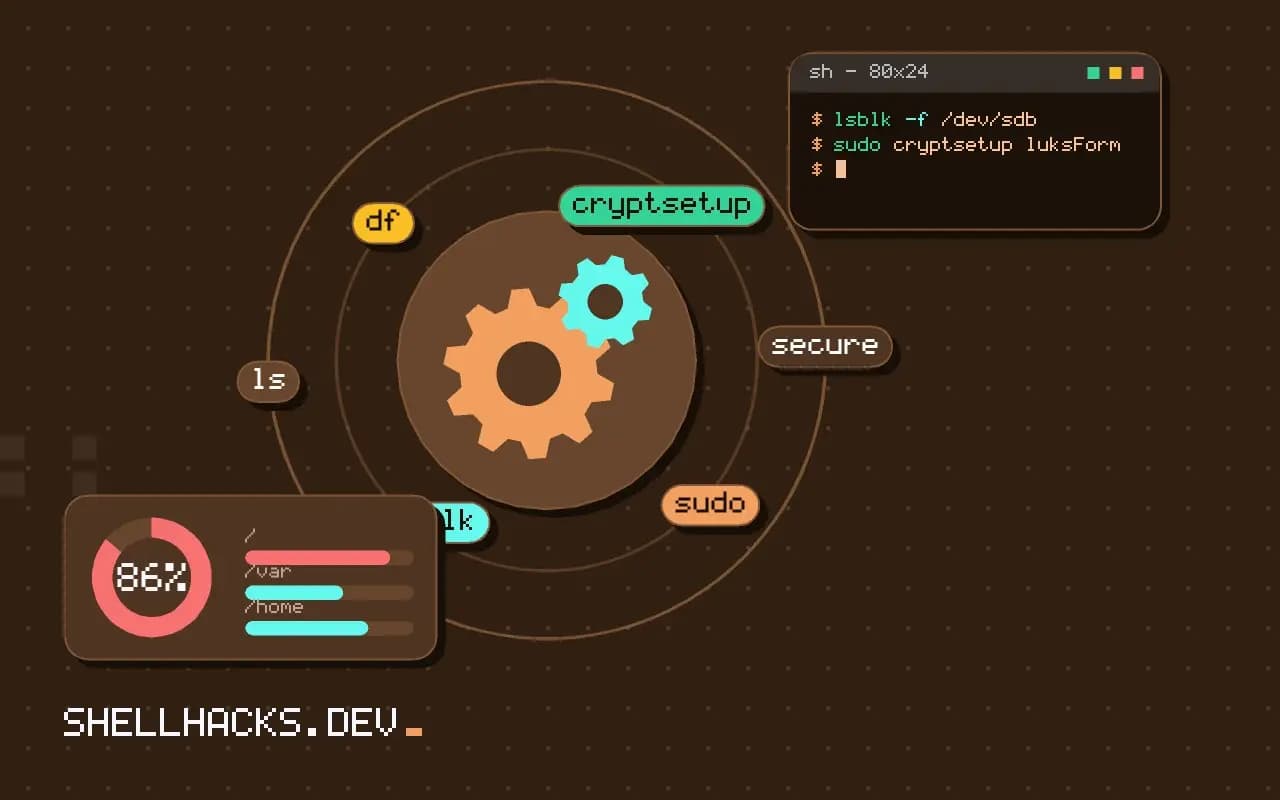
A lost laptop or a returned drive is a data breach unless the disk is encrypted. LUKS is the standard Linux layer, handled by cryptsetup, and it sits below the file system, so any of those from ext4 vs XFS vs Btrfs works on top. The commands assume cryptsetup 2.7 with LUKS2 on Linux 6.x.
Format and open
lsblk -f /dev/sdb
sudo cryptsetup luksFormat /dev/sdb1
sudo cryptsetup open /dev/sdb1 secure
ls /dev/mapper/secureWARNING!
========
This will overwrite data on /dev/sdb1 irrevocably.
Are you sure? (Type 'yes' in capital letters): YES
Enter passphrase for /dev/sdb1:
Verify passphrase:
/dev/mapper/secure
The warning is literal. Check the device, then choose a long passphrase. The mapping name secure becomes a block device that transparently encrypts everything written to it. Without the passphrase the partition looks like random data.
Create a file system and mount
sudo mkfs.ext4 -L secure /dev/mapper/secure
sudo mkdir -p /mnt/secure
sudo mount /dev/mapper/secure /mnt/secure
df -h /mnt/secure
From here it behaves like any mounted disk. When finished, sudo umount /mnt/secure and sudo cryptsetup close secure lock it again. A GUI file manager on most desktops will prompt for the passphrase and do both steps for you.
Back up the header
sudo cryptsetup luksHeaderBackup /dev/sdb1 --header-backup-file sdb1-luks-header.img
sudo cryptsetup luksDump /dev/sdb1
The header holds the key slots. If it is damaged, even the right passphrase cannot decrypt the data, so store this backup somewhere that is not on the same disk. Treat the backup as sensitive: anyone with the header and an old passphrase can open the volume, even after you change the passphrase on the disk. luksDump shows the cipher (normally aes-xts-plain64), the key size and the used slots.
Add a key and decrypt at boot
sudo dd if=/dev/urandom of=/root/secure.key bs=512 count=8
sudo chmod 400 /root/secure.key
sudo cryptsetup luksAddKey /dev/sdb1 /root/secure.keysecure UUID=1b2c3d4e-0000-0000-0000-aaaaaaaaaaaa /root/secure.key luks
Put the line above in /etc/crypttab and mount from /dev/mapper/secure in /etc/fstab, as in mounting permanently. A key file on an unencrypted root defeats the purpose for that disk, so use it for secondary disks whose keys sit on an encrypted root. Check the permissions rules in locking down file permissions.
What LUKS protects and what it does not
LUKS encrypts a block device, so that everything on it, including file contents, names and sizes, is unreadable without the key. That protects data at rest: a stolen laptop or a disk sent for repair reveals nothing. It does not protect a running system. Once the volume is open, any process with permission can read the files, and the key sits in kernel memory. It also does nothing against malware, a compromised account or someone with access to the machine while it is on.
The design stores a random master key on the disk, encrypted by each passphrase or key file in up to eight key slots. Changing a passphrase re-encrypts only the small key slot, not the data, so it is fast. Because the master key never changes through that operation, a person who copied the header before the change and knows the old passphrase can still decrypt, which is why the header backup in this post needs to be guarded as carefully as the key.
Choosing parameters and checking speed
LUKS2 is the default in current tools and uses the Argon2id key derivation function, which is deliberately slow and memory-hungry to make guessing passphrases expensive. The format step benchmarks the machine and chooses costs that take roughly two seconds to open the volume. Leave the defaults unless there is a reason, and avoid moving a drive formatted on a fast desktop to a tiny device without testing the time to open the volume and the memory use.
The default cipher, AES in XTS mode with a 512-bit key, is well supported by hardware acceleration on modern CPUs. Check with cryptsetup benchmark, which prints throughput for several ciphers on this machine. On hardware without AES instructions, an alternative such as Adiantum may be faster, but measure before changing.
Passphrases, key files and recovery
Use a long passphrase, and consider a second key slot holding a recovery key kept offline, such as a printed random string in a safe place. A key file stored on the same disk defeats the purpose, while one on a removable USB stick turns the stick into a physical token. For servers that must boot unattended, the realistic options are a key fetched from a network service at boot, such as Tang with Clevis, or TPM-based decryption; each trades convenience for a different exposure, so choose with a threat model in mind.
The recovery drill matters more than the setup. Confirm that the backup of the header opens a copy of the device, that the recovery key works, and that the documented steps actually restore access. Without a header backup, damage to the first megabytes of the disk makes the whole volume unrecoverable, however good the passphrase.
Operations that need care
Formatting destroys existing data, so identify the device with lsblk and its serial before running anything. Opening a volume maps it under /dev/mapper; closing it with cryptsetup close after unmounting removes the key from memory. On an SSD, TRIM passes through only if you enable it with the discard option, which speeds up the drive and also reveals which blocks are unused, a small information leak that some threat models reject.
To encrypt an existing disk in place, cryptsetup reencrypt can do it but requires free space for the header and a full-device rewrite, and an interruption midway is a risk, so back up first. For an external drive, the file system on top can be chosen as usual, as discussed in comparing ext4, XFS and Btrfs. Finally, remember that an encrypted drive is still a single device: it needs backups of the decrypted data to a separate place, because encryption does not guard against failure.
Two operational notes help in practice. Confirm that the system will still boot and prompt for the passphrase after any change, by testing in a virtual machine or during a window where a console is available. And do not store the passphrase in the initramfs in plain form; a key file in the initramfs defeats full-disk encryption for anyone who can read the boot partition.
For laptops, pair encryption with a screen lock and a firmware password, and with suspend settings that wipe keys. Suspend-to-RAM leaves the key in memory, so a locked but suspended machine is only as safe as its lock screen. Full shutdown or hibernation to an encrypted swap area gives the strongest protection when the device leaves your hands.
Where this does not apply
Encryption does not protect a running machine with the volume decrypted, nor a user with the passphrase. It does not hide that a volume exists, and it will not fix a weak passphrase. Whole-system encryption, including the root file system, is best set up at install time with your distribution's installer. SSD trim through the mapping is disabled by default for privacy reasons; enabling it with --allow-discards leaks which blocks are in use. See the cryptsetup FAQ and the cryptsetup manual page.