How to Change the SSH Port and Limit Users in sshd config
Change the SSH port and limit users in sshd_config without locking yourself out: firewall first, Ubuntu socket activation, SELinux and AllowUsers.
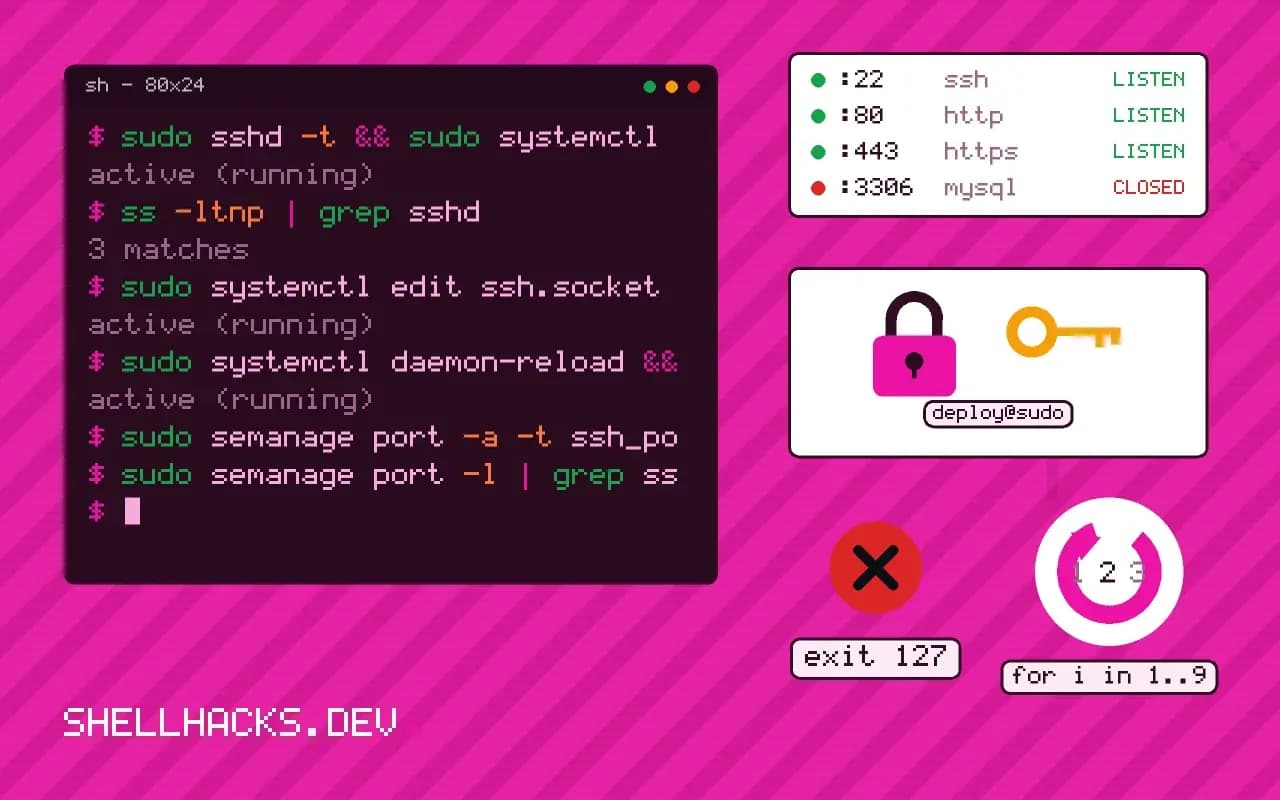
Moving SSH off port 22 will not stop a determined attacker, and it does remove most of the automated scanning from the logs. Two details cause most of the lockouts: the firewall, and Ubuntu's socket activation, which silently ignores the usual setting. This post gives the safe order. It extends hardening sshd. The commands assume Debian 13 and Ubuntu 24.04 with OpenSSH 9.6 to 10.0.
Open the new port first
sudo ufw allow 2222/tcp
sudo ufw status | grep 2222
Allow both ports during the change: leave 22 open until the new one is proven. In a cloud environment, the provider's security group is a second firewall that needs the same rule. Skipping this step is the usual way to lose access.
Set the port
Port 2222
sudo sshd -t && sudo systemctl restart ssh
ss -ltnp | grep sshd
If the output shows sshd listening on 22 only, you are on a system with socket activation. Ubuntu 22.10 and later start ssh.socket, which holds the listening port, and the daemon is started on demand, ignoring Port. Either override the socket or return to the classic service:
sudo systemctl edit ssh.socket[Socket]
ListenStream=
ListenStream=2222
sudo systemctl daemon-reload && sudo systemctl restart ssh.socketThe empty ListenStream= line clears the default before the new value is added. The alternative is to disable the socket and enable the service: sudo systemctl disable --now ssh.socket && sudo systemctl enable --now ssh.service, after which the Port line is honored.
SELinux
sudo semanage port -a -t ssh_port_t -p tcp 2222
sudo semanage port -l | grep ssh
On Fedora and RHEL, SELinux blocks sshd from binding to a port not labeled ssh_port_t, and the failure appears only in the audit log. Add the label before restarting. The command comes from the policycoreutils-python-utils package.
Test, then close the old port
ssh -p 2222 [email protected]Keep the first session open, test from a new terminal, and only then remove the 22 rule and the Port 22 line. Add a client config so you stop typing the flag: a Host block with Port 2222 in ~/.ssh/config; see the SSH config file.
Limit who may log in
AllowGroups sshusers
AllowUsers deploy [email protected]/8
Match Group backup
    ForceCommand /usr/local/bin/backup-shell
    AllowTcpForwarding no
AllowGroups and AllowUsers together require both to pass; use one to keep it simple. The user@host form restricts by source address. A Match block applies settings only to the conditions it names, and runs to the next Match or the end of the file, so put it last. For system accounts that must not log in at all, set their shell to /usr/sbin/nologin.
Where this does not apply
Tools that assume port 22, such as some deployment systems and Git hosting setups, need the port written in their configuration. Corporate firewalls often allow only 22 and 443. A non-standard port is security through obscurity: it filters out noise and nothing more. The real protection is keys and a second factor, plus watching the logs.
What moving the port does and does not do
Changing the SSH port reduces the volume of automated login attempts in the logs, since most bots scan only port 22. It does not stop a targeted attacker, who finds the new port with a full port scan in minutes, so it is not a substitute for key-only authentication and updates, and counts as a convenience for quiet logs. There is a counter-argument as well. Ports below 1024 can be bound only by root, so a normal user on the machine cannot start a rogue daemon on port 22 if the real one stops. A port above 1024 can be bound by anyone, which in a shared environment lets a user impersonate the service while the real one is down. Weigh both facts for your situation, and if you do change it, pick a number outside the ranges used by other services and write it down in your inventory and in the client configuration so the change does not become a mystery six months later.
Some environments change the port for a different reason: a firewall or a provider that blocks 22, or a jump host that already uses it. In that case the port is a requirement, not an obscurity measure, and no security claim is made.
The order of operations that avoids a lockout
Open the new port in every firewall layer before touching the daemon: the host firewall, the cloud security group and any network device in between. Add the Port line while keeping the old one, so the daemon listens on both. Run sshd -t, reload, and confirm with ss -tlnp that both ports are open. Connect on the new port from a second terminal, and only when that works close the old port in the firewall and remove the old Port line. On systems that use socket activation for SSH, such as recent Ubuntu releases, the listening port is owned by ssh.socket and not the daemon, so a Port line in the configuration is ignored until you also change the socket's ListenStream through a drop-in override, or disable socket activation. A new port that does not listen after a reload is nearly always this.
On SELinux systems, the daemon is allowed to bind only to ports labelled for SSH, and a new port must be labelled with semanage port -a -t ssh_port_t -p tcp 2222. Without it, the daemon fails to bind and the audit log shows the denial.
Limiting users, groups and sources
AllowUsers accepts names and, with the user@host form, a source address pattern, so one account can be limited to log in only from an office address. AllowGroups scales better: create an ssh-users group, add the people who should have access and allow that group. The directives combine in a fixed order of evaluation, and a user must pass every one that is present, so adding an allow list is also a deny for everyone else, including service accounts you forgot. Match blocks let you apply different rules by user, group or address, for example to require stronger authentication from outside the office network. Test with sshd -T -C user=alice,host=example,addr=203.0.113.5, which prints the effective settings for a given connection and shows which Match blocks apply, so you can check a rule without trying to log in.
Documenting the change for everyone else
A port change touches more than the server. Update the client configuration of every person and script that connects, the monitoring checks, the firewall documentation, the backup jobs and any tool that reaches the host over SSH, such as deployment pipelines. Put the port in ~/.ssh/config under a host alias so nobody has to remember it, and give automation the same alias. Add a line to the runbook explaining where the port is set, including the socket override if the system uses one, so a future reinstall does not silently return to the default.