How to Disable Password Login and Harden sshd the Safe Way
Harden sshd: disable password login, restrict root and users, shorten the attack window with a drop-in file, and test safely without locking yourself out.
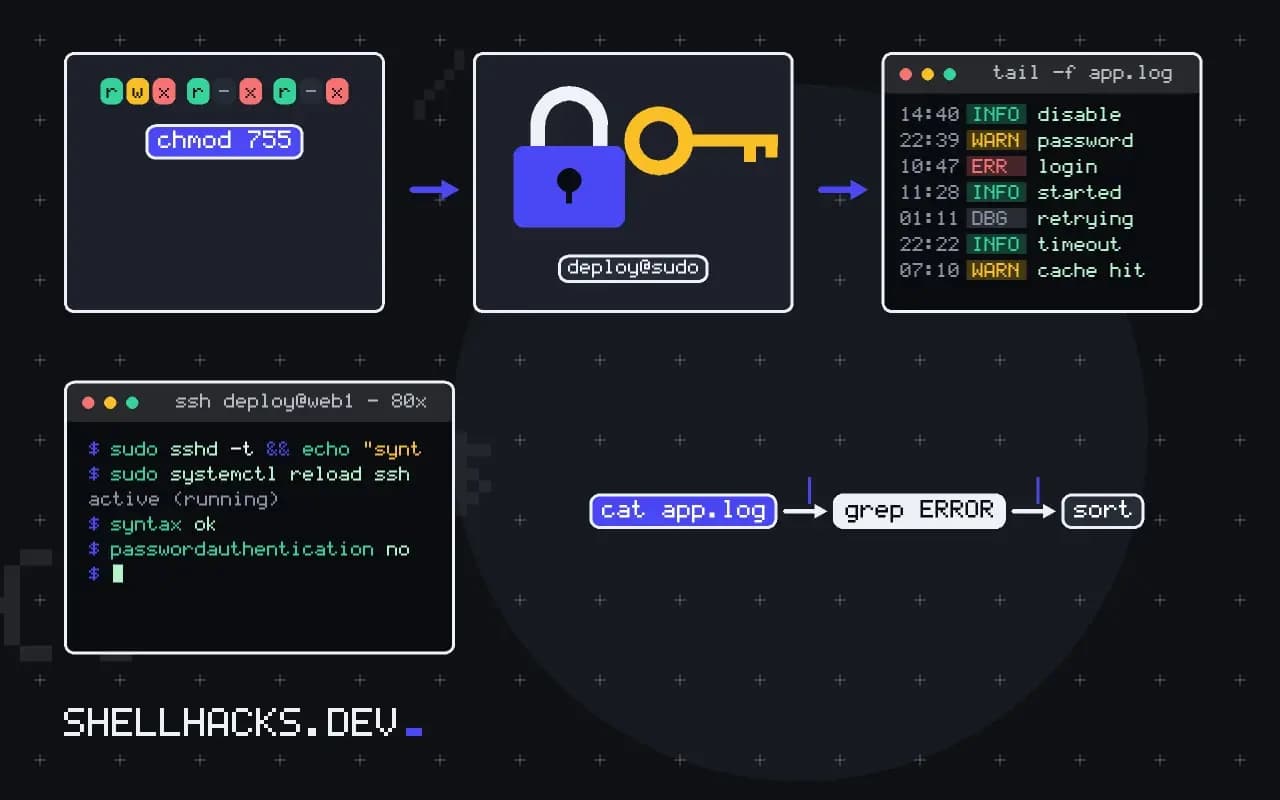
A server on the public internet receives password guesses within minutes of coming online. Turning password login off is the single largest improvement, and the rest of the hardening list is short. The risk is locking yourself out, so the order of steps matters as much as the settings. This post follows the steps in the SSH guide. The commands assume OpenSSH 10.0 on Debian 13.
Before you change anything
ssh-copy-id -i ~/.ssh/id_ed25519.pub [email protected]
ssh -o PasswordAuthentication=no [email protected] true && echo "key login works"
The second command forbids password fallback for one attempt, which proves the key alone is enough. Open a second terminal session to the server and leave it connected for the rest of the work; an existing session survives a configuration reload, so it is your way back in if a setting is wrong. See ssh-copy-id for the first step.
The drop-in file
PasswordAuthentication no
KbdInteractiveAuthentication no
PermitRootLogin no
PubkeyAuthentication yes
AuthenticationMethods publickey
MaxAuthTries 3
LoginGraceTime 30
AllowUsers deploy ada
X11Forwarding no
Debian, Ubuntu and current Fedora read every *.conf file in sshd_config.d in alphabetical order, and for most keywords the first value found wins. Ubuntu cloud images include 50-cloud-init.conf with PasswordAuthentication yes, so a file named 99-hardening.conf would lose. The 00- prefix guarantees yours is read first. KbdInteractiveAuthentication no closes the other password route, since PAM-based prompts can ask for a password even when PasswordAuthentication is off. AllowUsers limits who may log in at all, and anyone not listed is refused.
Check, reload, test
sudo sshd -t && echo "syntax ok"
sudo sshd -T | grep -Ei '^(passwordauthentication|permitrootlogin|allowusers|authenticationmethods)'
sudo systemctl reload sshsyntax ok
passwordauthentication no
permitrootlogin no
authenticationmethods publickey
allowusers deploy ada
sshd -T prints the settings the daemon will actually use after merging all files, which is the check that catches an overridden value. The service is named ssh on Debian and Ubuntu and sshd on Red Hat systems. In a new terminal, log in again; then confirm that a password attempt is refused: ssh -o PubkeyAuthentication=no [email protected] should fail with Permission denied (publickey).
Other settings worth considering
ClientAliveInterval 300 with ClientAliveCountMax 2 drops dead sessions. AllowTcpForwarding no and AllowAgentForwarding no for accounts that do not need tunnels reduce what a stolen key can do; make exceptions with a Match User block. Move to two-factor authentication or hardware keys for administrators. A tool such as fail2ban cuts log noise, and auditing logins shows what remains.
Where this does not apply
Do this on a console you can reach if SSH breaks: a cloud web console or an attached terminal. Without it, a mistake in the file ends your access. Configuration management should apply the same file everywhere, as in managing config files across servers. Changing the port is not hardening; see changing the SSH port for what it does and does not buy.
Why the effective configuration is not what you wrote
The OpenSSH server reads /etc/ssh/sshd_config from the top, and for most keywords the first value it sees wins and later ones are ignored. On current Debian, Ubuntu and Fedora releases, the main file begins with an Include line that pulls in every file under /etc/ssh/sshd_config.d/ in alphabetical order, and that line comes first. So a drop-in file is read before the directives in the main file and can override them, and a file named 50-cloud-init.conf, which cloud images often add with PasswordAuthentication yes, beats a later file named 99-hardening.conf that says no. This is the most common reason a hardening change appears to do nothing. The way to see what the daemon will really use is sshd -T, which prints the effective settings after all includes and defaults, and reading its output for the keyword in question settles the argument faster than reading files.
Name your drop-in so it sorts first, such as 00-local.conf, and check for another file that sets the same keyword. Match blocks add a twist, since settings inside a Match block apply only to the connections that match and run until the next Match or the end of the file.
Locking yourself out and how to avoid it
The risk in changing authentication settings is cutting your own access on a remote machine. Keep an existing SSH session open while you test, and test the change from a second terminal before closing the first. Make sure your key works before you turn off passwords: log in with ssh -o PasswordAuthentication=no host and confirm it succeeds. Check the syntax with sshd -t before reloading, since a syntax error stops the daemon from reloading and can stop it from starting at the next boot. Reload rather than restart, as a reload keeps existing sessions alive. For machines you cannot reach physically, have an out-of-band route such as the provider's console, and schedule an automatic revert with at that you cancel once the new settings are confirmed good.
Apply changes to one machine first and watch the logs. A setting that is fine on a test host may lock out an automation account on another, such as a deployment user that relies on a password or a key type you have just disabled.
Settings worth reviewing and what each costs
Turn off password logins with PasswordAuthentication no, and in current releases also KbdInteractiveAuthentication no, which replaced the older ChallengeResponseAuthentication name, since keyboard-interactive can ask for a password too. Set PermitRootLogin prohibit-password or no, and use a normal user with sudo. Restrict who may log in with AllowUsers or AllowGroups, which makes everyone else fail immediately. Lower MaxAuthTries and LoginGraceTime to cut the room for guessing. Disable X11Forwarding and agent forwarding on servers that do not need them. Each setting trades convenience for safety: disabling passwords means a lost key is a lost login, and an allow list means a new person needs a configuration change. Document the reasons next to the settings so the next administrator knows which ones are deliberate.
Keeping the configuration in version control
Treat the daemon configuration as code. Keep the drop-in files in a repository, deploy them with your configuration management, and review changes like any other. A short header comment in each file says why a setting exists and who decided, which saves the next person from undoing a deliberate choice. Run sshd -T in a check that compares the effective settings against an expected list, so a drift on one server, such as a cloud-init file that re-enables passwords after an image update, is caught the same day. Scan your servers with a hardening audit tool such as ssh-audit from time to time to see which algorithms and settings the daemon offers, and remove the weak ones when no client needs them. Each of these checks takes minutes, and together they stop the slow loss of a hardened setup.
See sshd_config(5) and the OpenSSH specifications.