How to Audit SSH Logins and Failed Attempts the Safe Way
Audit SSH logins on Linux: read auth logs and the journal, count failed attempts, list successful logins by key, spot invalid users and raise the log level.
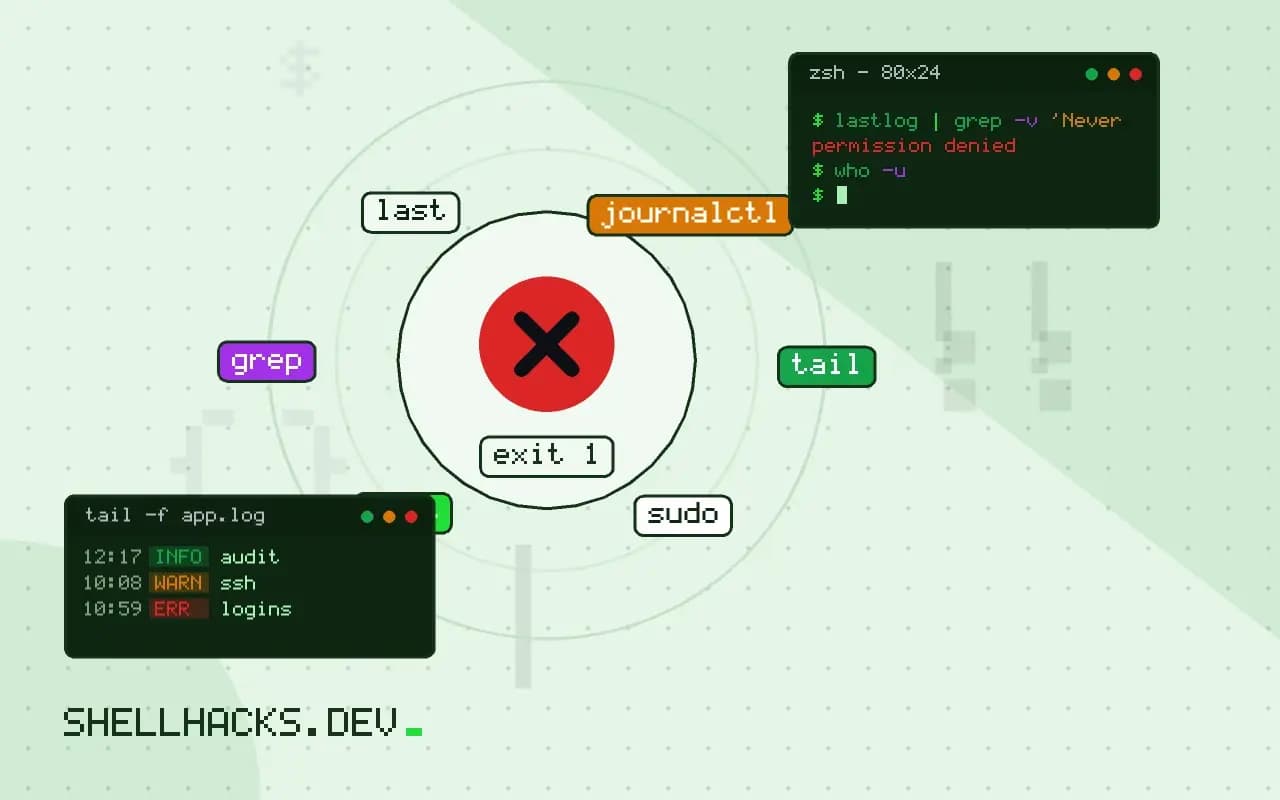
Every exposed SSH server has failed logins in its log, so the job is not counting them but finding the one thing that is different: a success from an address you do not know. The data is already there, in plain text. This post shows how to read it from the journal and the files, as the monitoring step after hardening sshd. Examples use Debian 13 with OpenSSH 10.0; log file names differ on other systems.
Where the logs are
journalctl -u ssh --since today --no-pager | tail -n 3
sudo grep -h 'sshd' /var/log/auth.log | tail -n 3Nov 03 09:12:44 web1 sshd[2210]: Accepted publickey for deploy from 203.0.113.7 port 51744 ssh2: ED25519 SHA256:3f2a...
Nov 03 09:13:02 web1 sshd[2231]: Failed password for invalid user admin from 198.51.100.4 port 40022 ssh2
The unit is ssh on Debian and Ubuntu and sshd on Red Hat systems, which log to /var/log/secure. Systems without the traditional auth log read the journal. On a minimal image, rsyslog may not be installed, so the file does not exist.
Successes
journalctl -u ssh --since "7 days ago" --no-pager | grep 'Accepted' \
| awk '{print $(NF-5), $(NF-3)}' | sort | uniq -c | sort -rn 142 deploy 203.0.113.7
18 ada 192.0.2.50
1 ada 198.51.100.200
This counts logins by user and source address. The final line stands out: a user who normally comes from one address has a one-off login from another. That is what to investigate, with the key fingerprint, which LogLevel VERBOSE adds to the line, matching it against the keys you issued with ssh-keygen -lf authorized_keys.
Failures
journalctl -u ssh --since today --no-pager | grep -E 'Failed|Invalid user' \
  | grep -oE 'from [0-9a-f.:]+' | sort | uniq -c | sort -rn | head
journalctl -u ssh --no-pager | grep -oE 'Invalid user [^ ]+' | sort | uniq -c | sort -rn | head
The first lists the noisiest source addresses, which you can feed to a firewall or fail2ban; the second shows which usernames are being guessed, usually root, admin and ubuntu. With password login off, these are harmless noise, and their volume is an argument for changing the port or limiting the source range. See changing the SSH port.
History and current sessions
last -a -n 10
sudo lastb -n 10
lastlog | grep -v 'Never logged in'
who -u
last reads /var/log/wtmp and shows successful sessions with durations and source hosts; lastb reads /var/log/btmp, which records failed logins, and needs root. lastlog shows the most recent login of each account, useful for finding dormant accounts. who -u shows who is on now.
Raise the detail
LogLevel VERBOSE
At the default level, a successful login records the fingerprint on key authentication since OpenSSH 8.x for most cases; VERBOSE makes it consistent and adds logout lines and certificate details. It increases log volume modestly. Avoid DEBUG, which logs more than you want and may include sensitive details.
Where this does not apply
Attackers who gain access can edit local logs, so ship them elsewhere as in centralizing logs. Counting failed attempts proves little on a host that is key-only. Alert on the events that matter: a root login, a new source for a user, logins at odd hours, using the pattern in basic alerting. For compromise response, see responding to a compromised server.
Reading the records for the first time
The messages from the SSH daemon go to the journal on current systems and to /var/log/auth.log on Debian-style systems or /var/log/secure on Red Hat-style ones, depending on how logging is set up. The unit is named ssh on Debian and Ubuntu and sshd on Fedora and its relatives, so journalctl -u ssh or -u sshd reads it. A successful key login produces a line starting with "Accepted publickey for", followed by the user, source address, port and key type, and by default the daemon logs the key's fingerprint on that line in recent versions. A failure shows as "Failed password" or "Invalid user" when the account does not exist. Counting the second kind shows how much of the traffic is scanning, and a sudden change in that count is worth a look. Look at both the volume and the targets: attempts against user names that exist on your system are more serious than random names.
Timestamps are in local time by default, and a correlation across machines is easier in UTC, which journalctl --utc prints. Check the clock before trusting the order of events.
Who is on the machine now and who was
For current sessions, who and w list logged-in users with their source and what they run. For history, last reads the login records and shows past sessions with times and durations, and lastb shows failed attempts, if the file exists, though not all systems keep it. A line from an unexpected address, a login at an unusual hour, or a session that lasted a few seconds on an account that normally does long ones are the patterns to follow up. These records live in files that an intruder with root can edit, so on a machine you suspect, treat them as hints and compare with copies in a central log server. A central copy is exactly why the earlier post on shipping logs matters: an attacker can clean a local file, and cannot reach a separate collector.
To tie a login to a key, raise the log level to VERBOSE in the daemon configuration, which records the fingerprint of the key used. That lets you tell which key a person or script used, and revoke a single compromised key without guessing.
Turning the records into alerts
Alert on the few events that matter: a successful login for an account that should never log in remotely, such as root or a service user, a login from a country or network you do not use, and a success shortly after a run of failures from the same address, which is the signature of a guessed password. Rate-limit and block repeated failures with a tool such as fail2ban or the firewall's connection limits, and remember that blocking is a convenience and not a security boundary, since key-only authentication makes guessing futile. Send the alerts to the same channel as other operational messages, and keep the thresholds in a file you review. Check that logging itself is working by logging in and finding the line, because a disk that is full or a misconfigured logger fails quietly.
Putting the checks into a routine
Once a week, or after any incident, run the same few commands: count failed and accepted logins over the past seven days and compare them to the previous week, list the distinct source addresses of the successful logins and look for new ones, check the accounts that logged in and confirm each should have, and read the last few entries for the privileged accounts. Save the output, since a record of normal makes the abnormal stand out. Keep the retention of authentication logs long enough to cover the time an intrusion could go unnoticed, which is weeks, not days, and keep a copy off the machine. A routine that takes ten minutes and is done every week finds problems that a deep review done once a year will not.
See LogLevel in sshd_config(5) and last(1).