How to Use Hardware Keys With SSH Without Surprises
Use a FIDO2 hardware key for SSH: generate an ed25519-sk key, choose resident or not, require touch and PIN, use it on new machines and keep a backup.
A software private key is a file that malware can read. A hardware key signs inside the device and demands a physical touch, so stealing the laptop or running malware on it is no longer enough. OpenSSH has supported this natively since 8.2, with no extra daemons. This post sets it up, with the choices that matter. It is the hardware option beyond TOTP codes, and relates to generating SSH keys. The commands assume OpenSSH 10.0 and a FIDO2 token.
Generate the key
ssh-keygen -t ed25519-sk -O resident -O verify-required -O application=ssh:laptop -C "ada@laptop"Generating public/private ed25519-sk key pair.
You may need to touch your authenticator to authorize key creation.
Enter PIN for authenticator:
Your identification has been saved in /home/ada/.ssh/id_ed25519_sk
Your public key has been saved in /home/ada/.ssh/id_ed25519_sk.pub
The saved private file is a handle that refers to the credential on the token; copying it elsewhere does nothing without the device. -O resident makes the credential discoverable. -O verify-required requires the PIN each time, on top of the touch; omit it to need only the touch. Choose ed25519-sk where the token supports it, and fall back to ecdsa-sk for older devices. Avoid -O no-touch-required, which removes the physical check that gives the scheme its value.
Install and use it
ssh-copy-id -i ~/.ssh/id_ed25519_sk.pub [email protected]
ssh -i ~/.ssh/id_ed25519_sk [email protected]
The server needs OpenSSH 8.2 or later and no other setup, because it only verifies a signature. During login the token blinks, and you touch it. The ssh-add agent can hold the handle but still contacts the device for each signature, so every connection asks for a touch. That is the feature, and the annoyance with tools that open many connections, where connection multiplexing helps; see ControlMaster.
A new machine
cd ~/.ssh
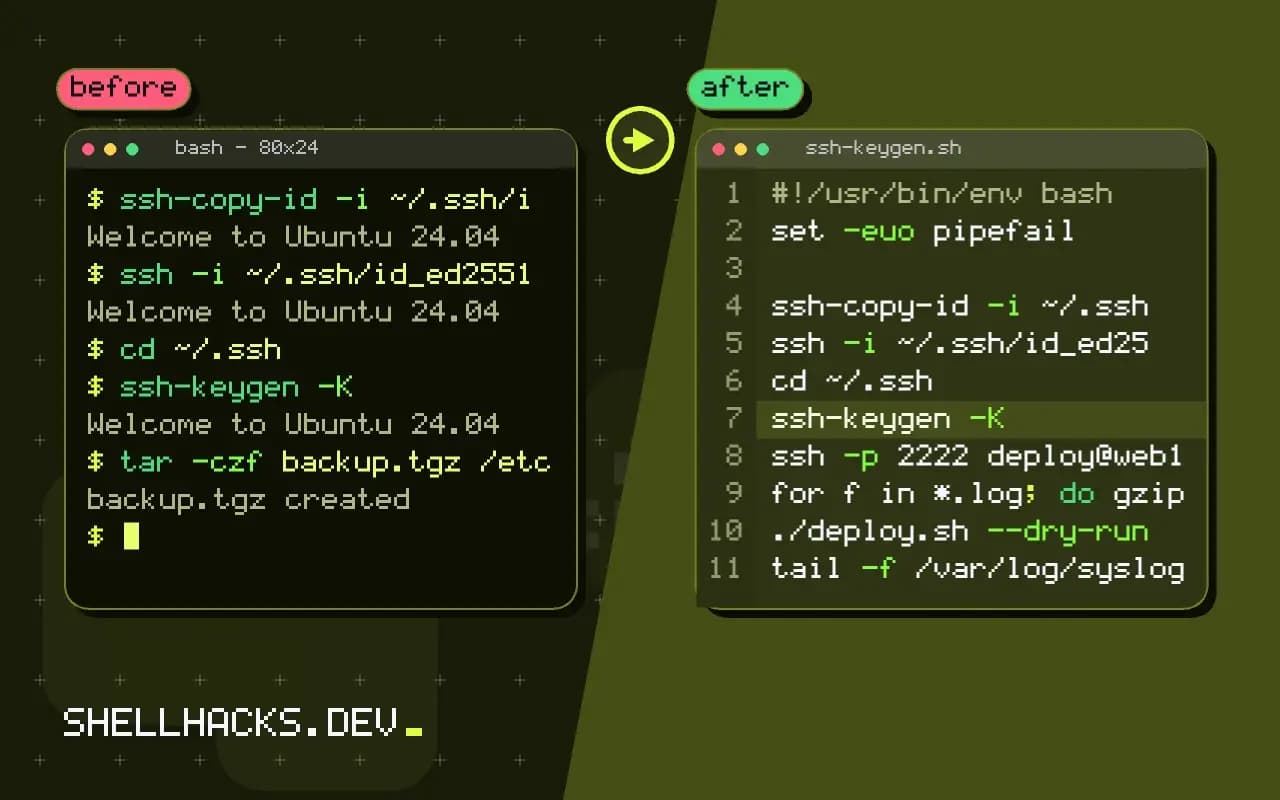
ssh-keygen -K
With a resident key, ssh-keygen -K downloads the handles from the token and writes id_ed25519_sk_rk files, so you can log in from any computer with the token plugged in. Anyone who holds the token still needs the PIN to use a resident key made with verify-required, so a found token is safe.
Backups and limits
Register a second token the same way and install both public keys on every server. Store the spare in a safe place. Tokens have a limited number of resident slots, often 25 on a basic device, and some models (older firmware) lack resident or verify support. On Linux, the user needs permission to access the hidraw device, which the libfido2 udev rules provide; if ssh-keygen says "device not found", install libfido2-1 and replug the token. macOS's system OpenSSH historically lacked FIDO support, so use a Homebrew build.
Where this does not apply
Automation cannot touch a token, so CI uses restricted software keys, as in deploy keys. Remote shells that forward the agent to a server do not give that server the key, but each signature still needs a touch on your local token. Some jump host setups can be awkward with touch prompts in the middle of a ProxyJump chain.
How a security key changes the login
A FIDO2 key stores a private key in hardware that cannot be copied out, and each use requires a physical touch, and optionally a PIN. When you generate a key of the ed25519-sk type, the file in ~/.ssh is not the private key but a handle that tells the client which device and credential to use, so stealing the file is useless without the device. The public key goes into authorized_keys as usual, with the type name [email protected]. Both sides need support: OpenSSH 8.2 or later on the client and the server, and a key that implements FIDO2 or U2F. Older security keys that lack the newer curve use ecdsa-sk, and the client reports an error about an unsupported key type if the device cannot do ed25519. Check the versions with ssh -V on each side before blaming the device.
The protection is against remote theft of keys and against malware that reads files. It does not protect against someone with physical access to the logged-in machine and the key, and the touch requirement is what limits a remote attacker from using it silently.
Resident keys and moving between machines
By default the handle file must be present on each machine you use. A resident key, created with -O resident, stores the credential on the device itself, so on a new machine ssh-keygen -K reads it from the key and writes the handle files again. Resident keys take limited storage on the device, and anyone who holds the device and knows its PIN can download the handle, though they still need a touch to use it. Setting -O verify-required demands the PIN on each use, which adds a second factor at the cost of typing it. An option exists to skip the touch, -O no-touch-required, which defeats a main benefit and should be used only for unattended jobs, if at all, and the server must also allow it in the key options. Give each key a descriptive application string if you use several, so you can tell them apart.
Backups, loss and the first week
A hardware key can be lost or can fail. Register two keys on every server, and keep the second in a safe place, or keep an independent recovery route such as a console, a separate break-glass key with a strong passphrase stored offline, or a bastion with different credentials. Test the second key on a real login before you rely on it. Keep the handle files in a backup, though note they are only half of the credential. When you retire a key, remove its line from every authorized_keys, and keep an inventory of which servers trust which keys, since a forgotten entry is an open door. In the first week expect small problems: agents that do not prompt for the touch, tools that run SSH in the background without a terminal and cannot show the prompt, and older servers that do not understand the key type. Fix them one at a time and document the fixes.
What to do when a tool cannot touch the key
Some tools run SSH in the background, where no terminal can show the touch prompt, and they appear to hang. Git operations in a graphical client, scheduled jobs and remote editors are typical. The key blinks while the tool waits, and touching it completes the login, so look at the device first. For jobs that must run unattended, use a separate key with limited rights, a forced command and a source restriction on the server, and do not give it the hardware key. Where you want the touch but the tool hides the prompt, an askpass helper program, named by the SSH_ASKPASS variable, can show a dialog. Keep the hardware key for interactive access to important systems, and use ordinary restricted keys for machines talking to machines.
See the OpenSSH 8.2 release notes and ssh-keygen(1).