How to Use Regex to Rename Files in Bulk Step by Step
Rename many files with a regex using Perl rename, sed with a loop, mmv and Bash expansion, always dry run first, and avoid clobbering names.
Renaming a few hundred files by hand is how typos happen. A regular expression describes the change once, and a preview shows exactly what would happen. The wrinkle is that two different commands are called rename. The examples use Perl rename 1.11 (Debian's rename package), util-linux 2.39 and Bash 5.2; the substitution syntax itself is covered in sed regex replacement.
Which rename do you have
rename --version 2>&1 | head -2
command -v prename rename/usr/bin/prename (file-rename 2.0.0) using Perl
Debian and Ubuntu ship the Perl version as rename, and Fedora and Arch ship util-linux's, which takes plain strings: rename .jpeg .jpg *.jpeg and has no regex. macOS needs brew install rename for the Perl one. Scripts that must work everywhere use a Bash loop instead.
Preview, then apply
rename -n 's/\.jpeg$/.jpg/' *.jpeg
rename -n 's/^IMG_(\d+)/holiday-$1/' IMG_*.jpg
rename 's/^IMG_(\d+)/holiday-$1/' IMG_*.jpgrename(IMG_0042.jpg, holiday-0042.jpg)
rename(IMG_0043.jpg, holiday-0043.jpg)
-n prints what would be done and changes nothing. The expression is Perl's s///, so you get \d, capture groups and flags such as /i. It is applied to the whole name, so anchor with ^ and $ to avoid replacing in the wrong place. A rename that would overwrite an existing file is skipped with a message unless you pass -f, so avoid -f unless you mean it. A handy extra: rename 'y/A-Z/a-z/' lowercases names.
The same with a Bash loop
for f in ./*.jpeg; do
  [[ -e $f ]] || continue
  mv -n -- "$f" "${f%.jpeg}.jpg"
done

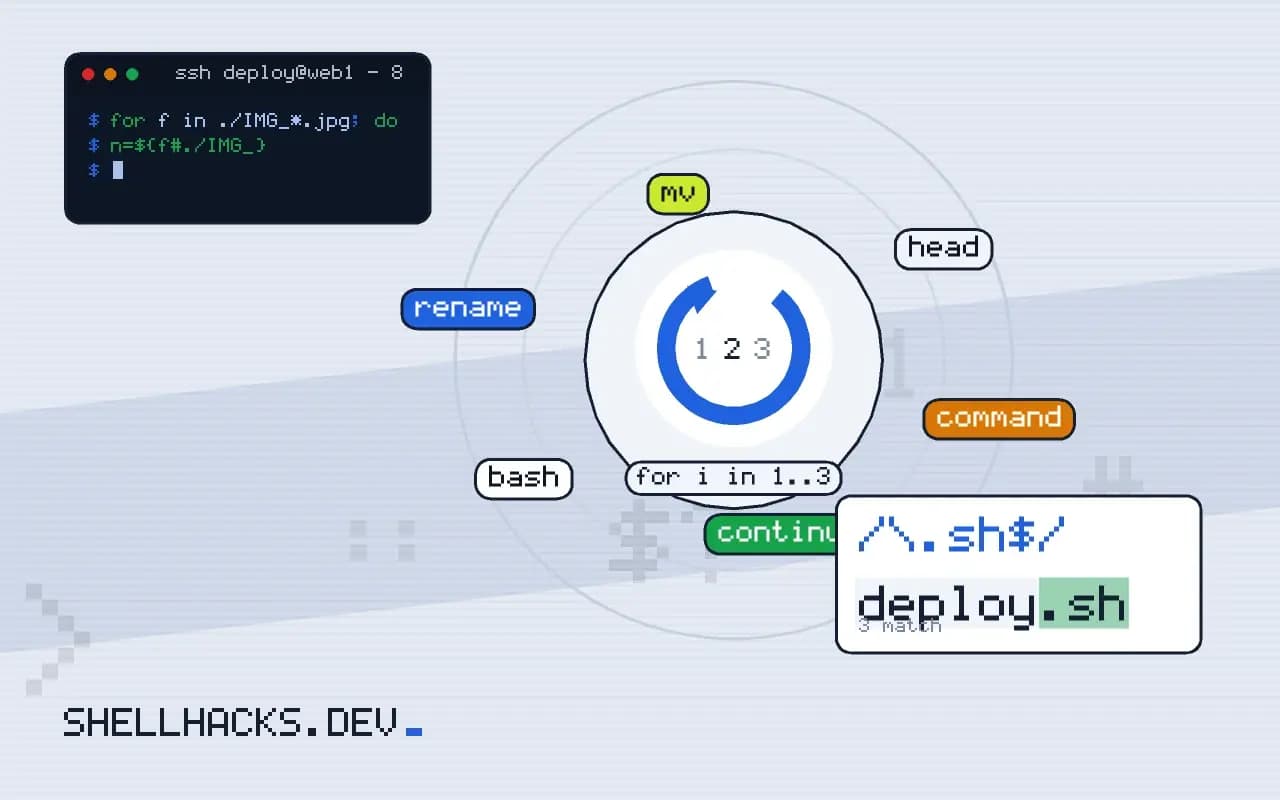
for f in ./IMG_*.jpg; do
  n=${f#./IMG_}
  mv -n -- "$f" "./holiday-${n}"
done
Parameter expansion handles prefixes and suffixes without any regex tool, and mv -n refuses to overwrite. The ./ prefix and -- protect names that begin with a dash. For true regexes inside a loop, use [[ $f =~ regex ]] and BASH_REMATCH, as in BASH_REMATCH and regex matching. The expansion forms are in removing prefixes and suffixes.
Dry run for the loop
for f in ./*.jpeg; do
  printf 'mv -n -- %q %q\n' "$f" "${f%.jpeg}.jpg"
done
Printing the commands with printf %q shows exactly what would run, quoted correctly; pipe the output to bash once it looks right. This is the pattern to use for any bulk destructive job, covered in dry-run flags for destructive scripts.
Collisions and ordering
Two source files can map to the same target, for example stripping a prefix from a-x.txt and b-x.txt. The preview will not always show that, so check with rename -n ... | awk '{print $NF}' | sort | uniq -d to list duplicates. Renaming files into names that other files currently hold, such as shifting numbers up by one, must run from the highest number down. For many renames, record the old and new names in a file first, so you can undo the change with a reverse loop.
What the pattern language lets you do
The Perl-based rename evaluates its first argument as a Perl expression applied to each file name, most often a substitution. That gives access to the full regex engine: captured groups with $1, case changes with \L, \U and \u, and the transliteration operator y///. For example, rename 's/ /_/g' * replaces spaces, rename 'y/A-Z/a-z/' * lowercases names, and rename 's/(\d+)/sprintf("%03d",$1)/e' *.jpg pads numbers to three digits by evaluating code in the replacement. Padding is the useful one, because it makes file names sort in numeric order, which many tools and people expect. The tool renames only the name, never the directory part unless the pattern includes it, so it is safe to run on dir/*.
The util-linux version works differently, replacing the first occurrence of a literal string by another: rename .jpeg .jpg *.jpeg. It has no patterns, which is limiting and also safer for simple jobs. Check which one you have before running anything, as in the first section, because the same command line means different things.
Handling awkward names
The names that cause trouble are the same ones that trouble every shell script: spaces, leading dashes, newlines and non-ASCII characters. The Perl tool handles names with spaces when they come in as separate arguments through a glob, and a name starting with a dash needs -- or a ./ prefix. When the list comes from find, pipe NUL-separated output to xargs -0 rename .... For characters outside ASCII, set a UTF-8 locale and check that the tool is treating names as bytes or characters as intended; normalising accents or transliterating to ASCII with a module such as Text::Unidecode is a separate step and worth doing in a controlled script. Case-only renames on case-insensitive filesystems like the default on macOS need an intermediate name, since renaming File to file directly can be a no-op.
Safety checks before a bulk rename
A rename cannot be undone without a record of what changed. Keep one: run with -v and save the output, or generate a mapping file of old and new names first and apply it with a small script. Reversing is then a loop over the mapping with the fields swapped. Take a snapshot or a backup of the directory before a large operation, and test the pattern on a copy. Look for collisions: two names that map to the same target, which the tool refuses to overwrite without -f, and targets that already exist. Do a dry run with -n, and also sort the new names and run uniq -d to find duplicates that the pattern would create.
Renaming with find, mv and parameter expansion
When the rename tool is missing, Bash does the job with parameter expansion: for f in *.jpeg; do mv -n -- "$f" "${f%.jpeg}.jpg"; done. The -n option stops mv from overwriting an existing file. For recursive work, find . -type f -name '*.jpeg' -exec sh -c 'for f; do mv -n -- "$f" "${f%.jpeg}.jpg"; done' sh {} + handles any depth and any name. Bash's pattern substitution ${f//old/new} replaces all occurrences, which covers many cases without a regex tool. These forms use no external dependency, which makes them portable to systems where only the base tools exist.
Keeping references working
Renaming files can break references to them: links in documents, paths in configuration, rows in a database, build files that list sources. Search for the old names before and after with grep -r, update the references in the same change, and in a Git repository use git mv so the history follows the rename. For web content, leave redirects from old URLs to new ones, since external links and search engines still use them. If files are shared with other people or systems, tell them about the change, with the mapping file as documentation.
Where this does not apply
Names with unusual bytes, newlines or non-UTF-8 encodings need the NUL-safe tools in filenames with spaces and special characters. Renaming inside a Git repository should use git mv so history follows, though Git detects renames by content anyway. Directories rename after the files inside them if you use paths, so work from the deepest level up, or use find -depth. See the File::Rename documentation and the mv manual.