How to Use rsync to Copy and Sync Files With Examples
Use the rsync command to copy and sync files locally and over SSH, understand the trailing slash rule, and check progress, permissions and what changed.
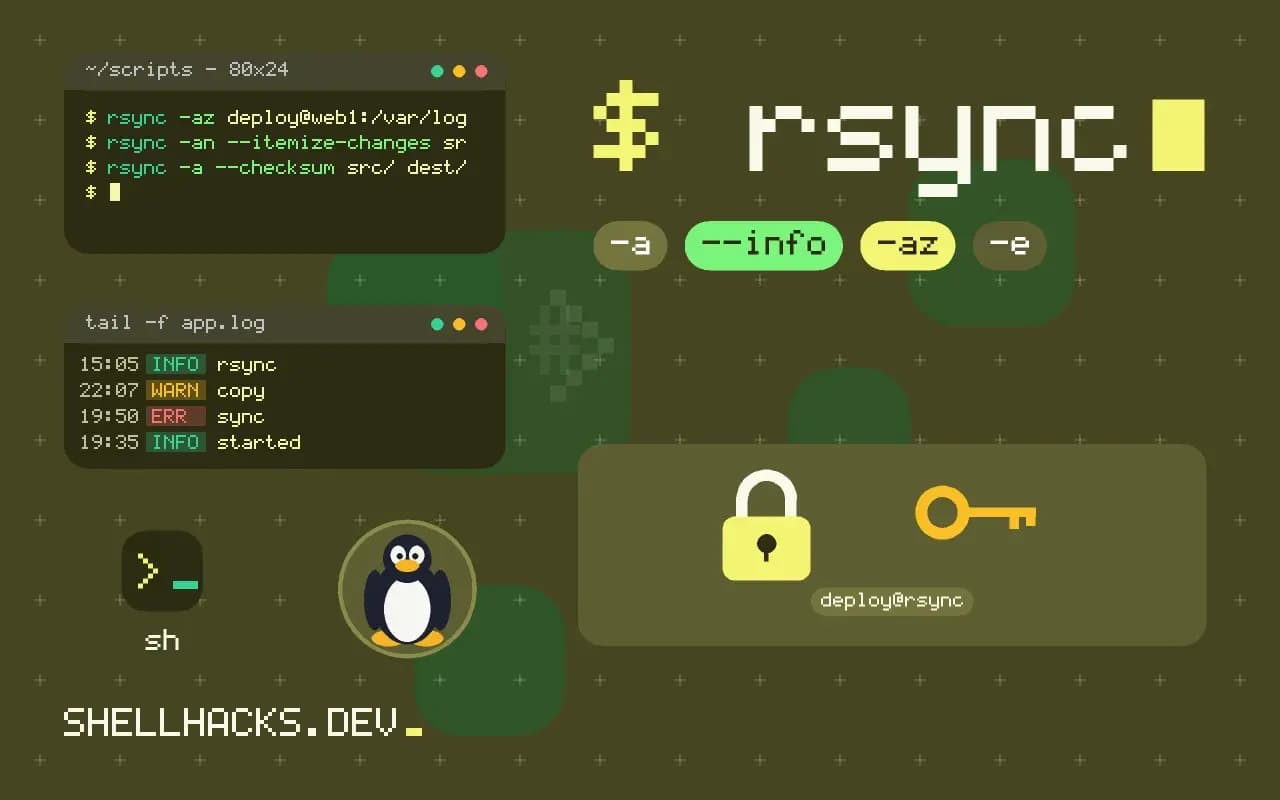
rsync copies files by sending only the differences between source and destination, using file size and modification time to decide what to examine and a rolling checksum to find changed blocks. That makes the second run far cheaper than the first, and it is why rsync is the default for backups and deployments. The examples use rsync 3.3 on Linux; the safety flags are expanded in rsync exclude, delete and dry run.
The trailing slash
rsync -a src/ dest/     # contents of src go into dest
rsync -a src  dest/     # creates dest/src/ and puts the contents there
This rule decides where files land, and getting it wrong creates a nested directory on the first run and a mess on the second. A trailing slash on the source means "what is inside"; without it, the directory itself is copied. A slash on the destination is optional and does not change the meaning. When unsure, run with -n first.
A local copy
rsync -a --info=progress2 ~/photos/ /mnt/backup/photos/ 1,482,105,344 41% 92.31MB/s 0:00:16 (xfr#312, to-chk=1204/1893)
-a is shorthand for -rlptgoD: recurse, copy symlinks as symlinks, keep permissions, times, group, owner and device files. Owner and group are applied only when running as root. --info=progress2 shows one overall progress line, which is more useful than a line for every file. Run it again after a change and only the difference moves.
Over SSH
rsync -az -e 'ssh -p 2222' ~/site/ deploy@web1:/var/www/site/
rsync -az deploy@web1:/var/log/app/ ./logs/
A host:path argument makes rsync start the remote side through SSH, which is why remote hosts need rsync installed. -z compresses the data in transit, and helps on slow links with text, but wastes CPU on already compressed files on a fast network. Set the port and key through -e or ~/.ssh/config, see SSH config shortcuts. Choosing between this and scp is discussed in scp versus rsync versus sftp.
Preview and verify
rsync -an --itemize-changes src/ dest/
rsync -a --checksum src/ dest/
--itemize-changes prints a code per file that says what differs, such as size, time or permissions. By default rsync trusts size and modification time; --checksum reads every file on both sides, which is slow but catches silent corruption or timestamps that were reset.
The options worth learning
Beyond -a and -z, a few options cover most real jobs. -v lists the files, -h prints sizes in readable form, and --stats prints totals at the end, which is useful in logs. -P combines --partial and --progress: it keeps partly transferred files so that an interrupted run continues them and not restarts. --delete makes the destination match the source, and should always be preceded by a dry run. --exclude and --include filter by pattern. -H preserves hard links, -A and -X preserve ACLs and extended attributes, and -S handles sparse files efficiently. --bwlimit=2m caps the rate so a nightly copy does not saturate a shared link. --rsync-path names the remote program, which is how to run it through sudo on the far side: --rsync-path="sudo rsync", provided the account may run it without a password prompt.
Permissions and ownership across machines
Preserving owners requires privilege on the receiving side, because only root can create files owned by other users. A copy from a server to a laptop as a normal user stores everything as that user, which is usually right. A copy that must keep ownership as root to root should run with sudo at the receiver, and may need --numeric-owner when the two systems do not share user names, so that rsync maps by id and not by name. Otherwise a user called www-data with id 33 on one host and 82 on another produces files owned by the wrong account. For web deployments, the safer pattern is to copy as the deploy user and adjust ownership with a fixed --chown=user:group, an option available in rsync 3.1 and later.
Speed on large trees and slow links
For millions of files, the time goes into building the file list. Version 3 of rsync builds it incrementally and starts transferring while it scans, so the run begins quickly, but memory use still grows with the number of files. Splitting a huge tree into several runs by top-level directory keeps memory flat and allows parallelism. On a slow link, compression helps text and hurts files that are already compressed, and --skip-compress lists suffixes to leave alone. For one very large file, --inplace updates the destination without a temporary copy, which saves disk space and breaks atomicity, and --append-verify is good for growing logs.
A scripted backup with history
Hard-link snapshots give each day a complete tree at the cost of only the changed files. The pattern uses --link-dest against the previous snapshot:
today=$(date +%F)
prev=$(ls -1d /backup/20* 2>/dev/null | tail -1)
rsync -a --delete ${prev:+--link-dest="$prev"} /srv/data/ "/backup/$today.partial/"
mv "/backup/$today.partial" "/backup/$today"
The rename at the end marks a snapshot as complete, so an interrupted run leaves a partial directory that the next run ignores. Old snapshots are removed by deleting the directory, since each is independent from the others' point of view, with space freed when the last link goes.
Mistakes that cost data
Four mistakes cause nearly all rsync accidents. Reversing source and destination overwrites the good copy with the old one, so read the command aloud before pressing enter. Forgetting the trailing slash puts data one level too deep, and combined with --delete it removes the real contents. Using --delete on a destination that holds other data, such as a backup disk shared with other jobs, deletes files that were never part of the source. And running the command against an unmounted path copies into the mount point on the root disk, which fills it. Defences are a dry run, a guard that checks the mount, a dedicated destination directory per job, and the habit of reading the itemized list before the real run.
Using rsync daemon mode and restrictions
Besides SSH, rsync can run as a daemon on port 873 with modules defined in rsyncd.conf, each with a path, access rules and an optional read-only flag. It is useful for public mirrors and for fast transfers on a trusted network, since there is no encryption overhead. It sends data in clear text, so do not use it across untrusted networks without a tunnel. For SSH-based jobs run by automation, restrict the key in authorized_keys with command="rsync --server ..." or use the rrsync helper script, which limits the key to one directory and to read-only or write-only use. A leaked key then cannot be used for anything but that transfer.
Where this does not apply
rsync does not make atomic copies: a reader of the destination can see a mix of old and new files mid-transfer, so for deployments sync into a new directory and switch a symlink, as in automating deploys. Without --delete it never removes files that disappeared from the source, and with it, a wrong source path can empty the destination, so always dry-run first. Extended attributes and ACLs need -X and -A. For backups with history, a tool such as restic is a better fit, as discussed in backing up with rsync. The rsync manual documents every option, and the how rsync works page explains the algorithm.