How to Build a Man Page for Your Script Without Surprises
Write a man page for your script: roff basics, standard sections, previewing with man -l, installing under man1, and generating it instead.
A script that other people use should explain itself. --help is the minimum, and a man page is the form that people reach for with man tool and that package managers install. The format is old and small. You can write it by hand in a few minutes for a simple tool, or generate it from other text as shown in pandoc and man pages. It belongs with self-documenting scripts. The examples assume man-db 2.12 and groff 1.23.
A minimal page
.TH BACKUP 1 "November 2026" "backup 1.4.0" "User Commands"
.SH NAME
backup \- archive a directory with a timestamp
.SH SYNOPSIS
.B backup
[\fB\-n\fR] [\fB\-k\fR \fICOUNT\fR] \fISOURCE\fR \fIDEST\fR
.SH DESCRIPTION
.B backup
creates a compressed archive of
.I SOURCE
in
.I DEST
and removes the oldest archives beyond the retention count.
.SH OPTIONS
.TP
.BR \-n ", " \-\-dry\-run
Print what would be done and change nothing.
.TP
.BR \-k ", " \-\-keep " " \fICOUNT\fR
Keep the newest COUNT archives. The default is 7.
.SH EXIT STATUS
.TP
.B 0
Success.
.TP
.B 1
An error occurred.
.TP
.B 2
Invalid usage.
.SH EXAMPLES
.nf
backup /srv/data /var/backups
backup \-k 14 /srv/data /var/backups
.fi
.SH SEE ALSO
.BR tar (1),
.BR rsync (1)
This is roff with the man macros. .TH takes the name, section number (1 is user commands), date, version and manual title. .SH starts a section. .B is bold, .I italic and .BR alternates bold and roman, which is how option lists are written. .TP introduces a tagged paragraph, the usual layout for options. .nf and .fi switch off and on line filling for examples. Hyphens that must stay literal are written \- so they copy-paste correctly. The page is plain text, shown here as text.
Preview and install
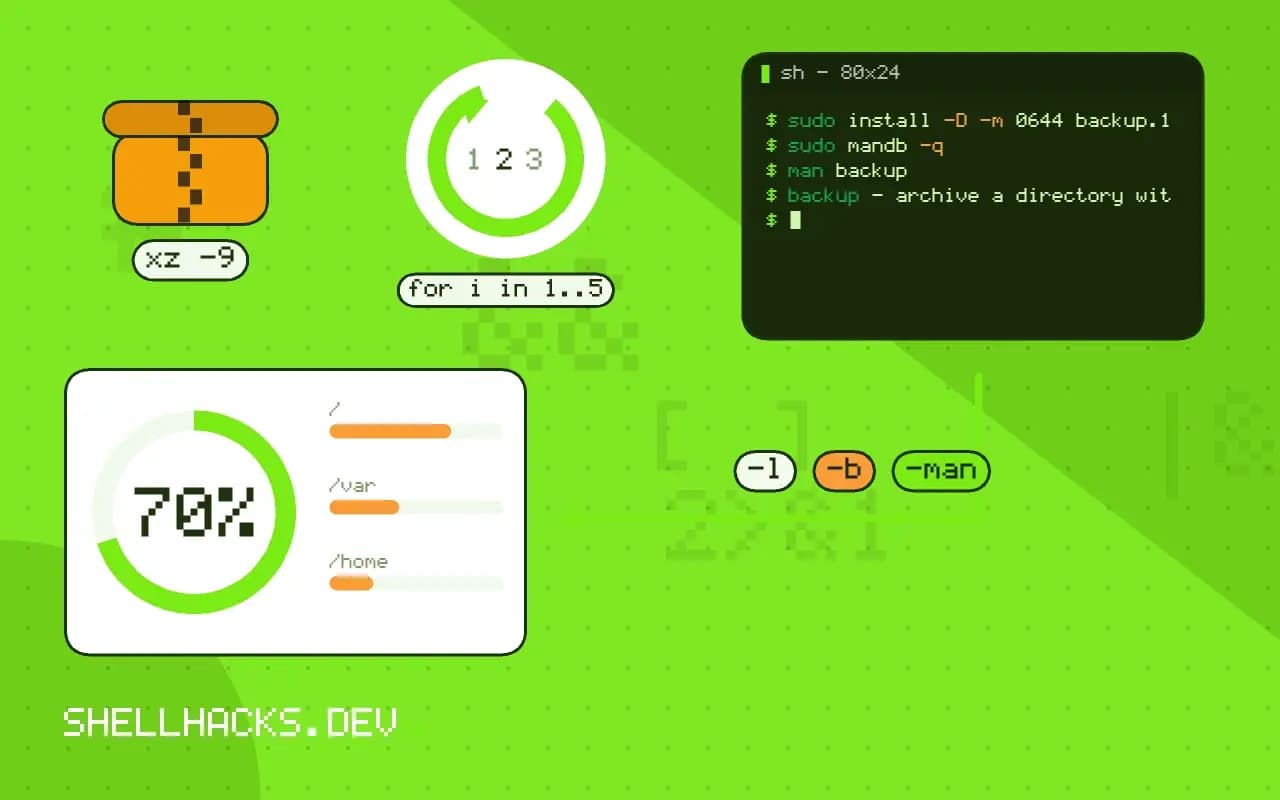
man -l backup.1
man -l backup.1 | col -b | head -20
MANWIDTH=80 man -l backup.1 | less
groff -man -ww -z backup.1
sudo install -D -m 0644 backup.1 /usr/local/share/man/man1/backup.1
sudo mandb -q
man backupBACKUP(1) User Commands BACKUP(1)
NAME
backup - archive a directory with a timestamp
man -l renders a local file, so you can iterate without installing. groff -ww -z runs the formatter with all warnings and no output, which finds roff mistakes. Install under /usr/local/share/man/man1 (the place for locally installed software); packages use /usr/share/man/man1 and gzip the file. mandb updates the search index used by apropos and man -k, and the NAME line is what it indexes, so keep it as name \- one line description.
What a good page contains
NAME and SYNOPSIS first, in the conventional notation: brackets for optional items, ellipsis for repeats, italic for placeholders. A DESCRIPTION that says what the tool does in a paragraph, not the whole manual. OPTIONS listed alphabetically or by importance, each with its long and short form and default. EXIT STATUS, which scripts depend on, as in designing exit codes. EXAMPLES with realistic commands. ENVIRONMENT and FILES if the tool reads them. SEE ALSO links to related pages. Keep it accurate: a page that describes options that no longer exist is worse than none.
Keep it in step with --help
usage() {
  cat <<'EOF'
usage: backup [-n] [-k COUNT] SOURCE DEST
  -n, --dry-run   print actions only
  -k, --keep N    keep the newest N archives (default 7)
EOF
}
Two copies of the options drift. Either generate both from one source, or write the shorter help by hand and check them against each other in a test: run backup --help and confirm every flag appears in the man page. Help texts for scripts are covered in a CLI design checklist. Another approach is to generate the man page from the help output with a tool such as help2man, which works if the help follows GNU conventions.
Why bother with a man page
A man page is the one form of documentation that is available offline, searchable with apropos, and in the place where people already look when they forget a flag. It is read in a terminal at the moment of need, which shapes how it should be written: scannable, precise and short. People do not read a manual page from top to bottom; they jump to the option or the example they need. Structure matters more than prose style, and the standard section names are what make a page navigable for readers who have used a hundred others.
Writing one also improves the tool. Explaining each option in a sentence exposes the ones that are redundant, inconsistently named or impossible to describe in one line. Several tools have been simplified because the author could not write the OPTIONS section without noticing the design was muddled. Treat the page as a review of the interface and not as paperwork after the fact.
Roff in practice
The macros used in most pages are few. .TH sets the header, .SH starts a section, .SS a subsection, .PP a paragraph, .TP a tagged paragraph for options, .B and .I for bold and italics, and .nf with .fi around preformatted text such as examples. A few escape rules matter: a hyphen that should print as a plain hyphen-minus needs a backslash before it, written \-, or it renders as a typographic hyphen that breaks copy and paste of options. A line starting with a period or an apostrophe is read as a macro, so a sentence that begins with either must be protected with a zero-width escape.
Check the result on a narrow terminal. Set MANWIDTH=60 and read the page; long unbroken lines in examples wrap badly. Check also with the pager's search for the first character of each option, since users find options by searching for -x, and a page where the option is hidden behind inconsistent markup will not match.
Examples are the most read section
Many readers go straight to EXAMPLES. Give three or four that cover the common jobs, from the simplest invocation to one that combines options, each with a line saying what it does. Use realistic paths and names. Show the dry run first, if the tool has one, so a reader who copies the example does the safe thing. Where a command has a surprising default, such as deleting files older than seven days, say so near the example, not three screens up. A page with good examples gets quoted in forum answers and issue trackers, and that is the best publicity a small tool can have.
Shipping and maintaining the page
Include the page in the repository next to the script, install it with the same rule that installs the script and bump its date and version at each release. Add a test to your suite that runs the formatter in warning mode and that compares the documented options with those the script accepts. When the interface changes, the failing test is the reminder to update the page. Mention the page in the --help text with a line such as "see backup(1)", so readers of one find the other, and link the HTML rendering from the project home page so people who have not installed the tool can read it.
Where this does not apply
For a personal script, a comment block and --help are enough. Man pages are for commands installed on the PATH and meant for other users. Some platforms (Windows) have no man; publish the same text in a README. Do not try to render man pages in a web page by hand: use mandoc -T html or pandoc. See the man(7) manual page for the macros and man-pages(7) for conventions.