How to Automate Screenshots and Screen Recording on Linux
Automate screenshots and screen recordings on Linux with grim, scrot, maim and ffmpeg, on X11 or Wayland, with timestamps, cron jobs and headless browsers.
Taking a screenshot on a schedule, recording a terminal demo, or capturing a page after a deploy are small jobs that need the right tool for the display server. Linux has two: X11 and Wayland, and a tool for one does not work on the other. Check which one you have first. The commands below are from maim 5.7, grim 1.4, ffmpeg 7.0 and Chromium 130; for terminal-only recording see recording a terminal with asciinema.
Which display server
echo "$XDG_SESSION_TYPE"wayland
The answer is x11 or wayland. Under Wayland, X11 tools can capture only XWayland windows, and the compositor controls what other programs are allowed to capture, so they often produce a black image.
X11 screenshots
maim ~/shots/$(date +%F_%H-%M-%S).png
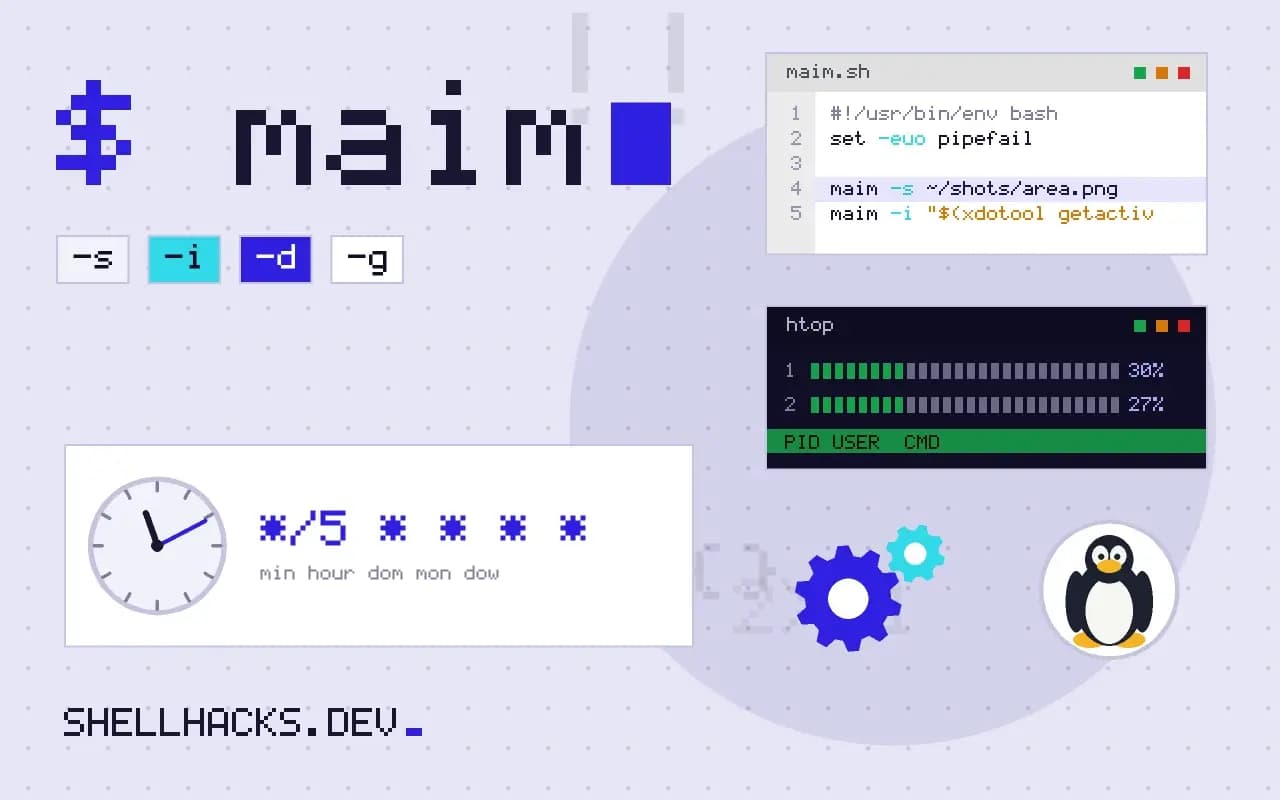
maim -s ~/shots/area.png              # select an area with the mouse
maim -i "$(xdotool getactivewindow)" window.png
scrot -d 5 ~/shots/%Y-%m-%d_%H%M%S.png
maim and scrot capture the full screen, a selection or one window. -d 5 in scrot waits five seconds. The window ID from xdotool is covered in xdotool and ydotool.
Wayland screenshots
grim ~/shots/$(date +%F_%H-%M-%S).png
grim -g "$(slurp)" area.png
grim -g "$(swaymsg -t get_tree | jq -r '.. | select(.focused?) | .rect | "\(.x),\(.y) \(.width)x\(.height)"')" focused.png
grim works on compositors that implement the wlr-screencopy protocol, such as Sway and Hyprland. GNOME and KDE use their own portals, with gnome-screenshot, spectacle or the xdg-desktop-portal screenshot interface. slurp lets you select a region with the mouse and prints its geometry for grim -g.
Recording
ffmpeg -f x11grab -framerate 30 -video_size 1920x1080 -i "$DISPLAY" -c:v libx264 -preset ultrafast -crf 23 out.mp4
wf-recorder -f out.mp4
wf-recorder -g "$(slurp)" -f area.mp4
x11grab reads the X display, and wf-recorder does the equivalent for wlroots compositors. Stop with Ctrl-C and let the encoder finish, or the MP4 is unreadable. The ultrafast preset trades file size for low CPU use during capture; re-encode afterwards if size matters, as described in the ffmpeg tutorial.
Web pages without a display
chromium --headless --disable-gpu --window-size=1280,800 \
  --screenshot=/tmp/home.png https://example.com/
A headless browser renders the page itself and needs no display, so it works from cron and in containers, and produces the same image every time. For pages that need interaction, Playwright scripts the browser. This is the better choice for visual checks after a deploy.
Scheduling captures with systemd or cron
A screenshot every few minutes is useful for a kiosk, a wall display or a long build that needs a record. The scheduler is the easy part, and the session environment is the hard part. A user systemd timer is the more reliable choice, because a user unit runs inside the login session's manager and inherits variables such as DISPLAY and WAYLAND_DISPLAY once they have been imported with systemctl --user import-environment. A cron job starts with an almost empty environment and no connection to the session, so it needs those variables set by hand and may fail when the screen is locked or the user is logged out.
The unit itself is short: a service that runs a script, and a timer with OnCalendar=*:0/5 to run every five minutes. Let the script write into a dated folder and prune old files with find -mtime, because a capture every five minutes at 1080p produces dozens of megabytes an hour, and an unattended job will fill the disk if nothing deletes the output.
Making the files small and findable
PNG is lossless and fine for text and interface captures. For a time series of full-screen images, convert to WebP or JPEG after capture with cwebp -q 80 or convert -quality 85, which cuts storage by a large factor with no visible loss for most screens. Put the timestamp in the file name using ISO order, 2026-11-05_14-30-00.png, so that a plain ls sorts chronologically and a shell glob can select a day with 2026-11-05_*. If a series becomes a video, ffmpeg -framerate 10 -pattern_type glob -i '*.png' out.mp4 turns the sequence into a time-lapse.
Capturing a single window
On X11, a window can be captured by its id even when another window covers it, but only if a compositor is not in the way: xwd -id and maim -i read the window's contents from the server. On Wayland there is no standard way for one program to read another's window, so the compositor must offer it. Sway users get the geometry from the tree as in the example above, and GNOME and KDE users go through the screenshot portal, which asks the user for permission the first time. A script that needs an unattended capture of one application is easier to build with that application's own export or with a headless browser than with desktop screenshots.
Containers and virtual displays
Servers and CI runners have no display, but a program that needs one can use a virtual framebuffer. xvfb-run -a -s "-screen 0 1280x800x24" command starts an in-memory X server, runs the command and tears it down. Pointing maim or ffmpeg -f x11grab at that display captures what the program drew, which is how many GUI test suites record a failing run. Pin the resolution and color depth, because a program laid out for one size can break on another and the capture is how you will see it.
Privacy and what ends up in the image
A screen capture contains whatever was visible: notifications, a password manager popup, a chat window, a browser tab with an account page. Scheduled captures running unattended collect those by accident. Limit the area to the application you care about, store the files with mode 600 in a private directory, and set a retention period. When sharing an image, check the corners and the notification area before posting, and consider an annotation tool that blurs a region instead of drawing over it, since a black rectangle drawn in a layered format can sometimes be removed again.
A quick pre-flight checklist
Before trusting a scheduled capture, run it by hand from the same kind of environment that the scheduler will use. Check that the output file is not black or empty, that its size is plausible, and that the script fails with a clear message if the display variable is missing. Then lock the screen and run it again, because that is the case that fails most often on real desktops. Log the exit status and the file size on each run, so a gap in the series shows up in the log as soon as it happens and not months later when someone needs the missing frames.
Where this does not apply
A cron job captures nothing unless it can reach the session: set DISPLAY=:0 and, for X11, XAUTHORITY, or on Wayland WAYLAND_DISPLAY and XDG_RUNTIME_DIR=/run/user/$(id -u); a locked screen may capture black. A systemd user timer, described in systemd user services, inherits more of the session. On a server with no desktop, use a headless browser or Xvfb. Screenshots can contain passwords and personal data, so store them with restrictive permissions. The options are in the ffmpeg x11grab documentation and the grim project page.