How to Use xdotool and ydotool for Desktop Automation
Automate keyboard, mouse and windows with xdotool on X11 and ydotool on Wayland, with working examples, window search, delays and the limits of each.
Some programs have no command-line interface and no API, but they accept keystrokes. xdotool and ydotool let a script supply those keystrokes and clicks. They are fragile compared to a real interface, and the right choice depends on the display server, see automating screenshots on Linux for how to check. The examples use xdotool 3.20211022 and ydotool 1.0.
xdotool on X11
xdotool key ctrl+l
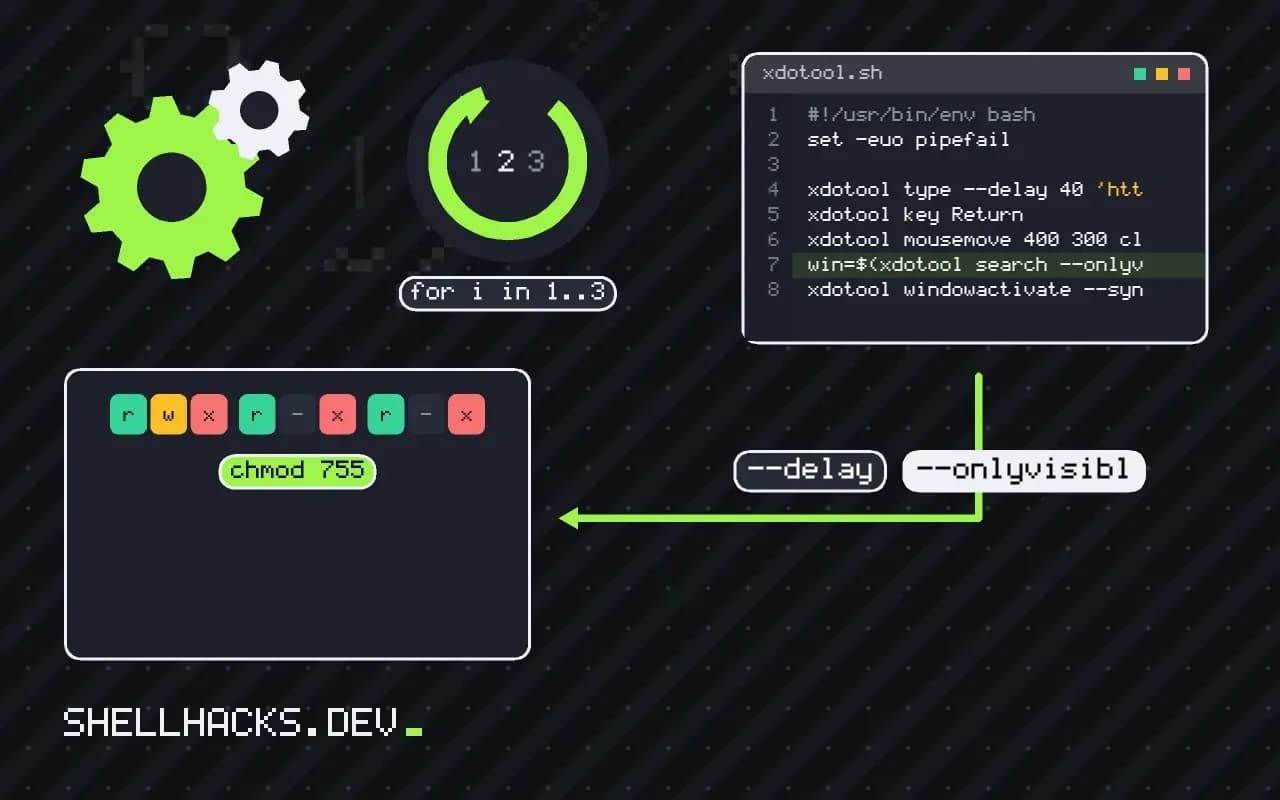
xdotool type --delay 40 'https://example.com'
xdotool key Return
xdotool mousemove 400 300 click 1
key sends named keys and combinations, type sends text one character at a time with --delay milliseconds between them, and mousemove with click performs a click. Without a delay, a slow application misses characters. xdotool type follows the current keyboard layout, so symbols can differ if the layout does not match what you expect.
Find and focus windows
win=$(xdotool search --onlyvisible --name 'Mozilla Firefox' | head -1)
xdotool windowactivate --sync "$win"
xdotool getwindowgeometry "$win"
xdotool key --window "$win" F5
Searching by name is a regular expression match on the title. windowactivate --sync waits until the window is active, which avoids typing into the wrong place. Sending a key with --window delivers it to a specific window, but many modern toolkits ignore such synthetic events, so prefer activating the window and sending real input.
ydotool on Wayland
sudo ydotoold &
sudo ydotool type --key-delay 40 'hello'
sudo ydotool key 29:1 38:1 38:0 29:0     # ctrl+l using Linux key codes
sudo ydotool click 0xC0
Wayland does not let ordinary clients inject input into other windows, so ydotool works one layer below, writing events to /dev/uinput, which the compositor treats as another keyboard or mouse. The daemon ydotoold keeps that device open. Version 1.0 takes raw Linux key codes with :1 for press and :0 for release, as listed in input-event-codes.h. Instead of sudo, give your user access with a udev rule that sets /dev/uinput to a group you belong to, as in udev rules for scripts.
Making it safe to leave running
for i in 1 2 3; do
  xdotool search --onlyvisible --name 'Export' >/dev/null && break
  sleep 1
done
xdotool key --delay 100 ctrl+shift+e
Wait for a window to exist before sending input, and put limits on any loop. Run the automation in a dedicated session or a virtual display, such as Xvfb with xvfb-run, so a stray keystroke does not land in your terminal. See clipboard automation for passing text without typing it.
How synthetic input reaches an application
On X11, xdotool uses the XTEST extension, which lets a client inject events as if they came from a physical device. The server cannot tell the difference, so every program receives the keystroke through its normal event queue. The alternative path, sending an event straight to a window with the XSendEvent request, is what --window uses. Toolkits mark such events as synthetic, and many applications, including browsers and terminals, ignore them as a safety measure. That is why a command that works with focus on the window can fail when aimed at a background one, and why the dependable pattern is to activate the window and then send the key to whatever has focus.
Wayland removed that general capability on purpose. A client may only receive input aimed at its own surface, so a process cannot type into another window. ydotool therefore works one layer lower, creating a virtual keyboard and mouse through the kernel's uinput module. The compositor sees a new input device and treats the events like any hardware, which is why it works everywhere, including on the login screen, and why it needs permission to open /dev/uinput. A udev rule or membership of the input group can grant that without running every command as root, but the permission is broad: anything that can write to that device can type into any window, including a terminal with a root shell.
Keyboard layouts, modifiers and timing
Typing text is harder than it looks. xdotool maps each character to a key code using the current layout, and for characters the layout lacks it temporarily remaps a spare key, which can fail with accented letters or symbols on a non-US layout. ydotool sends raw Linux key codes, which refer to physical keys, so the same text typed on a different layout produces different characters unless the script accounts for it. The safest approach for a script that must work on several machines is to avoid typing text where possible: set the clipboard with xclip or wl-copy, then send the paste shortcut.
Modifiers are held with press and release pairs. With ydotool codes, 29:1 presses left control and 29:0 releases it, and a sequence that forgets the release leaves the modifier stuck, so every later key arrives as a shortcut. In xdotool, keydown and keyup do the same, and a script that is interrupted between them can leave a key stuck. A trap that sends the matching keyup commands on exit is cheap protection.
Delays come from the application and not the tool. A program that has to open a dialog, load a file or render a page needs time before the next keystroke has any effect. A fixed sleep works until the machine is under load. Polling for a window title or pixel color, as in the loop above, adapts to the real state and fails cleanly after a limit.
Reading the screen back
Automation without feedback is guesswork. On X11, xdotool getwindowname and getactivewindow confirm which window has focus before typing. For checking that something appeared, capture the region with maim or grim and compare a few pixels, or run OCR with tesseract on the capture. Both are slow and fragile, so use them only to confirm the one state that matters, such as a dialog being open before the confirm key is sent.
Safer alternatives to try first
Many applications that look closed have a way in. Desktop programs expose actions over D-Bus, and gdbus introspect or busctl --user tree lists them. Browsers can be driven with a debugging protocol through Playwright or Puppeteer, which sees the page and not the pixels. Office suites have headless conversion modes, and media players ship remote-control sockets. A D-Bus call or protocol command does not depend on window position, focus or timing, and it reports errors. Use simulated keystrokes for the cases where nothing else exists, and keep the script short, because every added step multiplies the chances of drifting out of sync with the program.
Where this does not apply
Synthetic input is blind: neither tool can tell whether the click landed or the dialog appeared, so automations drift when a window moves or a pop-up shows. Prefer a real interface where one exists: a command line, a D-Bus method, an xdg-open handler or an application's own scripting. Input injection can also be abused, so keep /dev/uinput access narrow. Documentation is in the xdotool project and the ydotool project.