How to Automate Clipboard and Window Tasks on Linux
Automate the Linux clipboard from scripts with xclip, xsel and wl-clipboard, handle X11 selections, copy files and images, and avoid leaving secrets behind.
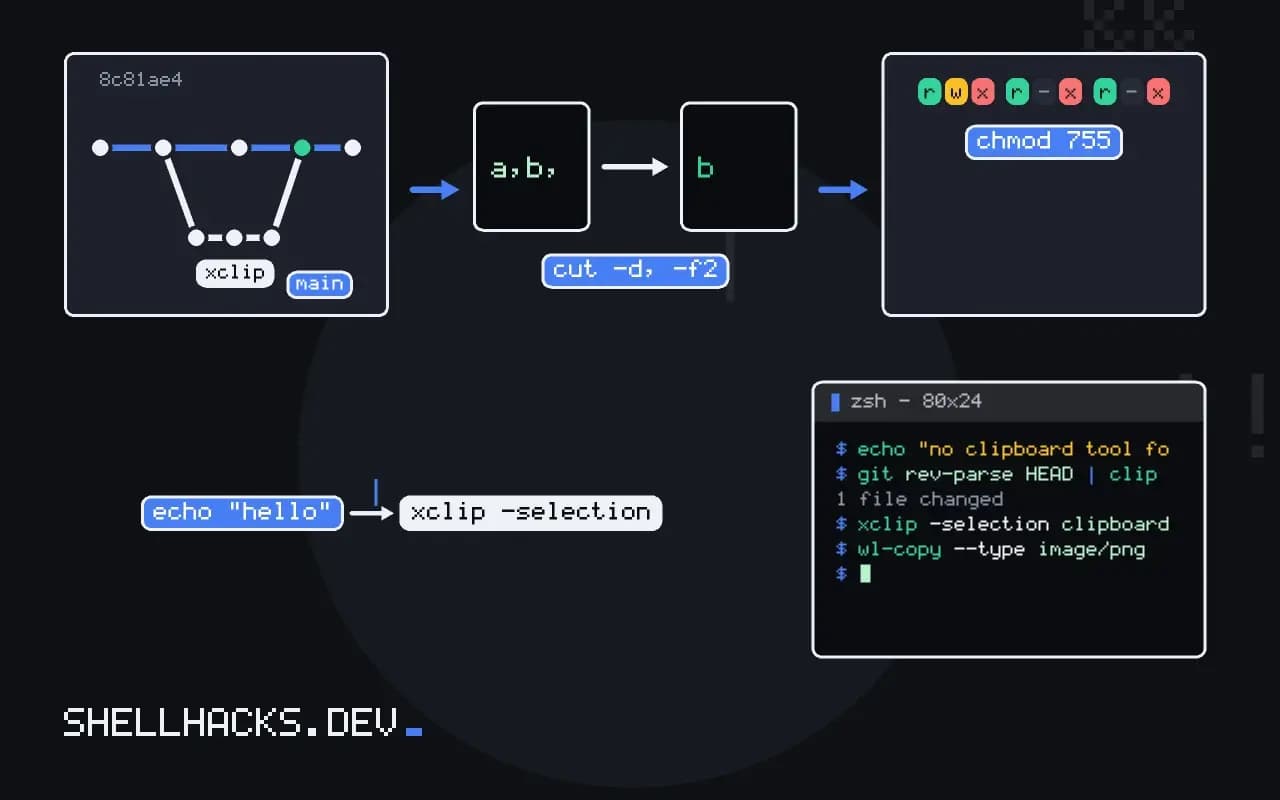
Copying a command's output without selecting it, putting a generated password on the clipboard, or pasting a screenshot into a chat from a script all depend on reaching the desktop clipboard from the shell. It works through a small tool matched to the display server. The behaviour below is from xclip 0.13, xsel 1.2 and wl-clipboard 2.2; for the display choice see screenshot automation.
Copy and paste on X11
echo "hello" | xclip -selection clipboard
xclip -selection clipboard -o

date +%F | xsel --clipboard --input
xsel --clipboard --outputhello
2026-11-03
X11 has several buffers. CLIPBOARD is the one used by Ctrl-C and Ctrl-V, and PRIMARY holds the last mouse selection, pasted with the middle button. xclip uses PRIMARY unless you pass -selection clipboard, which is the most common reason a copy "does not work". More pipeline recipes are in xclip and wl-copy.
Copy and paste on Wayland
echo "hello" | wl-copy
wl-paste
wl-copy --primary < notes.txt
wl-paste --no-newline | sha256sum
wl-copy reads stdin, and wl-paste writes the clipboard to stdout, adding a trailing newline unless --no-newline is given. --primary selects the primary buffer on compositors that provide it. Access is restricted on Wayland: a program can read the clipboard only when it has focus or runs with a protocol that allows it, so a background script may see an empty result.
A portable wrapper
clip() {
  if command -v wl-copy >/dev/null && [[ -n ${WAYLAND_DISPLAY:-} ]]; then
    wl-copy
  elif command -v xclip >/dev/null; then
    xclip -selection clipboard
  elif command -v pbcopy >/dev/null; then
    pbcopy
  else
    echo "no clipboard tool found" >&2; return 1
  fi
}
git rev-parse HEAD | clip
The function chooses the first tool that fits, including pbcopy for macOS, and fails with a message otherwise. The macOS equivalent and over-SSH options are covered in pbcopy and xclip in scripts.
Images and files
xclip -selection clipboard -t image/png -i shot.png
wl-copy --type image/png < shot.png
wl-paste --type image/png > pasted.png
The type tells the receiving application how to interpret the bytes. Without it, a PNG is offered as text and the paste into an editor or chat shows garbage or nothing.
How the clipboard protocols work
On X11, the clipboard is not a store. It is an ownership protocol: when you copy, a program claims ownership of the selection, and when another program pastes, the server asks the owner to send the data in a format both support. The formats are called targets, and a program advertises the list it can provide, such as text/plain;charset=utf-8, UTF8_STRING and image/png. The paste side picks the one it prefers. That explains why content vanishes when the owner exits, and why a pasted result can differ between programs. xclip -o -t TARGETS prints the list for the current owner and settles questions about what is available.
Wayland has a similar model with offers and MIME types, and adds a rule that only the focused client may set the selection, to stop background programs from replacing it. Command-line tools get around the rule by creating a tiny window or by using a protocol extension. Compositors based on wlroots support the data-control protocol that wl-clipboard uses, while GNOME's Mutter does not expose it, so on GNOME the tools need a workaround such as an extension or a different tool. If wl-copy fails with a message about the protocol, that is the reason, and it does not mean the installation is broken.
Clipboard managers and history
A clipboard manager is a program that owns the selection permanently, so content survives the copying program's exit, and keeps a history. Daemons such as clipman, cliphist, CopyQ and the one built into KDE fill this role. They change how scripts behave in two ways. A script sees the data persist after it ends, which solves the lost-selection problem, and the history stores everything copied, including passwords that a script puts there. Exclude sensitive sources if the manager allows it, or set the hint that marks a selection as secret, which password managers do through the x-kde-passwordManagerHint target, and clear the clipboard soon after use.
Scripts that read the clipboard
Reading is as useful as writing. A script bound to a key can take whatever URL is in the clipboard and open, download or shorten it. Treat clipboard contents as untrusted input: a web page can place text there, and a pasted string may contain newlines or control characters that run a command when pasted into a terminal. Validate with a pattern before acting, quote the value in every use, and never pass it to eval or an unquoted command. The multi-line paste problem is real, and modern terminals offer bracketed paste to defend against it. Check that it is on in your shell and editor settings.
Notifications and feedback
A script that copies silently leaves the user unsure whether it worked. Add feedback: a short notification with notify-send "Copied" "$(wc -c < file) bytes" on a desktop, or a message on standard error in a terminal. Avoid echoing the secret itself in the notification, since notification daemons keep a history too. For a generated password, show only that it was copied and for how long it will remain, then clear it with a background sleep 30; wl-copy --clear, which wipes the selection if it still holds the same value and avoids erasing something the user copied in between when the script compares first.
Clipboard in terminals and multiplexers
Terminal emulators and tmux have their own selection and copy modes, separate from the system clipboard. In tmux, set -g set-clipboard on lets copy mode send selections to the terminal through the OSC 52 escape sequence, which most modern terminals pass to the system clipboard, including over SSH where xclip cannot reach the local desktop. Vim and Neovim can use the same route, and Neovim has a built-in provider that finds wl-copy or xclip automatically. When copying from a remote session appears to do nothing, check three things: whether the terminal allows OSC 52, whether tmux forwards it, and whether the sequence exceeds a size limit that some terminals impose on the encoded payload.
Where this does not apply
On X11 the program that last set the clipboard is the one that serves its contents. xclip stays alive in the background for that reason, and the data disappears if it is killed, unless a clipboard manager copies it first. That same history is a risk: managers keep entries on disk, so a copied password may persist. For secrets, copy with a timeout and clear afterwards, for example sleep 30; wl-copy --clear, or use a password manager that does this itself, as in password store and keyring from the terminal. Over SSH the remote clipboard is not your local one; terminals that support OSC 52 can forward it. The protocols are described in the ICCCM selections section.
One more reference helps when a script must run on both kinds of desktop: the freedesktop.org clipboard specification describes the shared concepts, and the wl-clipboard project documents the Wayland tools and their options in detail. Test the wrapper function in each session type you use, since an unsupported compositor can fail silently.