Bash Script Tutorial for Beginners From Zero to First Script
Build a working Bash script in six small steps, from a first line that prints text to arguments, a loop, a function and a meaningful exit code.
Most people learn Bash by pasting one-liners, then hit a wall the first time a filename contains a space. This tutorial builds one small script in six steps so each new idea lands in a file you can run, and it assumes only a Linux or macOS terminal and a text editor. If you want the whole path afterwards, Bash scripting from zero to a script you trust is the guide this tutorial feeds into.
The examples use Bash 5.2 on Debian 13. Everything here also works on Bash 4.4 and later; the one thing that does not is anything involving associative arrays on the Bash 3.2 that macOS ships, and this tutorial avoids those.
Step 1: a file that prints a line
Create hello.sh with an editor of your choice and put this in it.
#!/usr/bin/env bash
echo "Hello from a script"
The first line is the shebang. It tells the kernel which interpreter should run the file. Without it, running ./hello.sh would hand the file to whatever shell you happen to be in. The details are in what the shebang line does. Make the file executable and run it.
chmod +x hello.sh
./hello.shHello from a script
If you skip chmod, the shell answers Permission denied. Making a script executable covers that error and the alternative of running bash hello.sh directly.
Step 2: store something in a variable
A variable is a name followed by = with no spaces around it. You read it back with a dollar sign.
#!/usr/bin/env bash
name="World"
echo "Hello, $name"
The double quotes matter. Unquoted, the shell splits the value on spaces and expands wildcards, which is the cause of most beginner bugs. Quote every $variable and the surprises go away. Setting and using variables goes through the cases where that is not enough.
Step 3: take input from the command line
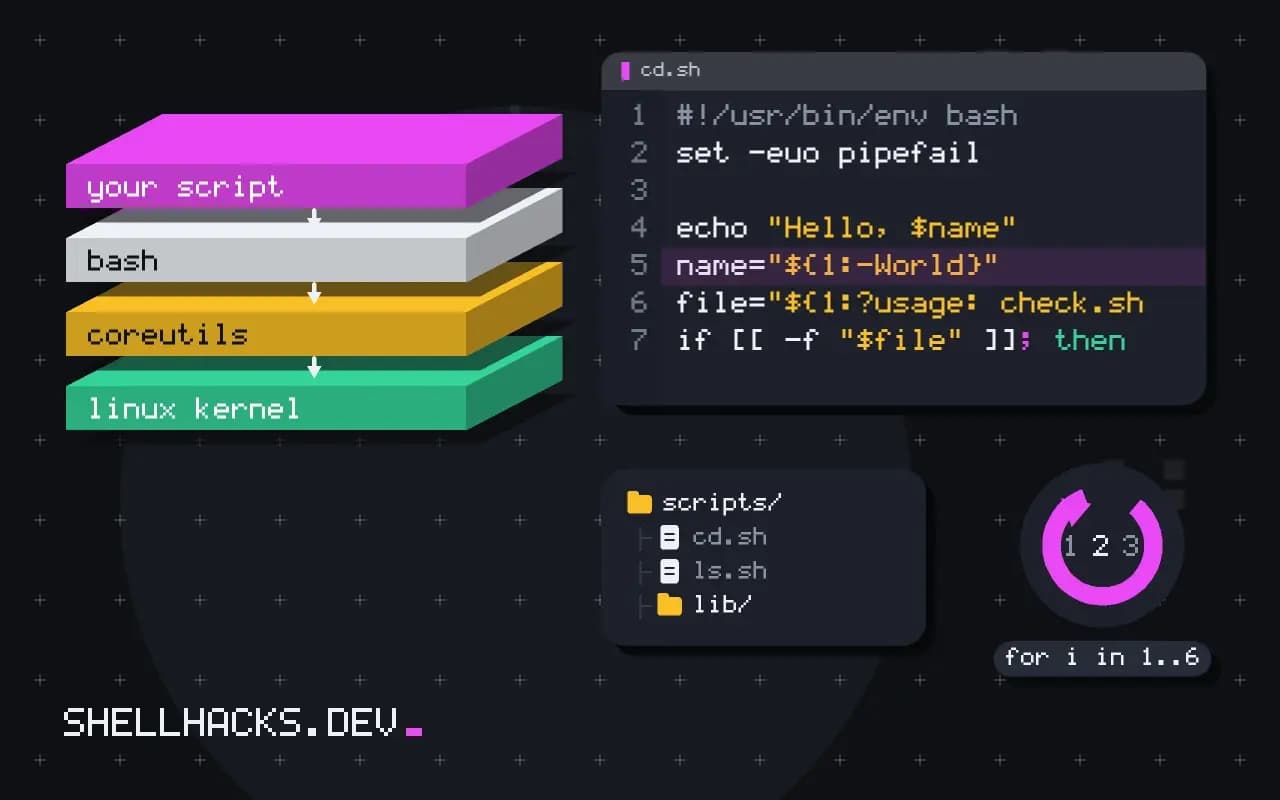
Arguments arrive as $1, $2 and so on, and $# counts them. A default value uses ${1:-fallback}.
#!/usr/bin/env bash
name="${1:-World}"
echo "Hello, $name"./hello.sh
./hello.sh AdaHello, World
Hello, Ada
Step 4: make a decision
Use [[ ]] for tests in Bash. It does not word-split its operands, so an empty or spaced value cannot break the test the way it breaks the older [ ].
#!/usr/bin/env bash
file="${1:?usage: check.sh FILE}"

if [[ -f "$file" ]]; then
  echo "$file exists"
else
  echo "$file is missing"
fi
The :? form prints the message and stops the script when the argument is missing, which is cheaper than writing an if for it.
Step 5: loop over files
#!/usr/bin/env bash
for file in *.txt; do
  [[ -e "$file" ]] || continue
  lines=$(wc -l < "$file")
  echo "$file: $lines lines"
done
The [[ -e ... ]] || continue line handles the case where no file matches. With no match, Bash passes the literal text *.txt to the loop, and the test skips it. The loop is safe for names with spaces because "$file" is quoted.
Step 6: wrap it in a function and return a status
#!/usr/bin/env bash
count_lines() {
  local file="$1"
  [[ -r "$file" ]] || return 1
  wc -l < "$file"
}

if ! count_lines "${1:?usage: count-lines.sh FILE}"; then
  echo "cannot read $1" >&2
  exit 1
fi
A function's return value and a script's exit value are both numbers from 0 to 255, with 0 meaning success. The caller reads it from $? or, as above, tests it directly with if. Writing errors to standard error with >&2 keeps them out of the output a pipe would pass along.
What Bash does with the file
Bash reads a script one complete command at a time. It parses a line, expands variables and globs, runs the command, then moves on to the next. Nothing is compiled, and nothing is checked in advance, which is why a typo on line 40 only appears after lines 1 to 39 have already done their work. Two kinds of command exist. Builtins such as echo, cd and [[ run inside the Bash process. Everything else is an external program that Bash starts as a child process and waits for.
type echo cd lsecho is a shell builtin
cd is a shell builtin
ls is /usr/bin/ls
The distinction explains two beginner puzzles. A variable set inside the script disappears when the script ends, because the script ran in a child Bash process and its memory went with it. And cd inside a script never moves your terminal, for the same reason. The child changes its own working directory and exits.
Watch it run with tracing
When a script does something you did not expect, ask Bash to print each command after expansion. The -x option does that, and it needs no edits to the file. Save the loop from step 5 as loop.sh, create two small files, and run it with tracing on (Bash 5.2 on Debian 13 shows this output).
printf 'a\nb\n' > one.txt
printf 'a\n' > two.txt
bash -x ./loop.sh+ for file in *.txt
+ [[ -e one.txt ]]
++ wc -l
+ lines=2
+ echo 'one.txt: 2 lines'
one.txt: 2 lines
+ for file in *.txt
+ [[ -e two.txt ]]
++ wc -l
+ lines=1
+ echo 'two.txt: 1 lines'
two.txt: 1 lines
Each + is one level of nesting, so ++ wc -l is the command substitution running inside the assignment. The trace goes to standard error, which is why it is safe to leave on while the script's own output still goes down a pipe. To check syntax without running anything, use bash -n script.sh. It catches an unclosed quote or a missing fi and does not execute a single command.
A failure worth seeing once
The most common first bug is a loop built from the output of ls. It looks reasonable and it is wrong, because the shell splits that output on every space and newline.
touch "my notes.txt"
for f in $(ls *.txt); do echo "[$f]"; done[my]
[notes.txt]
[one.txt]
[two.txt]
One file with a space in its name became two items, and neither of them exists. The step 5 loop avoids the problem because the glob *.txt expands to separate words that never pass through word splitting. The rule to keep: loop over a glob, never over the printed output of ls or find. When a search needs find, pair it with -print0 and read -d '', which the guide covers once the basics are comfortable.
Exit codes decide what runs next
Every command ends with a number. Zero means success and anything from 1 to 255 means failure, and Bash stores the most recent one in $?. That number is how if, && and || make decisions, and it is what a caller sees when your script exits.
false
echo "status after false: $?"
true
echo "status after true: $?"status after false: 1
status after true: 0
By default a failing command does not stop a script. Bash prints the error and moves on, so a failed cd is followed by commands that run in the wrong folder. Two habits limit the damage. Test the commands whose failure matters, as in cd "$dir" || exit 1. And once the script works, add set -u on line two so a misspelled variable stops the run instead of expanding to nothing. The wider debate about set -e is a separate topic, and beginners are better served by explicit checks they can read.
The exit status section of the Bash manual defines the numbers, including 126 for a file that is not executable and 127 for a command that was not found. Those two explain most of the cryptic failures a first script produces.
Where this tutorial stops
A script this size can break in ways that six steps do not cover: unset variables, failing commands in the middle of a pipeline, and cleanup on interruption. Those are the subject of the strict-mode and trap material in the hub guide, and you should not copy a production script from here. Also, if the task is mostly parsing structured data, when a Bash script should become Python will save you a rewrite. Check your work with shellcheck, documented at shellcheck.net, and read the language itself in the Bash Reference Manual.