How to Check Who Changed What With Logs and history
Find out who changed what on a Linux system: auth logs, sudo logs, shell history limits, journalctl, package history, file mtimes and auditd rules.
"Who edited this config file?" "Why did the service stop?" Without preparation, Linux answers with timestamps and guesswork. This post lists what the system records by default, how to read it and what to enable ahead of time so the answer exists when you need it. It is part of the incident toolset in responding to a compromised server. The commands assume Debian 13 with systemd 255; paths differ on Red Hat-family systems.
Who logged in and used sudo
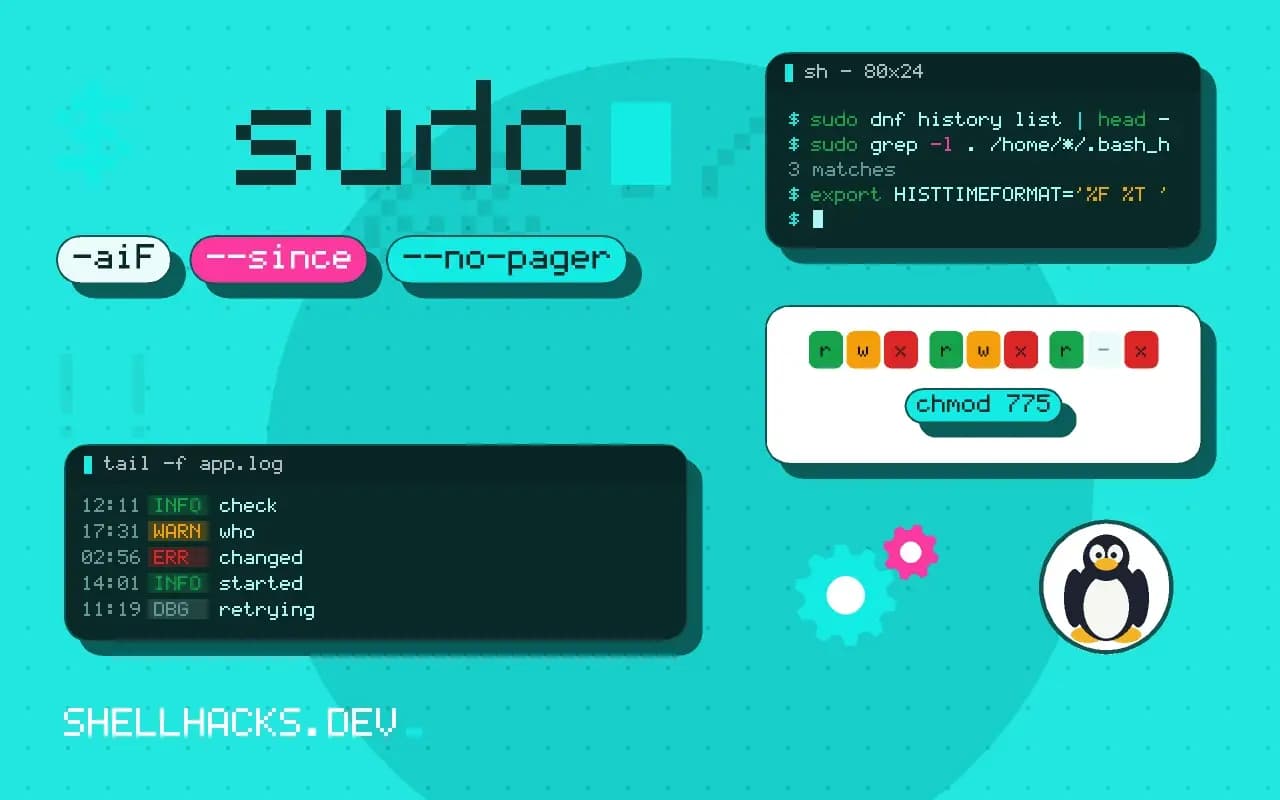
last -aiF | head -5
sudo journalctl _COMM=sudo --since "2 days ago" --no-pager | tail
sudo grep -E 'sudo:.*COMMAND' /var/log/auth.log | tail -3alice pts/0 Tue Nov 3 08:55:12 2026 still logged in 203.0.113.9
sudo[2210]: alice : TTY=pts/0 ; PWD=/home/alice ; USER=root ; COMMAND=/usr/bin/vim /etc/nginx/nginx.conf
The sudo log records the invoking user, the target user and the command, including the file passed to an editor. That is the best default record of administrative changes. Direct root logins leave less: if everyone shares root, the log cannot tell who did what, which is the argument for personal accounts and sudo, as in allowing one sudo command.
What changed on disk
stat /etc/nginx/nginx.conf
sudo find /etc -type f -newermt '2026-11-01' -printf '%TY-%Tm-%Td %TH:%TM %u %p\n' | sort | tail
sudo debsums -c 2>/dev/null | head2026-11-02 14:21 root /etc/nginx/nginx.conf
2026-11-03 09:02 root /etc/nginx/conf.d/site.conf
stat shows modification, change and access times. The owner shown is the file's owner, not the person who last edited it. Timestamps can be forged by an attacker with root, and many editors replace files, changing the inode, so use them as hints. debsums (Debian) or rpm -V (Red Hat) compare package-owned files with the packaged checksums, revealing edits to files that should not have changed.
Software changes
grep -E '^(Start-Date|Commandline|Install|Upgrade|Remove)' /var/log/apt/history.log | tail -8
zgrep -h Commandline /var/log/apt/history.log.*.gz | tail -3
sudo dnf history list | head -5
sudo journalctl -u unattended-upgrades --since "7 days ago" --no-pager | tail -3
The package manager logs every install and removal with a timestamp and the command line, so changes caused by it can be separated from manual edits. Unattended upgrades explain surprises after a night; check them before suspecting a person.
Shell history: limited value
sudo grep -l . /home/*/.bash_history /root/.bash_history 2>/dev/null
export HISTTIMEFORMAT='%F %T '
history | tail -3
Bash writes history when a session ends, only for interactive shells, with no timestamps unless HISTTIMEFORMAT is set, and a user can disable or edit it. It is useful when honest, which is most of the time, but it is not an audit log. The privacy trade-offs, including secrets in history, are in secrets in shell history.
Prepare ahead: auditd
sudo apt install auditd
sudo auditctl -w /etc/nginx/ -p wa -k nginx-config
sudo auditctl -w /etc/ssh/sshd_config -p wa -k sshd-config
sudo ausearch -k nginx-config --start today -i | tail -12type=SYSCALL msg=audit(11/03/2026 09:02:14.331:421) : arch=x86_64 syscall=openat success=yes exit=3 a1=O_WRONLY|O_CREAT auid=alice uid=root exe=/usr/bin/vim
type=PATH ... name=/etc/nginx/conf.d/site.conf
The audit system records who touched a watched path: auid is the original login user even after sudo, which answers the question that timestamps cannot. Rules added with auditctl vanish at reboot; put them in /etc/audit/rules.d/*.rules and run augenrules --load. Auditing everything is noisy, so watch the files that matter: configuration, SSH keys, sudoers, cron directories. Ship the logs elsewhere, as in reading logs across servers, so an intruder cannot erase them.
What Linux records by default and what it does not
A stock Debian or Red Hat server records authentication events, package changes and service state changes, and almost nothing about file edits or who ran which ordinary command. That asymmetry explains most frustrating investigations. The logs can say that alice logged in at 08:55 and that a package was upgraded at 03:10, but a changed line in a configuration file has no record at all unless something was watching. Before searching, write down which of three questions is being asked: who was on the system, what changed on disk, or what ran. Each has a different source, and mixing them leads to conclusions the evidence does not support.
Evidence also differs in how far it can be trusted. A line in /var/log/auth.log was written by a daemon at the time of the event, and an attacker needs root to alter it. A file's modification time, on the other hand, can be set by anyone who can write the file, with a single touch -d. Treat timestamps as leads and logs as testimony, and prefer a source that a second system also holds a copy of.
Building a timeline
When something broke at a known moment, a timeline answers more than any single log. Collect events from all sources within a window around the failure: logins from last, sudo lines from the journal, package history, service restarts from journalctl -u, and files modified in that window from find -newermt. Sort them together by time, and the cause usually appears as the event just before the first error. An upgrade at 03:10 followed by a service failure at 03:11 is a different story from a manual edit at 14:21 followed by a failure at 14:22.
Convert all times to one zone before merging. Logs on a server set to local time and a monitoring system in UTC produce a timeline that is wrong by hours and looks plausible. journalctl --utc and TZ=UTC date remove the ambiguity, and writing the zone in the notes keeps the next reader from repeating the mistake.
Attributing a change to a person
Shared accounts defeat every tool. If three administrators log in as root, the logs show root, and nothing short of a session recording says which person was at the keyboard. Personal accounts with sudo are the structural fix: the sudo log keeps the real user, and auditd's login ID stays attached to every process the session starts, even after privilege changes. The SSH log helps when each person has their own key, since the fingerprint of the key used is recorded for each login and maps to a named public key in the authorized keys file.
Be careful with conclusions about intent. The log can show that alice's account edited the file. It cannot show whether alice did it, whether her credentials were stolen or whether a script she started did it. State findings in the form the evidence supports, "the edit was made from alice's session at this time", and leave the interpretation for the conversation that follows.
Making the next answer easier
Three low-cost changes pay for themselves. Keep configuration in version control, with a commit for every change and a message that says why. Forward logs to a second host the moment they are written, so that a compromised machine cannot rewrite its own history. And turn on persistent journal storage by creating /var/log/journal, because the default on some systems keeps logs only until reboot, which is exactly when they are wanted. None of these needs a dedicated tool, and together they convert a question that takes a day of guessing into one that takes five minutes of reading.
Where this does not apply
For configuration, the better answer is version control: keep /etc in Git with etckeeper or manage it with Ansible, and the "who changed what" is in the commit history. Containers need their own logging, and the application's own audit log answers questions about data changes. See the auditctl manual page and etckeeper.