How to Use env and printenv to Inspect and Set Environment
Use env and printenv to list environment variables, run a command with a changed or empty environment, and tell shell variables from exported ones.
"It works for me" is frequently an environment difference, and the first step in finding it is seeing the environment. env and printenv are the plain tools for that, and they are what you reach for when debugging scripts that fail only in cron. The examples assume GNU coreutils 9.x.
List and query
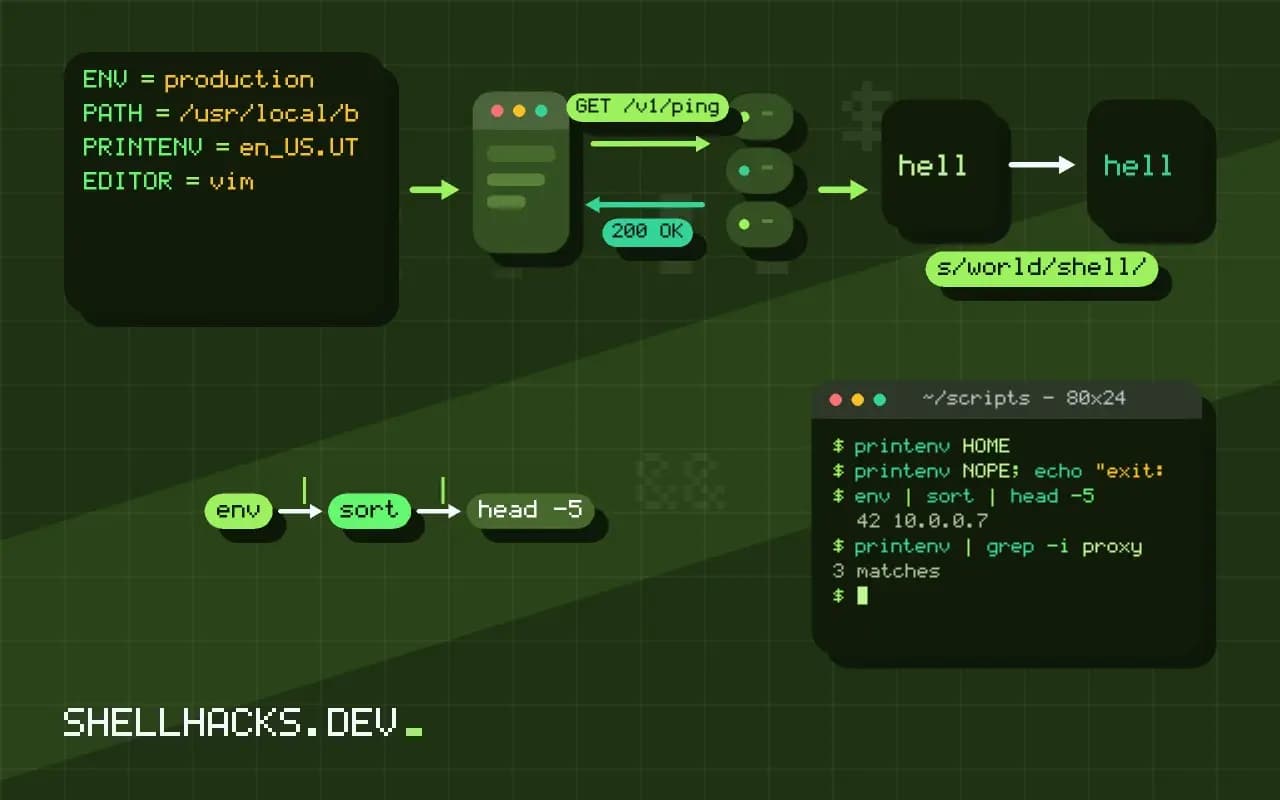
printenv HOME
printenv NOPE; echo "exit: $?"
env | sort | head -5
printenv | grep -i proxy/home/alice
exit: 1
EDITOR=vim
HOME=/home/alice
LANG=en_US.UTF-8
LOGNAME=alice
printenv NAME prints only the value, which makes it handy in scripts, and exits 1 when the variable is not set. Plain env lists all pairs unsorted. Sort the output to compare two environments with diff. A value with a newline breaks the one-line-per-variable format, so use env -0 for NUL-separated output when parsing.
Run with a changed environment
env LANG=C sort names.txt
env -u HTTP_PROXY curl -s https://example.test/
env -i PATH=/usr/bin:/bin HOME=/tmp bash -c 'env'HOME=/tmp
PATH=/usr/bin:/bin
PWD=/tmp
Prefix assignments apply to one command and leave the shell alone. -u removes a variable, which is how you test whether a proxy setting causes a failure. env -i clears everything, and adding back only the variables you list is a good way to reproduce what cron or systemd provides. If a script breaks under env -i, it depends on something it never set.
Exported versus shell variables
NAME=local
bash -c 'echo "child sees: [$NAME]"'
export NAME
bash -c 'echo "child sees: [$NAME]"'
NAME=once bash -c 'echo "one-off: $NAME"'child sees: []
child sees: [local]
one-off: once
An assignment creates a shell variable. Only export places it in the environment passed to children. Putting NAME=once before a command exports it for that command alone. This behaviour is the root of many "variable is empty in the script" reports, covered in exporting environment variables.
The shebang and secrets
#!/usr/bin/env python3The env shebang finds the interpreter in PATH rather than at a fixed location, which helps on systems where Bash or Python lives in /usr/local/bin. The trade-off is that it uses whichever interpreter comes first. Be careful with secrets: environment variables are visible to the process owner in /proc/PID/environ and are inherited by every child, so they leak into crash dumps and subprocess logs; see environment variables and leaks.
Where the environment comes from
Every process inherits a copy of its parent's environment when it starts, and changes it makes afterwards affect only itself and its own children. That one rule explains most puzzles. A variable set in a script is invisible to the shell that launched it, a variable exported in one terminal does not appear in another, and a change to a login file such as ~/.profile affects only sessions started after the edit. Services started by the init system do not read your shell files at all, so the environment they see is whatever the unit file or the system provides.
Use printenv NAME in a script to read a variable: it prints the value and exits with status 1 when the variable is not set, so it works as an existence test. For a running process on Linux, tr '\0' '\n' < /proc/PID/environ shows the environment the process started with, which is the fastest way to see what a daemon actually received. Reading another user's process requires root.
Cleaning the environment for reproducibility
A script that works on a developer machine and fails in CI often depends on a variable that the developer has set and CI has not. env -i starts a command with an empty environment, and adding the few variables you want, as in env -i PATH=/usr/bin:/bin HOME=/tmp/h command, reproduces a clean environment. Run the script that way before shipping it, and it will reveal the hidden dependencies on LANG, TERM, EDITOR and similar variables. Locale deserves special attention, since sort order and character classification change with LC_ALL, as covered in other posts on encoding.
The reverse tool is env -u NAME command, which removes one variable for a single run. It is a quick way to test how a program behaves when a proxy variable or a token is absent.
Secrets in the environment
The environment is convenient for passing configuration and risky for passing secrets. Child processes inherit everything, so a token exported for one tool is readable by every program the script launches, including ones that log their environment on crash. On Linux the environment of a process is readable through /proc by the same user and by root, and container platforms often show it in their management interfaces. Prefer a file with restrictive permissions read by the one command that needs it, or a secret manager that hands over a short-lived value.
When the environment must carry a secret, limit its reach: set it only on the command line of the process that needs it, as in TOKEN=... command, instead of exporting it in the shell session. Do not print the environment in debug output without filtering, since a build log full of printenv output is a common source of leaked credentials.
Differences between shells and scheduled jobs
Cron, systemd and containers each start processes with their own small environment. Cron provides a handful of variables, systemd sets few unless the unit adds them with Environment= or EnvironmentFile=, and a Docker container receives only what the image and the run command define. When a scheduled job fails with "command not found", compare its environment against an interactive shell's with env | sort and look for the difference in PATH. Print the environment to a file at the start of the job once, while debugging, then remove the line.
A few related tools round this out. export -p lists variables marked for export in a form that can be pasted back into a shell, and declare -x does the same job inside a function. set without arguments shows every shell variable and function, which is far more than the environment. Remember the distinction when debugging, because a variable that appears in set but not in printenv is a shell variable that child processes will never see.
On macOS and Linux the commands behave the same, but the default values differ: TERM, LANG and PATH are set by different files on each platform. Log them at the start of any script that must run on both.
Where this does not apply
env shows exported variables, not shell functions or unexported ones; use declare -p or set in Bash to see all. Windows uses a different model and PowerShell has its own $env: drive. A GUI application launched from a desktop environment may see an environment different from your terminal's. See the GNU env manual and the printenv manual.