How to Use fzf With git Docker and Man Pages in Real Scripts
Build interactive pickers with fzf for git branches and commits, Docker containers and man pages: previews, multi select, key bindings and safe quoting.
Most command-line work involves choosing from a list: which branch, which container, which file, which man page. Typing a prefix and pressing Tab is fine for short lists, and fzf is better when the list is long or you only half remember the name. It is a small program with one job, and the shell functions you wrap around it are where the value is. This post builds three useful pickers, building on directory jumping and terminal setup. Examples use fzf 0.60 and Bash 5.2.
Install and the key bindings
sudo apt install fzf
echo 'eval "$(fzf --bash)"' >> ~/.bashrc
Since fzf 0.48 the program prints its own shell integration, so the single line gives Ctrl-R (fuzzy history search, usually the first thing people fall for), Ctrl-T (insert a file path) and Alt-C (change directory). For zsh use fzf --zsh. Older distribution packages ship the scripts under /usr/share/doc/fzf/examples/. The core usage is a pipe: ls | fzf prints the line you pick.
Git: branches and commits
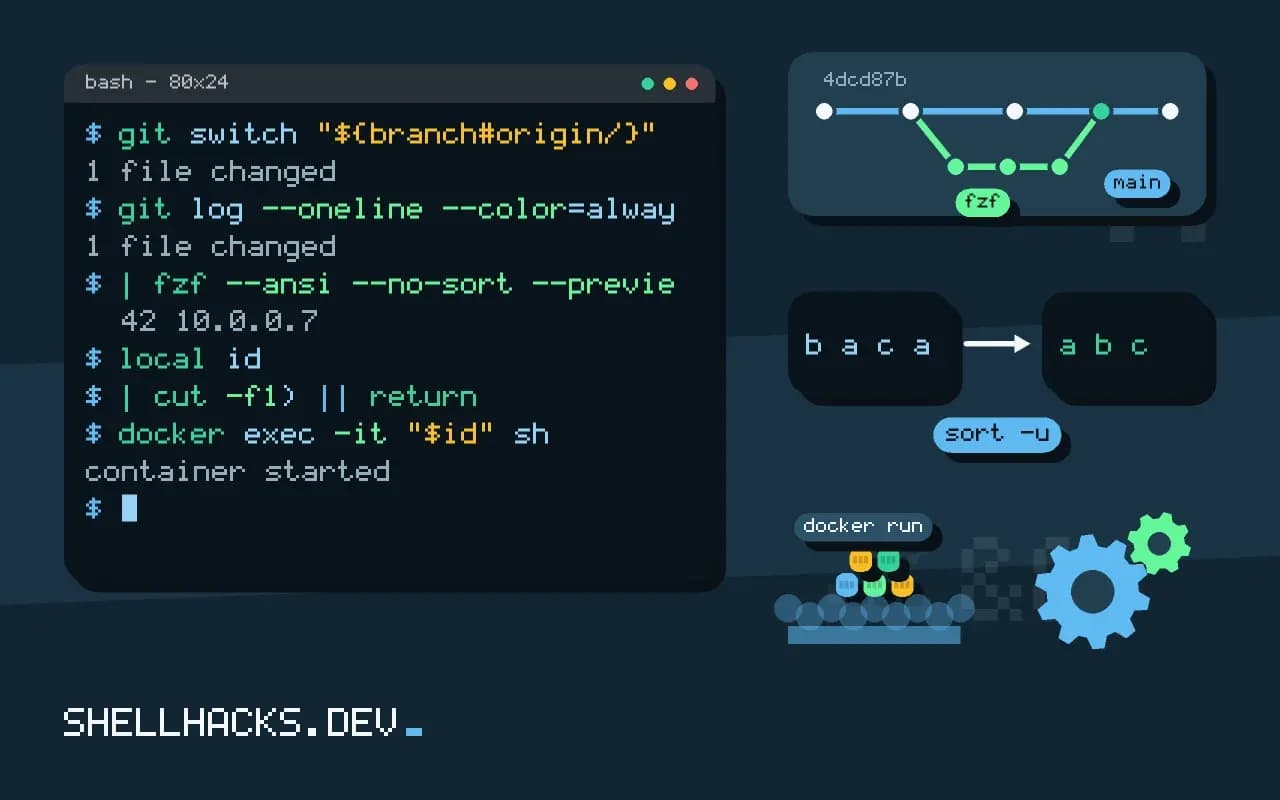
gb() {
  local branch
  branch=$(git branch --all --sort=-committerdate --format='%(refname:short)' \
    | fzf --height 40% --preview 'git log --oneline --color=always -n 15 {}') || return
  git switch "${branch#origin/}"
}

gl() {
  git log --oneline --color=always \
    | fzf --ansi --no-sort --preview 'git show --color=always {1}' \
          --bind 'enter:become(git show {1})'
}
The first lists branches by recent commit and shows each one's log in a preview pane; choosing one switches to it. The || return handles Escape: fzf exits non-zero on cancel, and the function stops without acting. {1} in the preview is the first whitespace field of the highlighted line, the commit hash in the second function. become(...) (fzf 0.38 and later) replaces fzf with the command. See log formats for the line format.
Docker: pick a container
dlogs() {
  local id
  id=$(docker ps -a --format '{{.ID}}\t{{.Names}}\t{{.Status}}\t{{.Image}}' \
    | fzf --delimiter '\t' --with-nth 2.. --preview 'docker logs --tail 30 {1} 2>&1' \
    | cut -f1) || return
  [ -n "$id" ] && docker logs -f "$id"
}

dsh() {
  local id
  id=$(docker ps --format '{{.ID}}\t{{.Names}}' | fzf --delimiter '\t' --with-nth 2 | cut -f1) || return
  docker exec -it "$id" sh
}
--delimiter and --with-nth display only the chosen columns while keeping the ID available as {1} for the preview and the output. The preview refreshes as you move through the list, a quick way to see logs of every container. Unlike scripts that should run unattended, these are for people; see exec and attach for the underlying commands.
Man pages and multi-select
fman() {
  local page
  page=$(man -k . 2>/dev/null | fzf --preview 'man {1}{2} 2>/dev/null | head -n 40' | awk '{print $1 $2}') || return
  man "${page//[()]/ }"
}

gadd() {
  git ls-files -m -o --exclude-standard | fzf --multi --preview 'git diff --color=always -- {}' | xargs -r git add --
}
The man picker searches the descriptions of all pages (man -k . lists them) and previews the selected one. --multi allows Tab to mark several lines; xargs -r (GNU) avoids running git add with no arguments when you cancel, and -- keeps file names that start with a dash from being read as options. For file names with spaces, add -print0 style handling: --read0 and --print0 in fzf with xargs -0.
Habits that keep it safe
- Check that the selection is not empty before acting on it. An empty variable in
docker rm "$id"orrm -- "$f"is a bug waiting to happen. - Preview commands run for every highlighted line; keep them cheap and read-only.
- Do not use fzf functions in scripts that run unattended. They need a terminal.
- Put the functions in a file in your dotfiles and source it;
FZF_DEFAULT_OPTSsets common flags such as--height 40% --reverse.
Where this does not apply
fzf is for interactive use. In scripts, take the selection as an argument or a flag. For very long lists the startup of the producer command dominates, so use a fast one (fd, git ls-files). If a remote shell lacks fzf, the same functions fail; keep a fallback or install it with your machine setup script.
What fzf does and where the key bindings come from
The fuzzy finder reads lines from standard input, lets you type to narrow them, and prints the selected line or lines to standard output. That small contract makes it a building block: any command that prints a list can feed it, and its output can feed any command that takes a name. The installer or package also sets up shell integration, which adds key bindings. Control-R replaces the history search with a fuzzy one that shows many matches at once, Control-T pastes the path of a selected file onto the command line, and Alt-C changes into a selected directory. The bindings come from files the installation adds to your shell configuration, so a new shell must be started to see them, and a dotfiles setup should include the same lines on every machine. Speed depends on the source of the list. By default it uses find, and setting FZF_DEFAULT_COMMAND to fd or rg --files makes it faster and respects ignore files, which keeps build output and dependency folders out of the list.
The preview window, enabled with --preview, runs a command for the highlighted line and shows its output, with {} standing for the selection. It turns a picker into a browser for files, commits and logs.
Pickers for Git and Docker
A branch picker is a one-line function: list branches, choose one, switch. git branch --all piped into fzf and then trimmed of leading spaces and remote prefixes feeds git switch, and a preview of git log --oneline -10 for the highlighted branch shows what is on it. For commits, git log --oneline with a preview of git show {1} lets you browse history and pick a hash to cherry-pick, revert or compare. For Docker, docker ps with a custom format prints one line per container, and the first column is the name or ID that you extract with awk for docker exec, logs or stop. The pattern is the same each time: a listing command, a pick, a trimming step and an action. Write these as shell functions in your dotfiles with names you will remember, and keep each small enough to read at a glance, since a picker that you do not trust will not be used.
Man pages work well too: man -k . lists every page with its description, and a fuzzy selection of one opens it, which turns the manual into something you can search by memory of a word and not a name.
Multi-select, empty selections and habits that keep it safe
With --multi, Tab marks several lines and the output has one per line, so you can select many files to open or many containers to stop. The risk is the empty selection. If you press Escape, fzf prints nothing and exits with a nonzero status, and a pipeline that feeds the empty output to xargs may run the command with no arguments, which can mean "operate on everything" for some tools or "operate on the current directory" for others. Check the status before acting, or use xargs -r on GNU systems so the command is skipped on empty input. Show what will happen before a destructive command: pick, then print the command and ask for confirmation, or put the destructive action behind a separate key. Quote the selection, because names with spaces break unquoted use, and use --print0 with xargs -0 when file names may contain unusual characters. A picker makes deleting fast, which is its danger.
See the fzf project and its shell integration guide.