How to Use the gcloud and az CLIs in Scripts With Examples
Script the gcloud and Azure az CLIs: output formats, filters and queries, non-interactive auth with service principals, quiet flags and exit status handling.
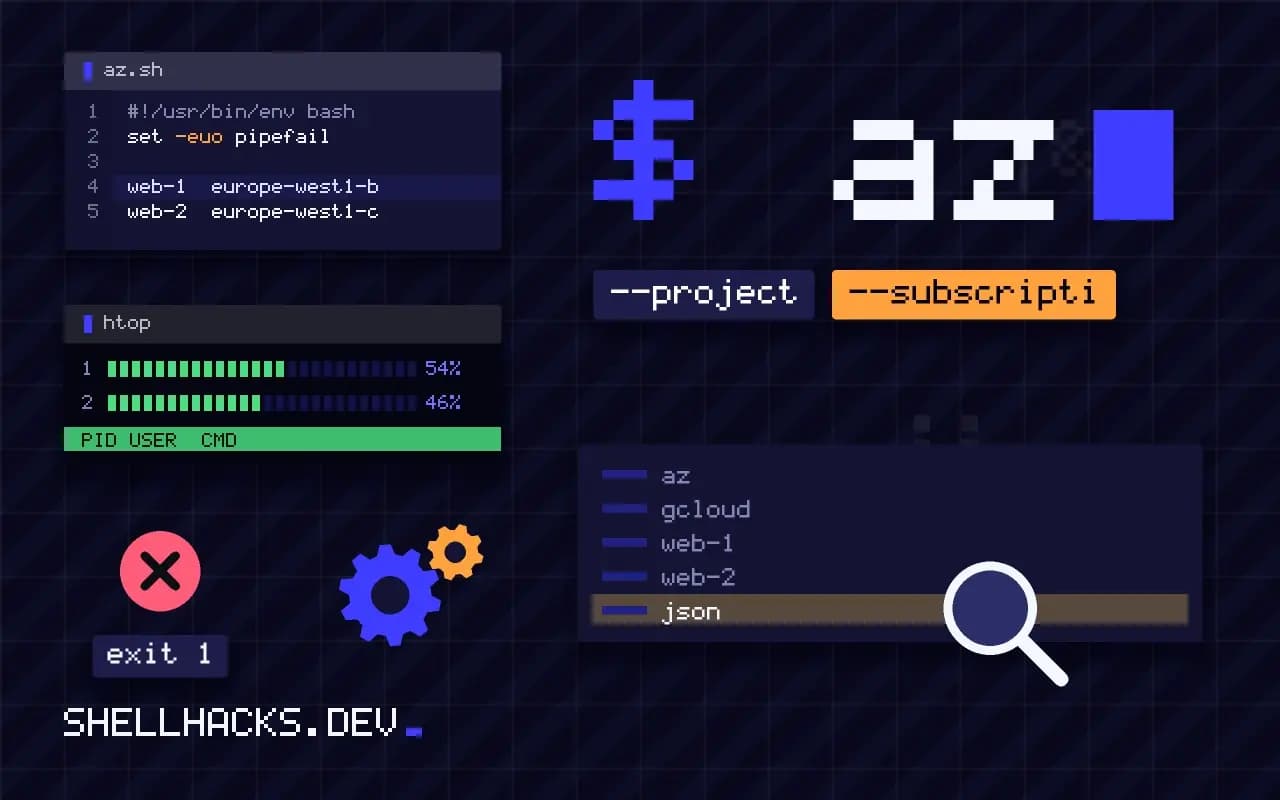
Google Cloud and Azure each ship a CLI with its own output conventions, and both punish scripts that rely on defaults: a prompt appears, or the wrong project is used. The goal is the same as in AWS CLI scripts: get exact values, avoid prompts and fail clearly. The examples assume gcloud 500 and Azure CLI 2.65.
Select values
gcloud compute instances list --project example-proj \
  --filter="status=RUNNING AND labels.role=web" \
  --format="value(name,zone.basename())"

az vm list --subscription "$SUB" --resource-group rg-web \
--query "[?powerState=='VM running'].name" -o tsvweb-1 europe-west1-b
web-2 europe-west1-c
The value() format prints tab-separated fields with no header, and projections like zone.basename() trim paths. Azure's -o tsv does the same, and the --query option takes JMESPath, as the AWS CLI does. Both support json output for piping into jq. Prefer --filter on gcloud, evaluated by the service for supported fields.
Authenticate without a person
gcloud auth activate-service-account --key-file="$GOOGLE_APPLICATION_CREDENTIALS"
gcloud config set project example-proj

az login --service-principal -u "$AZ_CLIENT_ID" -p "$AZ_CLIENT_SECRET" --tenant "$AZ_TENANT_ID"
az account set --subscription "$AZ_SUBSCRIPTION_ID"
Never use your personal login in automation: tokens expire and the actions are attributed to a person. On a cloud VM, use the attached service account or managed identity instead (az login --identity), which needs no secrets at all. In CI, use workload identity federation so no long-lived key exists. If a key file is unavoidable, keep it out of the repository, as covered in secrets in deploy scripts.
Suppress prompts and be explicit
gcloud compute instances delete web-1 --zone europe-west1-b --project example-proj --quiet
az group delete --name rg-temp --yes --no-wait
az group wait --name rg-temp --deleted
Destructive commands ask for confirmation unless you pass --quiet (gcloud) or --yes (az). Always pass the project or subscription on the command line instead of trusting the active configuration, because a stale default is how scripts delete the wrong thing. Check the identity first with gcloud auth list or az account show and compare with an expected value.
Exit status and errors
set -euo pipefail
if ! gcloud storage ls gs://example-test-bucket/ >/dev/null 2>err.txt; then
  grep -q 'does not exist' err.txt && echo "bucket missing" || { cat err.txt >&2; exit 1; }
fi
az deployment group create -g rg-web -f main.bicep --only-show-errors
Both CLIs exit non-zero on failure, which set -e handles. They are also slow to start, hundreds of milliseconds each, mostly Python start-up, so a loop of 200 calls takes a minute. Fetch a list once and process it locally rather than querying inside the loop. Reduce noise with --only-show-errors in az and --verbosity=error in gcloud.
Profiles, projects and the cost of a wrong default
Both the Google Cloud CLI and the Azure CLI keep an active configuration, and a script that relies on it acts on whatever the last interactive session selected. With gcloud, the active project and account live in a named configuration, and --project overrides it per command. With az, the active subscription is set by az account set and overridden with --subscription. A script that passes the target explicitly on every call is immune to a colleague switching context in another terminal on the same machine, and its log lines state what was touched.
In CI, create a fresh, isolated configuration for the run, using CLOUDSDK_CONFIG for gcloud or AZURE_CONFIG_DIR for az, pointing at a temporary directory. That keeps credentials from one job out of another job's reach on a shared runner, and it means nothing persists after the directory is deleted.
Output formats that scripts can trust
Human-readable tables change shape between releases, so scripts should request structured output. gcloud offers --format=json, --format=value(field) and a projection syntax for columns; az offers -o json, -o tsv and a JMESPath --query that runs inside the CLI before printing. TSV is the least awkward for single values, because it prints the raw string with no quotes, so $(az vm show ... --query id -o tsv) lands cleanly in a variable.
Prefer filtering on the server where the API allows it. gcloud's --filter and az's --query reduce what is printed, but not always what is fetched, so for large listings check whether a flag such as --filter is translated to an API filter or applied after download. If a script lists thousands of resources, that difference decides whether it takes seconds or minutes. When using jq for the rest, keep the CLI's output as JSON and pipe it through, as covered for other tools in earlier posts.
Idempotent operations and existence checks
Cloud commands rarely behave the same twice. A create that finds an existing resource may fail, update it or silently succeed depending on the service. Make scripts safe to rerun by checking first: gcloud ... describe and az ... show exit non-zero when the resource is missing, which you can use in an if. Watch for the case where the lookup fails for a different reason, such as a permission error, and the script then tries to create something that exists. Distinguish "not found" from other errors by reading the error text or status, not only the exit code.
Long-running operations return before the work is done. Many commands accept --async or --no-wait and give back an operation id; others block by default. Decide which you want. A script that moves on while a database is still provisioning will fail on the next step with an error that looks unrelated, so wait for the operation with the matching wait subcommand, and apply a timeout.
Least privilege for automation
Run scripts under a service account or managed identity with only the roles required. In Google Cloud, prefer workload identity federation, which exchanges the CI system's own token for a short-lived credential, over a downloaded JSON key that never expires unless someone rotates it. In Azure, a managed identity on the runner or federated credentials do the same. Check what the identity can do with a dry-run style command before the first real run, and treat an Owner or Contributor role at subscription level as a smell for a deploy script that touches one resource group.
Keep the installed CLI version consistent between your laptop and CI. Both tools move fast, flags are renamed, and a command that works on one version can print a deprecation warning or change output on another. Pin the version in the CI image and upgrade on purpose.
Finally, test scripts against a throwaway project or subscription before pointing them at real ones. Both clouds make it cheap to create an isolated sandbox with a spending cap, and a script that creates and deletes resources there will reveal quota limits, naming rules and permission gaps that never show up in reading the documentation. Keep the sandbox identifiers in a variable at the top of the script so switching targets is a one-line change.
Log each cloud call with its arguments and the identity in use, redacting secrets. When a deletion goes wrong, that log is the only record of what the script believed it was doing, and it shortens the investigation from hours to minutes.
Where this does not apply
Long-lived infrastructure is better in Terraform than in imperative scripts, and complex logic belongs in an SDK. Command names and flags change between releases, and Azure's CLI marks some commands as experimental, so pin the CLI version in CI. See the gcloud formats topic and the Azure CLI query guide.