How to Use git fetch vs git pull Safely With Examples
Learn how git fetch and git pull differ: what each changes, how to inspect before merging, pull --rebase, and the setting that avoids surprise merges.
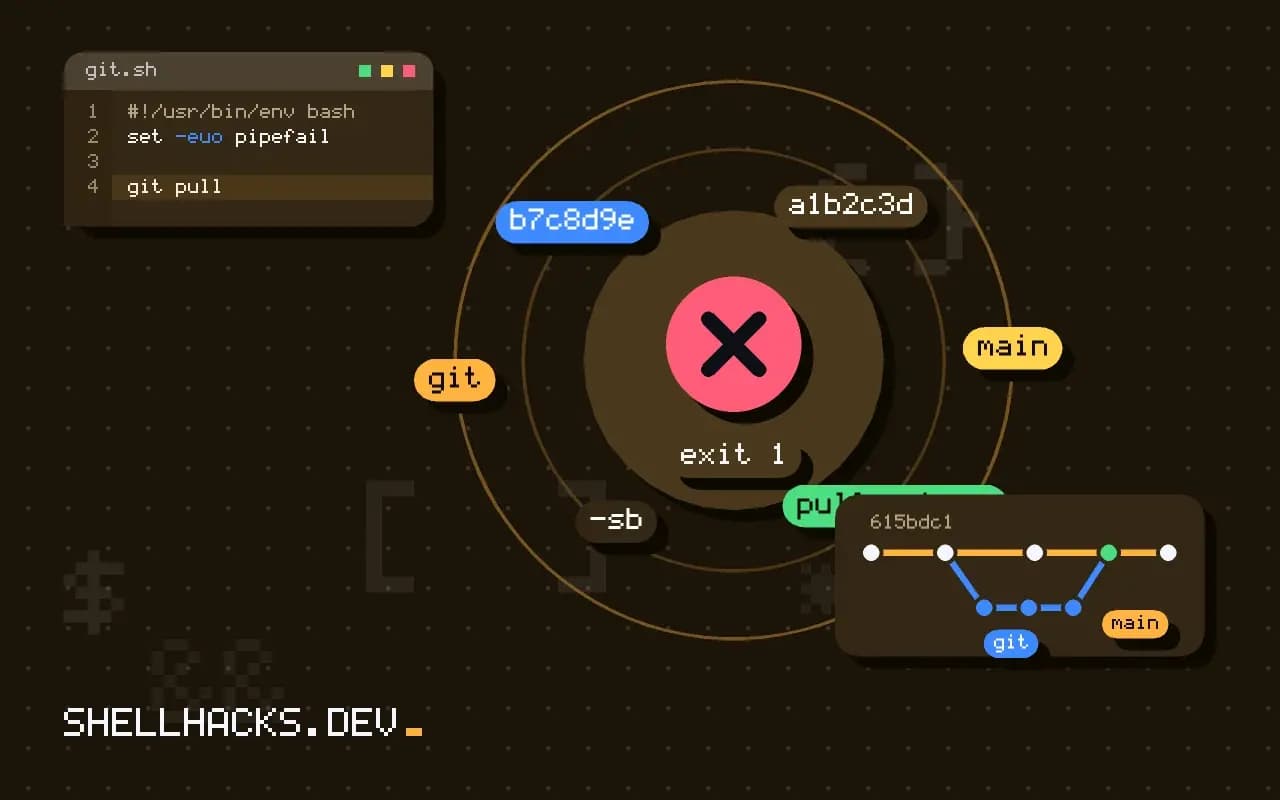
Many people run git pull by habit and later find an unexpected merge commit in their history. The two commands differ in one thing: whether Git changes your branch. Knowing which one you want gives you control over the history. The remote model is explained in remotes, push, pull and fetch, and the examples assume Git 2.47.
What fetch does
git fetch origin
git status -sb
git log --oneline HEAD..origin/main
git diff --stat HEAD origin/main## main...origin/main [behind 2]
b7c8d9e Add retry to the uploader
a1b2c3d Update README
README.md | 3 ++-
src/uploader.py | 12 ++++++++++--
The fetch moves origin/main forward but leaves main and your files alone. Because nothing changes in your work, it is always safe to run, even with uncommitted edits. The range HEAD..origin/main lists commits the remote has that you do not.
What pull does
git pull
git pull --rebase
git pull --ff-only
A plain pull fetches and then merges origin/main into your branch. If both sides have new commits, Git creates a merge commit, which is often noise on a feature branch. --rebase instead replays your local commits on top of the fetched ones, producing a straight line; the trade-offs are in merging versus rebasing. --ff-only succeeds only when your branch can just move forward, and stops otherwise, leaving the decision to you.
Make the default safe
git config --global pull.ff only
git config --global pull.rebase true
git config --global fetch.prune true
Since Git 2.27 a bare git pull warns if you have not chosen a strategy for diverged branches, and Git 2.33 and later refuse to guess. Setting pull.ff only makes the command stop and tell you when branches diverge, which is the cautious choice. pull.rebase true is popular for personal branches. Pick one deliberately and note it in your team's setup guide.
When a pull fails
error: Your local changes to the following files would be overwritten by merge:
	src/config.py
Please commit your changes or stash them before you merge.
Uncommitted edits to a file the update touches block the merge. Commit them, or put them aside with git stash and restore with git stash pop afterwards. With git pull --rebase --autostash, Git does the stash and pop for you. A conflict during the update is resolved the usual way, described in merge conflicts; abort with git merge --abort or git rebase --abort.
What actually happens in a pull
A pull is two operations. The first fetches new objects and updates the remote-tracking branches. The second integrates the fetched commits into the current branch, with either a merge or a rebase. Because the second step changes your branch and your working tree, it can stop with conflicts, and it can create a merge commit you did not plan. Fetching has neither effect. It changes only the bookmarks under refs/remotes and the object store, and it is always safe to run, at any time, including in the middle of other work. The habit that follows is to fetch often and integrate deliberately.
After a fetch, git status reports how far the branch is ahead of or behind its upstream, and git log HEAD..@{u} lists the incoming commits. Read them before deciding between a merge, a rebase or leaving things alone.
Choosing the integration strategy
The setting pull.rebase controls how a pull integrates. With the default of merge, divergent history produces a merge commit, which keeps the exact record of what happened and can clutter the history on busy branches. With rebase, your local commits are replayed on top of the fetched ones, which keeps history linear, at the price of rewriting your unpublished commits. Setting pull.ff only refuses to create a merge commit and fails when the histories have diverged, which forces an explicit choice. Many teams settle on pull.ff only for the main branch and rebase for feature branches before opening a pull request.
Modern Git warns when divergent branches are pulled without a configured strategy. Set one instead of choosing on the command line each time, so every clone behaves the same.
Fetch options worth knowing
Use git fetch --all to update every remote, which is helpful on forks with an upstream, and --prune to remove tracking branches that no longer exist on the server. --tags brings in all tags, and tags that point to commits reachable from fetched branches arrive by default. git fetch origin branch fetches a single branch and stores it in FETCH_HEAD, which is the way to look at a branch without creating a tracking reference. Shallow clones can be deepened with --depth or --unshallow. In CI, fetch only what the job needs, with a shallow depth for build jobs, and the full history for jobs that compute changes or tags.
For a quick look at what changed upstream before merging, git diff HEAD...origin/main with three dots shows changes on the remote since the common ancestor, which is the right comparison for what a merge will bring.
Recovering from a pull gone wrong
If a pull produced an unwanted merge or a messy conflict, you can go back. A merge in progress is abandoned with git merge --abort, and a rebase with git rebase --abort. After a completed pull, the reflog records the previous position of the branch: git reset --hard ORIG_HEAD immediately after a pull returns to the state before it, discarding the integration. Check for uncommitted changes first, because a hard reset throws them away. Stashing local work before a pull, or committing it to a temporary branch, makes the operation safer. Teams new to Git benefit from a rule of thumb: commit or stash, fetch, read the incoming changes, then integrate, and never pull with a dirty working tree on a branch you do not understand.
On a shared repository, add the safe defaults to the project's onboarding notes or a bootstrap script: fetch.prune true, pull.ff only and rebase.autoStash true. They remove the sharpest edges for newcomers, who otherwise learn about divergent branches from an error at a bad moment. Also remind people that a pull request workflow on the server does its own merging, so local pulls are mostly about updating the main branch and keeping feature branches current.
When a pull fails because of local changes that would be overwritten, the message names the files. Commit or stash them, then retry, instead of forcing anything.
Where this does not apply
On a branch that only you use and that tracks a shared one, git pull --ff-only is almost always enough. In scripts and CI, prefer git fetch followed by an explicit git reset --hard origin/main or git checkout of a tag, because the result is deterministic and never leaves a half-merged tree. Never reset a branch other people use. See the git-fetch manual, the git-pull manual and remote branches in Pro Git.