Linux Command Line Tutorial for Beginners From Scratch
Learn the Linux command line by doing: move around, make and read files, search, chain commands with pipes and set permissions, in eight short steps.
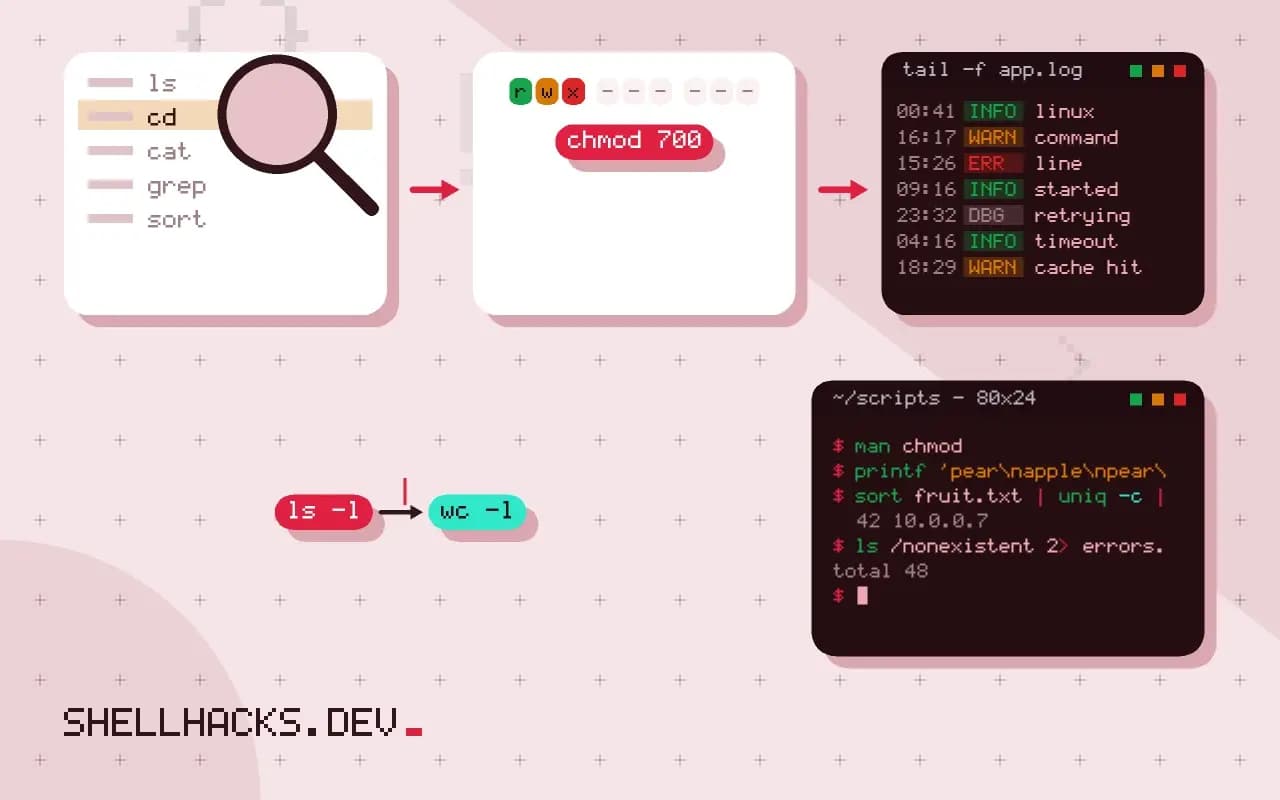
The terminal looks like a blank line and a blinking cursor, and that is the whole difficulty: nothing tells you what to type. This tutorial gives you eight small steps that cover what most people do there for years, and each ends with something you can check. Once you finish, the Linux command line every developer needs goes deeper on each area, and the topic ties into how to use ls and its neighbors.
Commands are those of GNU coreutils 9.4 and Bash 5.2 on Debian 13. Ubuntu, Fedora and WSL behave the same for everything here.
Step 1: find your location
pwdpwd prints the current directory, for example /home/alex. Your home directory is where a new terminal starts, and ~ is a shorthand for it.
Step 2: what is here?
ls
ls -l
ls -a
ls lists names. -l adds permissions, owner, size and time. -a includes hidden entries, which are the names that start with a dot. The ls guide has the rest.
Step 3: move around
cd Documents
cd ..
cd ~
cd -
cd changes directory. .. is the parent, ~ is home, and - returns to wherever you were before. If a name contains a space, quote it: cd "My Files". The ideas behind paths are in navigating the Linux file system.
Step 4: make things
mkdir projects
cd projects
touch notes.txt
echo "first note" > notes.txt
cp notes.txt backup.txt
mv backup.txt old-notes.txt
mkdir makes a directory, touch creates an empty file, > sends a command's output into a file (replacing its contents), cp copies and mv moves or renames. Use >> to append instead of replace.
Step 5: read files
cat notes.txt
less /var/log/syslog
head -n 5 notes.txt
tail -n 5 notes.txt
cat prints a whole file. For long files, less pages through them: press space to advance, / to search and q to quit. head and tail show the start and end. Note that on systems that log only to the journal, /var/log/syslog may not exist, and journalctl is the substitute.
Step 6: search
grep "note" notes.txt
grep -r "TODO" .
find . -name "*.txt"
grep finds lines containing text; -r searches directories recursively. find finds files by name, size, time and more.
Step 7: combine commands
ls -l | wc -l
cat notes.txt | grep "first" | sort
The pipe sends the output of the left command to the input of the right. Small tools that each do one thing, joined by pipes, are the core idea of the command line. The second line works but grep first notes.txt | sort does the same with one fewer process.
Step 8: permissions and help
ls -l notes.txt
chmod u+x script.sh
man chmod
The ten characters at the start of an ls -l line show the type and the read, write and execute bits for owner, group and others. chmod changes them, and man opens the manual page for any command. Press q to leave it.
Three habits that save you
- There is no trash can.
rm fileis permanent, so runlswith the same pattern first. - Press Tab to complete names. It prevents typos and shows you what exists.
- Press the up arrow to recall commands, and Ctrl+R to search your history.
Redirection and pipes, with real output
Every command starts with three open streams: standard input (0), standard output (1) and standard error (2). The shell wires them up before the program runs, which is why a program never needs to know whether it is writing to your screen, a file or another program. A redirect changes where a stream points. A pipe connects one command's output stream to the next command's input stream, and both commands run at the same time. The examples below run in Bash 5.2.37 on Debian 13.
printf 'pear\napple\npear\nfig\napple\npear\n' > fruit.txt
sort fruit.txt | uniq -c | sort -rn
ls /nonexistent 2> errors.txt
echo "exit status: $?"
cat errors.txt 3 pear
2 apple
1 fig
exit status: 2
ls: cannot access '/nonexistent': No such file or directory
The first line wrote six words to a file with >. The pipeline then sorted them, counted adjacent duplicates with uniq -c and sorted the counts, largest first. uniq only collapses neighbours, which is why the first sort is not optional. The error from ls went to standard error, so 2> caught it while the normal output stream stayed empty. A single > overwrites the target. Use >> to append, and remember that > truncates the file before the command even starts, so sort fruit.txt > fruit.txt leaves an empty file.
Find your way with man and help
The command line documents itself. man ls opens the manual page for the external program, help cd shows Bash's built-in help for a built-in, and most programs print a summary for --help. Which one to use depends on what the word is, and type tells you.
type cd ls grep
ls --help | head -n 3cd is a shell builtin
ls is /usr/bin/ls
grep is /usr/bin/grep
Usage: ls [OPTION]... [FILE]...
List information about the FILEs (the current directory by default).
Sort entries alphabetically if none of -cftuvSUX nor --sort is specified.
Inside a manual page, press / to search, n for the next match and q to quit. A minimal Debian image often ships without the man program, in which case --help and the online man7.org pages are the way in.
The mistakes everyone makes once
Three errors account for most first-week frustration. A path with a space needs quotes, or the shell splits it into two arguments. The command rm does not use a trash can, so a deleted file is gone, and the habit of running ls with the same pattern before rm catches wrong wildcards. And a command that waits for input is not frozen. If cat with no filename seems to hang, it is reading from your keyboard; press Ctrl-D to end the input or Ctrl-C to cancel. Tab completion avoids typos in names, and the up arrow replays history. Learn those two before any other shortcut.
Practice that sticks
Reading a tutorial teaches little until you type the commands. Make a scratch folder and set yourself a small task: create a project with three directories, put a few files in them, find every file that contains a particular word, count the lines in each and save the list in a new file. Then do it again without looking back at the steps. The second pass is where the commands move from the page into your hands, and mistakes during it are the useful ones, because the error messages explain the rules. If you get stuck, man and --help are the next steps, and a command you looked up yourself is easier to remember than one you were told. Keep a text file of the commands you use every week, with a line on what each does. After a month it is the cheat sheet written in your own words, and it shows which of the topics in the larger guide to read next.
Where a tutorial stops
This covers an interactive session. Turning commands into repeatable scripts is the next skill, and it starts in the Bash script tutorial for beginners. The reference for the commands used here is the GNU coreutils manual, and man7.org hosts the Linux man pages.