How to Reduce Disk IO in Scripts With Buffering and Batching
Reduce disk IO in scripts: write once instead of in a loop, batch work, keep temp files in memory, sort with a big buffer and count syscalls.
A script that takes minutes to process a thousand files, with the disk light constantly on, is probably doing a hundred thousand tiny writes. Each >> inside a loop opens the file, appends a line and closes it, and each of those is a system call and often a trip to storage. Fixing that is usually a change of structure, not clever tuning. This post lists the changes in order of payoff, with the measurement that proves them. It is the disk side of speeding up shell scripts. Examples use Bash 5.2 and Linux 6.12.
Measure first
strace -c -f -e trace=openat,read,write,fsync ./slow.sh 2>&1 | tail -n 10
iostat -x 1 3
pidstat -d 1 3% time seconds usecs/call calls errors syscall
62.31 1.202113 3 401200 write
31.02 0.598440 4 150220 openat
The syscall summary shows how many calls the script makes and where time goes. 400,000 writes for a job that should write a few megabytes is the problem, found. iostat and pidstat -d show whether the disk is actually busy. Re-run after each change to confirm it helped, because the page cache absorbs many writes and the effect is not always where you expect.
Write once, not per line
# slow: open, append, close for every line
for f in *.log; do
  grep -c ERROR "$f" >> counts.txt
done

# fast: one open for the whole loop
for f in *.log; do
  grep -c ERROR "$f"
done > counts.txt
Putting the redirect after done opens the file once for the entire loop. Better still, give the work to one process that reads everything, such as grep -c ERROR *.log, or awk for logic across files, which replaces thousands of process starts; see reducing process spawning.
Batch operations
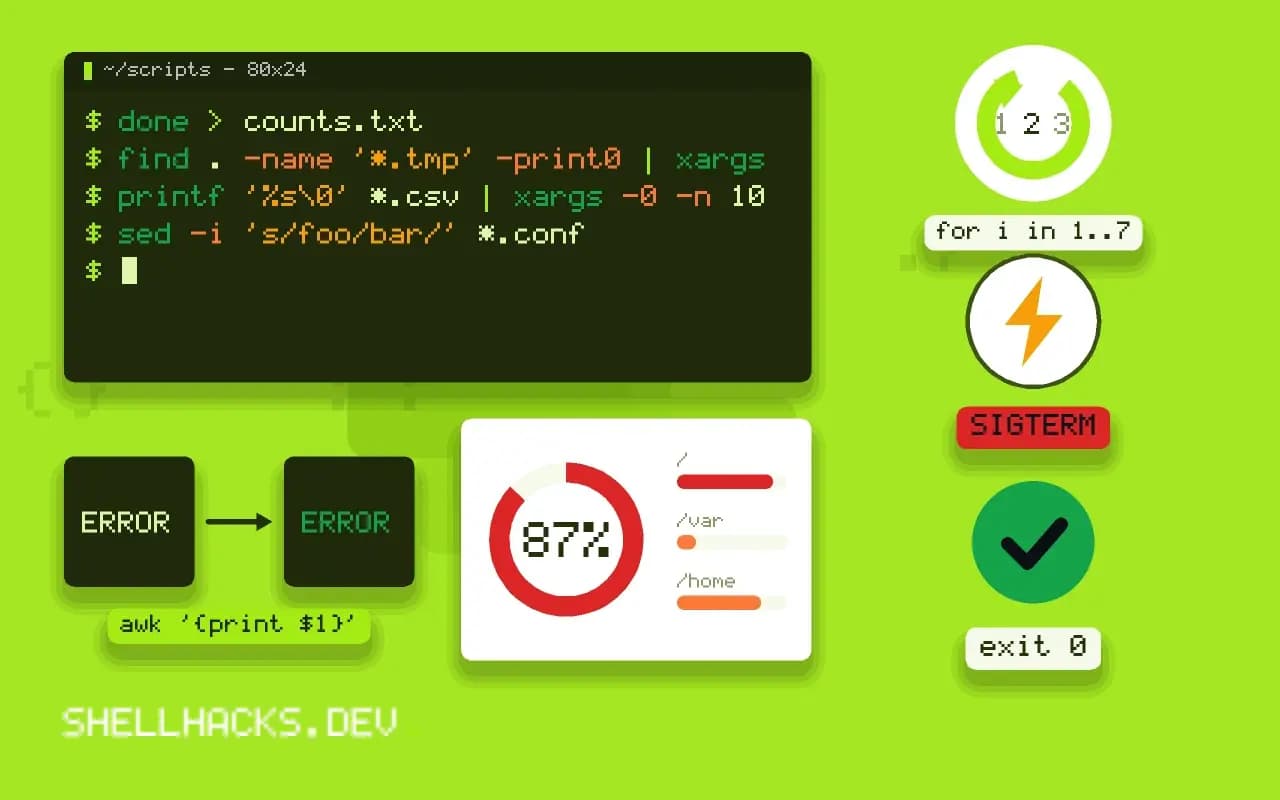
find . -name '*.tmp' -print0 | xargs -0 rm --
printf '%s\0' *.csv | xargs -0 -n 100 gzip
sed -i 's/foo/bar/' *.conf
One rm with a thousand arguments does far less work than a thousand rm calls. xargs batches arguments up to the system limit. Editing many files with one sed beats a loop that starts one per file. For deleting, find -delete avoids the extra process altogether.
Temporary data in memory
tmp=$(mktemp -d -p /dev/shm)
trap 'rm -rf "$tmp"' EXIT
sort -S 2G -T "$tmp" huge.txt > sorted.txt
/dev/shm is a memory-backed filesystem, so scratch files there never touch the disk. Use it only for data that fits comfortably in free memory, or the system will swap. sort keeps data in memory up to its buffer size, set by -S, and then spills to temporary files in the directory named with -T; a larger buffer means fewer spills. With mktemp, follow the cleanup pattern from trap and cleanup.
Read once, process in memory
mapfile -t lines < input.txt
for l in "${lines[@]}"; do :; done
Reading a file into an array once with mapfile avoids rereading it in each iteration of an outer loop. This trades memory for IO and is fine up to files of some megabytes; for very large files, stream with while read or a tool built for it, as in processing large files.
Buffering
producer | stdbuf -oL consumer
dd if=in.img of=out.img bs=4M status=progress
Programs that write to a pipe or a file buffer their output in blocks, and those that flush on every line, such as python -u or stdbuf -o0, create many small writes. Leave buffering on unless you need live output. For dd, a block size of 1 to 4 MB beats the default 512 bytes by a large factor.
Where this does not apply
Do not remove fsync from code whose job is to survive a crash: a database, a queue or a file that must not be half written. Writing a temporary file and renaming it (mv is atomic on one filesystem) is the safe pattern for replacing files. When the disk is slow because it is shared, lowering the priority of the job helps more than rewriting it; see ionice and nice.
Where the cost of disk work comes from
Disk work is expensive in ways that depend on the pattern more than the amount of data. Each system call to open, write and close a file costs time in the kernel even when the data is small, and a script that does this a hundred thousand times pays that price a hundred thousand times. Random reads and writes are far slower than sequential ones on a spinning disk, and slower, though less dramatically, on flash. A write that is forced to disk with sync or fsync waits for the device, which can take milliseconds each, and hundreds per second is already the limit for many drives. Writes that are not forced go to the page cache and are flushed later, which is fast for the program and risks data loss in a crash. Understanding these costs shows where savings come from: fewer calls, larger sequential operations, fewer forced flushes, and keeping working data in memory, which is thousands of times faster than any storage.
The quick check for whether the problem is disk at all is the wait share in top and the utilization in iostat -x. A script that is slow while the CPU and the disk are both quiet has a different problem, such as sleeping, locks or the network.
Finding what a script does to the disk
Use tools that count, not guesses. strace -c -f command prints a table of system calls with counts and total time, and a script that makes ten thousand openat and write calls for ten thousand lines stands out at once. strace -e trace=openat,write shows the individual calls and which files, and pidstat -d 1 shows reads and writes per process per second. iostat -x 1 shows the device-level picture: operations per second, throughput and wait times. Compare before and after each change, with the same input, because disk behavior depends on the cache state. Run the measurement twice and discard the first run if the data was cold, or drop the page cache between runs if you want the cold figure. A change that looks like a big win in a warm run may do nothing when the data has to come from disk, so decide which case your users face.
Writing and reading in fewer, larger steps
The classic shell mistake is opening a file for every line: while read line; do echo "$line" >> out; done opens and closes out on every iteration. Redirect the whole loop once, done > out, and the file is opened one time. The same holds for Python and other languages: open the file outside the loop. Use a pipe to a tool that streams, such as sort or awk, instead of a loop in the shell, which also avoids starting a process per line. Batch operations that take many names: find -exec cmd {} + and xargs pass many names to one process, instead of starting one process per file. When a program reads the same file repeatedly, read it once into memory, an array or a variable, and work from there. For bulk copy and compression, large block sizes help on some devices, but measure, since the default is often fine and the improvement is smaller than people expect.
Keep intermediate data in memory where you can. A temporary directory on a memory-backed file system, such as /dev/shm or a tmpfs mount, is fast and disappears at reboot, and it uses RAM, so size it for the data.
Buffering, durability and when not to optimize
Output to a pipe or file is buffered by the program's library in blocks, and by default output to a terminal is line buffered. A program that flushes after every line pays a system call for each, and one that never flushes risks losing the last block on a crash. stdbuf changes the buffering of programs that use the C library's defaults, and in Python the buffering argument of open and the -u flag control it. Decide on durability separately: if losing the last few seconds of output on a power failure is acceptable, let the system cache it, and if not, flush and sync at sensible points, such as the end of each batch and not each record. Do not give up durability that matters for speed that does not. And do not optimize what you have not measured: a script that runs for two seconds once a day on a quiet disk is not worth the complexity, while the same script in a loop that runs a million times is.
See strace(1) and the sort options.