SSH Permission Denied Publickey Causes and Fixes Fully
Fix SSH Permission denied (publickey): read ssh -v output, check the key, the agent, file permissions on both sides, the user name and sshd logs.
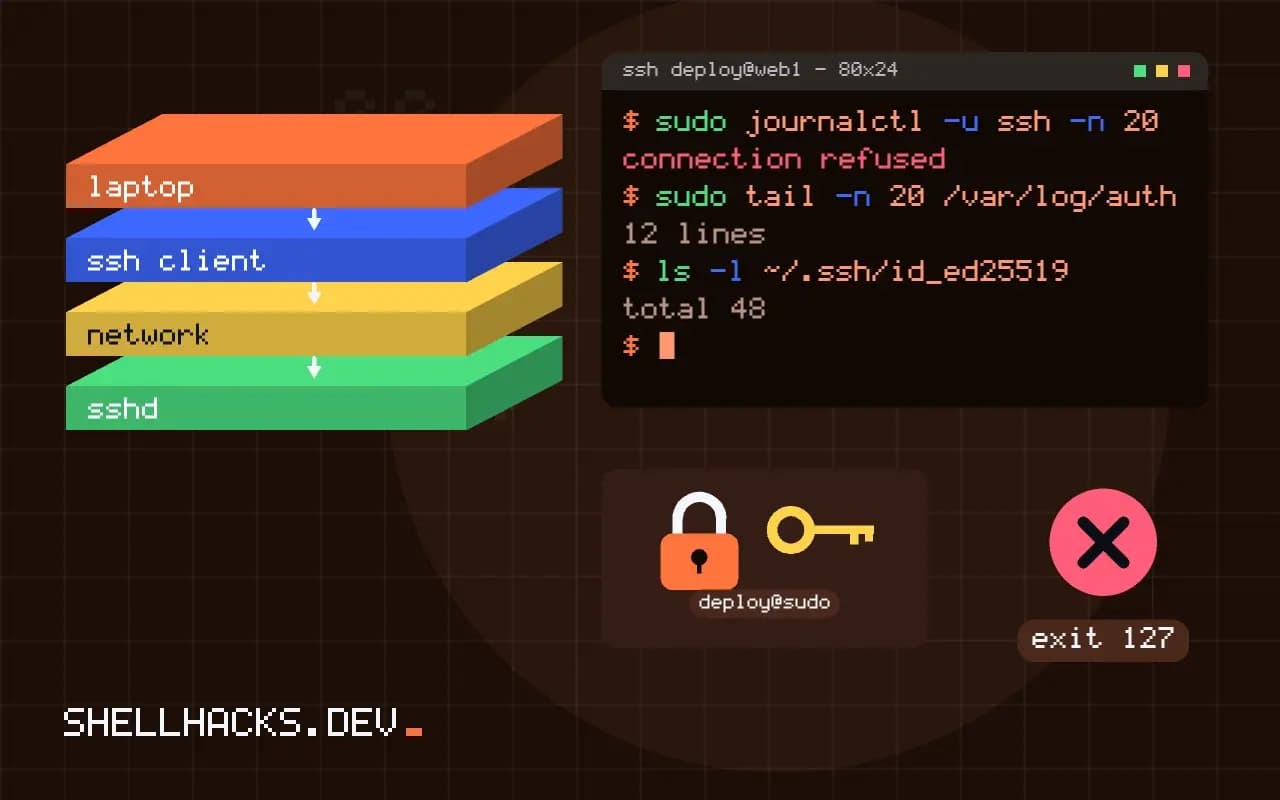
The message means authentication by key failed and no other method was available. It says nothing about why, which sends people in circles regenerating keys. The cause is nearly always one of six things, and the verbose client output points at which. The key basics are in generating SSH keys, and the checks below assume OpenSSH 9.x on both ends.
Step 1: read the verbose output
ssh -vvv [email protected] 2>&1 | grep -E 'Offering|Authentications|identity|Permission|denied'debug1: Will attempt key: /home/alice/.ssh/id_ed25519 ED25519 SHA256:abc... explicit
debug1: Authentications that can continue: publickey
debug1: Offering public key: /home/alice/.ssh/id_ed25519 ED25519 SHA256:abc...
debug1: Authentications that can continue: publickey
[email protected]: Permission denied (publickey).
If no key is offered, the client has none to try: check ssh-add -l and IdentityFile. If a key is offered and refused, the server does not recognise it. The sample fingerprints are placeholders. The same procedure appears with more tools in debugging SSH authentication.
Step 2: is the key on the server?
ssh-keygen -lf ~/.ssh/id_ed25519.pub
ssh [email protected] 'cat /home/deploy/.ssh/authorized_keys' | ssh-keygen -lf -
ssh-copy-id -i ~/.ssh/id_ed25519.pub [email protected]
The fingerprint of your public key must appear in the target user's authorized_keys. A key pasted over two lines, with a stray space or with the wrong user's file, is refused silently. Using the right account matters: ssh root@host reads root's file, not deploy's. ssh-copy-id installs the key correctly, as covered in copying SSH keys.
Step 3: permissions on the server
sudo chmod go-w /home/deploy
sudo chmod 700 /home/deploy/.ssh
sudo chmod 600 /home/deploy/.ssh/authorized_keys
sudo chown -R deploy:deploy /home/deploy/.ssh
sudo namei -l /home/deploy/.ssh/authorized_keys
With StrictModes yes, the default, sshd ignores authorized_keys if the file, the .ssh directory or the home directory is writable by anyone but the owner. The auth log then says "Authentication refused: bad ownership or modes". namei -l shows every directory on the path with its owner and mode, as in debugging permissions with namei.
Step 4: the server's own opinion
sudo journalctl -u ssh -n 20 --no-pager
sudo tail -n 20 /var/log/auth.log
sudo sshd -T | grep -Ei 'pubkeyauth|authorizedkeysfile|allowusers|permitrootlogin|passwordauth'sshd[1812]: Authentication refused: bad ownership or modes for directory /home/deploy
sshd[1830]: User deploy not allowed because not listed in AllowUsers
The log states the reason in words. Check for AllowUsers or AllowGroups that exclude the account, PubkeyAuthentication no and a changed AuthorizedKeysFile path. On Debian-family systems the unit is ssh; on Red Hat-family it is sshd. SELinux can block reading a file copied into place with the wrong context: restorecon -R ~/.ssh.
Step 5: client side issues
ssh -i ~/.ssh/id_ed25519 -o IdentitiesOnly=yes [email protected]
ls -l ~/.ssh/id_ed25519
ssh-add -l
Force the intended key with -i and IdentitiesOnly=yes to rule out the agent offering others first, which can hit the limit described in too many authentication failures. The private key file must be readable only by you, or the client refuses it, as in unprotected private key file. A key with a passphrase needs it entered or loaded in the agent.
Reading the verbose output
The message "Permission denied (publickey)" means the server rejected every key the client offered, and the reason is on the client side of the conversation in the verbose output. Run ssh -vvv and read it for three things: which identity files the client tried, whether the server accepted the key type at all, and what the server said at the end. Lines such as "Offering public key" show each attempt, "Authentications that can continue" lists the methods the server still accepts, and a line saying the key is not in the authorised file is the typical negative reply. If the client tried no key, the problem is local: the key file is missing, has the wrong permissions or is not loaded in the agent.
Check the agent with ssh-add -l. An empty agent, or an agent offering a different key from the one the server knows, explains many failures. Force the key with -i path -o IdentitiesOnly=yes to test it alone.
The server's authorised keys
On the server, the key must be in ~/.ssh/authorized_keys of the account you log in as, as one complete line with no line breaks inserted by an editor or an email client. A single missing character makes the key invalid. Compare the fingerprint of the key the client offers, from ssh-keygen -lf key.pub, with the fingerprints of the lines in the file. Options at the start of a line, such as from= or command=, can restrict where the key works, and a stale restriction rejects a valid key. Use ssh-copy-id to install keys rather than pasting, since it handles permissions and newlines correctly.
Check that you are connecting as the right user. A key installed for one account is useless for another, and the verbose output shows which user name the client sent.
Permissions and ownership
With the default setting StrictModes yes, sshd ignores an authorised keys file if the home directory, the .ssh directory or the file is writable by anyone other than the owner. The usual safe values are 700 for the directory and 600 for the file, with the account as owner, and a home directory that is not group- or world-writable. On the client, the private key must be readable only by you, or the client refuses to use it with the "unprotected private key" warning. SELinux can also block access: a file with the wrong security context is invisible to sshd even with perfect permissions, and restorecon -R ~/.ssh repairs it. Home directories on network or encrypted file systems that are not mounted at login produce the same symptom, since the keys cannot be read.
The server log is the most informative source. Look in the journal or /var/log/auth.log for lines naming the reason, such as bad ownership or modes, which the client never sees.
Server configuration and key types
Several settings in sshd_config affect logins. PubkeyAuthentication must be on, AllowUsers or AllowGroups may exclude the account, and AuthorizedKeysFile may point elsewhere than the default location. Newer servers disable older key types: RSA keys with the SHA-1 signature, and DSA keys, are refused, so an old key that worked for years suddenly fails after an upgrade. Generate an Ed25519 key, which is supported everywhere that matters, and install it. Run sshd -T on the server to see the effective settings after all includes and match blocks. If you are still stuck, run a second sshd in the foreground on another port with -d and connect to it; the debug output prints exactly why each key is rejected, and it does not disturb the running service.
After the fix, write down what was wrong. Most of these failures repeat: a pasted key with a broken line, a home directory with loose permissions, a user mismatch or a key type that a newer server refuses. A short note in the team wiki, with the one command that revealed the cause, shortens the next investigation to a minute. Provisioning scripts that install keys with ssh-copy-id or a configuration management module avoid the manual mistakes at the source.
Where this does not apply
If the message ends "(publickey,password)" and passwords fail too, the problem is a wrong password or a locked account, not the key. Servers that use certificates need the CA trusted, see SSH certificates. Old RSA keys with SHA-1 signatures are refused by newer servers; use Ed25519. See the sshd_config manual and the ssh manual.