How to Debug SSH Authentication Problems in Real Scripts
Debug SSH authentication in scripts: BatchMode, verbose output, agent and key selection, known_hosts, server logs and what differs from your terminal.
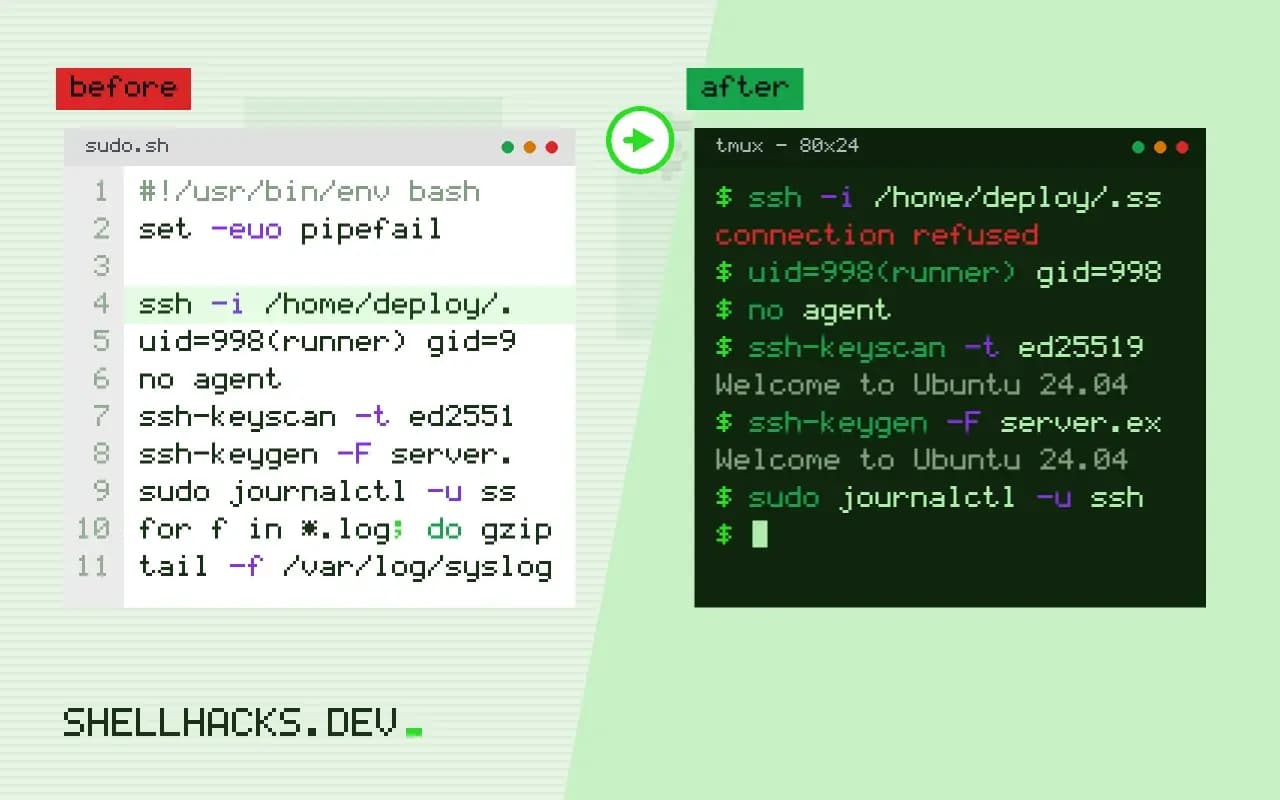
You type the command and you are logged in. The same command inside a script, a cron job or a CI step prints Permission denied (publickey). The difference is not in the command: the script runs without your agent, possibly as another user, without a terminal and with another home directory. Reproducing those conditions on purpose finds the cause in minutes. It extends the permission denied checklist, and the commands assume OpenSSH 9.x.
Reproduce the script's conditions
env -i HOME="$HOME" PATH=/usr/bin:/bin ssh -vvv -o BatchMode=yes [email protected] true 2>&1 | grep -E 'identity|agent|Offering|Permission|denied|known_hosts|Host key'debug1: identity file /home/alice/.ssh/id_ed25519 type 3
debug1: Will attempt key: /home/alice/.ssh/id_ed25519 ED25519 explicit
debug1: Offering public key: /home/alice/.ssh/id_ed25519 ED25519
debug1: No more authentication methods to try.
[email protected]: Permission denied (publickey).
env -i clears the environment, so there is no SSH_AUTH_SOCK; BatchMode=yes forbids prompts, as in cron. If this fails and your interactive command works, the difference is the agent or a passphrase. A key protected by a passphrase works at the terminal because the agent holds it decrypted, and in a script there is nobody to type it. Solutions: a dedicated unencrypted key restricted on the server, or the agent socket made available (below).
Name the key explicitly
ssh -i /home/deploy/.ssh/deploy_ed25519 \
    -o IdentitiesOnly=yes \
    -o BatchMode=yes \
    -o StrictHostKeyChecking=accept-new \
    -o UserKnownHostsFile=/home/deploy/.ssh/known_hosts \
    [email protected] 'systemctl is-active app'
Scripts should not depend on defaults. -i with IdentitiesOnly=yes removes the agent and default-key guesswork and avoids the limit in too many authentication failures. Absolute paths protect against a different HOME: a script run through sudo or a service has the home of another user, and ~/.ssh/config is not the file you used when testing. Put the options in a config file with -F /path/to/ssh_config to keep the script readable; see the SSH config guide.
Who is the script, really?
id; echo "$HOME"; echo "${SSH_AUTH_SOCK:-no agent}"; ls -l "$HOME/.ssh" 2>&1 | headuid=998(runner) gid=998(runner) groups=998(runner)
/home/runner
no agent
ls: cannot access '/home/runner/.ssh': No such file or directory
Add that line temporarily to the script. CI runners and service accounts commonly have no .ssh directory and no keys at all. In cron, HOME is set but the agent is not. If the script must use your agent, export the socket path (SSH_AUTH_SOCK=/run/user/1000/keyring/ssh), which is fragile and ties the job to a logged-in session; a dedicated deploy key with a forced command on the server is a better design, as described in deploy keys.
Host keys with no prompt
ssh-keyscan -t ed25519 server.example.test >> ~/.ssh/known_hosts
ssh-keygen -F server.example.test
When a script meets a server for the first time, ssh asks to confirm the fingerprint; with no terminal it prints Host key verification failed. Pre-load the key after verifying it, or use StrictHostKeyChecking=accept-new to trust new hosts yet still reject changed keys. The error is explained in host key verification failed. Never solve it with StrictHostKeyChecking=no and a null known_hosts file in production.
Ask the server
sudo journalctl -u ssh --since "10 min ago" --no-pager | tail -15
sudo sshd -T -C user=deploy,host=client.example.test,addr=198.51.100.9 | grep -Ei 'allowusers|pubkey|authorizedkeys|forcecommand'
The auth log states why a key was refused: bad permissions on authorized_keys, a user excluded by AllowUsers, an option such as from="..." on the key that does not match the script's source address, or a forced command that rejects what the script sends. The -C option of sshd -T evaluates Match blocks for a given connection. The filesystem side of key permissions is in debugging permissions with namei.
The three layers of an SSH login
Authentication with a key passes through three checks, and a failure at any of them gives the same final message. First, the client chooses which keys to offer, from the agent, from files named in the configuration and from the default locations. Second, the server decides whether it accepts any of the offered public keys for that user, by reading the user's authorised keys file under the rules of its configuration. Third, the client proves possession of the private key by signing a challenge, which needs the key to be readable and, if protected by a passphrase, decrypted. The verbose output of the client shows the first and third, and the server's log shows the second, which is why both sides are needed to diagnose a refusal.
When reading the output, track the sequence. "Offering public key" followed by "Authentication succeeded" means the key was accepted. Offering followed by moving on to the next key means the server did not accept it. No "Offering" line at all means the client never had a key to try, which points to the agent, the file paths or the permissions on the private key.
Agent forwarding and the confusion it causes
Scripts that hop between machines add another layer. A deploy script run from a laptop uses the laptop's agent, which is fine. The same script run from a bastion has no agent unless forwarding was enabled, and the second hop fails. Forwarding is convenient, and it gives root on the intermediate host the ability to use your keys while you are connected. For automation, avoid forwarding and give each hop its own credential, scoped to what that hop needs. Alternatively use ProxyJump, which connects through the bastion without exposing the agent to it.
Agent behaviour also differs between interactive and scheduled runs. A cron job has no agent unless you start one and load a key into it, which requires the passphrase. Either use a key without a passphrase protected by file permissions and a narrow server-side restriction, or use a short-lived certificate fetched at run time.
Server-side restrictions that surprise people
The authorised keys file allows per-key options, and the options can reject a legitimate script. A from pattern limits the source addresses, so a job moved to a new runner with a different address stops working. A command option forces a particular command regardless of what the client asks for, and a script that expects a shell gets the forced command's output instead. The server's main configuration can restrict users and groups with AllowUsers and AllowGroups, or require a specific authentication method list. Look at these when the key is offered and refused with no obvious fault in permissions.
Permissions on the server side are strict as well: the home directory, the .ssh directory and the authorised keys file must not be writable by others, and SELinux contexts can block the daemon from reading a file that looks correct. The daemon logs the specific reason at its debug level, and temporarily raising the verbosity for one connection gives the answer.
A repeatable checklist
Run the failing command by hand as the script's user with the script's environment. Add verbose output and read the key offers. Confirm the key file's permissions and that the matching public key is in the server's authorised file, comparing fingerprints with ssh-keygen -lf on both sides. Check the server log for the reason. Write down the final working command, with its explicit options, and put it in the script, so the next change of environment does not depend on defaults.
Where this does not apply
If authentication succeeds and the remote command fails, the problem is the command, the remote PATH or quoting, which behaves like a command that works in the terminal but not in a script. For Git over SSH, test with ssh -T git@host first. A hung connection is a network or keepalive question, covered in connection timed out. See the ssh manual.
For Git and deploy keys specifically, the GitHub guide to testing an SSH connection shows the greeting that means success and the usual refusal messages.