Debugging Command Works in Terminal but Not in a Script
Debug a command that works in the terminal but not in a script: aliases, functions, PATH, shell differences, quoting and interactive-only settings.
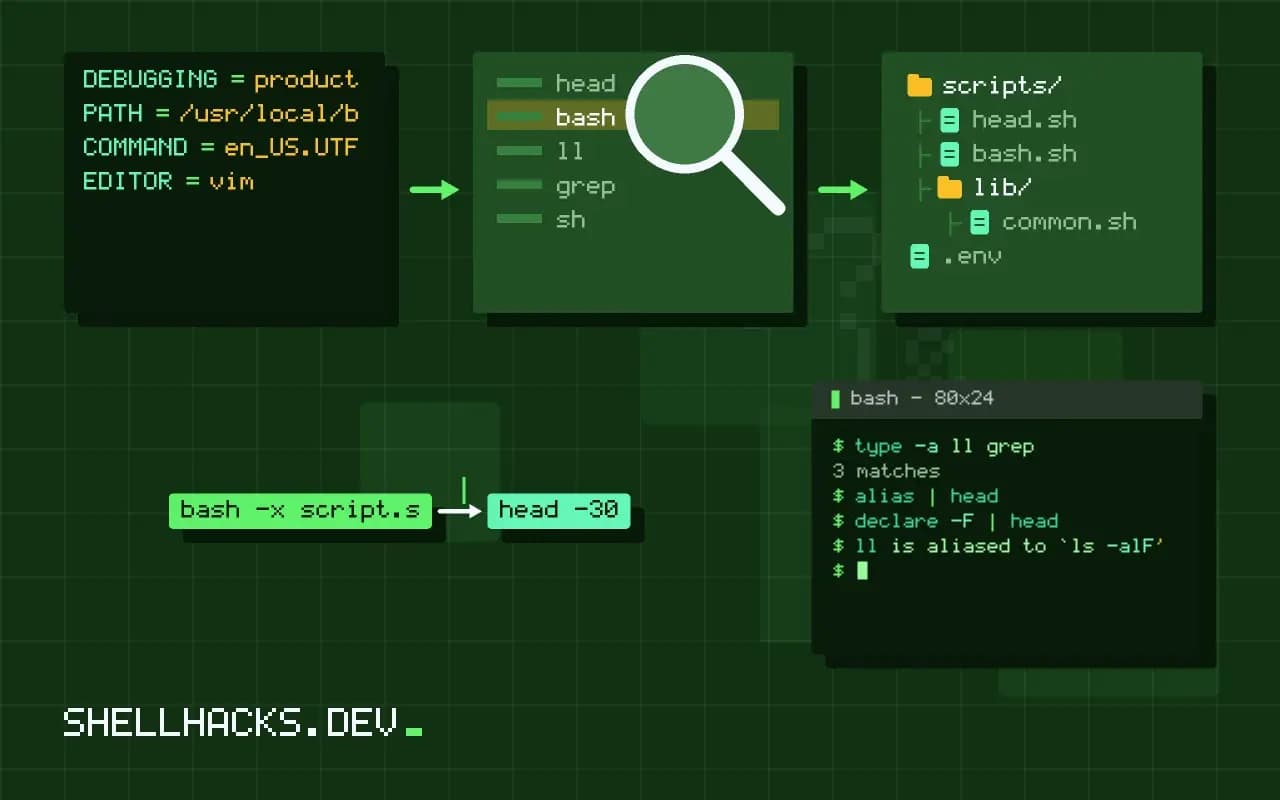
You paste the working command into a file, run it, and get an error. The command did not change; its context did. A terminal session accumulates aliases, functions, variables and a long PATH from your startup files, and a script starts from far less. Finding which piece is missing is a comparison, and this post gives the steps in order. It complements interactive versus non-interactive shells and the cron version of the problem. The examples assume Bash 5.2.
Step 1: run the script in a clean shell
env -i HOME="$HOME" PATH=/usr/bin:/bin bash --noprofile --norc script.sh
bash -x script.sh 2>&1 | head -30+ ll /srv
script.sh: line 3: ll: command not found
A clean shell with no startup files and a minimal environment reproduces what a script sees. If it fails there, the script depends on something from your profile. The trace from bash -x prints each command after expansion, which also reveals quoting problems: compare the traced line with what you typed.
Step 2: aliases and functions
type -a ll grep
alias | head
declare -F | headll is aliased to `ls -alF'
grep is aliased to `grep --color=auto'
grep is /usr/bin/grep
Aliases are text substitutions for interactive use, and non-interactive shells ignore them unless you run shopt -s expand_aliases. Functions you defined in .bashrc are not exported to child processes. Write the real command in the script: ls -alF, not ll, and define needed functions inside the script or source a library file. A command that works because of a colour alias may change behaviour without it, for example a pipeline that filtered colour codes.
Step 3: which shell runs it
head -1 script.sh
ls -l /bin/sh
bash script.sh; sh script.sh#!/bin/sh
lrwxrwxrwx 1 root root 4 Aug 14 09:00 /bin/sh -> dash
The shebang line decides the interpreter. On Debian and Ubuntu, /bin/sh is dash, which lacks Bash features: [[ ]], arrays, ${var//a/b}, process substitution, source in older versions. A command that you ran in Bash fails under sh with errors such as "Syntax error: ( unexpected" or "[[: not found". Change the shebang to #!/usr/bin/env bash, or rewrite to POSIX, see writing POSIX sh scripts. Running sh script.sh on a Bash script overrides the shebang, a common mistake in CI.
Step 4: variables and the environment
MY_VAR=hello
./script.sh                 # script does not see MY_VAR
export MY_VAR
./script.sh                 # now it does
env -i bash -c 'echo "[${MY_VAR:-unset}]"'
A plain assignment is local to your shell. The script sees only exported variables, which is why a command that works when typed fails once moved. Anything your profile exports, such as JAVA_HOME, version-manager paths and API tokens, is missing from clean contexts. Compare the two environments with env | sort > a.txt in each and diff a.txt b.txt; see environment differences.
Step 5: expansion and quoting differences
files=*.txt; echo $files           # glob expands at echo, not at assignment
echo ~/data; echo "~/data"         # tilde not expanded inside quotes
set -f; echo *; set +f             # noglob
shopt -s nullglob; echo *.none     # empty instead of the literal pattern
Interactive shells and scripts share these rules, but scripts hit the edge cases because they run with different directories and files: an unmatched glob stays literal in Bash, and a variable that was set interactively is empty in the script. Setting shell options in your .bashrc (nullglob, extglob, globstar) makes commands work interactively and fail in scripts that lack them. See debugging quoting and expansion.
Step 6: input, output and terminal
Programs behave differently when stdin or stdout is not a terminal: colours turn off, pagers do not start, prompts fail with "not a tty", and output buffering changes, as explained in unexpected pipe output. Test with ./script.sh < /dev/null | cat to simulate a non-interactive run. A command such as ssh -t or docker exec -it needs a terminal and fails when the script runs without one.
What changes between the two contexts
When you type a command, the shell expands it using everything accumulated in the session. When the same words are in a file, the interpreter runs with a smaller set: the environment it inherited, the options its shebang gives, the working directory of its caller and no knowledge of your aliases and functions. Any difference in that set can change the result. Naming the categories helps: the program that interprets the text, the variables it can see, the commands it can find, the directory it starts in and the streams it is connected to. Checking them in order finds the cause quickly, and each corresponds to one of the steps above.
Quoting also behaves differently in practice. At the prompt you see the result of expansion and fix it on the spot. In a file the same line expands under conditions that you did not observe, such as a variable with spaces or an empty value, and the command is broken only for some inputs. That is the reason experienced authors quote every expansion by default, so the behaviour does not depend on data.
Debugging tools worth knowing
The trace option, set -x, shows each command after expansion, which reveals what the interpreter actually runs. Setting PS4 to include the file name and line number turns the trace into a map: PS4='+ ${BASH_SOURCE##*/}:${LINENO}: '. The syntax check with bash -n catches errors without running anything. ShellCheck explains why a construct is risky, and it recognises the most common causes of this symptom: unquoted variables, Bash-only syntax under a plain shell shebang and commands that depend on aliases. Run it first; it is faster than reasoning.
For missing commands, type -a name shows every candidate in the order the shell would pick them, including aliases, functions and files on the path. Compare its output in the terminal and in the script. A difference in which candidate wins, or the absence of one, is the answer. Printing $PATH from the script, with line breaks, makes missing directories obvious.
Writing scripts that do not depend on you
Treat the script as a program that must run on a machine that has never seen your dotfiles. Begin with the shebang that names the right interpreter, set strict mode and set PATH explicitly. Declare every variable it needs with a default or a clear failure message. Use full command names rather than aliases, and avoid depending on the current directory. Check for the tools it calls near the top and print a helpful message listing what is missing. The result runs in your terminal, in cron, in CI and on a colleague's machine without changes, and that portability is worth the dozen lines it costs.
When it still fails after all that
If a clean shell reproduces the problem, bisect the script. Comment out the second half, run, and see if the error persists. Add echo statements printing the key variables before the failing line. Reduce the input to the smallest case that fails. The most stubborn causes are hidden characters such as carriage returns or non-breaking spaces pasted from a web page, which look identical to normal text; cat -A shows them at once. A command pasted from a document with typographic quotes fails in exactly this mysterious way.
Where this does not apply
If the clean-shell run passes but the failure occurs under cron or systemd, the difference is the scheduler's environment, not the shell mode. If the script fails only on another machine, compare tool versions, see GNU versus BSD differences. See the Bash manual on aliases and invoking Bash.