How to Troubleshoot SSH Connections With ssh v the Right Way
Troubleshoot SSH with ssh -v: read the output from the top, spot key offers and refusals, compare config with ssh -G and debug the server side.
"Permission denied (publickey)" is a symptom with a dozen causes, and guessing wastes time. The client will tell you almost everything if you ask it to talk. The skill is reading the output in order and knowing which lines matter. This post walks through a failing login and a working one, as the debugging companion to the publickey fix. The commands assume OpenSSH 10.0 on both ends.
Read from the top
ssh -v [email protected]debug1: Reading configuration data /home/ada/.ssh/config
debug1: /home/ada/.ssh/config line 12: Applying options for web1.example.org
debug1: Connecting to web1.example.org [203.0.113.10] port 22.
debug1: Connection established.
debug1: Server host key: ssh-ed25519 SHA256:3f2a...
debug1: Authentications that can continue: publickey
debug1: Offering public key: /home/ada/.ssh/id_rsa RSA SHA256:9c1b...
debug1: Authentications that can continue: publickey
debug1: Offering public key: /home/ada/.ssh/id_ed25519 ED25519 SHA256:77aa...
[email protected]: Permission denied (publickey).
The blocks, in order: which config applied; the network connection (a failure here is a network or port problem, not authentication); the host key (a mismatch would stop here); the list of methods the server accepts; and the keys you offered. In the output above, both keys were offered and both refused, which means the server does not have either public key for this user, or refuses them for a permissions reason. If no Offering line appears, the client had no key to offer at all.
Which key was tried
ssh -v -i ~/.ssh/id_ed25519 -o IdentitiesOnly=yes [email protected] 2>&1 | grep -E 'Offering|Server accepts|Authenticated|denied'IdentitiesOnly=yes restricts the client to the key named with -i instead of every key in the agent. An agent with many keys can exhaust the server's MaxAuthTries before the right one is tried, which ends in Too many authentication failures though the correct key exists. On success you see "Server accepts key" followed by "Authenticated to ... using publickey".
What the client thinks the config is
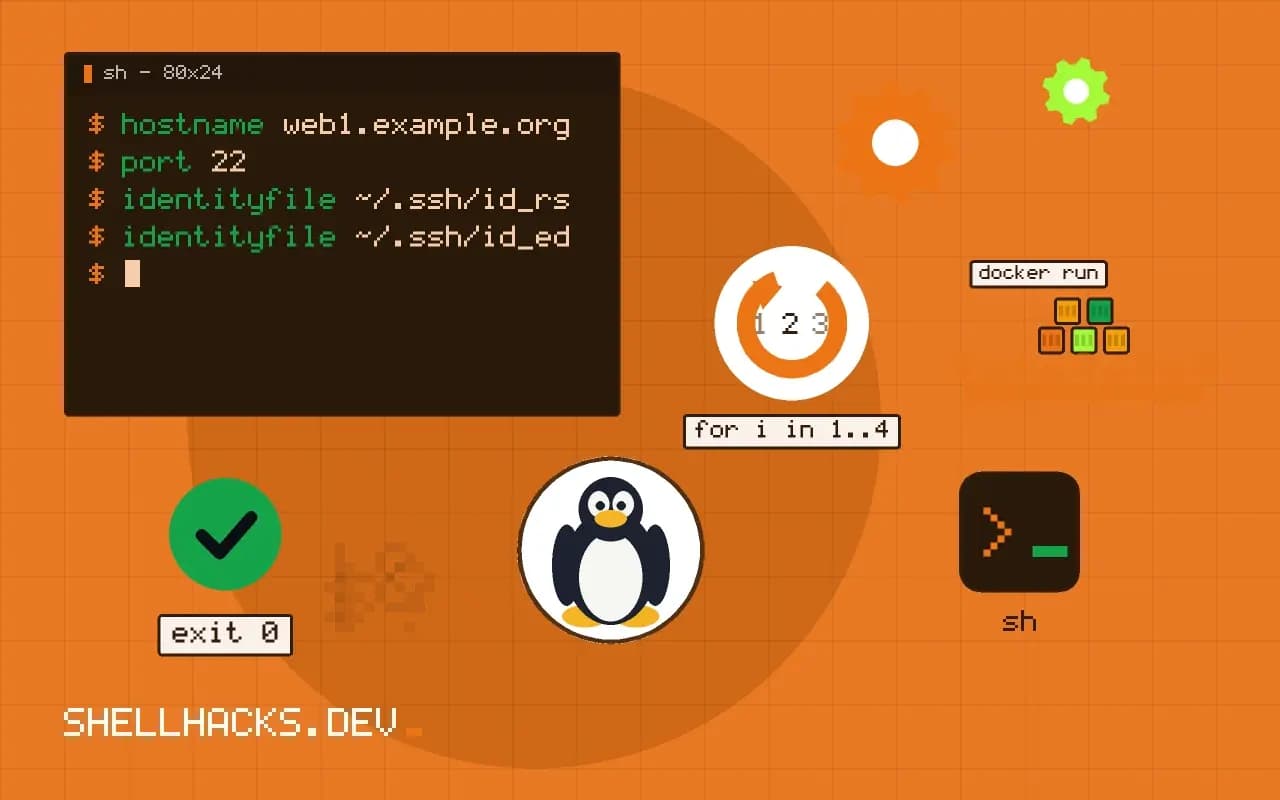
ssh -G web1.example.org | grep -Ei '^(user|hostname|port|identityfile|proxyjump|identitiesonly)'user deploy
hostname web1.example.org
port 22
identityfile ~/.ssh/id_rsa
identityfile ~/.ssh/id_ed25519
-G prints the configuration after every Host and Match block has been applied, without connecting. It settles questions such as which user or port will be used, and why an option in your config is not taking effect: the first value found wins, and a more general block above can override a specific one below it. Compare with the config file post.
More detail
-vv adds the key exchange and algorithm negotiation; -vvv adds packet-level detail. A line such as no mutual signature algorithm or Unable to negotiate with ... no matching host key type found means an algorithm mismatch: an old server that offers only ssh-rsa, or a client that refuses it. The fix is on the server, by upgrading; as a stopgap for one host, -o HostkeyAlgorithms=+ssh-rsa, understood as a temporary measure.
Look at the server
sudo journalctl -u ssh -n 20 --no-pager
sudo /usr/sbin/sshd -ddd -p 2222
ssh -p 2222 -v [email protected]
The server log gives the reason the client cannot see, for example Authentication refused: bad ownership or modes for directory /home/deploy. That one means the home directory, .ssh or authorized_keys is writable by someone else; fix it with chmod go-w ~ && chmod 700 ~/.ssh && chmod 600 ~/.ssh/authorized_keys. The sshd -ddd run on a spare port prints every step for a single connection and exits; open that port in the firewall temporarily, and never leave it.
Where this does not apply
If the failure is a timeout or a refused connection, the network is the problem, and the guides connection timed out and connection refused apply. Debug output includes usernames, hostnames and key fingerprints, so redact before pasting it into a public issue.
Choosing the verbosity
One -v shows the main stages: reading the configuration, connecting, negotiating, and trying authentication methods. Two show more of the negotiation and the key exchange, and three print packet-level detail that is rarely needed, though it helps when a failure happens in the exchange itself. Start with one and add more only when a stage stays unexplained. The output goes to standard error, so redirect it with 2>&1 to save or page it. A good first step on any failure is to run the command with -v and read from the top, noting the line where it stops or fails, since the stage tells you which of the three areas the fault is in: reaching the server, agreeing on algorithms, or authenticating. A timeout before any exchange is a network issue, a message about no matching algorithms is a version or policy issue, and a run of denied methods after a successful exchange is an authentication problem.
For the daemon side, you can run a second daemon on another port in debug mode with sshd -d -p 2222, as root, and connect to it, which prints the server's view of the same conversation without disturbing the real service.
Reading the authentication section
After the key exchange, the client lists the methods the server accepts, on a line starting "Authentications that can continue". If publickey is missing from that list, the server does not allow keys for this account, which points to its configuration. The client then lists each identity it will try, from the agent, from the configuration and from the default key files, and reports "Offering public key" for each one. A line that says the server did not accept the key means the public half is not in authorized_keys for that user, or has the wrong permissions on the server side, since the daemon ignores a file in a directory that others can write. Too many keys in the agent cause a different failure: the server cuts the connection after a number of attempts, and the message looks like denied access even though the right key was never offered. Setting IdentitiesOnly yes with an IdentityFile forces the client to offer just the key you name.
Seeing the effective configuration and the server's view
The command ssh -G host prints every setting the client would use for a host after combining the configuration files and defaults, without connecting. Compare it to your expectations: a wrong user, port or identity file is shown there at once, and so is the effect of a Match or Host block that applies when you did not expect it. On the server, the journal or the authentication log records why a login was refused, with messages about bad ownership of the home directory or the authorized_keys file, an account that is locked, or a user that is not in the allow list. Those messages are often more specific than the client's single line "Permission denied". With both sides in view, a failure usually resolves in a few minutes, and the verbose output is what you attach to a request for help, with hostnames and addresses redacted as needed.
A habit worth building
Run ssh -v the first time a connection fails, and keep the output, since it is what you need to ask for help and to compare against a working connection later. A working run saved from a good day is a reference: diffing it against a failing one shows exactly which line changed. Redact usernames and addresses before sharing it.
See ssh(1) and sshd(8) debugging.