SSH Connection Refused and What to Check First Explained
Fix SSH connection refused: confirm sshd is running and listening, the port and address, firewall rules, and how it differs from a timeout.
The error is ssh: connect to host server.example.test port 22: Connection refused, and it arrives instantly. That speed is information: the machine is reachable and replied that nothing accepts connections on this port. This is a different failure from a timeout, and the checks run from the client to the server. The commands assume OpenSSH 9.x and a systemd Linux server.
Check the basics from the client
ssh -v -p 22 [email protected] 2>&1 | head -5
nc -vz server.example.test 22
getent hosts server.example.testdebug1: Connecting to server.example.test [203.0.113.10] port 22.
debug1: connect to address 203.0.113.10 port 22: Connection refused
nc: connect to server.example.test (203.0.113.10) port 22 (tcp) failed: Connection refused
Confirm the name resolves to the address you expect: an old DNS record can send you to a different machine that has no sshd. Confirm the port: servers often move SSH off 22 (changing the SSH port), and ssh_config may set a Port that overrides your assumption. nc -vz tests the TCP connection without SSH, so you know whether the problem is network or SSH.
Check sshd on the server
sudo systemctl status ssh --no-pager
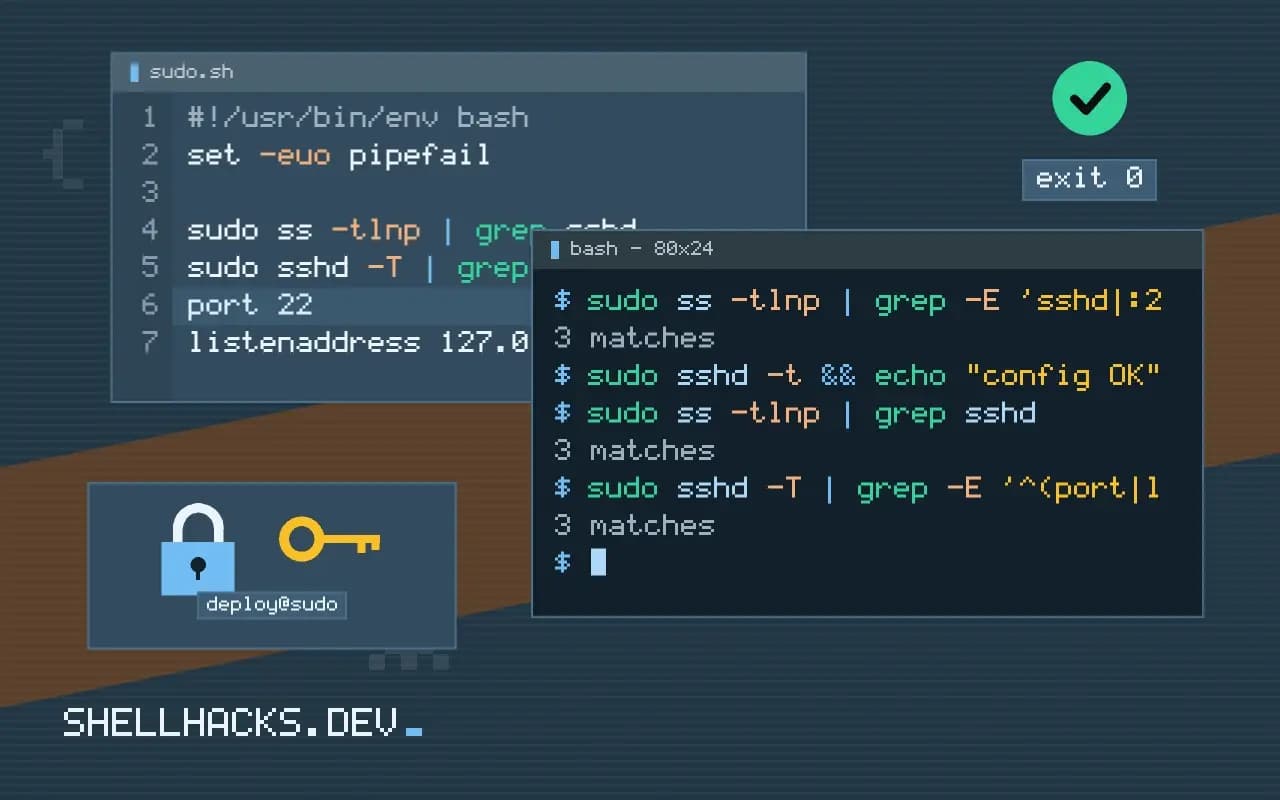
sudo ss -tlnp | grep -E 'sshd|:22 '
sudo sshd -t && echo "config OK"○ ssh.service - OpenBSD Secure Shell server
Active: inactive (dead)
Possibilities: the service is stopped, failed on a config error, or not installed (apt install openssh-server). The unit is ssh on Debian and Ubuntu and sshd on RHEL and derivatives. Start it with sudo systemctl enable --now ssh. If it failed, journalctl -u ssh -n 30 shows why, and sshd -t checks the configuration for syntax errors. A modern Ubuntu uses socket activation, so the service may start only on the first connection.
Listening, but not where you expect
sudo ss -tlnp | grep sshd
sudo sshd -T | grep -E '^(port|listenaddress)'LISTEN 0 128 127.0.0.1:22 0.0.0.0:* users:(("sshd",pid=801,fd=3))
port 22
listenaddress 127.0.0.1
Here sshd listens only on loopback, so outside connections are refused. A ListenAddress in sshd_config or a different Port explains it. The ss output gives the real state, not the intended configuration, which is why it is worth checking. Remember to change the setting, validate with sshd -t, and reload, keeping an existing session open in case of mistakes, as in hardening sshd.
Firewalls and cloud rules
sudo ufw status verbose
sudo nft list ruleset | grep -n 'dport 22'
sudo iptables -S | grep -E 'dport 22|REJECT'
A firewall rule with REJECT sends back the same "refused" as a closed port, while DROP produces a timeout. Look for a rule blocking port 22 or a default deny policy that lacks an allow. In clouds, the security group or network ACL usually returns nothing at all (a timeout). Docker publishes ports through its own iptables chains and can bypass ufw rules, a separate surprise.
Refused is different from timed out
A refusal is a clear answer: the host received the connection attempt and the operating system replied that nothing is listening on that port. The reply is immediate. A timeout, in contrast, means no reply came back, which points at a firewall dropping packets, a wrong address or a dead host. This distinction shortens diagnosis. "Connection refused" tells you the network path works and the machine is alive, so the fault is that the SSH daemon is not running, is listening elsewhere, or a local firewall rule rejects the connection with a reset instead of dropping it. Do not start by changing network rules; start at the server.
Verify the target first. A typo in the host name, an outdated DNS record or an old address in the SSH config sends you to a different machine, which may be running nothing on port 22. Compare the IP the client resolves against the address you expect with ssh -v, which prints it.
Checking the service
On the server, via the console or another route, check whether the daemon is running with systemctl status sshd or ssh, depending on the distribution. If it failed, the journal shows why, and the common reasons are a syntax error in the configuration after an edit, a missing host key, or a port already in use by another program. Test the configuration with sshd -t before restarting, which prints the line of any error. List listening sockets with ss -tlnp and confirm that sshd is bound to the expected port and address. If it listens only on 127.0.0.1 or on an address that is not the one you connect to, a ListenAddress setting is the cause.
After changing the port or configuration, keep an existing session open while you test a new one in another terminal. Restarting a daemon with a broken configuration while you have no other way in is a common way to lock yourself out.
Firewalls that reject
A host firewall can answer with a reset, which looks like a refusal. Check the rules with nft list ruleset, iptables -L -n -v or the front end the system uses, such as ufw status or firewall-cmd --list-all. Look for a rule that allows the port from your address, and for any earlier rule that rejects it. In cloud environments, the security group or network ACL sits outside the machine and usually drops traffic, producing a timeout, but a misconfigured appliance may reject. Also consider fail2ban or similar tools: after repeated failed logins from your address, they add a rule that blocks you, and the symptom starts suddenly. Check the ban list and unban the address.
When you moved SSH to another port, remember the client needs -p or an entry in its configuration, and the firewall must allow the new port before the old one is closed.
Testing methodically
Separate the layers with simple tests. From the client, nc -vz host 22 or a bash /dev/tcp test shows whether the port accepts a connection, without involving SSH at all. If the TCP connection works but SSH fails, the problem is in the SSH layer, and ssh -vvv shows the negotiation. Try from a second client or network to rule out something local, such as a corporate proxy. Capture packets with tcpdump on the server to see whether the connection attempts arrive and what answers go back; if nothing arrives, the fault is upstream. Record the results as you go. Writing down which test passed and which failed keeps the investigation from going in circles, and gives whoever takes over, or the support ticket, an accurate starting point.
Once you regain access, fix the cause for good. If a configuration edit stopped the daemon, add a pre-restart syntax check to your procedure. If a firewall rule blocked the port, record the rule in configuration management so it survives a rebuild. If the service was not enabled, run systemctl enable. Keep out-of-band access, such as a cloud console or a serial line, documented and tested for the day SSH itself is broken, because every method of repairing a remote machine depends on some way of reaching it.
Where this does not apply
If the connection succeeds and then drops, the cause is authentication or keepalive, not a refusal; see SSH keep-alive and timeouts. Behind a jump host, "refused" may come from the second hop. Intrusion-prevention tools such as fail2ban can reject your IP after failed logins. See the sshd_config manual and the ss manual page.