SSH Connection Timed Out and Firewall Problems Fully
Fix SSH Connection timed out: tell it from refused, trace the path with nc and traceroute, check firewalls and security groups, and set ConnectTimeout.
"Connection timed out" takes a minute or two to appear, and that wait is the signature: your SYN packets left, and nothing came back. Unlike connection refused, which is an answer, a timeout means something on the path is discarding traffic or the host is not there. The approach is to find where the packets stop. The commands assume Linux clients and OpenSSH 9.x.
Confirm the address and the symptom
getent hosts server.example.test
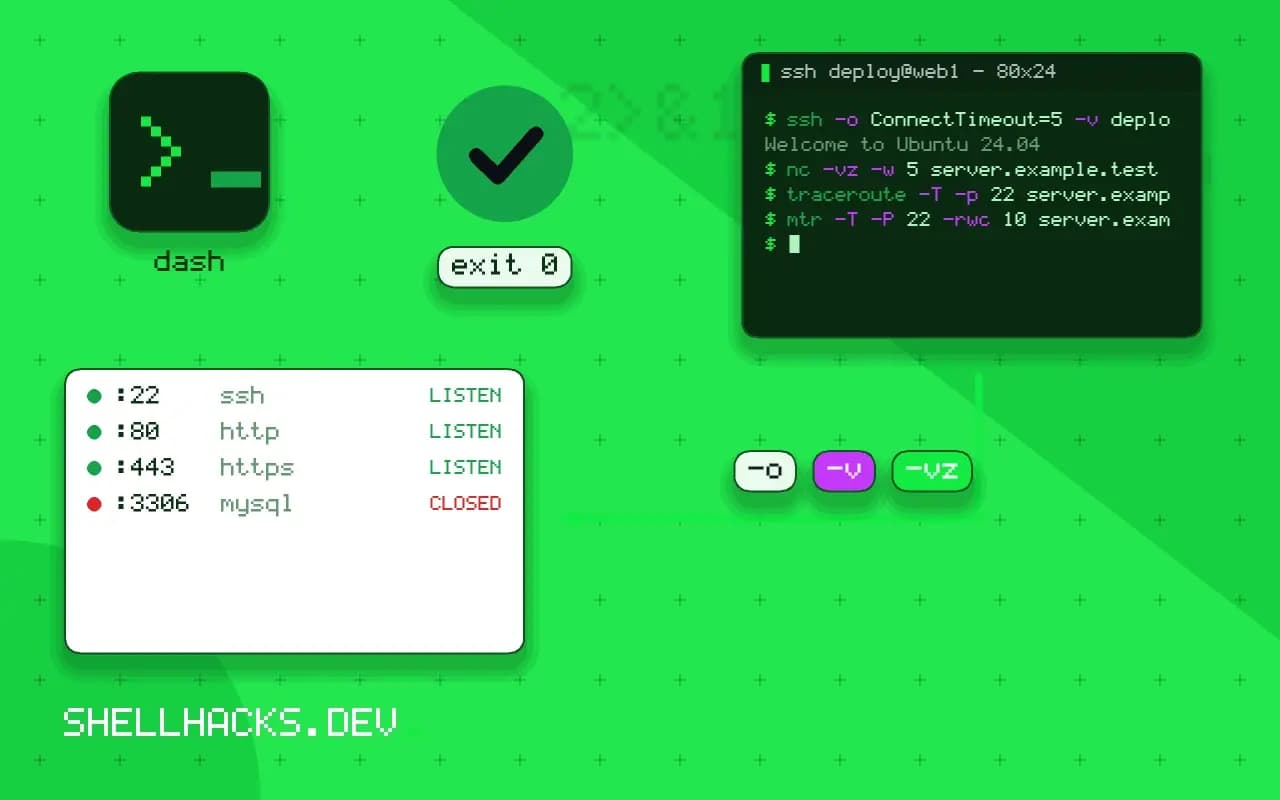
ssh -o ConnectTimeout=5 -v [email protected] 2>&1 | tail -3
nc -vz -w 5 server.example.test 22203.0.113.10 server.example.test
debug1: connect to address 203.0.113.10 port 22: Connection timed out
nc: connect to server.example.test (203.0.113.10) port 22 (tcp) timed out: Operation now in progress
First make sure the name resolves to the right address; a stale record or a private IP used from outside is a frequent cause. A VPS rebuilt with a new address, or a dynamic IP changed by a provider, ends up here. If the address is right, the next question is whether the host answers anything: ping can help but is often blocked, so do not read much into its failure.
See where the path stops
traceroute -T -p 22 server.example.test
mtr -T -P 22 -rwc 10 server.example.test
curl -sS https://ifconfig.me; echo 1 gateway (192.168.1.1) 1.2 ms
2 isp-edge (198.51.100.1) 9.8 ms
3 * * *
4 * * *
The -T option sends TCP probes to port 22, which follows firewall rules better than the default UDP. Hops that stop answering at a certain point suggest a firewall there, though many routers do not reply to probes anyway. Your public address is useful because firewalls often allow only certain source IPs; if you switched networks, your address changed.
Check the firewalls in order
1. Your network: outbound port 22 blocked (hotel, office, mobile networks)
2. Cloud: security group / network ACL / provider firewall does not allow port 22 from your IP
3. Host firewall: ufw, firewalld, nftables with a DROP default
4. sshd is on another port (see the refused post for ss -tlnp)
5. The machine is down, rebooting or has no route
For cloud servers, check the inbound rules of the security group attached to the instance and the subnet's network ACL, including the source range. If you can reach the machine through a console or serial access, check the host firewall with sudo ufw status or sudo firewall-cmd --list-all. If outbound 22 is blocked on your network, try SSH over port 443 if the server offers it, or a VPN. A bastion host may be required, as in jump hosts with ProxyJump.
Make scripts fail fast
Host *
    ConnectTimeout 8
    ServerAliveInterval 30
    ServerAliveCountMax 3
Put those lines in ~/.ssh/config. ConnectTimeout bounds the connection phase, so a loop over many hosts does not stall for two minutes on each dead one. The keepalive pair detects a connection that dies later, covered in SSH keep-alive. The full file syntax is in the SSH config guide.
The three possible outcomes of a connect
When a TCP connection attempt goes out, one of three things happens. The target answers with a reset and you see "connection refused", the target answers and the connection is established, or nothing comes back and the attempt times out. A timeout therefore carries one piece of information: the packets are being lost on the way, in either direction. Something dropped the request, or the reply never returned. The likely causes are a firewall that discards instead of rejecting, a wrong address that points at nothing, a machine that is off or unreachable, a route that does not exist, or a network device that blocks the port. The fix lives somewhere between you and the server, not in the SSH daemon, so changing its settings will not help until the path is known to be open.
The delay before the error appears is informative. A timeout after about two minutes is the default TCP connect timeout, and a shorter one suggests a limit set in the client configuration.
Locating where packets stop
Work outward from the client. Confirm the address first, with getent hosts name or dig, since a stale record sends you to the wrong machine. Check that the local network is up and has a default route with ip route. Then try ping, remembering that many networks drop ICMP, so a failed ping proves little while a successful one proves reachability. traceroute -T -p 22 host sends TCP probes to port 22 and shows the hop after which replies stop, which often identifies the device that blocks. Try from a second network, such as a mobile hotspot, to separate a problem at your site from one at the server's. Connect from another machine in the same network as the server, if you can, to test the server locally.
Use a short timeout while testing: ssh -o ConnectTimeout=5 turns a long wait into a quick answer, and lets you try several variants in a minute.
The firewalls along the path
Several layers may drop the traffic. On the client side, a host firewall or a corporate proxy may block outbound port 22. In the middle, a network ACL or an intrusion prevention device may filter by address. At the server's edge, a cloud security group or network ACL needs a rule allowing your source address on the port; a common cause is a rule set up for the office address that no longer matches because the office changed provider or you work from home. On the server, the host firewall may drop it, and so may a tool that bans addresses after failed attempts. Work through the layers in order, checking that each has an allow rule for your address, and keep a list of what you checked. The change in addresses is especially frequent with dynamic IPs, so consider a VPN or a bastion with a fixed address.
If the server is in a private network, you need a route in: a bastion host, a VPN or a cloud-provided session service. Setting ProxyJump in the client configuration makes the hop automatic.
Making scripts fail fast and recover
For automation, an SSH call that hangs for two minutes per dead host is a problem. Set ConnectTimeout to a few seconds, ServerAliveInterval and ServerAliveCountMax to detect a dropped session, and BatchMode=yes so a prompt never blocks. Put them in a dedicated configuration block or a file passed with -F, instead of repeating them on every command line. Decide what the script does after a timeout: retry a few times with a pause, since a transient network problem is common, then report the host as unreachable and carry on with the others, listing the failures at the end. Distinguish timeouts from refusals and from authentication failures in the report, because the next action for each is different. Keep the facts you found, the address, the time, the path and the tests, in the incident notes, so a recurring problem, such as a flaky link at a certain hour, shows up as a pattern and not as a series of unrelated surprises.
Where this does not apply
If the connection is established and then hangs at "Connecting" or after the banner, the cause is different: a slow DNS reverse lookup on the server (UseDNS), a firewall that kills idle connections, or an MTU problem that stalls large packets during key exchange. In that case try ssh -o IPQoS=none or lower the MTU. A timeout during login on a working network can also be fail2ban silently dropping your address. See the traceroute manual page and the ssh_config manual.