Debugging Unexpected Output From Pipes and Buffers
Debug unexpected pipe output: stdio buffering with a pipe, stdbuf and unbuffer, python -u, grep --line-buffered, and interleaved stderr.
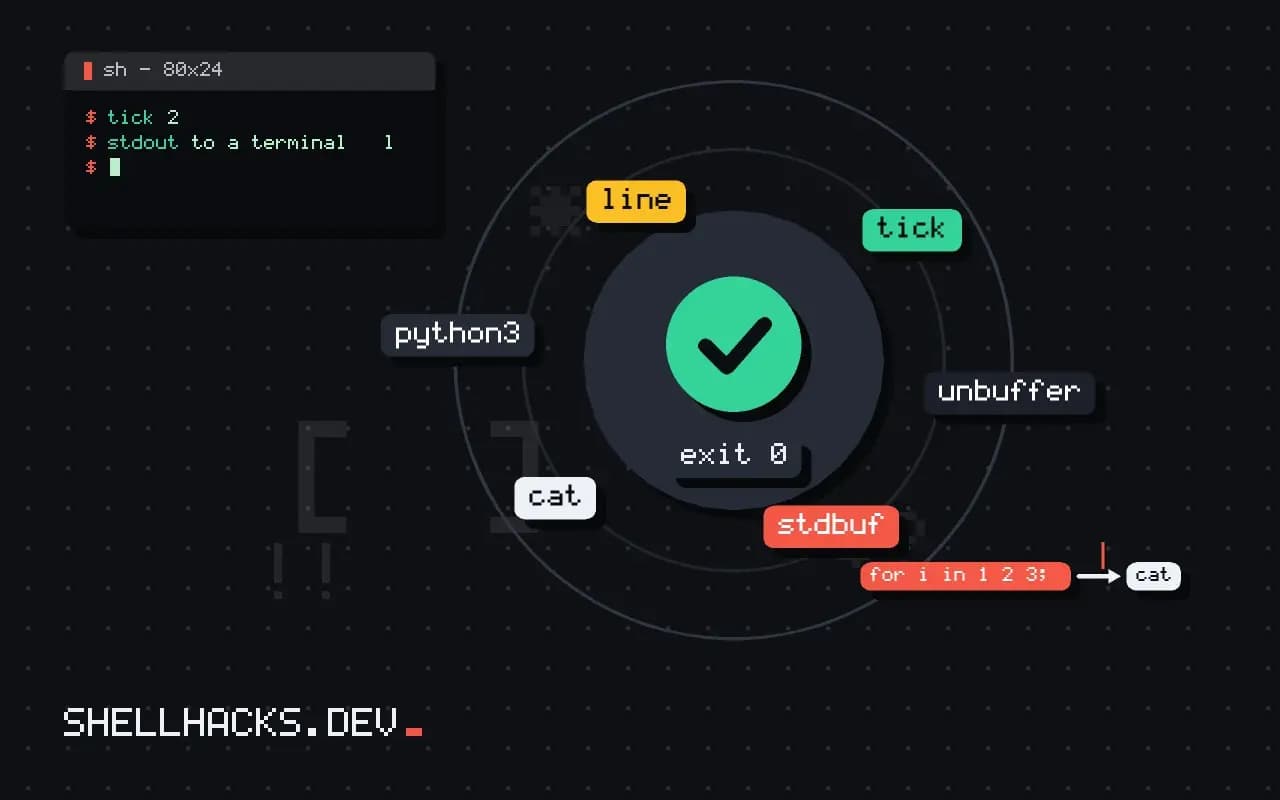
A pipeline works in an interactive test and then shows no output for minutes in production. Or the output arrives in a different order than the program printed it. Both symptoms are buffering: programs hold output in a memory buffer and write it in chunks, unless they are talking to a terminal. Knowing the rules explains the delay and gives a switch to fix each case. It is related to the process view in fork and exec, and the examples assume GNU coreutils 9.x and Python 3.13.
See the effect
for i in 1 2 3; do echo "line $i"; sleep 1; done | cat
python3 -c 'import time
for i in range(3):
    print("tick", i); time.sleep(1)' | cat
python3 -u -c 'import time
for i in range(3):
print("tick", i); time.sleep(1)' | catline 1
line 2
line 3
tick 0
tick 1
tick 2
The shell loop prints each line with a one-second delay because echo is a builtin that writes immediately. The first Python run prints everything at once, after three seconds: stdout is a pipe, so Python buffers it. The -u run prints each line as it happens. The output text is identical; only the timing differs, which you can only see by running the commands.
The rule
stdout to a terminal   line-buffered   (flush on newline)
stdout to a pipe/file  fully buffered (flush when buffer full or at exit)
stderr                 unbuffered
The C library decides at startup based on whether the output is a terminal. A long-running producer in a pipeline therefore appears silent until it fills its buffer or exits. If it is killed, the unflushed data is lost, which looks like a program that "printed nothing" before dying.
Fixes by tool
tail -f access.log | grep --line-buffered ' 500 ' | awk '{ print $7; fflush() }'
tail -f access.log | sed -u 's/foo/bar/'
stdbuf -oL ./producer | grep error
unbuffer ./producer | tee run.log
python3 -u worker.py | tee worker.log
PYTHONUNBUFFERED=1 python3 worker.py | tee worker.log
Each tool has its own switch. grep --line-buffered and sed -u apply to the stage that reads, and every stage in the pipeline buffers separately, so fix them all: one block-buffered stage delays everything after it. In awk, call fflush() or use -W interactive in mawk. stdbuf works by preloading a library, so it affects dynamically linked programs that use C stdio and does nothing for statically linked binaries, Go and Rust programs (which flush by their own rules; Rust's stdout is line-buffered only for terminals). unbuffer from the expect package runs the command in a pseudo-terminal so it believes it talks to a terminal, with side effects such as colour codes. script -qfc 'cmd' /dev/null is another way.
Interleaved stdout and stderr
./tool 2>&1 | cat           # stderr appears first; stdout in a chunk later
./tool > out.log 2>&1       # same, in the file
stdbuf -oL -eL ./tool 2>&1 | cat
Because stderr is unbuffered and stdout is buffered, error messages overtake the normal output they logically follow. Merging them with 2>&1 does not restore the order. Line-buffering stdout or having the program flush explicitly fixes it. In CI logs, this is why an error appears above the command that caused it. See logging in shell scripts for a consistent approach.
Lost output on exit
timeout 5 ./producer | tee partial.log # killed by SIGTERM: buffer may never be flushedIf the producer is killed by a signal it cannot handle (SIGKILL) or does not handle, its buffer is lost. Use line buffering for anything you may kill, and trap SIGTERM to flush in your own programs. For logs that must survive crashes, write directly with unbuffered IO or flush after each record. The cost of unbuffered output is more system calls, so it is slower for high-volume output; apply the switches where the delay matters.
Where the buffers actually are
Buffering happens in more places than the program's own output. The C library keeps a buffer per stream, and its size is typically 4 KiB for pipes and files. Beyond that sits the kernel's pipe buffer, which holds 64 KiB on Linux by default; a writer that fills it blocks until the reader consumes some. Each stage of a pipeline has its own library buffer, so the delay compounds: a producer holding 4 KiB, a filter holding another 4 KiB, and a consumer that prints only on newline. The practical consequence is that a slow trickle of short lines, such as one log entry per second, can sit unseen for the better part of an hour in a three-stage pipeline.
The size matters when you estimate how long data sits. A program that writes 100 bytes per second into a 4096-byte buffer flushes every forty seconds. A program writing one short line every few minutes may not flush for a day. Compare your producer's output rate with the buffer size before assuming the pipeline is stuck.
Which programs buffer and how to tell
Any program that uses the standard C library output functions inherits the terminal-or-not rule. Languages built on it, including Python, Ruby and Perl, make their own choices and usually follow the same pattern for standard output. Programs that write with the raw system call, or that flush after each line by design, such as many logging tools, do not exhibit the delay. The quickest check is to run the command into a pipe and watch: ./tool | cat shows whether output appears as it is produced. If it does not, the program is buffering, and the fix belongs at the source or in a wrapper.
Look at the program's options before reaching for wrappers. Many tools document an unbuffered or line-buffered flag: grep --line-buffered, sed -u, awk with fflush(), python -u, ruby -e '$stdout.sync = true', and perl -e '$| = 1'. Using the native flag is more reliable than injecting behaviour from outside.
How the wrapper tools work and when they fail
stdbuf works by setting an environment variable that makes the C library read a preloaded shared library at start-up, which changes the default buffering of the program. It therefore fails for programs that are statically linked, for programs that do not use the C library's stream functions, and for scripts where the interpreter, not your code, owns the buffer. unbuffer, from the expect package, instead gives the program a pseudo-terminal, so the program believes it is writing to a terminal and line-buffers on its own. That works more widely, at the price of terminal side effects such as colour codes and different line endings. Know which you used when something looks odd in the output.
script is a third route, recording a session through a pseudo-terminal, and is useful when you want the exact terminal behaviour captured in a file. Whichever route you pick, test it with a producer that prints once per second before applying it to the real job.
Designing your own programs to behave well
If you write the producer, make the decision explicit. For a tool whose output is meant to be piped and watched, flush after each logical record, and offer a flag to turn flushing off for bulk throughput. For a batch tool, rely on the default for speed and document that. Never depend on the process exiting to deliver the last lines in a long-running service; flush at natural boundaries, and handle the termination signal by flushing before exit. Consider writing diagnostics to standard error, which is unbuffered, so they appear promptly in logs and terminals regardless of how standard output is connected.
Where this does not apply
If the delay is not buffering, the producer may be slow or blocked: check with strace -p PID to see whether it is writing, as in using strace. Programs that detect a terminal and ask for input hang in pipelines for a different reason. See the stdbuf manual and the Python -u option.