How to Test Cron Jobs and Timers Safely Without Surprises
Test cron jobs and timers without waiting a day: clean environment runs, triggering units by hand, a temporary schedule, a faked clock and logs.
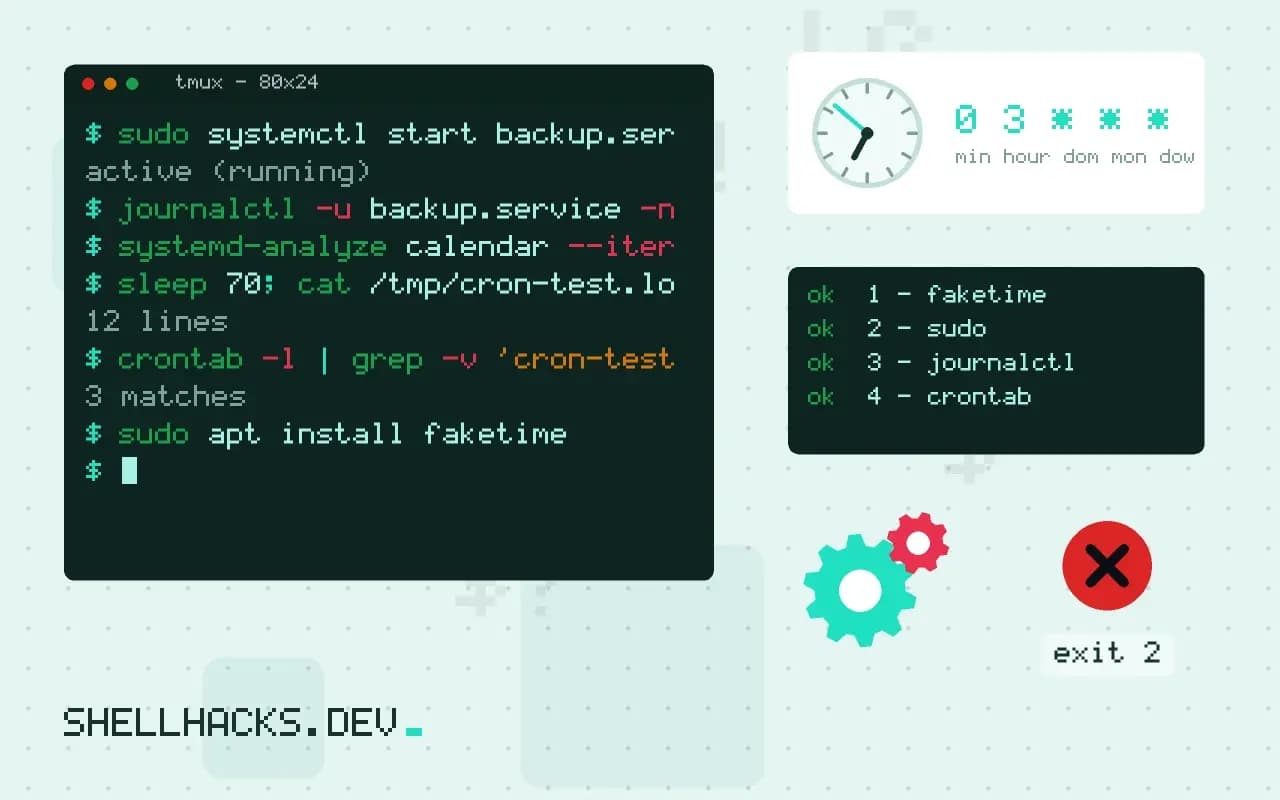
A cron job that fails does so at 3 a.m., silently, and you find out when the backup is needed. The trick to testing one is to separate its two halves: the schedule, which is simple and can be checked by tools, and the environment it runs in, which is where almost every failure lives. This post gives a way to test each without waiting. It builds on testing a cron job and debugging cron jobs. Examples use Debian 13, cron 3.0 and systemd 257.
Test the environment
env -i HOME="$HOME" LOGNAME="$USER" SHELL=/bin/sh PATH=/usr/bin:/bin /bin/sh -c '/usr/local/bin/backup.sh --dry-run'Cron starts jobs with a nearly empty environment: no login profile, a short PATH, /bin/sh as the shell. env -i clears everything and the listed variables reproduce what cron sets. If the job works from your terminal and fails here, the difference is a command missing from PATH, a variable set only in your profile or a Bash-only syntax run by sh. Fix by using absolute paths, setting variables in the crontab or script, and adding a Bash shebang. See scripts that work in a terminal but not in cron.
Test a systemd timer
sudo systemctl start backup.service
journalctl -u backup.service -n 30 --no-pager
systemd-analyze calendar --iterations=3 'Mon..Fri *-*-* 02:30'
Starting the service directly runs the same unit the timer would, with the same user, environment and sandbox, which is the best test of everything except the schedule. The journal shows the output. The calendar check confirms the schedule; see testing calendar expressions.
Test the real scheduler once
(crontab -l 2>/dev/null; echo '* * * * * /usr/local/bin/backup.sh --dry-run >> /tmp/cron-test.log 2>&1') | crontab -
sleep 70; cat /tmp/cron-test.log
crontab -l | grep -v 'cron-test.log' | crontab -
A one-minute entry confirms that cron itself runs the job as you expect, including permissions on the script. Remove it right away. For cron's own log, look at journalctl -u cron or /var/log/syslog for the CMD lines. Use run-parts --test /etc/cron.daily to list what a directory-based schedule would run, and note that file names with dots are skipped there.
Fake the clock
sudo apt install faketime
faketime '2026-12-31 23:59:00' /usr/local/bin/month-end-report.sh
faketime -f '+10d' ./rotate-logs.sh
Scripts that behave differently at month end, on Mondays or after midnight need a way to be run on those days. faketime from libfaketime changes what the program sees as the current time; -f '+10d' shifts it forward. It affects programs that use the C library's time functions, which includes date and most tools, and not those that read the clock in other ways, such as a statically linked binary. Better still, make the script accept a date as an argument and test with explicit values.
Make the job safe to try
- Add a
--dry-runoption that prints what would happen, and run it first. - Point the job at a copy of the data: a
DATA_DIRvariable with a scratch directory in a test. - Use
flockto prevent two runs overlapping, and test it by starting the job twice; see overlapping jobs. - Have the job exit non-zero on failure and send the failure somewhere, as in retry and alerting for scheduled jobs.
What to check after the run
Did it produce the output? Is the log entry there with a time that matches? Did it leave temporary files? Did the exit status propagate? For jobs that mail output, check that mail is delivered at all; many servers have no mail transfer agent and cron output is discarded. A heartbeat to an external service, as in dead man switch monitoring, tells you the job did not run, which no log can.
Where this does not apply
Jobs that depend on external systems at a specific time, such as a partner's file drop, need a test with a stub. Timers with Persistent=true run at boot when a time was missed; test that by stopping the timer and changing the system date in a VM, not on a real machine. Time zone and daylight saving transitions are easiest to check in a container with TZ set.
Why a scheduled job fails when the same command works by hand
A scheduler starts a job in a thin environment: a short PATH, no terminal, the home directory as the working directory, a different shell for some schedulers, a default locale and umask, and none of the variables your login set. Testing by pasting the command into a terminal proves only that the command works in your terminal. The check that matters is whether it works in the scheduler's conditions, and you can approximate them without waiting for the scheduled time. Start the command with an empty environment and explicit minimal values, the way cron would, using env to clear everything and set only HOME, PATH and SHELL, then run it from the directory the scheduler would use. A job that passes that test has lost its dependence on your shell setup, and one that fails shows exactly which variable or tool it was quietly relying on. This single step finds most of the failures that otherwise appear at 3 a.m.
Cron uses /bin/sh by default, which may be dash and not Bash, so a Bashism in the crontab line fails there with an error that never appears in your terminal. Set SHELL=/bin/bash at the top of the crontab if the line needs it.
Controlling time so you do not wait for it
Many jobs depend on the date: a rotation on the first of the month, a cleanup of files older than a week, a report for yesterday. Waiting for the real date is impractical, so move the clock for the test. The faketime command from the libfaketime package makes a program believe it is another date, and works for most programs that call the standard time functions. Make the job accept the date as a parameter or an environment variable for the same purpose, defaulting to today, so a test can run it for any day with no tricks. Test the boundaries on purpose: the last day of a month, a leap day, the day the clocks change, and the first run on a new year. For systemd timers, systemd-analyze calendar shows when an expression fires, and systemctl start name.service runs the service immediately, with the unit's own environment, which is the closest thing to a real run you can trigger on demand. A transient timer from systemd-run --on-active=1m tests the timer path itself within a minute.
Running the real scheduler once, safely
After the environment and logic tests, run the real thing once in a harmless form. Schedule the job a minute or two ahead, confirm the entry is read with the cron log or journalctl, wait, and check the result: the output, the exit status, the files written and the mail or log. Use a safe mode for the first scheduled run: a dry-run flag that prints what it would do, a separate target directory, a copy of the data, or a recipient list that contains only you. Then restore the real schedule and arguments. Add a lock so a slow run cannot overlap the next, using flock, and test that too by starting two copies. Make the job write to a log file with timestamps, since cron's own record only says that the command started. Finally, confirm that failure is noticed: make the job exit with an error once on purpose and check that an alert arrives, because a monitoring path that has never fired is an assumption.
See crontab(5) and the libfaketime project.