How to Test systemd Calendar Expressions With Examples
Test systemd calendar expressions with systemd-analyze calendar: see the normalized form, the next run times, time zone effects and traps in daily and weekly.
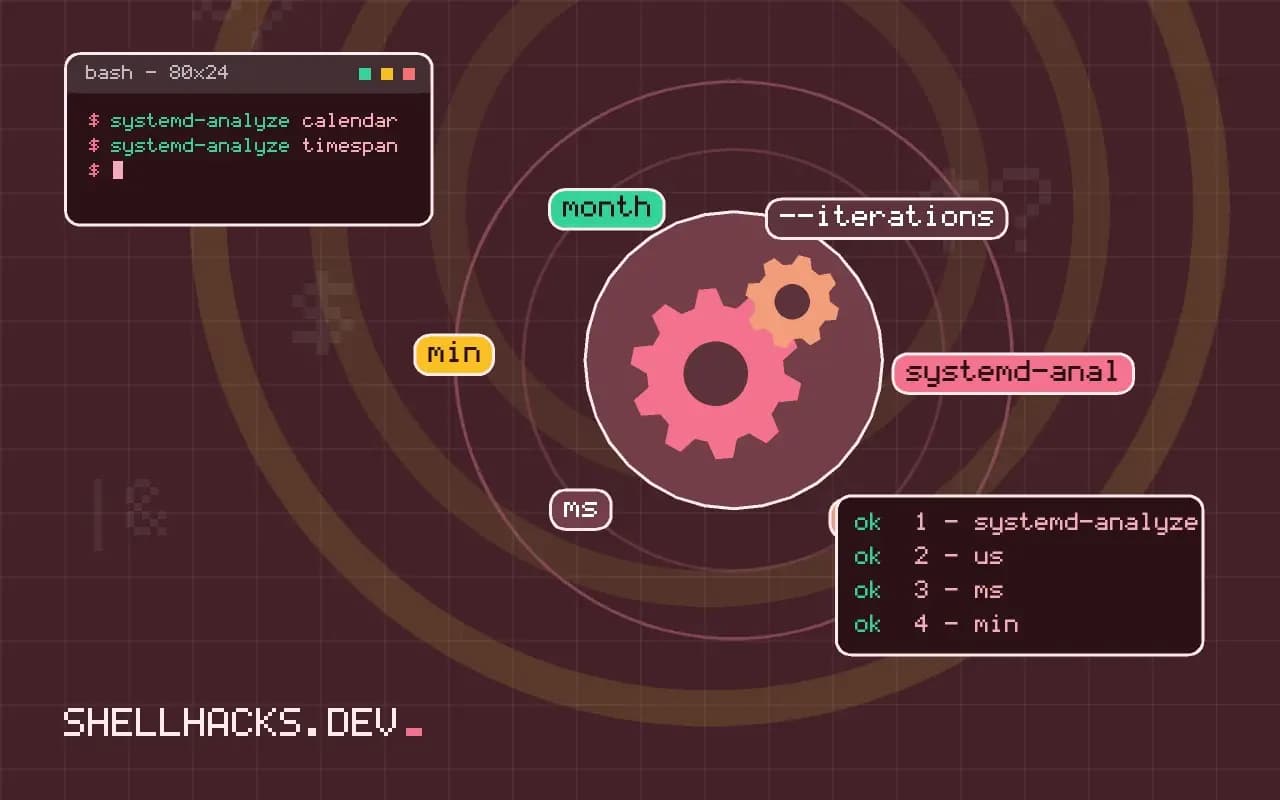
Cron expressions have a long tradition of "valid but wrong": a job that fires at the wrong hour or never fires. systemd gives you a way to see the answer before you commit, and it is the best habit to adopt for timers. This post shows how to read the output and which cases to test. It supports writing OnCalendar timers. Examples use systemd 257.
The basics
systemd-analyze calendar 'Mon..Fri *-*-* 09:00' Original form: Mon..Fri *-*-* 09:00
Normalized form: Mon..Fri *-*-* 09:00:00
Next elapse: Wed 2026-11-04 09:00:00 UTC
(in UTC): Wed 2026-11-04 09:00:00 UTC
From now: 17h left
The normalized form fills in the missing parts, here the seconds, and is how systemd understands the expression. Read it. "Next elapse" is the next time the timer would fire, and "From now" is the distance. If the next elapse is not what you expect, the expression is wrong, whatever the syntax checker said.
Several runs ahead
systemd-analyze calendar --iterations=5 '*:0/20'
systemd-analyze calendar --iterations=4 'Sat,Sun 22:15'Normalized form: *-*-* *:00/20:00
Next elapse: Tue 2026-11-03 10:20:00 UTC
Iter. #2: Tue 2026-11-03 10:40:00 UTC
Iter. #3: Tue 2026-11-03 11:00:00 UTC
Iter. #4: Tue 2026-11-03 11:20:00 UTC
Iter. #5: Tue 2026-11-03 11:40:00 UTC
A list of times reveals the shape of a schedule better than one value. It confirms that a step like 0/20 restarts every hour, so 11:40 is followed by 12:00, and not by 12:00 plus twenty minutes of drift. For intervals that must not reset, such as "every 90 minutes", a calendar expression cannot say it; use OnUnitActiveSec=90min instead.
Test the awkward dates
systemd-analyze calendar --base-time=2026-02-27 --iterations=3 '*-*-28..31 12:00'
systemd-analyze calendar --base-time='2026-03-28 00:00' --iterations=3 'Sun *-*-* 02:30 Europe/Berlin'
--base-time pretends the current time is the date you give. Use it for month ends, leap years and daylight saving transitions, the places where schedules fail. The first command shows that the days 29 to 31 are skipped in a short month rather than rolled over. The second checks a daily-saving change: on the night clocks move forward, 02:30 may not exist, and the output shows what systemd does with it. Seeing it once beats finding out in production.
Errors
systemd-analyze calendar 'Mon-Fri 9am'Failed to parse calendar specification 'Mon-Fri 9am': Invalid argument
The message does not say which part is wrong, so simplify: test the day part and the time part separately. The common mistakes are Mon-Fri for Mon..Fri, a 12-hour 9am, and a space inside the time. Names are English and case-insensitive.
Durations
systemd-analyze timespan '1h 30min'Original: 1h 30min
μs: 5400000000
Human: 1h 30min
For options such as OnBootSec, AccuracySec and RandomizedDelaySec, this prints the parsed value in microseconds, which catches a missing unit: a bare number is seconds in some places and microseconds in others.
Where this does not apply
The tool tells you when a timer would fire, not whether the service works, so pair it with testing the job itself. It cannot predict RandomizedDelaySec or accuracy slack. Once enabled, confirm with systemctl list-timers.
Reading the normalized output
The command systemd-analyze calendar parses an expression and prints four useful lines. The original form is what you typed, the normalized form is the canonical spelling after expansion, the next elapse in your local zone is when the timer would fire, and the same moment in UTC and as a relative time follows. The normalized form is the thing to read carefully, since it shows what the parser understood, including defaults it filled in. If you typed Mon 9:00 and the normalized form is Mon *-*-* 09:00:00, the expression means every Monday at nine, as intended. If the normalized form shows a different day or a range you did not expect, the expression is wrong, and it is better to learn that at your terminal than at the first run. The command also validates the syntax and prints an error with the position of the problem, which is a faster way to find a typo than enabling the timer and waiting.
It runs without root and has no side effects, so it is safe to use as often as you like, including inside a test script or a continuous integration job for the repository that holds the unit files.
Looking several runs ahead
A single next time can hide mistakes that show later. Use --iterations=N to print the next several elapses, and read the list for gaps and clusters. For *:0/45, the list shows the uneven spacing at once. For a monthly expression like *-*-31, it shows that months with fewer days are skipped, which surprises people who expected "the last day". The special form *-*-~01, available in recent versions, means the last day of the month. Pass --base-time with a date to test how the expression behaves at a particular moment, such as just before a daylight saving change or at a year boundary, without waiting for the date to arrive. That is the right way to check a schedule that falls near the end of March or October in a zone that changes its clocks.
Durations, spans and the other time syntax
Monotonic timers and settings such as RandomizedDelaySec use time spans, not calendar expressions, and systemd-analyze timespan checks them. It parses strings like 1h 30min or 90m and prints the value in microseconds and in a normalized human form, which reveals unit mistakes such as 5m meaning five minutes while 5M is not the same thing, and 1d as a day. Accepted unit names include us, ms, s, min, h, d, w, month and y, and a bare number is read as seconds. A related command, systemd-analyze timestamp, parses a point in time and prints it in several forms, which helps when you compare times between machines. Between these three subcommands you can check every time value in a unit file before you start it.
Using the command in a test or a review
A schedule is easy to get wrong and hard to notice, so put it into your habits. When someone proposes a timer in a code review, ask for the output of systemd-analyze calendar with several iterations pasted in the pull request, so the reviewer can see the real times. Add a small check to the repository's continuous integration that runs the command on every timer file's expression and fails on a parse error. Keep a note in the unit file saying in plain words when the job runs and why that time was chosen, such as after the nightly database backup finishes. Months later, nobody remembers why a job runs at 03:40, and the comment saves an investigation. The command also helps when you inherit a machine: run it on each expression found in the unit files to learn the real schedule without reading syntax.
Remember what the command does not tell you. It shows when the timer would fire if the unit is enabled and the clock is right, and says nothing about whether the service works, so pair the check with a manual start of the service, and with a look at the machine's time synchronization.
See systemd-analyze(1) calendar and calendar events in systemd.time(7).