How to Write systemd Timer Units With OnCalendar Properly
Write systemd timer units with OnCalendar: the date and time format, shortcuts like daily, weekday ranges, intervals, time zones and a full unit pair.
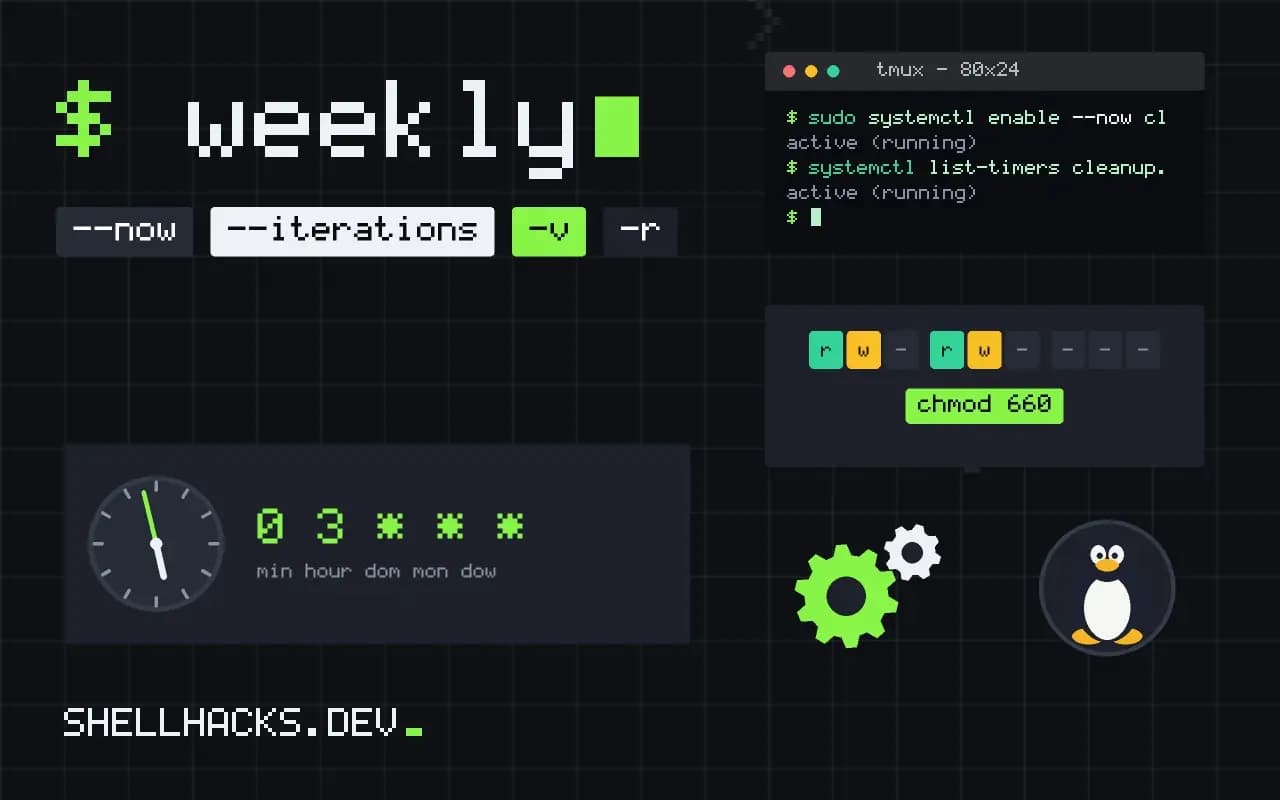
A cron line packs a schedule into five fields. A systemd timer spreads the same idea over two small files and gains logging, dependencies and catch-up behavior. The part that takes learning is the OnCalendar syntax, which is more readable than cron once you see its shape. This post gives the format and a full working pair. It is the systemd side of cron versus systemd automation. The commands assume Debian 13 with systemd 257.
A service and its timer
[Unit]
Description=Remove old temporary files

[Service]
Type=oneshot
ExecStart=/usr/local/bin/cleanup.sh[Unit]
Description=Run cleanup every night
[Timer]
OnCalendar=*-*-* 03:30:00
Persistent=true
[Install]
WantedBy=timers.targetsudo systemctl daemon-reload
sudo systemctl enable --now cleanup.timer
systemctl list-timers cleanup.timerNEXT LEFT LAST PASSED UNIT ACTIVATES
Wed 2026-11-04 03:30:00 UTC 14h left - - cleanup.timer cleanup.service
Only the timer is enabled. The service has no [Install] section, because the timer starts it. The two names must match, or the timer needs Unit=. Type=oneshot tells systemd the service finishes and exits.
The calendar format
The full form is DayOfWeek Year-Month-Day Hour:Minute:Second. Each part can be left out, and a missing date means every day, a missing time means midnight. A star matches anything, a comma lists values, .. makes a range and / a step.
OnCalendar=daily                  # 00:00:00 every day
OnCalendar=*-*-* 03:30:00         # every day at 03:30
OnCalendar=Mon..Fri *-*-* 09:00   # weekdays at 09:00
OnCalendar=Sat,Sun 22:15          # weekend evenings
OnCalendar=*-*-01 04:00           # first of the month
OnCalendar=*:0/15                 # every 15 minutes
OnCalendar=*-*-* 08..18:00        # on the hour from 08:00 to 18:00
OnCalendar=*-01,07-01 00:00       # 1 January and 1 July
Several OnCalendar= lines in one timer are combined, so a job can have two separate schedules. The shortcuts expand to the full form: weekly is Mon *-*-* 00:00:00, which is Monday morning, a difference from the Sunday cron's @weekly uses.
Time zones
OnCalendar=*-*-* 09:00 Europe/Paris
OnCalendar=*-*-* 03:30 UTC
Without a zone, the expression uses the machine's local time, which can shift an hour at a daylight saving change. Naming a zone after the time pins it. Recent systemd versions accept any zone from the tz database, and older ones only UTC, so check systemd-analyze calendar on your version. For servers, scheduling in UTC avoids the problem.
Check before you enable
systemd-analyze calendar 'Mon..Fri *-*-* 09:00' --iterations=3
systemd-analyze verify /etc/systemd/system/cleanup.timer
The first prints the normalized form and the next three trigger times, so a typo shows up as a wrong date, not as a silent job that never runs; see testing calendar expressions. The second checks the unit files for mistakes such as a missing service.
Where this does not apply
Timers fire with a default accuracy of one minute, so the run may start up to a minute after the time given; set AccuracySec=1s if that matters. A timer cannot express "the last Friday of the month" directly, and needs a test inside the script. For catching up after downtime, see Persistent and random delay, and for moving existing jobs, converting cron to a timer.
Anatomy of a calendar expression
A full OnCalendar= value has the shape day of week, date, then time: Mon *-*-* 03:30:00. Every part is optional, and a missing part defaults sensibly. A missing time means midnight, a missing date means every day, and a missing day of week means any. Each field accepts a star, a single value, a comma-separated list, a range with two dots, and a repeat with a slash, so *:0/15 means every hour at minutes 0, 15, 30 and 45, and Mon..Fri 09:00 means weekdays at nine. The shorthand names hourly, daily, weekly, monthly and yearly expand to the matching full forms, and note what they mean in practice: daily is midnight, and weekly is Monday at midnight. A fleet that all uses daily hits the same minute, which is why RandomizedDelaySec exists. Seconds default to zero, so *-*-* 10:00 fires once at ten, while *:*:0/10 fires every ten seconds, which is rarely what anyone wants from a scheduled job.
The repeat syntax counts from the start of the field, not from the moment the timer was enabled. A value like *:0/45 runs at minute 0 and minute 45 of each hour, leaving a fifteen minute gap every hour, and not every forty-five minutes. For a true interval from the last run, use a monotonic timer, covered below.
Calendar timers and monotonic timers
There are two families of timers. A calendar timer, OnCalendar=, fires at wall-clock times and is the right choice for work tied to a time of day, such as a nightly backup or a report. A monotonic timer measures time from an event: OnBootSec= counts from boot, OnStartupSec= from the start of the service manager, OnUnitActiveSec= from the last time the unit was activated and OnUnitInactiveSec= from the last time it finished. A job that must run every five minutes after the previous run completes uses OnUnitInactiveSec=5min, which also prevents overlap by construction. The two kinds can be combined in one timer, for example one run shortly after boot and a daily run after that. Remember that Persistent=true applies only to calendar timers, since a monotonic timer has no wall-clock moment to miss.
A subtle point: monotonic timers do not count time spent suspended on some setups, so on a laptop an interval timer may drift later than the stated duration. For jobs that must happen once a day however the machine is used, a calendar timer with Persistent=true is the sturdier option.
Time zones, daylight saving and testing the expression
Without a zone, the expression is evaluated in the system's local time, and a time that does not exist or exists twice on a daylight saving change behaves in ways you should know about. A job set for 02:30 on the night the clocks go forward may be skipped or run at the shifted time, and one set for 01:30 on the night they go back may run twice. For anything that must run exactly once, schedule in UTC by appending UTC to the expression, or put the job outside the hours that change. Newer systemd versions also accept a named zone, such as Europe/Berlin, at the end of the expression. Before enabling a timer, check the expression with systemd-analyze calendar, which prints the normalized form and the next elapse time in local time and UTC, and with --iterations=5 prints several upcoming times. Verifying the whole unit with systemd-analyze verify catches a misnamed service before it fails silently.
A short checklist before enabling
Run through the same few questions for every timer. Does the normalized expression show the days and times you meant? Does the service work when started by hand, under the unit's own user and environment? Are the paths in the command absolute? Is the timer enabled, with its next elapse showing in the list? What happens on a daylight saving change, and does it matter for this job? Where does the output go, and who looks at it? Answering these takes five minutes and prevents the usual first-week surprises: a job that never ran, one that ran as the wrong user, and one that failed with output nobody read.
See systemd.timer(5) and systemd.time(7).