How to Use systemd Timers With Persistent and Random Delay
Understand Persistent, RandomizedDelaySec, FixedRandomDelay and AccuracySec in systemd timers: catching up missed runs and spreading load across many hosts.
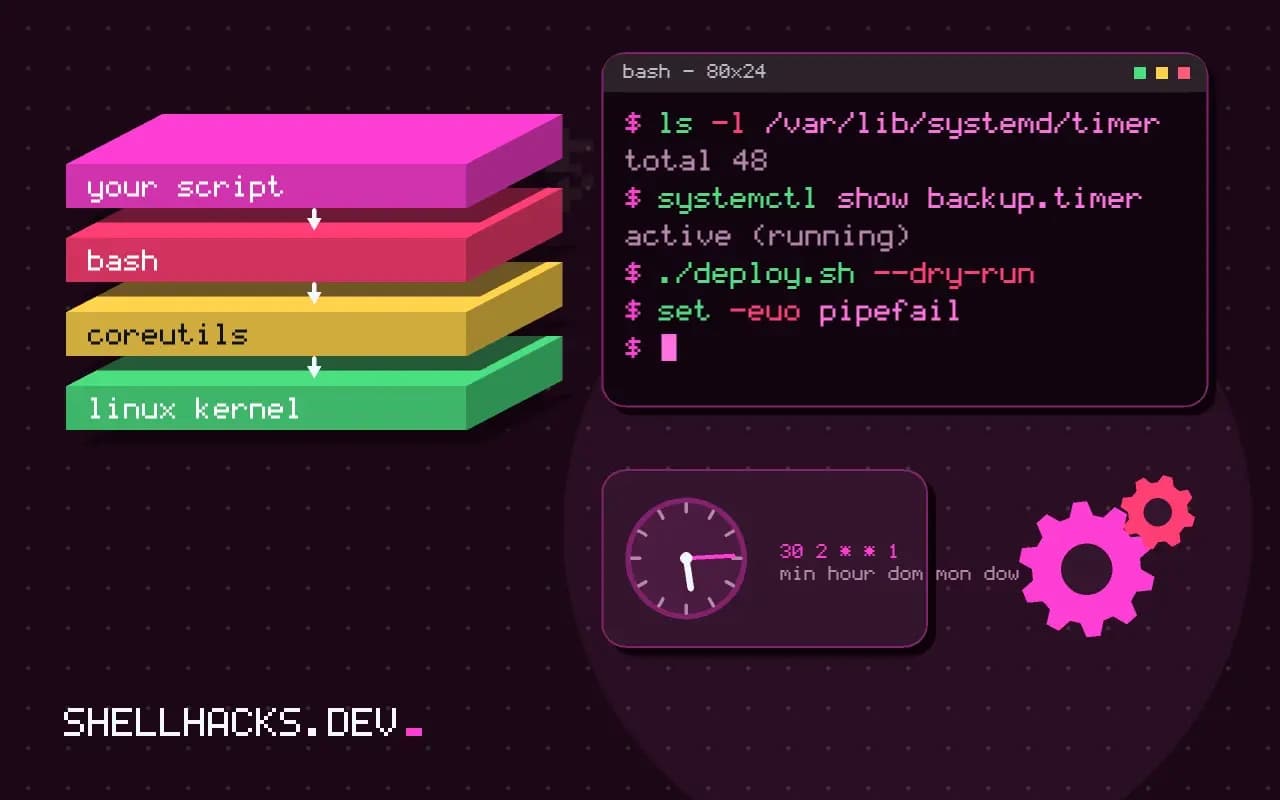
Two problems appear as soon as timers move from one server to a fleet or to a laptop. A job scheduled for 03:00 never runs if the machine was off at 03:00, and a hundred machines all hitting the same API at exactly 03:00 overwhelm it. Three timer options solve them. This post explains each, as a sequel to writing OnCalendar timers. The commands assume systemd 257 on Debian 13.
Persistent: catching up
[Timer]
OnCalendar=daily
Persistent=true
With Persistent=true, systemd records when the timer last fired in a stamp file under /var/lib/systemd/timers/. At start-up, or when the timer is enabled, it compares that time with the schedule, and if a run was missed it triggers the service immediately. A laptop that was asleep through 03:00 runs the backup when it wakes. Only one catch-up run happens, however many were missed, so a week of downtime does not queue seven runs. This is the behavior cron lacks and the one anacron provides separately.
ls -l /var/lib/systemd/timers/
systemctl show backup.timer -p LastTriggerUSec -p Persistent
If you delete the stamp file, the history is lost, and the timer waits for the next scheduled time. Persistent has no effect on monotonic timers such as OnBootSec= or OnUnitActiveSec=, which already work relative to an event.
RandomizedDelaySec: spreading load
[Timer]
OnCalendar=*-*-* 03:00
RandomizedDelaySec=30min
Each time the timer elapses, systemd adds a random delay between zero and the value. A fleet that all schedules 03:00 then starts between 03:00 and 03:30 instead of in one burst. The delay is different every run, so one host might run at 03:04 on Monday and 03:27 on Tuesday. For jobs that should be predictable per host, add FixedRandomDelay=true (systemd 247 and later), which makes the delay stable for a given machine and timer. That helps log correlation and keeps a long-running job from colliding with its own next run.
AccuracySec: how late is late
[Timer]
OnCalendar=hourly
AccuracySec=1s
By default timers may fire up to one minute after the scheduled time, so systemd can group wakeups and let the CPU sleep. For most jobs that is fine. Set AccuracySec=1s when the second matters, or a large value such as 1h for low-priority jobs on battery-powered devices, letting systemd run them whenever it is already awake. Note that the randomized delay and the accuracy window add together, so a timer with both can start noticeably after the nominal time.
Combine them
[Unit]
Description=Daily update check

[Timer]
OnCalendar=daily
RandomizedDelaySec=2h
FixedRandomDelay=true
Persistent=true
AccuracySec=10min

[Install]
WantedBy=timers.target
This is the pattern distributions use for package index updates: daily, with catch-up after downtime, spread over two hours so mirrors are not hit in unison. Verify with systemctl list-timers, which shows the next run time including the random delay already chosen.
Where this does not apply
Catch-up can be undesirable. A job that sends a daily report should probably skip a missed day rather than send a stale one at boot, so leave Persistent off, or check the time in the script. Jobs that need a fixed time of day, such as opening a market-data feed, should not use a random delay. Test the expressions with systemd-analyze calendar, and see listing timers for how to check their state.
What Persistent stores and when it triggers
With Persistent=true, systemd writes the time of the last activation of the timer's service to a stamp file under /var/lib/systemd/timers/. When the timer unit starts, which happens at boot or when you start it, systemd compares that stamp with the calendar schedule. If a scheduled moment passed while the machine was off or the timer was stopped, the service is triggered immediately, once, no matter how many runs were missed. That last point matters: a laptop that was off for a week runs the daily job once on wake, not seven times, which is almost always what you want. If the stamp file does not exist, as for a timer that was just created, nothing is caught up, and the first run waits for the next scheduled time. Deleting the stamp file, or running systemctl clean --what=state on the timer, resets that memory, which is a useful trick in testing.
Persistent does not make the job run at the moment you want when the machine comes back. It runs soon after boot, often while the system is busy starting other services, so a heavy catch-up job may slow the startup. Combine it with a randomized delay for that reason.
Spreading load without losing control
RandomizedDelaySec= adds a random delay between zero and the stated value to each activation. A hundred machines with a nightly job at 03:00 and a delay of thirty minutes spread their start times across that half hour, which protects a shared database, a package mirror or an object storage endpoint from a spike. The random value is chosen each time the timer elapses, and not fixed per machine, unless you set FixedRandomDelay=yes, which derives the offset from the machine's identity so the same host always runs at the same offset. A stable offset is good for predictable maintenance windows and for correlating a problem with a time of day. Remember that the delay shifts the real start after the calendar time, so a job that must finish before 04:00 needs the delay and the run time both to fit.
The setting that controls how much the timer may be late for its own reasons is AccuracySec=. Its default is one minute, and systemd uses the slack to group wake-ups and save power, so a timer set for 10:00:00 may fire anywhere up to 10:01:00 unless you set a tighter accuracy.
Combining the settings sensibly
A typical maintenance timer uses an OnCalendar= for the nominal time, Persistent=true so a missed run happens on the next boot, and a RandomizedDelaySec= of a few minutes to spread the load. For servers that are always on, Persistent does nothing harmful. For laptops it is the difference between a backup that runs and a backup that is skipped for a month. Check the result with systemctl list-timers, whose columns show the next and last activation, and the unit it triggers. When a timer seems to ignore its schedule, confirm that the .timer unit is enabled and active, and not only the service, that the service name matches, and that the system clock is correct. A machine with a wrong clock runs timers at the wrong time, and a clock that jumps forward can trigger a missed run at once.