How to Use Toolbox Containers for Clean Dev Setups
Use toolbox containers for clean development setups: Toolbx and Distrobox, home directory sharing, installing tools inside, exporting commands, and limits.
You want the latest compiler, or a different distribution's packages, or you run an immutable system like Fedora Silverblue or Bluefin where installing packages on the host is discouraged. A toolbox container is a development environment that feels like your normal shell and keeps all the mess in a disposable layer. It is the interactive cousin of Docker as a tool runner. The examples assume Podman 5 and Distrobox 1.8.
Distrobox in four commands
distrobox create --name dev --image docker.io/library/debian:13
distrobox enter dev
cat /etc/os-release | grep PRETTY_NAME
sudo apt update && sudo apt install -y build-essentialPRETTY_NAME="Debian GNU/Linux 13 (trixie)"
The first command creates a container from the image. The second opens a shell inside it as you, with your home directory mounted at the same path, so your files, dotfiles and project directories are there. Packages installed inside are visible only inside. Delete it with distrobox rm dev and nothing on the host changed. Distrobox works with Podman or Docker; most people use Podman, which needs no daemon and runs rootless.
Toolbx on Fedora
toolbox create --distro fedora --release 41 rust-dev
toolbox enter rust-dev
sudo dnf install -y rust cargo
toolbox listCONTAINER ID CONTAINER NAME CREATED STATUS IMAGE NAME
5f3a1c2b8d9e rust-dev 2 minutes ago running registry.fedoraproject.org/fedora-toolbox:41
Toolbx is the Fedora project's tool, with smaller scope than Distrobox: it makes Fedora (and Red Hat) toolbox images and integrates closely with them. Both give the same experience, and the choice follows your distribution. Use one container per project or per purpose (a Rust one, a Python data one, an old-distro test one) so dependencies do not mix.
What is shared
shared with the host    home directory, user and groups, network, /tmp, X11/Wayland, PulseAudio/PipeWire,
                        SSH agent socket, USB devices (optionally), the Podman socket (optionally)
separate                root file system, installed packages, system libraries, init system
Because the home directory is shared, a tool inside the container writes its config into the same ~/.config as the host's tools, which can cause surprises: a different version of the same program rewrites its settings. Use per-container home directories when that matters (distrobox create --home /home/alice/boxes/dev). The environment looks like your terminal with access to your SSH agent and Git config, so Git and SSH work as usual, see the SSH config guide.
Export tools to the host
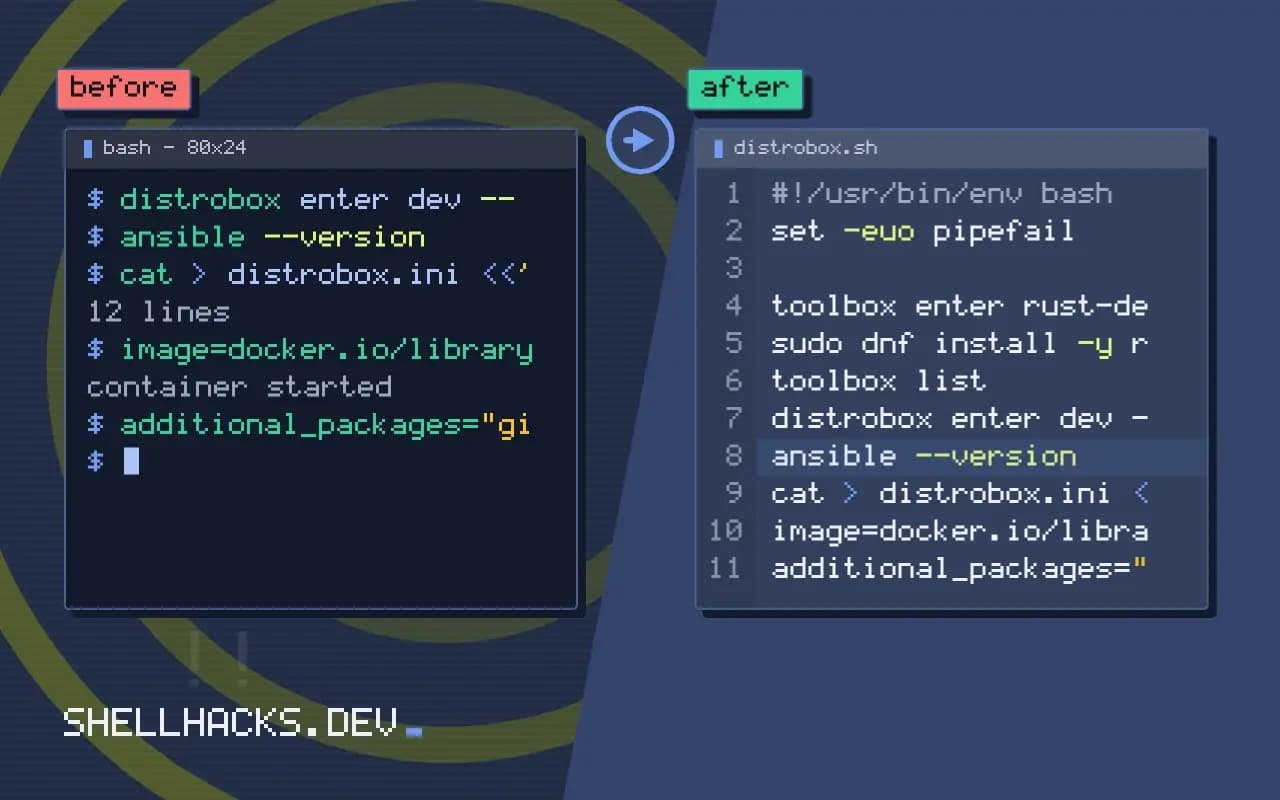
distrobox enter dev -- distrobox-export --bin /usr/bin/ansible --export-path ~/.local/bin
distrobox enter dev -- distrobox-export --app code
ansible --version
Exporting creates a small wrapper on the host that runs the program inside the container, so a CLI or desktop application from another distribution appears in your normal PATH or app menu. This is the main convenience on immutable systems: install once inside, run from anywhere. The wrapper starts the container if it is stopped.
Clean setups and repeatability
cat > distrobox.ini <<'EOF'
[dev]
image=docker.io/library/debian:13
additional_packages="git build-essential curl"
init=false
nvidia=false
EOF
distrobox assemble create --file distrobox.ini
An assemble file describes containers declaratively, so a fresh machine gets the same environment with one command. Keep it in your dotfiles repository, see syncing dotfiles across machines. For project environments shared with a team, a dev container definition or a Dockerfile in the repository is more reproducible, as in dev containers with VS Code.
Why the pattern appeals
A development machine accumulates software. Language runtimes, build tools, libraries and database clients pile up on the host, versions conflict, and removing something later leaves traces. A toolbox container moves that accumulation into a layer you can delete. It also lets you work with another distribution's packages without changing the host, so you can build against an older library set, test a package on a different release or follow a tutorial that assumes a specific system. The host stays small and consistent, and the clutter lives in named, disposable environments.
For immutable operating systems the pattern is close to a requirement. The host image is updated as a whole and cannot easily take extra packages, so a toolbox is where compilers and utilities go. The experience is a normal shell with a different set of installed software behind it.
What to put in a toolbox and what to leave out
Good candidates are build chains, language toolchains, cloud command-line clients, linters and formatters, and anything that needs packages that conflict with the host. Poor candidates are things that need deep hardware or kernel integration: device drivers, filesystem tools that operate on host disks, and services that must start at boot. Also keep long-running servers out of toolboxes meant for interactive work, because the container's lifetime is tied to your session and an update can restart it.
Editors and IDEs sit in between. They can run in the host and call tools in the container, or run inside the container with a window forwarded to the host. Most editors have an extension to run language servers inside a container, which keeps the host editor and the toolchain in separate worlds while staying integrated.
Keeping environments reproducible
A hand-built toolbox is a pet: it works, and nobody remembers how. Write the creation steps down. A short script or the assemble file mentioned earlier records the image, the packages and the post-install commands, so rebuilding takes a minute. Pin the base image to a release rather than to a rolling tag, or a rebuild next month gives a different environment. For language tools use the language's own version manager inside the container, and commit the project's lock files, so dependencies come from the project and not from whatever the container happened to have.
Update on a schedule. A container does not update itself with the host, so old toolboxes accumulate unpatched software. Recreate them every few weeks from the definition, or run the package manager's update on a timer. The disposable property is only useful if you actually dispose of them.
Limits to remember
Because the containers share your user and home directory, anything running inside can read your files, SSH keys and tokens. Treat a toolbox as a convenience layer and not a boundary. If a tool is untrusted, run it in a container with no home mount, no network or a read-only file system, which takes extra flags but gives actual isolation. Know the performance differences as well: file access through bind mounts on macOS and Windows VMs is slower than native, so keep heavy build trees inside the container's own file system where possible.
Share what works. A team that agrees on one base image and one definition file for a language gets consistent tooling and can help each other when something fails, since "it works in the toolbox" means the same thing on every laptop. Keep the definition in the project repository next to the code, and name the container after the project, so entering the right environment is a habit and not a lookup.
Where this does not apply
These containers are not a security sandbox: they share your home directory and user, so malware in a container can read and change your files. Do not use them to run untrusted software. For production images, use a proper Dockerfile. Systems with SELinux or limited namespaces may need setup; macOS and Windows users get Linux environments through Docker Desktop, Lima or WSL instead. See the Distrobox documentation and the Toolbx site.