How to Use VS Code Remote SSH and Dev Containers Properly
Use VS Code Remote SSH and Dev Containers: connect with your ssh config, devcontainer.json, features, ports and the problems to expect.
The editor feels best when it runs where the files are. Instead of mounting a remote file system and fighting slow language servers, Visual Studio Code's remote extensions put the heavy parts, extensions, language servers and terminals, on the remote machine or in a container and show the interface locally. The same repository then gives every contributor the same environment. This builds on remote dev machines over SSH and toolbox containers. The notes assume VS Code 1.95 with the Remote - SSH and Dev Containers extensions.
Remote SSH
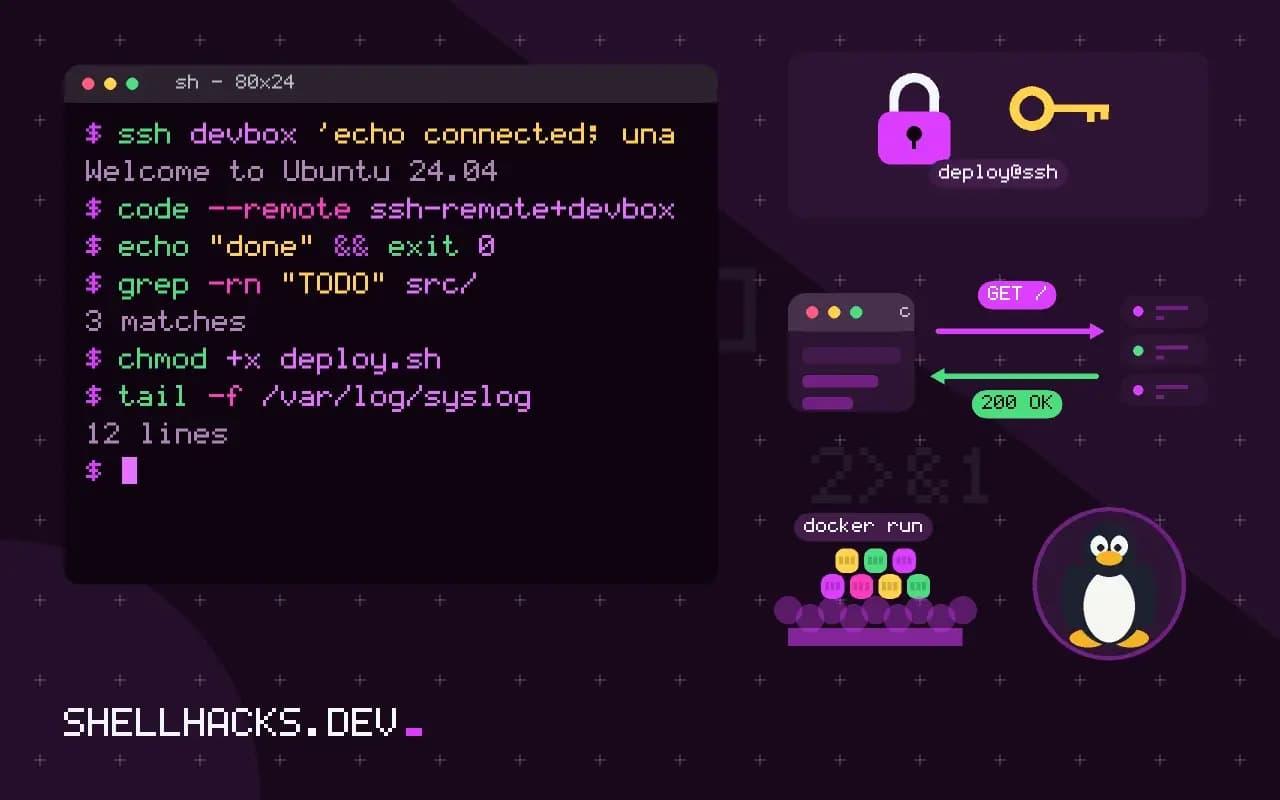
ssh devbox 'echo connected; uname -sr'
code --remote ssh-remote+devbox /home/alice/appconnected
Linux 6.12.0
The extension uses the system ssh and your ~/.ssh/config, so any host you can reach in the terminal appears in the "Connect to Host" list. Make sure it works from a plain terminal first with key authentication and no prompts, since a password prompt hidden in the editor is a common cause of "stuck connecting". The first connection downloads and installs the VS Code server into ~/.vscode-server on the remote, which needs outbound HTTPS from the host or a manual install on locked-down machines. Open the Output panel's "Remote - SSH" channel to see what is going on.
Use jump hosts and keys properly
Host devbox
    HostName 10.0.0.12
    User alice
    ProxyJump bastion.example.test
    IdentityFile ~/.ssh/id_ed25519
    IdentitiesOnly yes
    ServerAliveInterval 30
ProxyJump works with the extension, so a remote behind a bastion is reachable. IdentitiesOnly avoids the too-many-authentication-failures problem when your agent holds many keys, see too many authentication failures. Do not enable agent forwarding by default; with it, anything running on the remote can use your keys during the session.
Dev Containers
{
  "name": "app",
  "image": "mcr.microsoft.com/devcontainers/base:debian-13",
  "features": {
    "ghcr.io/devcontainers/features/node:1": { "version": "22" },
    "ghcr.io/devcontainers/features/docker-outside-of-docker:1": {}
  },
  "forwardPorts": [3000, 5432],
  "postCreateCommand": "npm ci",
  "remoteUser": "vscode",
  "customizations": {
    "vscode": {
      "extensions": ["dbaeumer.vscode-eslint", "timonwong.shellcheck"],
      "settings": { "terminal.integrated.defaultProfile.linux": "bash" }
    }
  }
}
Save it as .devcontainer/devcontainer.json and choose "Reopen in Container". The editor builds or pulls the image, starts a container with the project mounted, installs the listed extensions inside it and runs postCreateCommand once. Features add common tools (Node, Python, Docker CLI) without writing Dockerfile steps. For custom needs, point build.dockerfile at your own Dockerfile or use Docker Compose with several services (an app and a database). Commit the folder so everyone gets the same environment, and pin image tags or digests so it stays reproducible, as with other images in Compose files.
Combine them
You can use both: connect to a remote host over SSH and open a dev container there, so the container runs on the remote's Docker engine. The extension handles both layers, and the result is a fast build machine with a reproducible environment. The same dev container definition can run locally on a laptop or in a cloud workspace service, because the format is an open specification.
Common problems
Stuck on "Setting up SSH Host"       remote cannot download the server; check outbound HTTPS or install offline
Permission denied (publickey)       agent or key issue; test in a terminal with ssh -vvv
Extensions missing in the remote    install them "in SSH: devbox" or list them in devcontainer.json
Files owned by root                 set remoteUser and updateRemoteUserUID, or run as a matching UID
Port not reachable                  check the Ports panel; bind the server to 0.0.0.0 inside a container
Git credentials fail in container   use the credential helper forwarded by the extension, or SSH agent
Most issues are SSH or Docker problems seen through the editor; solve them in a terminal first. For file ownership in containers, the points in running containers as a non-root user apply. Do not put secrets in devcontainer.json; use environment variables from the host or a secrets mechanism.
What runs where
The remote extensions split the editor in two. The interface, with its windows, themes and keyboard handling, stays on your machine. A small server process runs on the target host and hosts the file access, the language servers, the debuggers, the terminals and most extensions. Communication runs over the SSH connection or the container API. That split is why typing stays responsive even when the host is far away: keystrokes are local, and only the results of analysis travel. It also explains the failure modes. If the server cannot start on the host, nothing works. If an extension needs the display, it must run on the local side.
Some extensions have to be installed in both places: the ones that change the look run locally, and the ones that analyse code run remotely. The editor marks which is which in its extension view. Listing the remote ones in the project's configuration file means every contributor gets the same set automatically.
Performance and network
Latency matters less than people expect for editing, and more for anything that goes through the file system. Searching across files runs on the host, so it is fast. Opening a huge repository over a slow link is mostly limited by the initial indexing, which also runs on the host. What does suffer is port forwarding for web previews and any extension that streams large amounts of data to the local interface. Keep an eye on the output panel for the remote server, which logs reconnections and timeouts, and set the keepalive options in the SSH configuration so brief network blips do not drop the session.
The host needs resources too. Each connected window starts a server process, and language servers can be memory hungry. A small virtual machine with one gigabyte of memory struggles with a large project. Watch memory with htop while working and size the machine for the tools, not just the code.
Security considerations
A remote workspace places your source, and often credentials, on the host. Treat that host as sensitive. Use key-based login, keep it patched and restrict who can reach it. Be careful with agent forwarding: it lets the remote use your keys while you are connected, which is convenient for pulling from a private repository and dangerous if the host is compromised. Prefer a deploy key scoped to one repository on the host, or the extension's credential helper, which asks your local machine only when needed. In dev containers, avoid mounting the Docker socket unless the workflow needs it, since access to it is equivalent to root on the host.
Team conventions
Put the container definition, the recommended extensions and the post-create commands in the repository so a new person opens the folder and gets a working environment without reading a wiki. Pin image versions, and update them deliberately. Document the fallback for people who cannot use the extension, which is usually a plain SSH session and a terminal editor or the same container run by a script. Environments that work only inside one editor are fragile, and a short documented alternative keeps the project usable.
Where this does not apply
The remote server component of VS Code has its own licence terms, and some forks of the editor cannot use Microsoft's remote extensions; alternatives exist, such as editors with their own SSH modes or a terminal editor over SSH. Slow connections hurt the UI less than with mounts but still matter. Dev containers add build time and disk use. See the VS Code Remote SSH documentation and the dev container specification.