How to Use zip and unzip From the Terminal the Safe Way
Use the zip and unzip commands to create, list and extract archives, exclude files, protect with a password, and avoid zip bombs and path traversal.
Zip is the format to use when the recipient may be on Windows or macOS, or when you need to pull single files out of a large archive quickly. The commands are Info-ZIP zip 3.0 and unzip 6.0, which most Linux distributions ship, though neither is installed by default everywhere. Its Unix counterpart is covered in the tar guide.
Create an archive
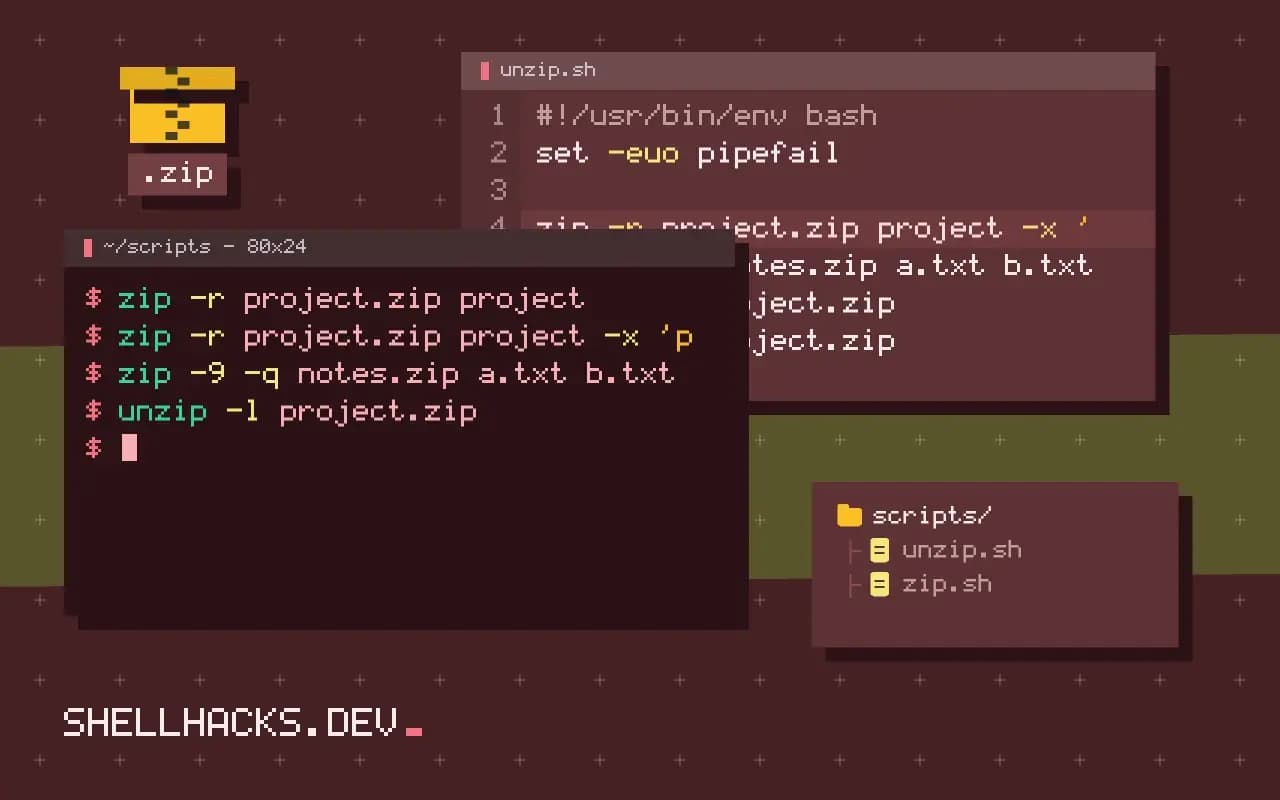
zip -r project.zip project
zip -r project.zip project -x 'project/node_modules/*' -x '*.log'
zip -9 -q notes.zip a.txt b.txt
-r recurses into directories. -x takes shell-style patterns, quoted so the shell does not expand them first. -9 is the highest compression and -q hides the per-file lines. If the archive already exists, zip adds to it or updates entries, which can surprise a script that expects a fresh file; rm -f first or use -FS to sync the contents.
List and test
unzip -l project.zip
unzip -t project.zipArchive: project.zip
Length Date Time Name
--------- ---------- ----- ----
0 2026-11-03 09:30 project/
412 2026-11-03 09:30 project/main.py
--------- -------
412 2 files
-l lists the contents and -t checks each member's CRC without extracting. Do both before opening an archive from someone else. Zip stores a central directory at the end of the file, which is why listing is quick, and why an archive truncated by an interrupted download cannot be read at all.
Extract into a directory
mkdir -p restore
unzip project.zip -d restore
unzip -o project.zip 'project/main.py' -d restore
-d sets the target directory, and naming members extracts only them. By default unzip prompts when a file exists; -o overwrites and -n never overwrites, which a script needs to avoid hanging. Info-ZIP's unzip drops leading slashes and refuses to write above the target unless told otherwise, but old versions and other tools differ, so keep the archive out of any directory that matters until you have looked at it.
Passwords
zip -e secret.zip report.pdfThe legacy ZipCrypto scheme used by -e is weak and can be broken with a known-plaintext attack, so it keeps casual readers out and no one else. For real confidentiality, encrypt the archive with age or gpg as discussed in gpg versus age versus openssl, or use 7-Zip's AES-256 format. Also avoid -P password, which exposes the password in the process list, as explained in shell script secrets.
How the format is laid out
A zip archive is a series of entries, each with its own local header and compressed data, followed by a central directory that lists every entry with its offset. Readers jump to the end, read the directory and can extract any one file without scanning the rest. That makes random access cheap and explains why adding a file to an existing archive is quick: the new entry is appended and the directory is rewritten. It also means that each file is compressed separately, so zip does not exploit similarities between files the way a compressed tar can, and an archive of many small, similar files is larger than the same data in a .tar.xz.
The central directory records names as bytes with a flag for UTF-8. Older tools wrote names in the local code page, and an archive created on one system may show garbled names on another. Info-ZIP unzip 6.0 has limited support for UTF-8 names on some builds, and a newer unzip or bsdtar -xf, 7z x or Python's zipfile module handles them better. If a name looks wrong, try another extractor before assuming the archive is damaged.
Updating, deleting and splitting
By default zip archive.zip file adds or replaces the entry. The -u option updates only changed files, -f freshens existing entries only, and -d deletes entries: zip -d archive.zip '*.log'. To send a large archive through a limit, split it with zip -s 100m -r big.zip dir, which makes big.z01, big.z02 and big.zip; joining uses zip -s 0 big.zip --out whole.zip. Split archives are fragile, since losing one piece loses the whole, so prefer sending several independent archives where possible.
Compression levels and what gets compressed
Level 9 compresses slightly better than the default 6 for text and takes noticeably longer, and it makes almost no difference to files that are already compressed, such as JPEG, MP4, PNG and other archives. Zip stores a file as is if compression does not help, and -0 asks for storage only, which is the sensible choice when packaging media. Newer tools also support method 93 for zstd and 95 for xz in zip, but older extractors, including many built-in ones, cannot read them, so stay with deflate when the recipient is unknown.
Safety when extracting
Treat archives from unknown sources carefully. Entries can contain path components like ../ that try to write outside the target directory. Info-ZIP unzip refuses to extract them without an option, and other tools differ, so extract into a dedicated directory and inspect the result. A zip bomb is a small file that expands to enormous size, and some are built to defeat simple checks with overlapping entries. Limit the disk space for the target with a quota or a temporary filesystem, and check the total uncompressed size with unzip -l before extracting. Never extract as root, and skip the unusual entry types that do not belong in your use case. Also avoid passing user-supplied names to the command line without --, since a name that starts with a dash is read as an option.
Zip compared with tar and 7z
Choose the format by the recipient and the data. Zip opens natively on Windows and macOS with no extra software, supports random access and handles a single-file update quickly. A compressed tar keeps Unix ownership, permissions, links and extended attributes and often compresses a set of similar files better, but reading one member of a gzip-compressed tar means decompressing everything before it. The 7z format compresses best of the three and needs the 7-Zip tool, which is available on every platform but is not built in. For distribution to unknown users zip wins on reach, for backups of Unix trees tar wins on fidelity, and for the smallest download of a large set 7z or tar with xz or zstd wins on size.
Where this does not apply
Zip does not store Unix ownership and, by default, does not preserve extended attributes or most special files, so it is a poor choice for system backups; use tar for those. Zip bombs, tiny archives that expand to terabytes, exist, so extract untrusted archives in a disposable directory with a size limit. Unicode names in archives from Windows may show garbled characters unless unzip -O cp437 or another code page is passed. The format is described in the PKWARE APPNOTE specification, and the options in the Info-ZIP UnZip documentation.