How to Use date to Print and Convert Dates in Real Scripts
Use the date command to print formats, convert epoch seconds, add and subtract days, set time zones and name files by timestamp in real scripts.
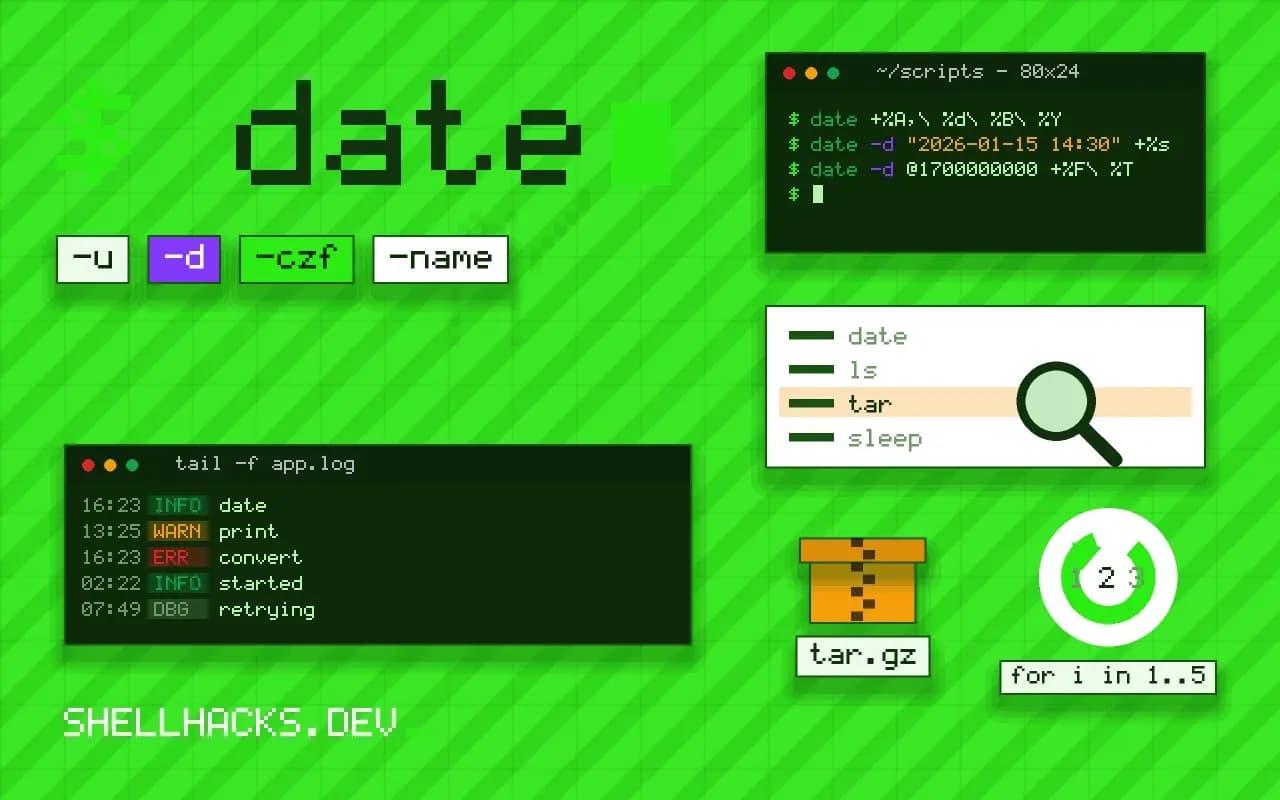
Timestamps are in every log, backup name and report, and date is the command that makes them. Getting it right means picking a stable format and a fixed time zone. This post covers the GNU version, and date on macOS versus Linux covers the differences. The examples assume GNU coreutils 9.x.
Print the current time
date
date +%F
date +%T
date +%s
date -u +%Y-%m-%dT%H:%M:%SZ
date +%A,\ %d\ %B\ %YTue Nov 3 09:41:02 UTC 2026
2026-11-03
09:41:02
1793698862
2026-11-03T09:41:02Z
Tuesday, 03 November 2026
%F is a shortcut for %Y-%m-%d and %T for %H:%M:%S. The ISO 8601 form with Z sorts lexically and is unambiguous, which is why logs and file names use it. Spaces in a format must be quoted or escaped, or the shell passes them as separate arguments.
Parse and convert
date -d "2026-01-15 14:30" +%s
date -d @1700000000 +%F\ %T
date -d "next friday" +%F
date -d "2026-03-31 + 1 month" +%F1768487400
2023-11-14 22:13:20
2026-11-06
2026-05-01
The last example shows a trap: adding one month to 31 March asks for 31 April, which does not exist, so GNU date rolls over to 1 May. When month-end arithmetic matters, compute from the first of the month. Natural language like last monday works but depends on the locale, so keep it out of scripts that run on servers with other settings.
Time zones
TZ=UTC date +%H:%M
TZ=Asia/Tokyo date +%H:%M
TZ=America/New_York date -d "2026-07-01 12:00 UTC" +%H:%M
The TZ environment variable takes an IANA name from the system database in /usr/share/zoneinfo. Setting it for one command leaves the system clock and the shell untouched. For recurring jobs, keep the server in UTC and convert only for display, as discussed in cal and timedatectl.
Names, ages and durations
tar -czf "backup-$(date -u +%Y%m%dT%H%M%SZ).tar.gz" /srv/data

start=$(date +%s)
sleep 2
end=$(date +%s)
echo "took $(( end - start )) s"

find /var/log -name '*.log' -mtime +30
A timestamp in the file name sorts correctly in ls. Epoch subtraction gives elapsed seconds without parsing, though for a command's runtime the time command is cleaner. For "older than N days" tests, find -mtime is simpler than computing dates; see finding files by modified time.
Formats that survive other tools
A date string is a contract between the script that writes it and whatever reads it later. Some formats keep that contract intact and some leave it to chance. A file name with %Y%m%dT%H%M%SZ sorts in chronological order under plain ls, contains no spaces or colons and therefore needs no quoting, and is accepted on Windows file systems, where colons are not allowed. The extended ISO form with colons is better for log lines and JSON, where it is readable and widely parsed.
The week-based year is a classic trap. %G is the ISO year and %Y is the calendar year, and they disagree for a few days around the new year: 31 December can belong to week 1 of the next ISO year. Mixing %G with %m produces names like a December date in the following year. Use the pairs %G-%V or %Y-%m-%d, never a mixture.
Daylight saving and ambiguous local times
Local time is not a total order. When clocks go back, one hour occurs twice, and a log line stamped 01:30 does not say which. When they go forward, a local time such as 02:30 does not exist on that day, and tools handle the request differently: GNU date may reject it or shift it. For any timestamp that gets compared, sorted or subtracted, store UTC or an epoch number and convert at the edge when showing a person.
The same reasoning applies to scheduled jobs. A cron entry set for 02:30 local time can run twice or not at all on the two nights a year when the clock changes, which is one more reason servers are best kept on UTC. Setting TZ=UTC inside a script also protects it from being run under a different system zone by whoever invokes it.
Date arithmetic without surprises
GNU date accepts phrases such as -d "yesterday" or -d "3 days ago", and these are convenient and mostly reliable. Relative words are resolved from the current time, so "yesterday" at 00:00:30 and at 23:59:30 are the same date but different instants. If the script means the calendar day, normalise first: date -d "yesterday 00:00" +%F asks for midnight explicitly.
Comparing two dates is easiest through epoch seconds. Convert each with date -d "..." +%s, subtract, and divide by 86400 for days. Be aware that a day is not always 86400 seconds across a daylight saving change when the inputs are local times, which is another argument for doing the arithmetic in UTC. Test any date logic on the edge cases that bite: the last day of a month, 29 February, the transition nights and the new year. A test that only runs on the 15th will pass for years and fail on the 31st.
Reading file times and setting them
The same command works with file timestamps. date -r file prints the modification time of a file in the usual format, and date -r file +%s prints it as epoch seconds, which is handy for comparing two files or computing an age without parsing ls output. For the age in days, subtract from date +%s and divide by 86400.
Setting a time is a separate job for touch, which accepts -d with the same parser: touch -d "2026-01-15 14:30" file sets the modification time. That is useful in tests that need files of a known age, and for making a build tool believe a file is older or newer than another. Both date -r and touch -d are GNU extensions, so on macOS use stat -f %m and touch -t with its different format.
Remember that modification time, access time and change time are three different values. Backups and sync tools usually care about modification time. Copying a file without -p resets it to the copy time, which silently ruins any later "older than" test. When age matters, preserve times with cp -p, rsync -t or tar, and verify with date -r on both sides.
When a script must run on both GNU and BSD systems, avoid the extensions altogether. Format with date +FORMAT only, take the epoch from date +%s, and do arithmetic in the shell. For parsing arbitrary input, install GNU coreutils on macOS and call it as gdate, or use a language with a proper date library, so the behaviour is the same wherever the script runs.
Where this does not apply
Epoch seconds from date +%s are not monotonic: an NTP step or a manual change can move the clock backwards, so use /proc/uptime or EPOCHREALTIME with care for measuring intervals. Bash 5 has printf '%(%F)T' -1, which formats the current time with no subprocess. Leap seconds are not represented. The GNU date manual and the date input formats chapter are the reference.