How to Debug PATH and Command Lookup Problems the Right Way
Debug command not found and wrong version problems: inspect PATH, trace how the shell resolves a name, find shadowed binaries and cron or sudo differences.
"command not found" for a program you just installed, or the old version running after an upgrade, is a lookup problem, and the shell can explain every step of it. The skill is asking it in order instead of reinstalling. This post gives the sequence. It is the debugging chapter on environment and lookup, and complements which, whereis and type. Examples use Bash 5.2 on Debian 13.
Step 1: what does the shell see
echo "$PATH" | tr ':' '\n' | nl
type -a python3
command -v python3 1 /home/ada/.local/bin
2 /usr/local/bin
3 /usr/bin
4 /bin
python3 is /usr/local/bin/python3
python3 is /usr/bin/python3
Read the list top to bottom: the first directory containing an executable of that name wins. If the program you want is in a directory not on the list, that is the answer. Look for an empty entry (a leading or trailing colon, or two in a row), which means the current directory and lets a stray file in the working directory run in place of a command. Relative entries such as . or bin change meaning with the directory you are in.
Step 2: is the file runnable
ls -l "$(command -v mytool)"
file "$(command -v mytool)"
mytool; echo "status=$?"bash: /usr/local/bin/mytool: Permission denied
status=126
Status 127 means the name was not found anywhere; 126 means a file was found but could not be executed: no execute bit, a noexec mount or a bad interpreter line. A "No such file or directory" error for a file that plainly exists is usually the shebang pointing at an interpreter that is missing, or carrying a stray carriage return; see line ending problems.
Step 3: the cache
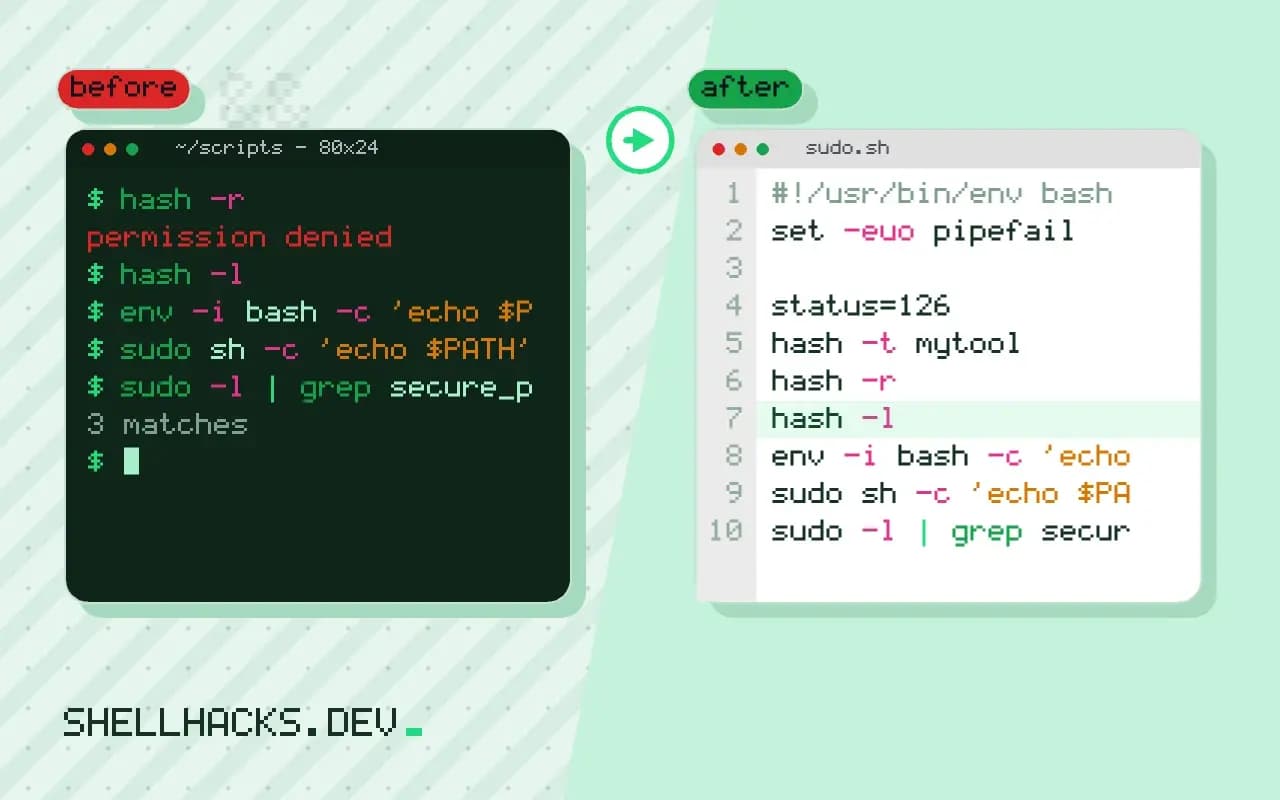
hash -t mytool
hash -r
hash -l
Bash remembers the path it found for each command, so a program moved or reinstalled elsewhere can fail with No such file or directory from the old location while which shows the new one. hash -r empties the table. A new terminal has an empty table, so "it works in a new window" points at the cache.
Step 4: other contexts have other PATHs
env -i bash -c 'echo $PATH'
sudo sh -c 'echo $PATH'
sudo -l | grep secure_path
crontab -l | grep -i '^PATH'
A non-interactive shell with an empty environment shows the system default. Cron starts jobs with a minimal PATH, often only /usr/bin:/bin, so a tool in /usr/local/bin or ~/.local/bin is not found there; set PATH at the top of the crontab or use absolute paths, as in scripts that work in a terminal but not in cron. Sudo replaces PATH with secure_path from sudoers, which is why a command you installed in your home directory is invisible to sudo. Services under systemd have their own too; see systemctl show -p Environment.
Step 5: where it gets set
grep -n 'PATH' ~/.bashrc ~/.profile ~/.bash_profile /etc/profile /etc/environment 2>/dev/null
bash -lc 'echo $PATH'
bash -ic 'echo $PATH'
Login shells read ~/.profile or ~/.bash_profile; interactive non-login shells read ~/.bashrc; graphical sessions may read neither. A PATH edit placed in the wrong file works in one kind of shell only. See bashrc versus bash_profile. Print the order with bash -x -lc true 2>&1 | grep PATH to see each assignment.
A shadowed older version
type -a node
/usr/bin/node --version
/home/ada/.nvm/versions/node/v22.11.0/bin/node --version
When two versions exist, run each by full path to see which is which, then reorder PATH or remove the old one. Version managers such as nvm and mise work by putting their shim or bin directory first, so a plugin that adds itself late in the profile can lose to a system copy.
Where this does not apply
If command -v finds nothing and the program is installed, the package may put it in a directory like /usr/sbin that regular users do not have on PATH. Aliases and functions also shadow commands: type shows them, command ls bypasses them. For the next layer of problems, once the right program runs and still misbehaves, see environment differences.
Why the same command resolves differently in different places
The PATH is a list of directories, searched from left to right, and the first executable with the right name wins. Two things make debugging hard: the list is built differently in every context, and the shell remembers results. An interactive terminal reads your profile and your .bashrc, so it holds directories added by version managers, language toolchains and your own tweaks. A non-interactive context does not. Cron starts jobs with a short list, typically /usr/bin and /bin. A systemd service gets a default list from the manager unless the unit sets its own. A non-interactive SSH command reads a different set of startup files from a login. And sudo replaces the list with its secure_path setting, which is why a tool installed in your home directory is invisible under sudo. When a command works in your terminal and fails elsewhere, the cause is nearly always that the other context has a different list, and printing it from inside that context is the first thing to do.
Print the value where the failure happens: add echo "$PATH" >&2 to the script, or run the cron command through env started with an empty environment to see what a clean one gives you. Comparing the two lists line by line usually settles it.
Empty entries, relative entries and the working directory
Two odd forms in the list are worth checking for. An empty element, written as a leading or trailing colon or two colons in a row, means the current directory. A relative entry such as bin or . does the same for that directory. Both make the result of a lookup depend on where you are, so the same command runs different programs from different folders, and they are a security risk, since a file planted in a directory you visit can shadow a real tool. They commonly arise from a script that does PATH=$PATH:$NEWDIR with an unset variable, which appends an empty element. Print the list one entry per line with tr ':' '\n' and look for blank lines and dots. Also look for duplicates, which are harmless but show that a startup file is read twice, and for directories that do not exist, which cost a failed lookup on every command.
Prefer prepending a directory to appending when you want your tool to win, and appending when you want the system's version to win, and decide that on purpose.
Finding where the value is set and fixing it in the right layer
The list is built in layers, and fixing it in the wrong one gives a change that works in some contexts only. System-wide defaults live in /etc/environment, /etc/profile and the files under /etc/profile.d. Per-user settings go in ~/.profile or ~/.bash_profile for login shells and ~/.bashrc for interactive non-login shells, and a graphical session may read neither. For a service, set Environment=PATH=... in the unit, and for cron, set PATH at the top of the crontab. To find which file adds a directory, search them with grep -n 'dirname' ~/.profile ~/.bashrc /etc/profile /etc/profile.d/*, or run the shell with tracing on, bash -lxc exit 2>&1 | grep PATH, which prints every assignment as it happens. The most dependable fix for scripts is to avoid depending on the list: use absolute paths for the tools that matter, or set the list explicitly at the top of the script to a known value.
See the Bash command search and execution and POSIX PATH.