How to Schedule Scripts on macOS With launchd Step by Step
Schedule scripts on macOS with launchd: a plist with StartCalendarInterval, load it with launchctl, logs, differences from cron and common mistakes.
macOS still ships cron, but Apple's native scheduler is launchd, and it handles laptops better: if the Mac was asleep at the scheduled time, the job runs when it wakes. A job is described in a property list file rather than a crontab line. The first plist is awkward and the rest copy it. The ideas parallel systemd timers, and the commands assume macOS 15.
A plist for a daily job
<?xml version="1.0" encoding="UTF-8"?>
<!DOCTYPE plist PUBLIC "-//Apple//DTD PLIST 1.0//EN" "http://www.apple.com/DTDs/PropertyList-1.0.dtd">
<plist version="1.0">
<dict>
  <key>Label</key>
  <string>test.example.backup</string>
  <key>ProgramArguments</key>
  <array>
    <string>/Users/alice/bin/backup.sh</string>
  </array>
  <key>StartCalendarInterval</key>
  <dict>
    <key>Hour</key>
    <integer>2</integer>
    <key>Minute</key>
    <integer>30</integer>
  </dict>
  <key>StandardOutPath</key>
  <string>/Users/alice/Library/Logs/backup.log</string>
  <key>StandardErrorPath</key>
  <string>/Users/alice/Library/Logs/backup.log</string>
  <key>EnvironmentVariables</key>
  <dict>
    <key>PATH</key>
    <string>/opt/homebrew/bin:/usr/local/bin:/usr/bin:/bin</string>
  </dict>
</dict>
</plist>
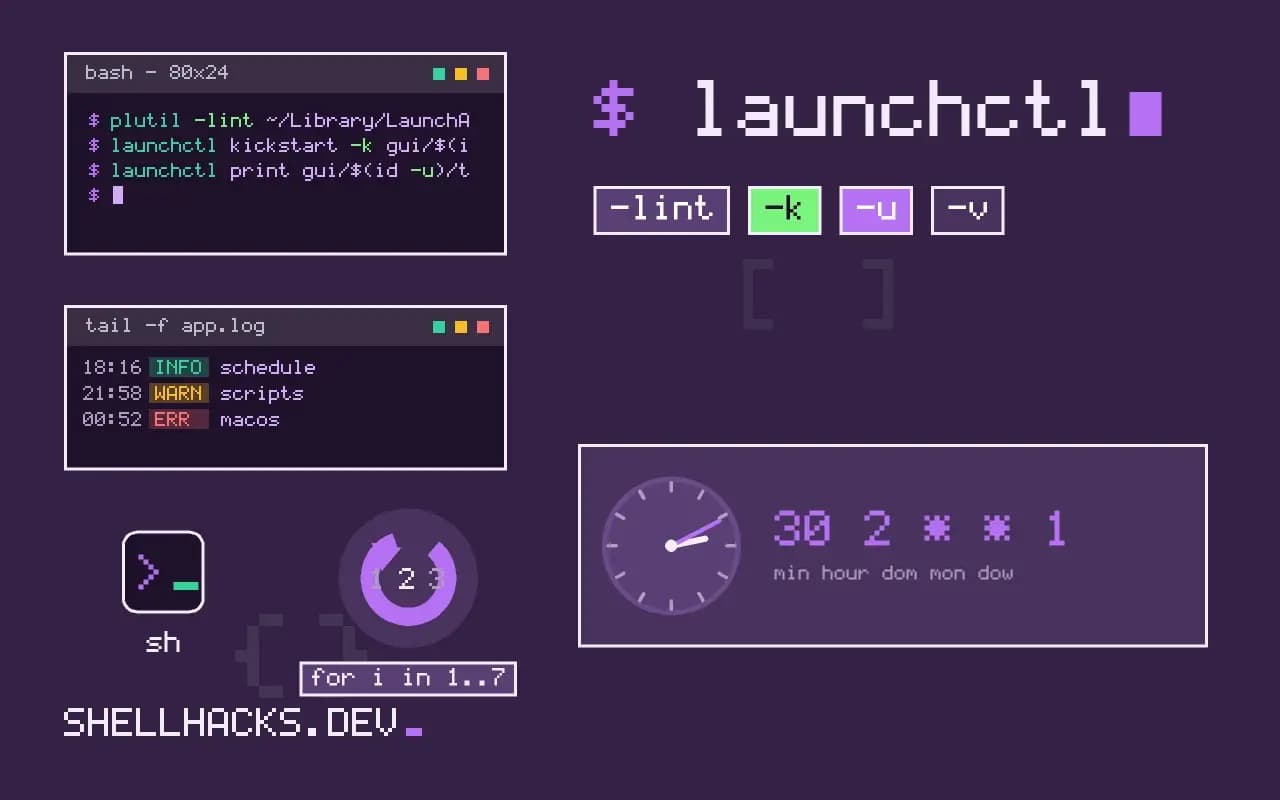
Save it as ~/Library/LaunchAgents/test.example.backup.plist; the file name should match the Label. ProgramArguments is the command split into an array: the first item is the program and there is no shell, so pipes and redirects do not work unless you call /bin/bash -c. Keys not given in StartCalendarInterval act as wildcards, so the example runs daily at 02:30. Use Weekday (0 or 7 is Sunday) for weekly jobs.
Load, test and remove
plutil -lint ~/Library/LaunchAgents/test.example.backup.plist
launchctl bootstrap gui/$(id -u) ~/Library/LaunchAgents/test.example.backup.plist
launchctl kickstart -k gui/$(id -u)/test.example.backup
launchctl print gui/$(id -u)/test.example.backup | head -20
launchctl bootout gui/$(id -u)/test.example.backup/Users/alice/Library/LaunchAgents/test.example.backup.plist: OK
plutil -lint catches XML errors before loading. bootstrap loads the job into your session, the modern form of the older launchctl load. kickstart -k runs it now, a quick test without waiting for 02:30. print shows state, last exit status and the next scheduled time. After editing the plist, bootout and bootstrap again.
Intervals and run at load
<key>StartInterval</key>
<integer>900</integer>
<key>RunAtLoad</key>
<true/>
StartInterval runs every 900 seconds, counted while the Mac is awake. RunAtLoad also runs it when loaded, at login. Avoid KeepAlive for scheduled jobs; it restarts the process whenever it exits, for services. To run when a file or directory changes, use WatchPaths or QueueDirectories, similar to the tools in inotify watchers.
Differences from cron
                  cron                 launchd
missed job        skipped              runs after wake (calendar jobs)
format            one line             plist (XML)
logging           mail / redirect      StandardOutPath, unified log
environment       minimal              minimal; set EnvironmentVariables
privacy (TCC)     needs Full Disk      agent inherits user context
                  Access for cron
Access to folders such as Documents or Desktop is controlled by macOS privacy settings; a job started by cron may need Full Disk Access granted to /usr/sbin/cron, while an agent can inherit what its program has been granted. If the script is a shell script, grant the interpreter or wrap it in an app. Also remember Homebrew's path: /opt/homebrew/bin on Apple Silicon is not on the default PATH for agents.
Where launchd looks for jobs
Launchd, the init system on macOS, loads job definitions from several directories. Files in ~/Library/LaunchAgents run as the logged-in user when they log in, /Library/LaunchAgents applies to all users, and /Library/LaunchDaemons runs system jobs as root regardless of who is logged in. A user agent can access the user's session, including the keychain and the display, while a daemon cannot. Choose according to what the job needs: a backup of a user's home directory is an agent, and a system maintenance script is a daemon. Files in /System belong to the operating system and should not be touched.
Name the file after the label inside it, such as com.example.backup.plist, using a reverse-domain label you control. Launchd uses the label as the job's identity, and two jobs with the same label conflict.
Modern load commands
The older launchctl load and unload commands still work but are deprecated in favour of bootstrap and bootout, which take a domain target: launchctl bootstrap gui/$(id -u) path.plist loads a user agent, and launchctl bootout gui/$(id -u)/label removes it. To run a job immediately for testing, use launchctl kickstart -k gui/$(id -u)/label, which starts it and restarts a running instance. To see the state and last exit status, launchctl print gui/$(id -u)/label prints a detailed report, including the next scheduled time and the environment.
After editing a plist, boot it out and in again. Launchd does not watch the file, and a stale job continues to run with its old definition until reloaded.
Environment, paths and logs
Like cron, launchd gives jobs a minimal environment. The path is short, often just /usr/bin:/bin:/usr/sbin:/sbin, so commands installed by Homebrew in /opt/homebrew/bin are not found unless you add an EnvironmentVariables dictionary or use absolute paths. Relative file paths resolve against the job's working directory, which defaults to the root of the file system, so set WorkingDirectory or use absolute paths. Send output to files with StandardOutPath and StandardErrorPath, and make sure the directory exists and is writable by the job's user, or the job fails silently.
Recent macOS versions add privacy protections: a job that reads the Documents folder, removable volumes or other protected locations needs the right permission granted to the program, which a background job cannot request by prompting.
Missed runs, sleep and diagnosing failures
An advantage over cron is behaviour around sleep. A calendar job that was due while the Mac was asleep runs once when it wakes, instead of being lost, and coalesces multiple missed runs into one. Jobs scheduled with StartInterval do not count time spent asleep, so they drift. Choose StartCalendarInterval for wall-clock times and expect run times to depend on power state. If a job does not run, check launchctl print for the last exit code, read the log files, confirm the plist is valid with plutil -lint, and check that the file is owned by the right user with permissions no wider than 644, since launchd refuses plists that others can write. Add a log line at the start of the script so you can tell whether it was started at all. For jobs that matter, add the same external heartbeat you would use on Linux, to detect silence.
Teams that manage many Macs often prefer a configuration management or MDM tool to deploy the plist and load it, which gives consistent results and a record of what was installed. Keep the plist and the script in version control, with the label in the file name, and write a short README that says what the job does, where it logs and how to remove it. Removing it cleanly means booting it out and deleting the file, and forgetting either step leaves a job that returns after the next login.
Where this does not apply
For jobs that must run when nobody is logged in, use a LaunchDaemon in /Library/LaunchDaemons, owned by root, loaded into the system domain with sudo launchctl bootstrap system. Sleeping machines do not run intervals. Cross-platform scheduling is easier with cron in a container. See Apple's scheduled jobs guide and the launchctl reference; for portability notes see date on macOS versus Linux.